You’ll mainly need a capture card if you want to record an external HDMI signal, such as one from a console or compatible camera, on your computer. To show your hands using the controller, you’ll also need a camera. If the game is running on the same PC as OBS, direct game or window capture may be enough. If you play on a separate monitor, make sure your console setup supports the right HDMI passthrough, and check the recording, monitor signal, connections and audio separately.
Who is filming a controller tutorial?
If you want to show how to use the controller
If you want viewers to see your fingers on the buttons, you’ll need a camera or another video source for the view of your hands. An HDMI camera adapter is only suitable if the camera outputs a compatible, unencrypted HDMI signal; Elgato specifies this requirement for the Cam Link 4K.
If you’re recording console gameplay on a monitor
For a tutorial that shows console gameplay while you play on a separate monitor, the recording and passthrough modes are key. Compare the device’s specific modes, and plan how you’ll route the audio in OBS.
If you have limited desk space
If you already have a laptop, camera and monitor, first work out which devices provide the video and what connections they use. This will help you decide whether you need an additional capture card for your setup.
What should you look for when choosing?
First decide whether you want to show your hands, console gameplay or both. Then you can work out the signal path and connections you’ll need.
| What you need |
What to check before buying |
Who is it important to? |
| Show your hands and controller |
Check that the camera has a suitable, unencrypted HDMI output and supports the required output format. |
If I want viewers to see my fingers and button presses in the tutorial, I’ll need a suitable camera and framing. Around 33% of consumers prioritise a view of their hands. |
| Record console gameplay and keep playing |
Compare the HDMI input, HDMI output, recording mode and passthrough mode separately. |
If I want to record console gameplay on my computer while watching it on my monitor, both signal paths need to work with my setup. Around 27% of consumers prioritise console gameplay footage. |
| Commentary and game audio |
Select the video and audio sources in OBS, then make a short test recording. |
If I want my explanations to be easy to understand, I’ll need to set up the commentary and game audio before recording. Around 20% of consumers prioritise clear commentary. |
| A simple setup |
Check your available USB and HDMI connections, as well as the operating system and requirements for the specific model. |
If I have limited desk space, I’ll want to use the devices I already own and keep the setup tidy. Around 20% of consumers prioritise a simple computer setup. |
Common buying mistakes
-
Confusing gameplay capture with filming your controller
A capture card for a console signal won’t show your fingers on the controller.
Before you buy, decide whether your finished tutorial needs to show how you use the controller, the gameplay or both views.
-
Assuming “4K” means 4K recording
Recording and passthrough can have different limits on the same model. For example, Elgato specifies passthrough up to 2160p60 for the HD60 X, but recording up to 2160p30. NZXT says that the Signal HD60 can pass through a 4K signal, but can’t record in 4K.
For the exact model you’re considering, compare the input signal, recorded output and monitor output separately.
-
Assuming an HDMI connection means everything is compatible
The camera format, USB connection, computer requirements and a protected HDMI signal can all affect your planned setup.
Make a note of your devices’ connections, check the requirements for the specific model, and test the picture and sound before you start recording.
Key brands at a glance
Elgato
The models listed here support different signal paths: the Cam Link 4K is an HDMI camera adapter, while the Game Capture 4K S and HD60 X are capture devices with HDMI passthrough.
- Elgato specifies recording up to 2160p60 for the 4K S. For the HD60 X, the manufacturer specifies recording up to 2160p30 and passthrough up to 2160p60.
- The Cam Link 4K requires a suitable camera with a compatible, unencrypted HDMI output. These specifications apply to the models listed, not necessarily to every device from the brand.
AVerMedia
The Live Gamer MINI GC311 offers an external way to record an HDMI console signal and pass it through to a separate monitor.
- AVerMedia specifies 1080p60 for both recording and passthrough on the GC311.
- According to AVerMedia, this model doesn’t support 4K, HDR or HDCP-protected signals. Also check the computer and operating system requirements for the GC311.
Razer
Razer’s Ripsaw X is designed to connect a compatible HDMI camera, making it an option when you want to show your hands in a tutorial.
- Razer specifies recording up to 4K at 30 frames per second for the Ripsaw X, and says it’s compatible with OBS.
- Check that the model’s stated connections will work with your camera and monitor setup.
NZXT
The Signal HD60 is an external HDMI option for a console or camera signal, with an output for a monitor.
- NZXT describes an HDMI output for passthrough and support for passing through a 4K signal.
- According to NZXT, the Signal HD60 can’t record a 4K signal in 4K after passing it through. HDR isn’t supported on this model.
Joybuy products for console and camera recording
These Joybuy products are capture cards for external HDMI signals. Before you buy, compare their recording and passthrough specifications, as well as the connections you need, with your own setup.
 No image available
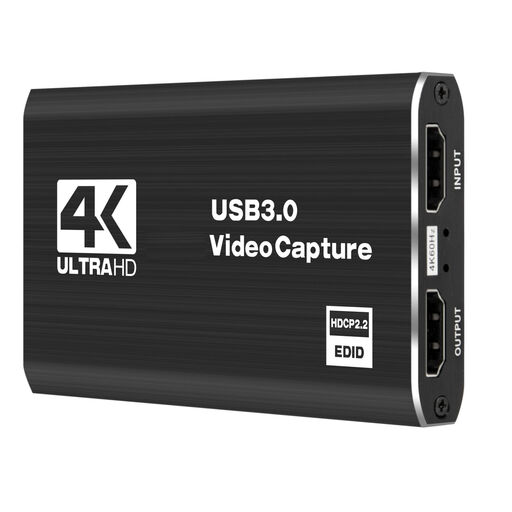
4K video capture card, USB 3.0, 5 ports
Designed for an external console or camera signal. Check the specific listing to see which recording format and passthrough mode will work with your screen.
View at Joybuy
 No image available
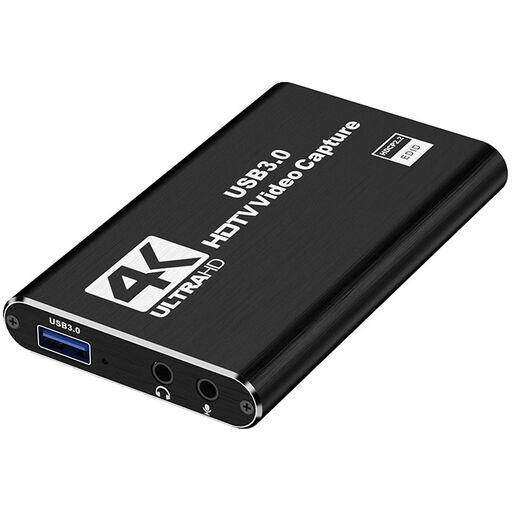
4K HDMI capture card, USB 3.0
Designed for an HDMI signal path between a source, computer and, if needed, a second screen. Check that the stated recording and input specifications are suitable for your console or camera.
View at Joybuy
 No image available
4K USB 3.0 capture card with audio capture
Designed for recording an external console or camera signal. Before you buy, check the recording resolution you actually need and how the picture will be passed through to your monitor.
View at Joybuy
 No image available
VIELLAN 4K HDMI video capture card, USB 3.0
Designed for external HDMI sources such as a console. Check the recording limit, passthrough mode and USB connection required for your planned setup.
View at Joybuy
 No image available
VIELLAN HDMI capture card, USB 3.0, with microphone and headphone connections
Designed for an external HDMI signal and a tutorial setup with commentary. Check that the video recording, passthrough and audio connections are suitable for your devices and preferred audio setup.
View at Joybuy
Frequently asked questions
Can a capture card film my hands on the controller by itself?
No. You’ll need a camera or another video source to show your hands. If you want to connect an HDMI camera using the Cam Link 4K, Elgato requires a compatible, unencrypted HDMI signal.
How do I connect a console, monitor and OBS?
With a model that has HDMI passthrough, connect the HDMI source to the card’s input, the card’s output to your monitor, and the card to your computer via USB. Add the card as a video capture device in OBS, then check the picture, frame rate and audio with a short test recording.
Why might my PlayStation picture be black?
The documented cards can’t record an HDCP-protected signal. Elgato says to turn off HDCP in the HDMI system settings before connecting its capture devices to record PS5 gameplay. This doesn’t make protected films or app content available for unrestricted recording.
What should I do if the capture card is faulty or I want to return it?
Your statutory rights against the seller are separate from any voluntary guarantee. According to the Verbraucherzentrale, if you’re entitled to a remedy, the seller is responsible for costs including transport. Check your proof of purchase, the seller and the terms of your contract for your specific purchase.
Can I show my flatmates in a tutorial I publish?
There’s no blanket answer without knowing the details of the recording. Under Section 22 of the German KunstUrhG, publishing identifiable images generally requires the consent of the person shown. Possible legal exceptions and other rights depend on the circumstances. Position your camera so that people who aren’t involved are kept out of shot wherever possible.


