Multi-track editing at your desk
If you regularly switch between footage, the timeline and control panels, keeping your windows organised is important. LG describes the 34BA75QE-B’s 21:9 format as offering a wider workspace.


A 21:9 ultrawide is a better fit if you want to arrange several tracks, the preview and control panels side by side; a 4K monitor makes more sense if you need to assess image detail. For colour matching, you’ll also need a colour mode suited to your output format and a well-planned calibration process. Gamut or HDR specifications alone don’t show how accurately colours will be displayed at your workstation.
If you regularly switch between footage, the timeline and control panels, keeping your windows organised is important. LG describes the 34BA75QE-B’s 21:9 format as offering a wider workspace.
If you’re matching footage shot under different lighting conditions for a set output format, your source footage, project and monitor mode all need to work together. Adobe explains why clips need to be assigned to the correct colour space; BenQ and EIZO list colour modes and features for specific models.
If you want to check image detail while working on a laptop, consider the resolution, video output, charging requirements and cable together. ASUS lists USB-C with 96 W Power Delivery for the PA279CRV.
First, decide whether arranging your editing windows side by side or checking detail in the preview window matters most. Then consider your output format, connectivity needs and available desk space.
A good fit if: you want to see several video tracks, the preview and your tools at once, and have enough desk space.
The trade-off: A 21:9 model with 3440 × 1440 pixels has fewer vertical pixels than the 4K models mentioned here, which have 3840 × 2160 pixels.
A good fit if: you want to check fine image detail and match footage for a set SDR output.
The trade-off: Compared with 21:9, you’ll have less horizontal space for the timeline and control panels; colour modes and coverage don’t replace the right project settings.
A good fit if: repeatable colour decisions are part of your work and you can build calibration into your workflow.
The trade-off: A calibration sensor or preset doesn’t replace assigning source clips correctly or setting a defined output colour space.
| What you need | What to check before buying | Who is it important to? |
|---|---|---|
| Keeping track of several video tracks | Compare the 21:9 format, native resolution, window layout and desk space required. | If I want to keep an eye on the timeline, preview and tools at once, the right layout matters to me. Around 40% of consumers put timeline visibility first. |
| Matching colours across footage | Set your output format and the right monitor mode; consider calibration and the lighting at your workstation. | If I’m matching footage for a set output, I need a colour workflow that suits it. Around 30% of consumers prioritise colour matching. |
| Checking image detail in the preview | Check the native resolution, readability at your preferred scaling and the size of the preview window. | If I want to assess fine detail, I pay more attention to preview resolution than to maximum timeline width. Around 20% of consumers put checking detail first. |
| Connectivity and setup at your editing desk | Check your computer’s video output, charging requirements, cable and monitor stand together. | If I want to connect my laptop at my editing desk, the picture signal and power supply need to work together. Around 10% of consumers prioritise laptop connectivity. |
A 21:9 model with 3440 × 1440 pixels gives you a different layout from a 4K model with 3840 × 2160 pixels: it has fewer vertical pixels.
Try arranging your timeline, tools and preview at the intended resolution before choosing a format.
Colour decisions also depend on whether source clips are assigned correctly, the output is right and the monitor is set up appropriately. An HDR10 specification alone doesn’t prove that a monitor is suitable for professional HDR grading.
First set your SDR or HDR output, then check the monitor mode, clip assignments and calibration process. Adobe notes that you’ll need a colourimeter for objective calibration.
You may also need a colourimeter for objective calibration.
A USB-C port alone doesn’t tell you whether your laptop, cable and monitor will support the required picture signal and charging power together.
Check your laptop’s video output and charging requirements against the monitor specifications, and make sure the cable is suitable.
According to LG, the 34BA75QE-B is a 34-inch, 21:9 model with 3440 × 1440 pixels.
BenQ describes the DesignVue PD2705U as a 27-inch 4K model designed for sRGB and Rec.709.
According to ASUS, the ProArt PA279CRV combines a 27-inch screen and 3840 × 2160 pixels with several colour presets.
EIZO positions the ColorEdge CG2700X for video post-production and colour grading with regular colour management.
According to Dell, the UltraSharp U3425WE is a 34-inch, 21:9 option with a hub.
The models below include 21:9 ultrawide and 4K options for your editing workspace and image preview. Check that the colour workflow, space requirements and connectivity are right for your setup.
 No image available
The 40-inch, 21:9 format is designed to give you a wide editing workspace; check that you have enough desk space and that the window layout suits your setup.
The product name lists 5120 × 2160 pixels, IPS, 100 Hz, USB-C with 65 W PD, PIP and PBP, as well as DeltaE < 2.
 No image available
The stated 4K resolution is worth considering if you want to check image detail in the preview; also think about how much space you need for the timeline and tools.
The product name lists 3840 × 2160 pixels, a VA display, 3000R curvature, 100% sRGB and HDR10. These specifications alone don’t prove professional colour accuracy.
 No image available
The 21:9 format gives you plenty of room for your timeline and tools; its resolution has fewer vertical pixels than a 4K display.
The product name lists 3440 × 1440 pixels, a VA display, 200 Hz, 1500R curvature and PIP/PBP.
 No image available
The stated 4K resolution may appeal if you want to check image detail; the 16:9 format gives you less horizontal space for the timeline and tools than 21:9.
The product name lists 3840 × 2160 pixels, IPS, 120 Hz, HDR500 and USB-C with 90 W Power Delivery. Whether the picture signal and charging power are right for you also depends on your laptop and cable.
 No image available
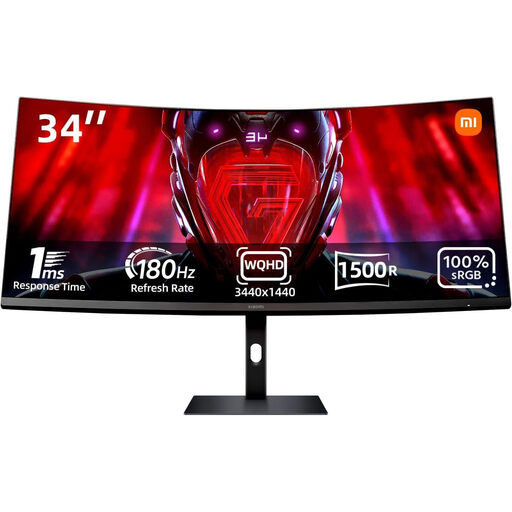
The stated 21:9 resolution gives you a wide workspace for several editing windows; for fine detail, it has fewer vertical pixels than a 4K display.
The product name lists 3440 × 1440 pixels, 180 Hz, 100% sRGB and HDR10. The gamut specification alone doesn’t prove colour accuracy in your specific workflow.
No, not just because of the subject matter. First decide on your intended output: Adobe describes separate settings for SDR and HDR sequences and lists Rec.709 as the output for an SDR preset. An HDR10 specification on a monitor’s data sheet doesn’t, by itself, prove that it’s suitable for professional HDR grading.
Set the monitor mode to match your output and check that the source clips are assigned the right colour space in your editing software. Adobe describes using a colourimeter for objective calibration; consistent lighting at your workstation is important too.
You can’t tell from the connector type alone. Check your specific laptop’s video output, the cable and its charging requirements against the monitor specifications: ASUS lists 96 W for the PA279CRV, while LG lists 90 W power delivery for the 34BA75QE-B.
According to Verbraucherzentrale, you’ll generally have a 14-day right to cancel an eligible consumer contract made online; your statutory rights against the seller and a voluntary guarantee are different. To compare ongoing electricity use, check the energy label and the details for the specific model in EPREL.