Which solution suits you?

Co-op hosts with two video sources

If you want to show your game and another HDMI source separately in OBS, compare the number and type of inputs, as well as the connection to your computer. AVerMedia lists two HDMI inputs for its internal Live Gamer DUO GC570D.

Hosts with multiple voices

For game audio, commentary and your co-players’ voices, make sure your audio sources and monitoring are set up appropriately. OBS Project warns that adding the same audio source twice can cause echo.

Console hosts with a gaming monitor

If you’re capturing an external HDMI game feed, don’t assume the monitor passthrough specification is the same as the recording quality. Elgato lists different specifications for passthrough and recording on the Game Capture Neo.

What to look for when buying

Buying priority What to look for Who it matters most to
Separate video sources Count the HDMI sources you want to show separately on your stream, then check the inputs, recording formats and connection to your computer. If you want to show your game and a second HDMI source separately in OBS, you’ll need suitable separate inputs. Around 29% of consumers put this separation of video sources first.
Co-op audio and microphone Plan separate signal paths for game audio, party chat and room microphone, then listen to a test recording for echo. When game audio, co-players and commentary come together, I want to be able to check each audio source individually. Around 29% of consumers prioritise clear co-op audio.
Monitor image and recording For the specific model, check the HDMI input, passthrough and recording specifications against your desired resolution and frame rate. If you want to keep a particular monitor display mode while gaming, compare passthrough and recording separately. Around 24% of consumers put this first.
Simple setup If your game and OBS are running on the same Windows PC, try Game Capture first; otherwise, check which connections and cables you’ll need. If space is limited and you want to keep the number of devices down, it’s worth planning your setup in advance. Around 18% of consumers prioritise an easy setup.

Common buying mistakes

  • Assuming two players means two HDMI inputs

    Having two people in the room doesn’t automatically mean you need two separate HDMI signals. What matters is whether your stream needs to show one shared game image or two independently capturable images.

    Before choosing, write down every view you want on your stream and the HDMI source for each one.

  • Confusing passthrough with recording quality

    For the Elgato Game Capture Neo, the manufacturer specifies passthrough up to 2160p60, but recording up to 1080p60. These figures describe different signal paths.

    Check the recording and monitor output specifications separately in the datasheet for the specific model.

  • Assuming a good picture means complete co-op audio

    Capturing the game image doesn’t tell you whether game audio, chat and your room microphone are also coming through on the stream. OBS treats video sources, audio sources and monitoring as separate settings; adding the same audio source twice can cause echo.

    Record a short test with everyone you want to hear, then listen to each source individually.

    Depending on the equipment you already have, you may need extra audio cables or a separate microphone.

  • Planning to use a camera capture card for gaming passthrough

    The Razer Ripsaw X manual describes an HDMI input and a USB output, but no separate HDMI output to a gaming monitor.

    Check the HDMI outputs and intended signal path specifically for your monitor.

Relevant brands to consider

Elgato

The Game Capture Neo, 4K S and 4K X have different manufacturer specifications for recording and monitor passthrough.

  • Elgato specifies recording up to 1080p60 and passthrough up to 2160p60 for the Neo. For the 4K S, the manufacturer lists recording up to 2160p60; the 4K X supports higher frame rates.
  • According to Elgato, HDR recording on the 4K S is currently limited to Windows and up to 1080p60. The Neo does not include an HDMI cable. These are manufacturer specifications, not independent performance test results.

AVerMedia

The internal Live Gamer DUO GC570D is worth considering for separate HDMI video sources; the external Live Gamer ULTRA 2.1 GC553G2 is a useful point of comparison for high passthrough modes.

  • AVerMedia describes the GC570D as having two HDMI inputs. For the GC553G2, the manufacturer lists a party chat feature.
  • According to AVerMedia, the GC570D requires PCI-Express x4 Gen 2; both inputs support recording up to a maximum of 1080p60, and the described HDMI passthrough output is assigned to input 1. The manufacturer says the GC553G2’s 4K144 recording specification applies to Streaming Center on Windows in MJPEG format.

NZXT

The Signal HD60 and Signal 4K30 are external options to compare for single-source setups.

  • NZXT lists recording up to 4K30 and HDR passthrough up to 4K60 for the Signal 4K30; the German manual lists HDMI and USB cables as included.
  • For the Signal HD60, NZXT distinguishes between a 4K signal that can be read or passed through and recording that is limited to Full HD. These are manufacturer specifications.

Razer

The Ripsaw X is especially relevant if you also want to use a compatible HDMI camera as a video source.

  • The Razer manual describes an HDMI input and a USB output for audio and video data.
  • The manual does not describe a separate HDMI output to a gaming monitor. So check the monitor signal path separately from the camera capture setup.

Joybuy products for an external game feed

This selection focuses on external HDMI capture cards for streaming and recording a game feed. Check the specific model to see whether it supports the number of separate sources you need.
HDMI capture card with 5 ports

HDMI capture card, 5 ports, 1080p60 recording

For an external HDMI game feed; a microphone input and headphone output are listed.

HDMI input up to 4K30; recording up to 1080p60.

Joybuy

USB 3.0 HDMI capture card

USB 3.0 HDMI capture card, 1080p60 recording

For an external game feed to a PC or laptop; a microphone input and headphone output are listed.

HDMI input up to 4K30; recording up to 1080p60.

Joybuy

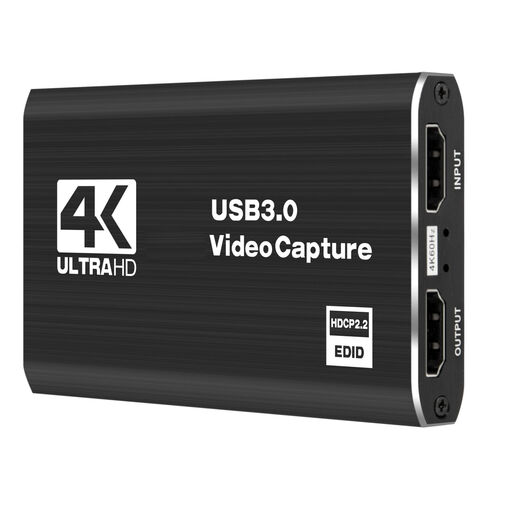
USB 3.0 video capture card with 4K signal pass-through

USB 3.0 capture card, 4K/60 Hz passthrough

For an external game signal path; the description lists games consoles as a possible source.

4K/60 Hz input and passthrough; recording up to 1080p/60 Hz. Compatible systems listed are Windows, macOS and Linux.

Joybuy

Frequently asked questions

Do I need a capture card if the co-op game is running on my streaming PC?

Not necessarily. If your game and OBS are running on the same Windows PC, OBS Project recommends trying Game Capture first. For a separate console or a second PC, however, you’ll need to plan for a separate signal path.

How can I check that both voices are coming through before I stream?

Add the video and audio sources you plan to use in OBS, then listen to a short test recording with the game audio and both voices. OBS Project warns that using the same audio source both as a scene source and globally can cause echo.

What can I check if my PS5 isn’t showing a picture through the capture card?

Elgato explains that its capture devices can’t record HDCP-protected HDMI signals. For gameplay recording, Elgato’s product-specific guide explains how to connect the PS5 directly to the monitor and switch off HDCP in the system settings. This does not make protected films or streaming services recordable, and it is not permission to bypass rights.

What are my rights when buying a capture card online in Germany?

According to Verbraucherzentrale, consumers making a typical online purchase generally have a 14-day right to cancel; you must notify the seller that you wish to cancel. Your statutory rights against the seller are separate from any voluntary manufacturer’s warranty.

Can I simply stream my co-players and any music I like?

A capture card does not give you the rights to publish content. Under Section 22 of the German Kunsturhebergesetz, distributing or publicly displaying images of people generally requires their consent; for personal data, the BfDI explains possible legal grounds and requirements for consent. The German Copyright Act also protects rights in works made available to the public and broadcast. Before streaming publicly, check which image, audio and music rights actually apply; this does not mean you have blanket permission to stream every game or chat.