For a booklet that’s mainly text with reference images inserted, start by checking that your word-processing software is compatible, the keyboard is comfortable and there’s enough room to view both the document and image reference. If you’ll be editing images in Photoshop or creating a print-ready layout in InDesign, also check the requirements for the version of the software you’ll use, along with your file and PDF workflow. A larger display makes it easier to see everything at a glance, but can be less convenient if you need to carry your laptop around often.
What matters for different users
Booklet authors
If you’re mainly writing instructions and adding selected reference images, consider your word-processing software, the keyboard and how easily you can view the document and image reference. Microsoft Support explains the image resolution settings available when inserting images in Office.
Image editors and layout designers
If you’re editing lots of images or preparing pages for print, check the requirements of the software you plan to use, as well as image compression and PDF output. Adobe provides system requirements for Photoshop and InDesign, along with options for exporting PDFs.
Designers who review work on the move
If you take drafts to work meetings, you’ll need to weigh portability against the size of the built-in display. Apple and Dell offer different display sizes and configurations, so compare the specific model variants and the ports you need.
What to look for when buying
First, decide which programmes you’ll use and whether you’ll simply insert images, edit them or prepare the booklet for print. Then you can work out the right display, memory and storage for your needs.
| Priority |
What to check when buying |
Who it matters to |
| Writing and viewing pages |
Compare compatibility with your word-processing software and operating system, the keyboard layout, and the size and resolution of the specific display. |
If I want to work on my manuscript and image references clearly while writing, software and screen space are especially important. Around 36% of consumers put writing and page work first. |
| Editing reference images |
Check whether you’ll simply insert images or edit them in Photoshop. For the version you’ll use, check the memory and available SSD storage. In Word, pay attention to the document’s image quality settings. |
If I’ll also be editing reference images and managing several image files, I’ll check my software’s requirements and how much storage I need. Around 29% of consumers prioritise image editing. |
| Preparing the booklet for print |
Agree the PDF format and requirements for compression, colour and bleed with the printer, and use the appropriate export settings in your layout software. |
If the booklet is going to be printed, getting the print file right matters more to me than the display specification alone. Around 21% of consumers put print output first. |
| Reviewing drafts on the move |
Check the weight and display size of the specific variant, the ports you need and the conditions attached to any stated battery life. |
If I want to take drafts to meetings and show them there, I’ll need to balance screen space against portability. Around 14% of consumers prioritise reviewing work on the move. |
Common misconceptions to avoid
-
Assuming 16 GB of RAM is essential for every booklet with images
Adobe’s memory requirements depend on the version of Photoshop or InDesign you’re using; they aren’t a blanket recommendation for inserting an image into a text document. First decide which programmes you plan to use and how you’ll edit images, then compare their requirements with the specific laptop variant.
You could end up paying for specifications you don’t need. Remember to factor in the cost of any software you require, too.
-
Assuming a good display means your print file is ready
PDF export, image compression, colour and bleed all depend on your export settings. Check the printer’s requirements before submitting your file.
Incorrect settings could mean extra rounds of corrections to your print file.
-
Assuming a model range name guarantees touch or pen input
Touch and pen features aren’t automatically available on every variant in a product family. Check whether the exact version you’re ordering supports touch and your chosen pen, and find out what’s included in the box.
You may need to buy accessories separately for direct input.
Brands and model ranges to consider
Apple
The MacBook Air with M5 is a useful point of comparison for mobile writing and image work on macOS. Apple offers 13- and 15-inch versions.
- Apple lists a 13.6-inch display, 16 GB of unified memory and a 512 GB SSD as standard on the 13-inch version.
- Apple’s stated battery life is based on video playback or web browsing tests, not a booklet-making workflow. Also check software compatibility and the ports you need.
Lenovo
The ThinkPad E14 Gen 7, part number 21SX000RGE, is an example of a 14-inch Windows laptop for writing.
- For this exact variant, Lenovo lists 16 GB of RAM, a 512 GB SSD and a matte IPS display with a resolution of 1,920 × 1,200 pixels.
- These specifications apply to the part number shown and shouldn’t be assumed to apply to other E14 configurations.
ASUS
The Zenbook S 16 range is an example of a larger display for working with images and page layouts.
- ASUS lists a 16-inch OLED display and a weight of 1.5 kg for the configuration described.
- These are the manufacturer’s specifications for the configuration described, not an independent colour measurement or confirmation of every regional variant.
Samsung
The Galaxy Book5 Pro 360 is an example of a Windows convertible if you’d like to make direct annotations on reference images.
- Samsung lists a multi-touch screen for the Galaxy Book5 Pro 360.
- Touch or pen features on this model aren’t automatically available on other Galaxy Book variants. Check the exact configuration and what’s included in the box.
Dell
The Dell Pro 16 Plus PB16250 is a 16-inch option for working on documents with a larger built-in display.
- For the configuration described, with a Core Ultra 5 235U, Dell lists 16 GB of RAM, a 512 GB SSD and a resolution of 1,920 × 1,200 pixels.
- The model family includes different RAM and display configurations. Check the specifications of the exact offer, not just the family name.
Joybuy products for writing, images and layout
This selection includes 16-inch laptops for writing and page work, as well as a 14-inch convertible for annotating images directly.
 No image available
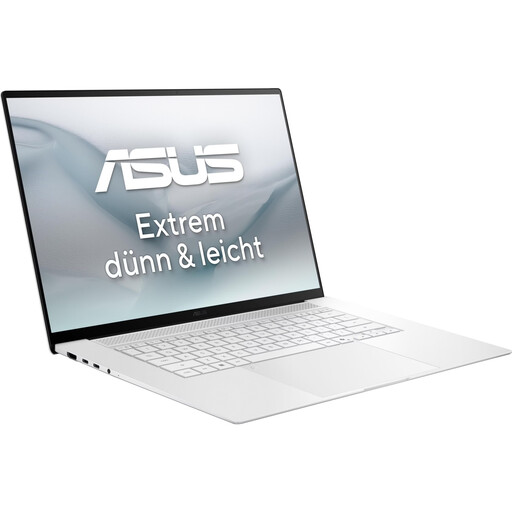
ASUS Zenbook S16 UM5606GA-SS335W
This 16-inch model is a good option for writing and page work, with a larger built-in workspace.
16-inch WQXGA OLED display; AMD Ryzen AI 9 465; 32 GB RAM and 1 TB SSD; Windows 11. The product name indicates that no power adapter is included.
View at Joybuy
 No image available
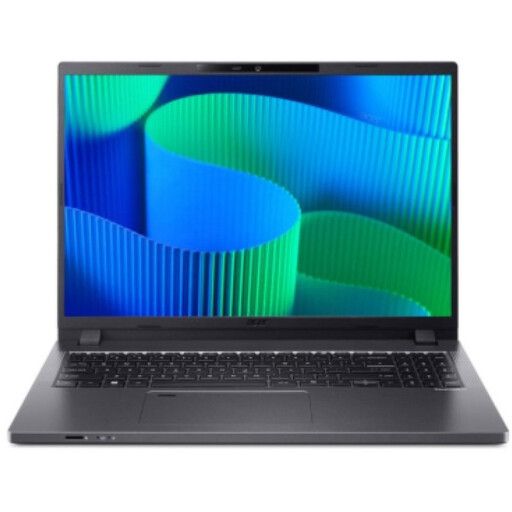
Acer TravelMate TMP216-41-TCO
The 16-inch display gives you plenty of built-in workspace for editing your manuscript and reference images on your laptop.
16-inch WUXGA; AMD Ryzen 3 PRO 7335U; 16 GB DDR5 and 512 GB SSD; Windows 11 Pro Education.
View at Joybuy
 No image available
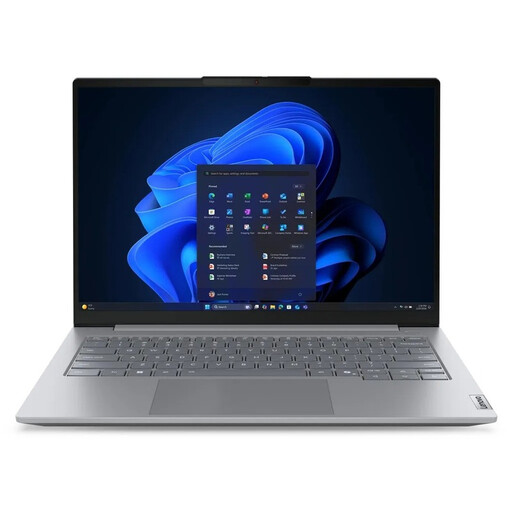
Lenovo ThinkBook 16 G9 AHP 21UT
This 16-inch laptop gives you more built-in screen space for working with text and reference images.
AMD Ryzen 5 220 at 3.2 GHz; Radeon 740M; 32 GB RAM and 1 TB NVMe SSD; Windows 11 Pro.
View at Joybuy
 No image available
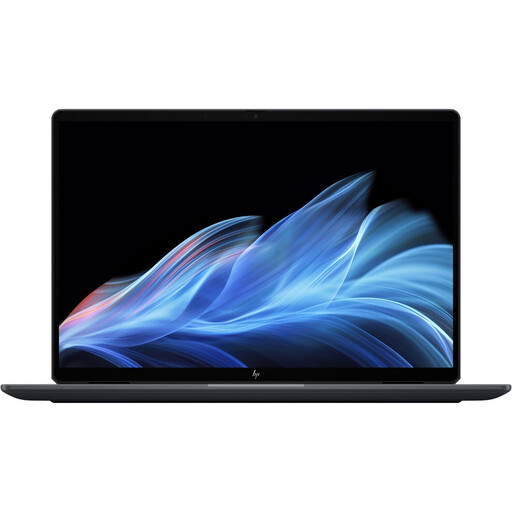
HP OmniBook Ultra Flip 14-fh0670ng
If you’d like to annotate reference images directly on the screen, this 14-inch convertible has a touchscreen.
Intel Core Ultra 7 258V; 32 GB RAM and 1 TB SSD; 2.8K OLED touchscreen; Windows 11 Home.
View at Joybuy
 No image available
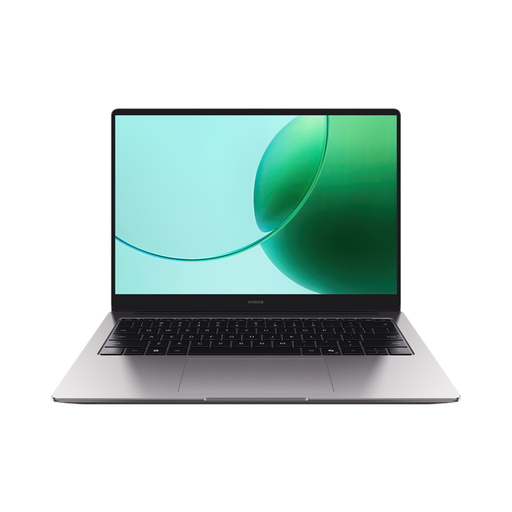
HONOR MagicBook X16 AMD 2025
The 16-inch display gives you built-in workspace for writing with reference images.
AMD Ryzen 5 6600H; 16 GB RAM and 512 GB SSD; German keyboard; Cloud Gray colour.
View at Joybuy
Frequently asked questions
Do I need Photoshop or InDesign to make a booklet with reference images?
No, not just to insert images: Microsoft explains the image and quality settings available in Word. If you’ll be editing images in Photoshop or creating a print layout in InDesign, check the requirements for the specific version you’ll use.
How can I stop reference images losing quality unnecessarily in my document?
Check Word’s settings for high image resolution and document image compression. Less compression can mean larger files. In InDesign, PDF export options also affect image quality and file size.
What should I agree with a printer before submitting my booklet?
Ask which PDF format they need and what their requirements are for bleed, image compression and colour. In InDesign, these are controlled by the export settings; check the printer’s requirements before you proceed.
Can I use other people’s reference images or photos of people in a published booklet?
Buying a laptop doesn’t give you the rights to use images. Before reproducing or publishing images belonging to others, check that you have the necessary usage rights. Under § 22 KunstUrhG, consent from the person depicted is generally required to use their image, subject to legal exceptions such as those in § 23.


