What should you look for when buying?
First, decide which editing software you’ll use, along with the resolution and codec of your recordings. Then choose RAM, storage and connections to suit your workflow. Adobe’s recommendations for Premiere are specific to that programme and don’t automatically apply to other editing software.
| What matters |
What to look for when buying |
Who should pay particular attention? |
| Smooth editing |
Check the resolution and codec against your editing software’s requirements. Adobe recommends 16 GB of RAM for HD and 32 GB or more for 4K and above in Premiere. |
If I regularly edit demonstrations, I want the editing experience to suit my footage and software without paying for more power than I need; around 33% of consumers put smooth editing first. |
| Separate audio recording |
Check the synchronisation features and whether your recordings include suitable reference points. Adobe explains how to synchronise separately recorded clips in Premiere. |
If the video and speech are in separate files, I want to line them up and monitor the audio as I listen back; around 25% of consumers prioritise synchronising separate audio recordings. |
| Local media storage |
Allow space for the application, cache, projects and media files. For Premiere, Adobe recommends a fast internal SSD and an additional fast media drive for media files. |
For local projects, I want enough room for raw footage, audio files and working versions, and to estimate my needs in advance; around 25% of consumers prioritise local media storage. |
| Portability and connections |
Check the connections for your camera, recorder, memory cards and headphones, as well as the display on the exact model configuration. |
If I import and edit in different locations, I need the right connections and enough screen space to work comfortably, without carrying unnecessary bulk; around 17% of consumers prioritise mobile transfers and reviewing footage. |
Joybuy products for video editing
The Joybuy models below are Windows laptops for editing local video and audio files. Compare the RAM, SSD, graphics, connections and display with your editing software and recording format.
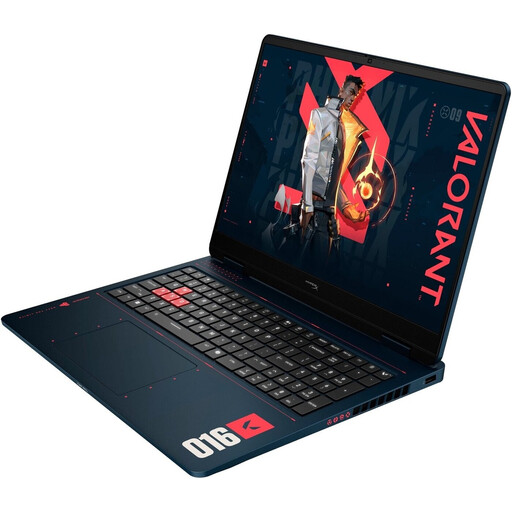 Image unavailable
HP OMEN 16-ap1099ng
Could suit you if you’re looking for a 16-inch laptop with specified RTX graphics and a headphone socket. Check that its features match your editing software and footage.
24 GB RAM, 1 TB SSD, GeForce RTX 5070, headphone and microphone input, and Windows 11 Home.
For Premiere, Adobe recommends 32 GB of RAM or more for 4K and above; this model is listed with 24 GB.
View on Joybuy
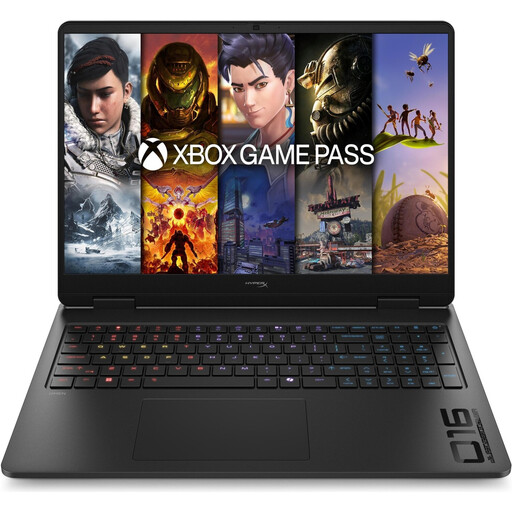 Image unavailable
HP OMEN 16-ap1071ng
Could be worth considering for local projects and listening back to separate audio tracks, if 16 GB of RAM is suitable for your footage and software.
16 GB RAM, 1 TB SSD, GeForce RTX 5060, and headphone and microphone input.
For Premiere, Adobe recommends 32 GB of RAM or more for 4K and above; check the requirements particularly carefully if you edit in 4K.
View on Joybuy
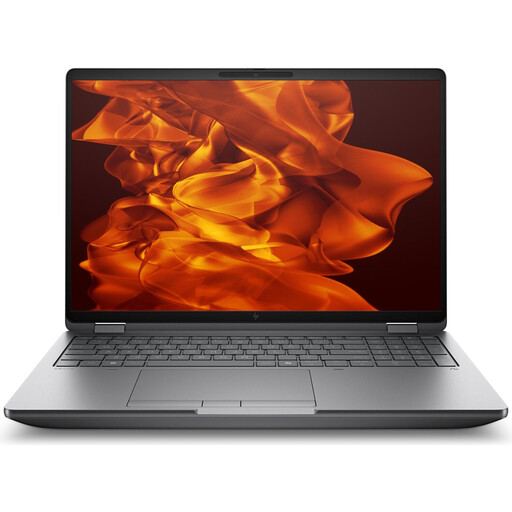 Image unavailable
HP ZBook Fury 16 G1i Mobile Workstation
An option if you’re considering a mobile workstation with specified professional graphics and a larger local SSD. Whether you need these features depends on your software and footage.
64 GB RAM, 2 TB SSD NVMe, RTX PRO 4000 Blackwell, Thunderbolt 4 and Gigabit Ethernet.
Features a 16-inch display; check the connections and full specifications of the model on offer.
View on Joybuy
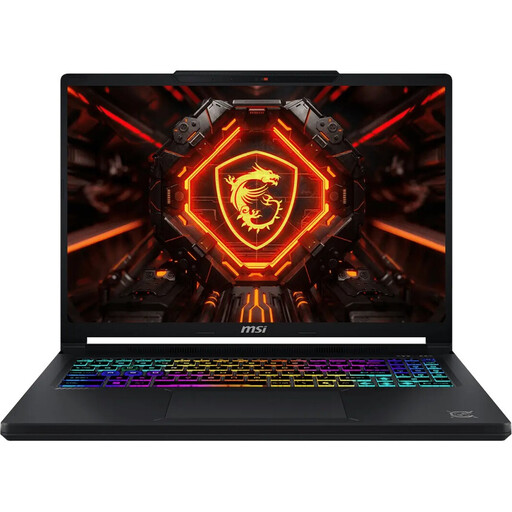 Image unavailable
MSI Crosshair 16 Max HX E2WGXK-023
Could suit you if you want a 16-inch OLED display and a 3.5 mm audio socket. Check that 16 GB of RAM meets the requirements of your footage and editing software.
16 GB DDR5, 1 TB SSD, GeForce RTX 5070 with 12 GB, QHD+ 165 Hz OLED display and Windows 11 Home.
For Premiere, Adobe recommends 32 GB of RAM or more for 4K and above.
View on Joybuy
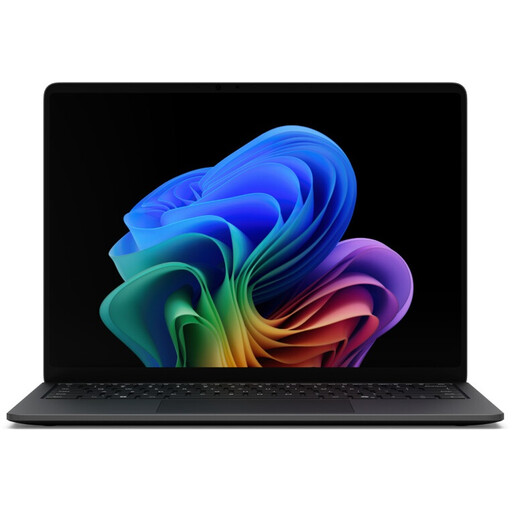 Image unavailable
Microsoft Surface Laptop 8 Core Ultra 5, 16 GB RAM, 512 GB SSD
Could be a good choice for working on the move if a light weight and Thunderbolt 4 matter more to you than having plenty of room for several editing tracks.
16 GB RAM, 512 GB SSD, integrated Intel graphics, Thunderbolt 4, headphone socket and a weight of 1.3 kg.
The 13.8-inch display offers less workspace than the 16-inch laptops listed here. For Premiere, Adobe recommends 32 GB of RAM or more for 4K and above.
View on Joybuy
Frequently asked questions
Do I need a special audio input on my laptop for separate voice recordings?
Not just because you recorded the audio separately: in Premiere, you can synchronise separately recorded video and audio clips after importing them. Check how you’ll transfer files from your specific recorder and monitor the audio while editing.
How do I synchronise video and audio recorded separately?
In Premiere, you can line up clips manually on the timeline or use the synchronisation feature with a suitable reference point, such as shared timecode, markers or an audio channel. Check the result during playback; the reference point you use must be present in the recordings.
Do I always need 32 GB of RAM for video editing?
No. Adobe recommends 16 GB for HD footage and 32 GB or more for 4K and above in Premiere. For other programmes or less demanding footage, check their requirements and consider your workflow.
Who is responsible if a laptop is faulty, and can you always cancel an online purchase?
If you buy from a trader as a consumer, your statutory rights are generally against the seller. According to Your Europe, new goods in the EU come with a minimum two-year legal guarantee from the date you receive them. Consumers generally have a 14-day cancellation period for distance contracts, although exceptions apply. Whether these consumer rights apply to a purchase explicitly made for business use can’t be determined solely by how you intend to use the laptop.
Can I publish a craft demonstration featuring identifiable people?
You can’t assume that you have blanket permission. If people can be identified in the video or audio, processing their personal data may require a legal basis. The requirements depend on several factors, including who is involved, the recording and the purpose of publication. The Federal Commissioner for Data Protection and Freedom of Information and the Data Protection Conference provide guidance on this.


