Multicam editors
If you’re combining several angles of a craft demonstration, make sure playback and export are suited to the resolution, codec and editing software you use.


Start by choosing a laptop based on your editing software, the format of your original files and the number of tracks you’ll use at the same time. Then check the memory, graphics, SSD and ports on the specific configuration. Adobe provides its own hardware recommendations for Premiere, while proxies can make working with large files easier but require additional storage. A larger creator or workstation laptop gives you more screen space; for working on the move, portability and suitable ports matter more. No one type of laptop is automatically right for every project.
If you’re combining several angles of a craft demonstration, make sure playback and export are suited to the resolution, codec and editing software you use.
If you keep original clips, project files and working copies on your laptop, allow room for projects and the media cache. Adobe describes a local import and proxy workflow for Premiere.
If you film in different locations, suitable ports and a display that works for your needs are important. Compare these features with the weight of the specific device.
Start by choosing your editing software and checking the specifications of your original files. Then decide whether performance headroom, local storage, image monitoring or portability matters most for your workflow.
| Consideration | What to check before buying | Who is it important to? |
|---|---|---|
| Multitrack editing | Compare the processor, memory and graphics with your editing software’s recommendations and the formats of your clips. For Premiere, Adobe recommends, among other things, at least 32 GB of RAM and a GPU with at least 4 GB of VRAM for Windows or Intel Mac systems. | If I want to edit several high-resolution clips at once, I want to consider the software, codec and device configuration together. Around 33% of consumers say multitrack editing is their top priority. |
| Local project storage | Allow space for original files, projects, proxies and cache. Adobe recommends using a fast SSD or NVMe drive for the Premiere media cache. | If you keep original files and current projects locally, remember to account for working copies and cache too. Around 27% of consumers put local project storage first. |
| Image monitoring | Compare the display size, resolution and published colour gamut specifications for the exact model with your output format. Manufacturer specifications are not an independent measurement of the screen. | If I want to assess the framing and colours of my demonstration on the device, I look for a display that suits my target format. Around 20% of consumers say image monitoring is their top priority. |
| Mobile setup | Check that the ports and card reader work with your camera, memory cards and drives. Also check the laptop’s weight and what’s included in the box. | If you transfer footage while out and about, you need a portable device that can connect to your own media. Around 13% of consumers place the greatest importance on portability and media connections. |
| Equipment to suit your needs | Choose your software and consider your footage before comparing the memory, graphics and SSD on a specific model. A component name alone doesn’t tell you whether the configuration will be suitable for your project. | If I mainly edit shorter or less demanding demonstrations, I don’t want to choose equipment when its benefits for my files are unclear. Around 7% of consumers prioritise spending in line with their own needs. |
Graphics, memory and display specifications can vary within a range. A review of one tested model doesn’t confirm the specifications of every version.
Compare the full model number and specifications of the specific offer with the requirements of your editing software.
When editing locally, you may need space for project files, proxies and the media cache as well as your original footage. Adobe describes using local media with Premiere and recommends fast storage for the cache.
Estimate how much space your footage will take up and check that you have enough SSD capacity for projects and working files, or a suitably connected drive.
Proxies and cache can take up extra storage space. If you’re using an external drive, you’ll also need a suitable port and a clear filing system.
What’s included and the available ports can make a real difference to how you use your laptop. Check they’re suitable for the specific model and your memory cards and drives.
Before buying, check what’s included, the charging requirements and the ports on the configuration being offered.
Depending on the offer and the accessories you already have, you may need to buy a separate power adapter or an adaptor.
The ProArt P16 range may be worth considering if you’re looking for a suitable Windows configuration for creative work.
A ThinkPad T1g may be worth considering if you want to combine video editing with business features or upgradeable memory.
A MacBook Pro is particularly worth considering if your existing editing workflow uses macOS and Final Cut Pro.
The Pro Max 16 range offers configurable mobile workstations for Windows workflows.
ZBook is another workstation range to consider if you’re looking for a suitably equipped Windows device.
The following Joybuy offers include MacBook Pro configurations and a Windows laptop. Compare them based on your editing software, memory, SSD and the ports you need for your media.
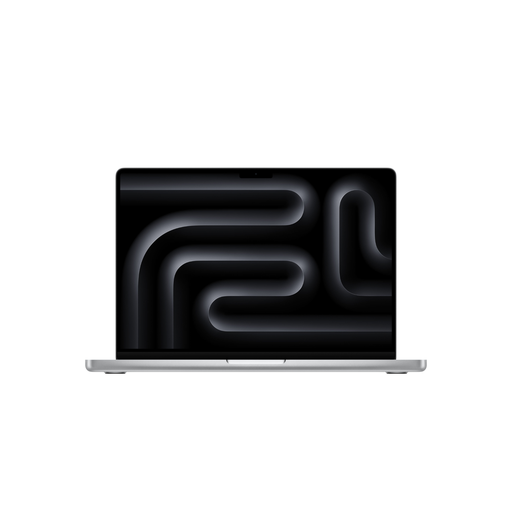 No image available
The listed storage and SDXC card slot may be useful for local projects and compatible memory cards.
M5 Max with 18-core CPU and 40-core GPU; 48 GB unified memory; 2 TB SSD; 16.2-inch display. Also listed: SDXC, HDMI and Thunderbolt 5. Power adapter not included.
No image available
This model may suit a macOS workflow. Check its specifications against your editing software and project requirements.
M5 Pro with 18-core CPU and 20-core GPU; 24 GB unified memory; 1 TB SSD. Power adapter sold separately.
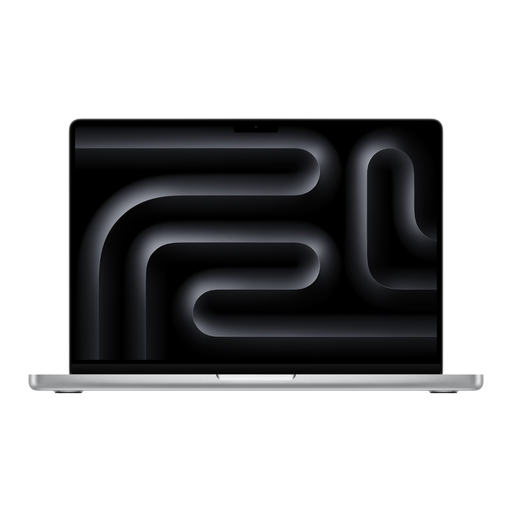 No image available
This model combines the listed 1 TB SSD with 48 GB of memory. Check that these capacities suit your original files and projects.
M5 Pro with 18-core CPU and 20-core GPU; 48 GB of memory; 1 TB SSD.
 No image available
The 14-inch model has the smaller display in this selection. Consider the screen space you’ll need when working with the timeline.
M5 Pro with 15-core CPU and 16-core GPU; 24 GB of memory; 2 TB SSD. Power adapter not included.
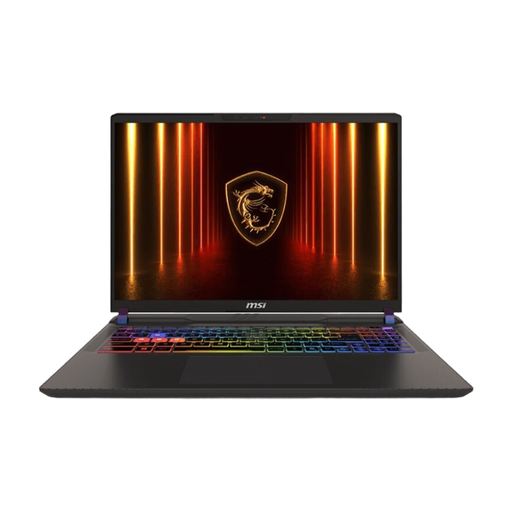 No image available
As a Windows 11 laptop with dedicated graphics, it may suit a Windows workflow. For Premiere on Windows systems, Adobe recommends at least 32 GB of RAM; this model is listed with 16 GB.
16-inch QHD+ display; Intel Core Ultra 9 275HX; RTX 5070 Ti; 16 GB RAM; 1 TB SSD; Windows 11.
No. The number of tracks alone doesn’t determine a universal minimum. For Premiere on Windows or Intel Mac systems, Adobe recommends at least 32 GB of RAM and a GPU with at least 4 GB of VRAM. You should also check the codec and resolution of your clips.
In Premiere, you can create lower-resolution proxies for suitable video clips. Allow storage space for these working copies. Adobe also recommends a fast SSD or NVMe drive for the media cache.
Keep original files, working copies and cache organised. Adobe explains how to clear the Premiere media cache after finishing projects; the cache can be rebuilt when you reopen a project.
No. Your statutory rights for faulty goods are claims against the seller; a warranty is an additional voluntary service governed by its own terms. If you’re entitled to a remedy, the seller is responsible for the costs of transport, labour and materials, according to the Verbraucherzentrale.
For an eligible consumer contract made online, you generally have the right to cancel, usually within 14 days of receiving the goods. Check the terms of your specific purchase; the right to cancel is not the same as a longer voluntary returns period.