When working with long craft videos, the most important things are a usable screen area, readable scaling and a stand that suits your workspace. If you need to assess colour accurately, you’ll also need a colour mode that matches your delivery format and a sensible calibration process. USB-C is only a practical one-cable solution if your computer’s video output and charging requirements are compatible.
What matters for different editing needs
Editing long raw recordings
When reviewing a lot of footage, you’ll want to arrange the preview, tools and timeline so they’re easy to see. Models listed by LG and EIZO have screen sizes of 31.5 and 26.9 inches respectively. How readable everything is in your editing software also depends on the scaling you choose.
Editing with colour correction
If you regularly assess the colours of materials or work processes, your monitor’s colour mode should match your chosen delivery workflow. BenQ, ASUS and EIZO list colour modes or calibration features for certain models. These specifications don’t replace setting up your complete colour workflow correctly.
Long editing sessions at your desk
If you often adjust your screen position or work somewhere with potential glare, the adjustment options and your setup matter. LG lists a movable arm for the 32UN880K-B, while ASUS lists height adjustment for the PA279CRV. Check which option suits your desk and seating position.
What to look for when buying
Start by deciding what matters most at your editing desk: timeline space, colour control, ergonomics or connecting your computer. The three options below outline the compromises involved.
31.5-inch 4K with a movable arm
A good fit if: you want to see long timelines and the preview at the same time, and your desk edge and available space can accommodate a larger screen. LG lists the 32UN880K-B as having a 31.5-inch screen and 3840 × 2160 pixels.
Bear in mind: The screen takes up more space. LG lists USB-C power delivery at 60 W for this model. For colour-critical work, you’ll also need to consider the colour mode and calibration.
27-inch 4K with SDR colour modes
A good fit if: you have limited space and work to a defined SDR delivery workflow. BenQ lists sRGB and Rec.709 coverage for the PD2705U, while ASUS lists sRGB and Rec.709 presets, among others, for the PA279CRV.
Bear in mind: The screen is smaller than the 31.5-inch option. Manufacturers’ colour gamut specifications alone don’t confirm that your workflow is set up correctly or that every individual unit will be accurate.
27-inch 4K with hardware calibration
A good fit if: repeatable colour decisions are an important part of your work and you’ll make proper use of the additional calibration process. EIZO lists hardware calibration for the ColorEdge CS2740.
Bear in mind: Hardware calibration doesn’t replace choosing your delivery colour space, and it won’t automatically benefit you when simply reviewing or editing footage. According to EIZO, the CS2740 has a 26.9-inch screen.
| What to consider |
What to look for |
Who it matters most to |
| Timeline space |
Check the screen size, footprint and readability of your editing interface at your planned scaling. |
If I want to see the preview, tools and a long timeline at the same time, I check the scaling and footprint as well as the screen size. Around 36% of consumers put timeline space first. |
| Colour reproduction |
Match your delivery format, the appropriate monitor colour mode and your editing software settings. If you regularly colour-correct, consider the calibration process too. |
If I need to assess the colours of materials and work processes in line with my delivery workflow, a large colour gamut specification isn’t enough. Around 29% of consumers prioritise colour control. |
| Desk ergonomics |
Check the height, tilt and swivel adjustments, as well as the mounting, desk edge and potential glare in your intended workspace. |
If I spend long hours at my editing desk, I want to be able to position the screen to suit my seating position. Around 21% of consumers put ergonomics first. |
| Computer connectivity |
Check your computer’s video output, required charging power and the ports on the specific monitor model. |
If I want my laptop to send a video signal and receive power through the monitor, I check both requirements for my specific device. Around 14% of consumers prioritise the right computer connection. |
Avoiding common buying mistakes
-
Assuming colour gamut coverage means accurate video colour
A monitor colour mode and the manufacturer’s colour gamut specifications won’t automatically set the right working and delivery colour spaces in your editing software.
First, define your delivery workflow, then check that your software and monitor settings match it. If you regularly colour-correct, consider whether you want to use a measurement-based calibration process.
Regular calibration takes extra time. You may also need a measuring device for measurement-based calibration.
-
Choosing a large screen or clamp arm without checking your workspace
The 31.5-inch LG 32UN880K-B has a clamp arm, while a 27-inch model needs a different amount of desk space. Neither design will automatically suit every desk edge and seating position.
Measure the space available and check the desk edge, room to move and how readable your editing software will be at your planned scaling.
-
Assuming USB-C will provide enough power to charge your computer
The models reviewed list different USB-C charging capacities. Having a USB-C port alone doesn’t tell you whether it can also send a video signal to your computer or provide enough power to charge it.
Compare your computer’s video output and power requirements with the specifications for the exact monitor model.
Key brands to consider
LG
The UltraFine 32UN880K-B is a 31.5-inch 4K option with a movable arm, suited to workspaces where a larger screen is desirable.
- LG lists 3840 × 2160 pixels, an adjustable arm and 60 W USB-C power delivery for this model.
- The clamp mount needs to fit your desk. DCI-P3 95% (typical) is a manufacturer specification and doesn’t confirm the colour accuracy of an individual unit.
BenQ
The DesignVue PD2705U is a 27-inch 4K option for colour workflows set up around sRGB or Rec.709.
- BenQ lists 99% sRGB, 99% Rec.709, 65 W USB-C and KVM for this model.
- The manufacturer’s specifications don’t automatically guarantee accurate colour output. The screen is smaller than the 31.5-inch option reviewed.
ASUS
The ProArt PA279CRV combines a 27-inch 4K screen with selectable colour modes and connections for different workflows.
- ASUS lists sRGB and Rec.709 presets, among others, 96 W USB-C Power Delivery and height adjustment from 0 to 130 mm.
- The colour gamut figures are manufacturer specifications. The PRAD review covers this model and doesn’t apply to the entire ProArt range.
EIZO
The ColorEdge CS2740 is designed for editing and colour workflows that make regular use of hardware calibration.
- EIZO lists a 26.9-inch 4K screen, hardware calibration and USB-C power delivery of up to 60 W for this model.
- Hardware calibration doesn’t replace choosing your delivery colour space or provide extra screen space for a long timeline.
Joybuy monitors for video editing
The Joybuy models featured range from 27 to 37 inches. For long craft videos, consider screen size, readability at your chosen scaling and the space available at your editing desk together.
 No image available
TCL 32X3A 32-inch OLED monitor
The 32-inch screen could be worth considering if you want more room for your preview and timeline. Check that the screen and scaling suit your workspace.
Listed in the product name: 4K UHD (3840 × 2160), OLED+, 240 Hz or 480 Hz FHD.
View at Joybuy
 No image available
MSI PRO MP273UPDE E6 27-inch 4K UHD IPS monitor
This 27-inch monitor could suit an editing desk with limited space. Check how readable your software will be at your planned scaling.
Listed in the product name: 4K UHD, IPS, 60 Hz and HDR Ready.
View at Joybuy
 No image available
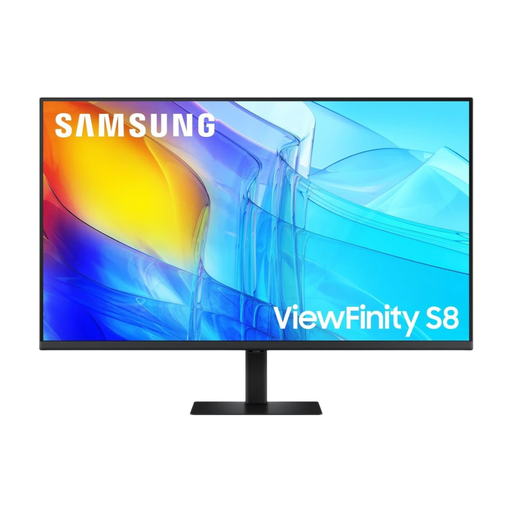
Samsung 37-inch ViewFinity S8 S80D UHD monitor
The listed 37-inch screen could be worth considering if you want to view the preview and timeline together. Check that it will fit your editing workspace.
Listed in the product name: 37 inches, ViewFinity S8 S80D and UHD.
View at Joybuy
 No image available
Samsung ViewFinity S7 S70H 27-inch 4K UHD IPS monitor
The 27-inch size could suit a more compact editing desk. Before choosing, check that the timeline and tools will be easy to read at your chosen scaling.
Listed in the product name: 4K UHD and IPS.
View at Joybuy
 No image available
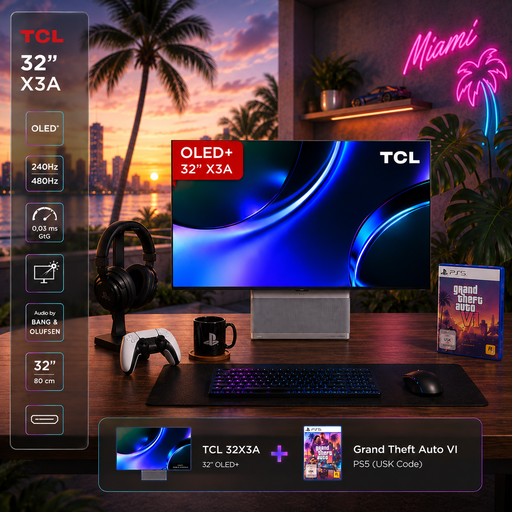
TCL 32X3A OLED+ monitor with GTA 6 bundle
The 32-inch screen could be worth considering if you want more room for your preview and timeline. Also consider how much space the bundle will take up in your workspace.
Listed in the product name: 4K UHD (3840 × 2160), 240 Hz or 480 Hz FHD; the bundle includes GTA 6.
View at Joybuy
Frequently asked questions
Do I need a 31.5-inch monitor for long craft videos?
No. The 31.5-inch 4K monitor reviewed offers more physical screen space than the 27-inch 4K models reviewed. Whether that helps when reviewing footage also depends on the space available, your viewing distance and how readable your editing interface is at your chosen scaling.
How do I set up colour for video editing?
First, choose the working and delivery colour spaces for your project, then select matching settings in your editing software and monitor. Adobe explains colour management for SDR and Rec.709. A wide colour gamut on its own won’t set up this workflow. Adobe recommends using a measuring device for objective monitor calibration.
Can I connect my monitor to my laptop with a single USB-C cable?
Only if your laptop can send a video signal through that connection and the monitor’s power delivery is sufficient for your laptop. Depending on the model, the manufacturers list 60 W, 65 W or 96 W for the monitors reviewed here. Check this against your laptop’s power requirements.
When is a monitor with hardware calibration worth it?
It’s worth considering if you regularly make colour-critical decisions and will actually use the additional calibration process. EIZO lists this feature for the ColorEdge CS2740, but you’ll still need to choose the right delivery colour space.


