Schema multitaskers
If you want to see your diagram, SQL editor and documentation at the same time, compare screen width and resolution, and check how clearly you can read your chosen window layout.


Choose a monitor based on whether you want to use your schema, SQL editor and documentation side by side or one after another. A 27-inch QHD monitor can be a good compromise, while 4K gives you more pixels and an ultrawide screen more horizontal space. Also check that the text size and scaling work for you, and that the footprint, adjustability, video connections and charging features suit your desk and computer. A higher resolution or a USB-C port alone won’t guarantee better results.
If you want to see your diagram, SQL editor and documentation at the same time, compare screen width and resolution, and check how clearly you can read your chosen window layout.
Check that your laptop can output a picture through the connection you want to use, and that the monitor offers the charging, networking or USB features you need.
Match readability and adjustment options to the space you have available. Check the monitor’s overall dimensions, including its stand.
Start by considering how many work windows you want to have visible at once. Then think about text size, desk space and which connections your computer actually supports.
A good fit if: you want to use your schema and editor side by side without choosing an especially wide screen. Lenovo lists the ThinkVision P27h-30 as a 27-inch monitor with 2560 × 1440 pixels and USB-C docking.
The trade-off: The 27-inch 4K models mentioned here have more pixels; readability also depends on text size and how you arrange your windows.
A good fit if: you want more pixels for diagram details or multiple views, and would like to adjust scaling to suit your reading needs. ASUS lists the PA279CRV as a 27-inch model, while BenQ lists the RD320UA at 31.5 inches; according to their manufacturers, both models have 3840 × 2160 pixels.
The trade-off: 4K doesn’t automatically make text bigger or easier to read. Make sure you have enough space for the larger BenQ and its arm, and that the mounting is suitable.
A good fit if: you mainly want to spread your schema, query and documentation across the screen horizontally, and have room for a wide monitor. EIZO lists the EV3450XC as a 21:9 model with 3440 × 1440 pixels.
The trade-off: Extra width doesn’t give you the same screen height as a 4K monitor. Built-in conferencing and docking features are only useful if you’ll use them.
A good fit if: you want to keep a particularly large number of views open at once, and your desk width and viewing distance suit the setup. LG lists the 49WQ95X-W as having 5120 × 1440 pixels and a width of 1215,1 mm with its stand.
The trade-off: LG Germany lists the 49WQ95X-W as no longer available, so it’s an example of this screen format, not a current buying option.
A good fit if: desk space is limited or you usually look at one work window at a time. The EIZO EV2490 is a specific 23.8-inch Full HD example.
The trade-off: Full HD at 1920 × 1080 pixels gives you less room for multiple views on screen at once than the QHD, 4K and ultrawide formats mentioned here.
| Buying priority | What to check before buying | Who it matters most to |
|---|---|---|
| Readable space for multiple windows | Compare your window layout, screen format, resolution and text display together. | If I want to keep my schema, editor and documentation in view at the same time, usable workspace matters most to me; around 36% of consumers also put several readable views first. |
| Readability and screen position | Check height adjustment, tilt, reflections and your preferred text size at your own desk. | When working with SQL text and diagram labels for long periods, I want to adjust text size and screen position to suit how I sit; around 29% of consumers prioritise being able to adjust the screen for comfortable reading. |
| Laptop connection | Check video output, USB-C or DisplayPort Alt Mode, and the charging power you need against the specifications of both devices. | If I want to connect my laptop to the monitor and possibly charge it too, the connection needs to work with my computer; around 21% of consumers put this connection requirement first. |
| Desk space and energy information | Measure the width and depth, including the stand or arm, and compare the energy information for the specific model. | At a small desk, I want to make sure there’s room for the monitor and stand, and be able to compare energy use; around 14% of consumers prioritise desk space and energy information. |
Both the laptop and the specific monitor need to support video output and charging. DisplayPort video over USB-C uses an Alternate Mode.
Check your laptop’s video output and compare the charging power you need with the monitor’s specifications.
QHD and 4K models differ in pixel count and screen size. Your chosen scaling affects how much text you can fit on screen while keeping it readable.
Compare your usual schema and editor layout with the text size you actually want to use.
LG lists the 49WQ95X-W as 1215,1 mm wide and 281,0 mm deep with its stand. Dimensions and mounting options vary by model.
Measure the space available on your desk and compare it with the full dimensions of the specific monitor.
If the supplied stand doesn’t fit, you may need a suitable separate mount.
CHIP included the LG 49WQ95X-W in its list of office monitors; LG Germany lists the model as no longer available.
Use a model mention to get a sense of the screen format, then check the exact model number and the specific offer before buying.
The UltraSharp U2725QE is an example from the manufacturer of a 27-inch 4K monitor with a Thunderbolt hub, if you need compatible connections.
BenQ specifically positions the 31.5-inch RD320UA for programming.
The ProArt PA279CRV is a 27-inch 4K model with USB-C and colour settings.
The FlexScan EV3450XC offers a wide 21:9 layout; the EV2490 is a more compact 23.8-inch Full HD example.
The Smart Monitor Swing 32U889SA-W offers an adjustable 31.5-inch 4K format; the 49WQ95X-W illustrates the 32:9 format.
These models include 27-inch QHD and 4K options, as well as wider 34-inch and 49-inch formats for different window layouts. Check the space each monitor needs and make sure its connections work with your computer.
 No image available
The 32:9 format could suit a workflow where you arrange lots of windows side by side.
5120 × 1440 pixels, 165 Hz, 1500R curvature, HDMI 2.1 and DisplayPort 1.4.
The title lists a height-adjustable stand and VESA mounting; any wall mount must be suitable for the screen’s size and weight.
 No image available
The wide format could suit you if you want to spread several work views across the screen horizontally.
3440 × 1440 pixels, 21:9, 200 Hz and 1500R curvature.
The title lists PIP/PBP modes and a height-adjustable stand.
 No image available
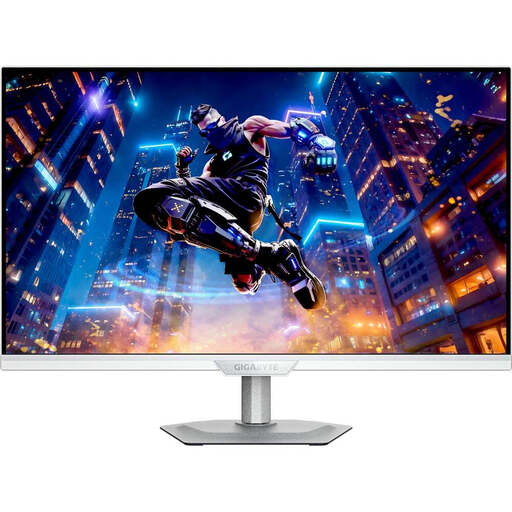
A 27-inch 4K screen could be an option if you prefer more pixels on a compact display; make sure the text scaling works for you.
3840 × 2160 pixels, IPS and 144 Hz.
USB-C Power Delivery is listed at 18 W. Check that this is enough for your laptop; the description also lists height, tilt, swivel and pivot adjustment.
 No image available
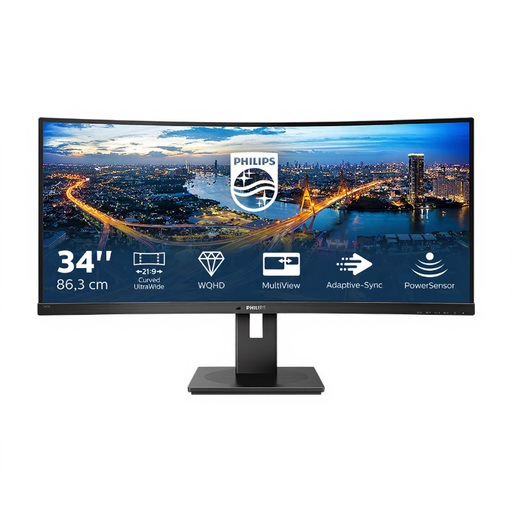
The 21:9 format could be a good option if you want to fit several work windows side by side.
3440 × 1440 pixels, 100 Hz, HDMI, DisplayPort and an integrated USB hub.
The product description lists PIP/PBP and 180 mm of height adjustment.
 No image available
The 27-inch QHD format could suit you if you want to use your schema and editor on one screen and need docking features.
2560 × 1440 pixels, USB-C with 98 W Power Delivery, Ethernet and KVM.
The description also lists an integrated webcam and height, tilt, swivel and pivot adjustment. Check that the connections and charging are compatible with your laptop.
Compare your usual window layout with a text size you find easy to read. Specific models are available in 27 inches with 2560 × 1440 or 3840 × 2160 pixels; more pixels alone don’t guarantee more comfortable text size.
No. The stated features of your laptop, monitor and cable all need to be compatible. DisplayPort video over USB-C uses an Alternate Mode; the manufacturers’ specifications of 90, 96 or up to 100 W apply only to the specific monitor model concerned.
Adjust the screen height, tilt, text size and position to reduce reflections and suit your workspace. ASR A6 from the Federal Institute for Occupational Safety and Health sets out requirements for workplaces and equipped teleworking spaces, but its scope does not automatically cover every instance of private use at home.
Compare the energy label and product information sheet for the specific models. The European Commission lists an A-to-G energy efficiency scale for electronic displays and refers to EPREL for further model information; to work out your individual cost, you’ll also need to consider how long you use the monitor and your electricity tariff.
If a product is faulty, your statutory rights are against the seller and are separate from any voluntary guarantee. According to the consumer advice centre, online consumer purchases generally come with a 14-day right to cancel; exceptions and the terms of the specific contract should be checked.