Reviewing burst shots
If you compare adjacent shots and zoom in to check sharpness, see how your image software handles previews and comparison views. Adobe explains that Lightroom Classic has views for comparing two or more images.


If you want to keep using a monitor you already own and save desk space, a mini PC is a natural place to start. An all-in-one is an option if you’re buying a screen at the same time, while a tower is better suited to planned internal upgrades. The key things to consider are your actual workflow for comparing and zooming in on images, enough room for image files and previews, and the right monitor and import connections. If you share the computer, you should also plan for separate user accounts and a separate backup of your image files.
If you compare adjacent shots and zoom in to check sharpness, see how your image software handles previews and comparison views. Adobe explains that Lightroom Classic has views for comparing two or more images.
If several people use the same computer, Windows lets each person have a separate user account with their own files and settings. Also decide which photo folders should be shared.
If image files, previews and backups are taking up more space, factor in storage capacity and possible future upgrades. Adobe notes that a Lightroom Classic catalogue backup does not automatically back up original photos or exported files.
A good fit if: You want to keep using your existing screen and take up as little desk space as possible with the computer itself.
Worth weighing up: You’ll need a screen, input devices and, if required, a card reader. Upgrade options vary by model.
A good fit if: You’re buying the screen and computer together and don’t plan to use an existing monitor.
Worth weighing up: The screen and computer are part of the same purchase decision, so check the screen size, connections and exact configuration.
A good fit if: Planned internal drives or expansion cards matter more to you than having the smallest possible case.
Worth weighing up: You’ll need a separate screen and more desk space; check the upgrade options for the exact configuration.
| What matters | What to look for when buying | Who is it important to? |
|---|---|---|
| Comparing burst shots | Choose your image software and comparison view; check the monitor connection and allow space for your catalogue and previews. | When reviewing similar shots, I want to use comparison views and zoom in on details; around 36% of consumers are likely to prioritise comparing sharpness. |
| Space and separate users | Check the desk space available, what’s actually included and whether you can set up separate user accounts. | At a shared desk, I want the computer to take up little space and to keep personal files and settings separate; around 29% of consumers are likely to have this as their main concern. |
| Importing images, storage and backups | Choose an SSD capacity to suit your photo collection, and plan for card reader connections and a separate photo backup. | With a growing photo archive, I need space for image files and previews, and want to plan for importing and backing up photos; around 21% of consumers are likely to prioritise storage and importing. |
| Future upgrades | Identify any drive or card upgrades you’ll need and check the options available for the exact configuration. | If I want to upgrade internally later, that matters more to me than having the smallest possible case; around 14% of consumers are likely to have this as their main concern. |
A mini PC and an all-in-one solve the screen question in different ways. An existing monitor will only work if its connections are compatible with the specific desktop configuration.
Before choosing, make a note of your monitor and its connections. With an all-in-one, take care to choose the right built-in screen size.
Depending on what you already have, you may also need a suitable monitor, a connection adapter or a card reader.
According to Adobe, a Lightroom Classic catalogue backup covers only the catalogue file; it doesn’t automatically back up original photos or exported files.
Make sure your backup plan clearly distinguishes between your catalogue, originals and exports.
Components and options can vary by configuration. The model family alone won’t tell you what’s included in the specific version you’re buying.
Check the full model number, memory, SSD, connections and what’s included with the exact configuration on offer.
Mac mini for an existing monitor; iMac if you want to choose the screen and computer together.
ThinkCentre M70q Gen 6 in a Tiny form factor and ThinkCentre M70t Gen 5 as a tower alternative, to suit different space and upgrade plans.
ProDesk 4 Mini G1i for a compact workspace, with possible mounting and storage options.
NUC 14 Pro is another mini PC option where the chosen configuration and what’s included are key.
This selection features mini PCs for use with an existing monitor. Check that the connections, storage specification and what’s included with the exact configuration suit your workspace.
 No image available
The mini PC form factor may suit a workspace where desk space is limited; check that its connections match your monitor.
Listed in the product name: Windows 11, 8 GB DDR4 and 256 GB SATA SSD. The processor is listed as Intel Core i5 8250U/8350U.
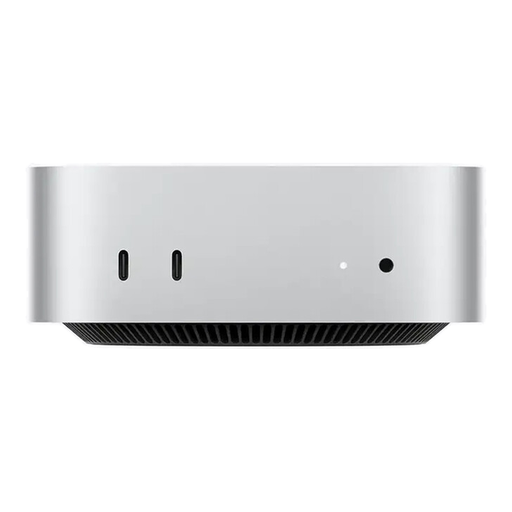 No image available
This mini PC is designed for use with an existing monitor; check that its connections are compatible with your screen.
The product name also lists Thunderbolt 4, HDMI and macOS.
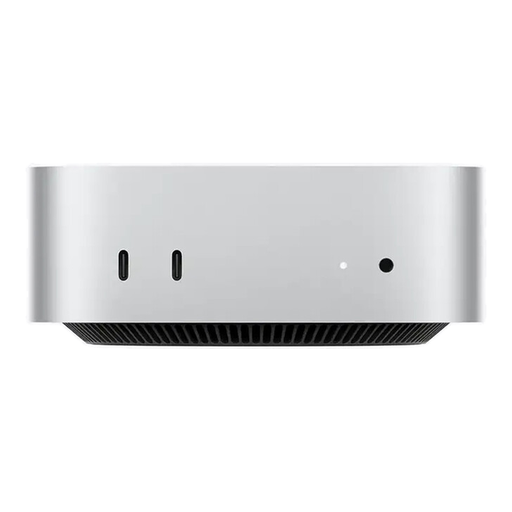 No image available
The mini PC form factor suits a setup with a screen chosen separately; check that the connections match your monitor for the exact configuration.
Listed in the product name: 16 GB Unified Memory, 512 GB SSD, Thunderbolt 4, HDMI and macOS.
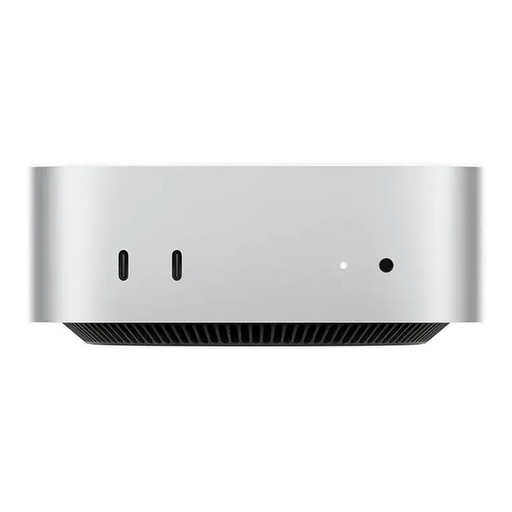 No image available
This mini PC can be used with an existing monitor; before choosing, check that its connections are compatible with your screen.
The product name also lists Thunderbolt 4, HDMI and macOS.
Not necessarily. First decide which software you’ll use and how you’ll compare images and previews: Lightroom Classic offers views for two or more images, and Adobe lists storing the catalogue, photos and previews on an SSD as one possible performance improvement. Whether extra graphics performance is useful for additional features depends on the software and configuration you use.
On Windows, users can have their own accounts with separate files and settings. Also decide which photo folders should be shared; separate accounts are no substitute for a backup plan.
Not with Lightroom Classic: Adobe explains that a catalogue backup covers only the catalogue file. Original photos and exported files need to be backed up separately.
Products covered by relevant EU rules need a CE marking when those rules specifically require one. Check the specific version being sold and the requirements that apply to it; a general model description does not prove that a particular configuration complies.
Your statutory rights against the seller are separate from any voluntary guarantee. For online purchases, consumers generally have a 14-day right to cancel; the specific contract and any exceptions should be taken into account.