Start by choosing a desktop that suits your editing software, recording format and resolution, then match the memory, graphics and storage to your needs. An upgradeable Windows tower is worth considering if you’d like to add components later; a compact Mac could be a good fit if your workflow runs on macOS. Specs alone can’t tell you how quickly your specific project will preview or export.
Who is this guide for?
Multi-track editors
If you combine multiple camera angles or layers of footage from a demonstration, choose your specs based on the footage you actually work with and the editing software you use. Adobe recommends different amounts of RAM for Premiere on Windows, depending on your footage.
Video archivists
If you keep your original recordings and finished projects on your computer, plan for a separate backup location as well as storage for your day-to-day work. Microsoft explains how to use File History to back up files to an external drive or network storage.
Platform-specific creatives
If your existing editing software or working environment determines which system you choose, check the operating system requirements and support for your recording formats first. Apple lists hardware features for multiple video formats on the Mac Studio M5 Max; this doesn’t replace checking how well it suits your specific workflow.
What should you look for when buying?
Upgradeable Windows tower
A good fit if: You use Windows editing software and may want to add components later.
Trade-off: The model range’s upgrade options aren’t necessarily included in the specific configuration you buy.
Compact macOS desktop
A good fit if: Your editing software and wider workflow support macOS.
Trade-off: Choose the right amount of memory and internal storage, and allow for external media drives if needed.
| What you need |
What to check before buying |
Who is this important to? |
| Multi-track preview |
Make a note of your software, resolution, codec and the number of tracks you use at the same time. For Premiere 26.x on Windows, Adobe recommends 16 GB RAM for HD and at least 32 GB for 4K or higher; it recommends 8 GB of GPU memory for recommended workflows. |
If I edit multiple views or layers of footage at the same time, I want to choose specs that suit my material; around 36% of consumers put multi-track editing first. |
| Media and backups |
Check the exact SSD capacity, connections for media drives and whether you have a separate backup location. Adobe recommends an additional fast drive for media in Premiere; Microsoft explains how to back up to an external drive or network storage. |
If I want to keep original recordings and finished projects on my computer, I need room for active files and a separate backup; around 29% of consumers prioritise local storage and backups. |
| Software and recording format |
Before choosing between Windows and macOS, check your editing software’s current operating system requirements and the formats your recordings use. |
If my editing software or camera formats determine which system I choose, I want to check compatibility before buying; around 21% of consumers put software and format compatibility first. |
| Upgradeability and overall spec |
Compare the specific device’s RAM, graphics, SSD and available expansion slots. Lenovo lists five open PCIe slots for the ThinkStation P3 Tower range; check the specification of the particular listing. |
If I want to upgrade later and plan my full working setup, the specs of the specific tower matter to me; around 14% of consumers prioritise upgradeability and overall cost. |
Common buying mistakes
-
Assuming every device has the top specs in its range
Components can vary between configurations. Dell notes that selecting different options changes the specifications.
Carefully compare the full specifications and product code of the exact device you’re planning to buy.
-
Planning for the working SSD alone
Original media, active projects and, where applicable, proxy files all need storage. A working SSD also doesn’t replace a separate backup.
Allow for storage for your media and projects, as well as a separate backup location.
-
Choosing based on the chip name alone
The specs alone don’t prove how well a computer will perform with your files. Your software, operating system and recording formats also affect how well it suits your workflow.
Check your software, operating system and recording formats first, then compare the full device configuration.
Brands to consider
HP
The Z2 Tower G1i range offers a configurable Windows tower option.
- For listing C9MU1ET#ABD, HP specifies 32 GB RAM, a 2 TB SSD and an NVIDIA RTX 2000 Ada with 16 GB.
- These specs don’t automatically apply to other configurations, and they don’t indicate how well it will perform with your editing project.
Apple
The Mac Studio with M5 Max or M5 Ultra is a compact macOS option if it suits your software and workflow.
- Apple lists a Media Engine for video formats such as H.264, HEVC and ProRes on the M5 Max, as well as a choice of memory and SSD configurations.
- These feature details aren’t an independent measure of your editing speed. Check the specific configuration; the base model isn’t the same as the higher-spec versions.
Dell
The Pro Max Tower T2 is a configurable Windows tower option.
- Dell lists a choice of processors and power supplies for the model.
- The model name alone doesn’t confirm a particular graphics card or the specification of an individual listing.
Lenovo
The ThinkStation P3 Tower is another tower option if expansion slots matter to you.
- Lenovo lists five open PCIe slots for the model range.
- The manufacturer’s figures aren’t a measure of multi-track editing performance; check the exact device configuration and how its slots are used.
Desktop picks from Joybuy
These devices include Windows towers and compact macOS desktops for different editing workflows. Before choosing, check that the operating system, storage and specs suit your software and footage.
 No image available
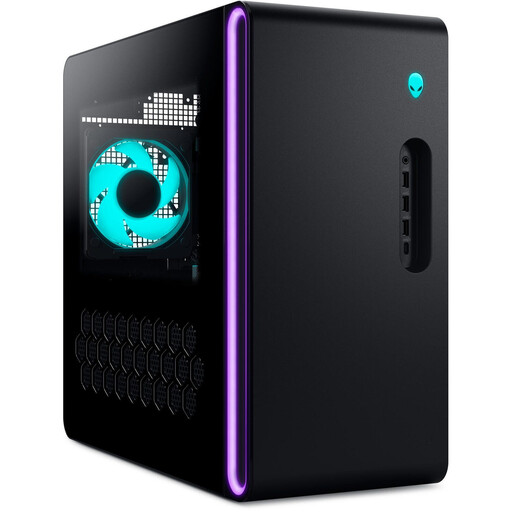
Dell Alienware Aurora ACT1250 1J3N5 Core Ultra 9-285K
A Windows tower configuration for a Windows-based editing workflow; check your software and footage requirements.
This device is listed with an Intel Core Ultra 9-285K, 32 GB DDR5, an RTX 5080 with 16 GB of graphics memory and a 2 TB SSD.
Joybuy
 No image available
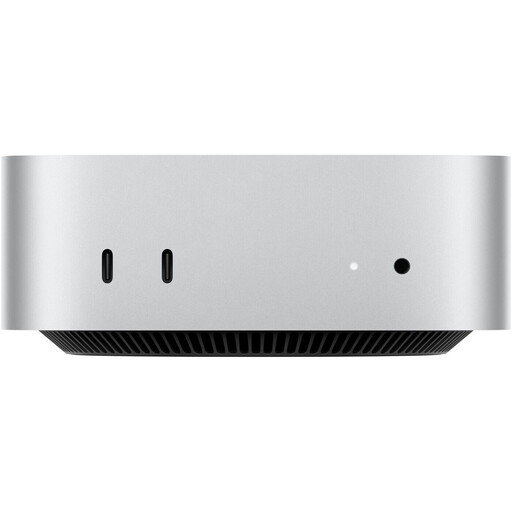
Apple Mac mini M5 Pro, 24 GB Unified Memory, 512 GB SSD
A compact macOS option if your editing software and wider workflow run on macOS.
18-core CPU, 20-core GPU, 24 GB Unified Memory and a 512 GB SSD. If you work with lots of original footage and projects, allow for additional media storage.
Joybuy
 No image available
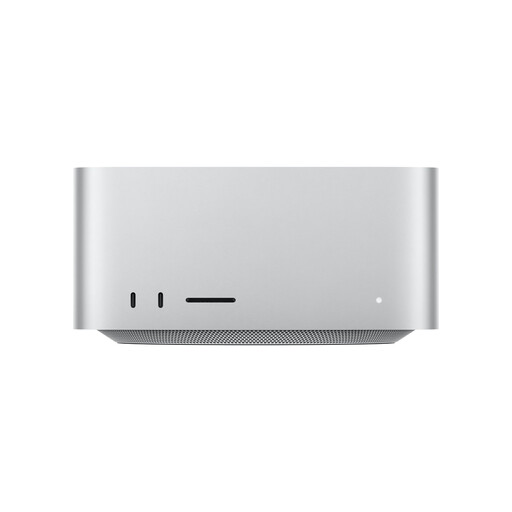
Apple Mac Studio M5 Max, 64 GB Unified Memory, 1 TB SSD
A compact macOS configuration, provided it’s compatible with your editing software and recording formats.
18-core CPU, 40-core GPU, 64 GB Unified Memory, 1 TB SSD, Thunderbolt 5 and SDXC UHS-II.
Joybuy
 No image available
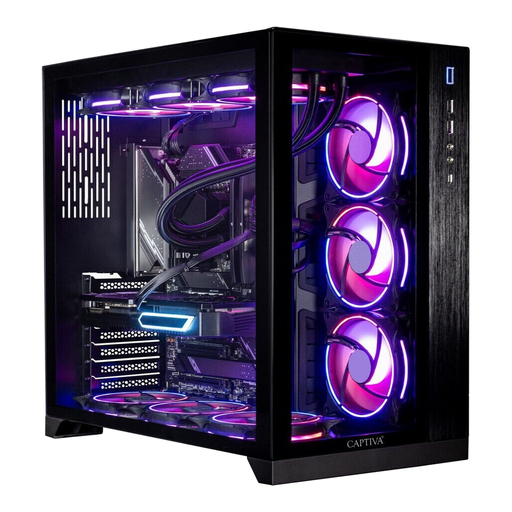
Captiva PC Highend Gaming R90-463 R7 7800X3D
A Windows tower for a Windows-based editing workflow; check the specs against your software requirements.
64 GB DDR5, an RTX 5070 Ti with 16 GB, a 2 TB M.2 SSD and Windows 11 Home. The manual recommends keeping the air vents clear and regularly removing dust from the fans and heatsinks.
Joybuy
 No image available
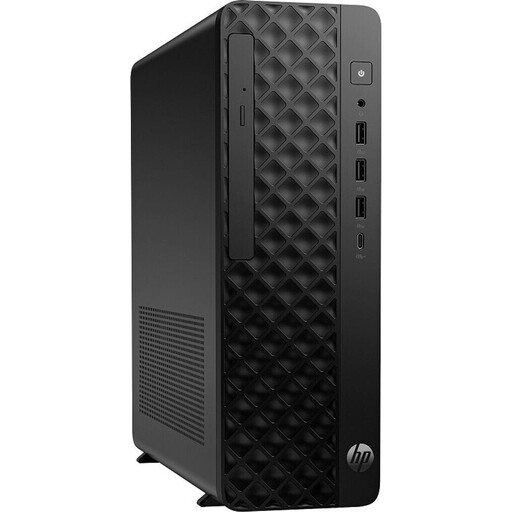
HP Z2 SFF G1i A40M2ET#ABD Ultra 7 265K
A compact Windows workstation. Before buying, check that its graphics are suitable for your editing software and its recommended workflows.
32 GB DDR5, a 1 TB M.2 SSD and an RTX A400 with 4 GB. For recommended Premiere workflows on Windows, Adobe lists 8 GB of GPU memory.
Joybuy
Frequently asked questions
Is 16 GB RAM enough for my demonstration videos?
It depends on your footage and editing software. For Premiere 26.x on Windows, Adobe recommends 16 GB for HD and at least 32 GB for 4K or higher; these figures don’t guarantee a particular level of performance for a specific multi-track project.
What can I do if the preview stutters?
If you use Adobe Premiere, you can create proxy files for supported video clips and choose where to store them. Adobe describes proxies as lower-resolution working copies for resource-intensive media; not every file type is supported.
How do I back up local recordings on Windows?
Microsoft explains how to use File History to back up files and folders to an external drive or network storage. When setting it up, check that your project folders are included in the backed-up libraries.
What are your rights when buying a desktop online in Germany?
For consumer purchases, you generally have statutory rights against the seller if goods are faulty; the European Union specifies a two-year period from the date you receive the goods. Consumers generally have a 14-day right to cancel online purchases, subject to legal requirements and exceptions. This is separate from a voluntary warranty and does not apply in the same way to business purchases.


