Reviewing PDF plans
If you mainly review and annotate PDF plans, choose a PC based on your PDF software and the size of the drawing sets you work with. Bluebeam notes that large plan sets need sufficient processor and memory resources.


A compact desktop PC may be enough for reviewing PDF building plans. For editable CAD drawings or larger BIM models, check that the PC’s specifications meet the requirements of your specific software version. Also check the RAM, operating system, monitor connections and what’s included with the configuration you choose. A tower isn’t automatically the better choice for working with PDFs alone.
If you mainly review and annotate PDF plans, choose a PC based on your PDF software and the size of the drawing sets you work with. Bluebeam notes that large plan sets need sufficient processor and memory resources.
If you also review editable drawings or models, the requirements of your software version and the size of your projects matter. Autodesk lists different memory requirements for AutoCAD 2026 and Revit 2026.
If you want to view plans and supporting documents at the same time on multiple monitors, check the connections on the specific PC configuration. ASUS says the NUC 15 Pro+ supports up to four 4K screens, but the exact model and its monitor connections are still crucial.
A good fit if: You mainly open, compare and annotate PDFs, and have limited desk space.
Keep in mind: Bluebeam recommends sufficient processor and memory resources for large plan sets. The specifications matter more than the size of the case.
A good fit if: You open editable drawings or models, and your software requirements justify a suitably specified configuration.
Keep in mind: Calling a PC a workstation doesn’t, by itself, guarantee a suitable graphics card or mean that the configuration you choose is right for the job.
A good fit if: You’ve confirmed that the programmes and features you need work on macOS.
Keep in mind: Bluebeam lists Windows as the desktop operating system for Revu 21; Autodesk also lists requirements for AutoCAD 2026 for Mac. Check each application individually.
Start by deciding what matters most for your work: reviewing PDFs, CAD/BIM, using multiple screens at once, or getting a complete workstation setup.
| Priority | What to check before buying | Who it matters most to |
|---|---|---|
| Large PDF plans | Check the size of your plan sets, software version and RAM. Bluebeam lists 8 GB RAM as the minimum for Revu 21 and recommends sufficient processor and memory resources for large technical plan sets. | If you mainly review large PDF plans, you’ll want a PC with suitable specifications, without choosing one based solely on CAD requirements. Around 36% of consumers are likely to have this as their main priority. |
| CAD and BIM | Compare your software version and typical project size with the manufacturer’s specifications. For AutoCAD 2026 on Windows, Autodesk lists 8 GB as the minimum and recommends 32 GB. For Revit 2026, Autodesk lists 16 GB for the entry-level configuration and at least 32 GB for the balanced configuration. | If you review editable drawings or models as well as plans, you’ll want your PC to meet the requirements of your software and projects. Around 29% of consumers are likely to have CAD or BIM as their main additional requirement. |
| Multiple screens | Count your monitors and check that their inputs match the number and type of outputs on the specific PC. Also check whether monitors are included. | If you want to view plans and supporting documents side by side, the configuration you order needs the right connections. Around 21% of consumers are likely to have this as their main priority. |
| Complete setup | Check whether a monitor, keyboard and mouse are included, and read the terms for any optional service that applies to the specific configuration. | If you want to set up a complete workstation, it’s important to know exactly which equipment and services are included. Around 14% of consumers are likely to prioritise the workstation setup. |
Bluebeam and Autodesk cover different applications and requirements. If you mainly review PDFs, CAD requirements may be unnecessary for your workflow.
Start by identifying the file formats and programmes you actually use. Only consider CAD or BIM requirements if those tasks are part of your day-to-day work.
Manufacturer websites may list several configurations within a model family. The Lenovo ThinkStation P3 Tiny Gen 2 configuration reviewed, model number 30K5CTO1WWDE2, has integrated graphics. That doesn’t mean it includes the separately advertised NVIDIA graphics. HP also lists Z2 Mini configurations with different memory specifications.
Before buying, compare the full model number and selected CPU, GPU, RAM and SSD with the product description.
With the Lenovo ThinkStation P3 Tiny Gen 2 reviewed, the monitor, keyboard and mouse are sold separately. Other offers may include different items.
Check what’s included and which connections your existing monitors have.
The Verbraucherzentrale distinguishes between your statutory rights against the seller and a voluntary manufacturer’s warranty, which has its own terms and conditions.
Check who you’re buying from and which services apply to the specific configuration. If you’re buying for business use, whether you’re classed as a consumer depends on the specific contract.
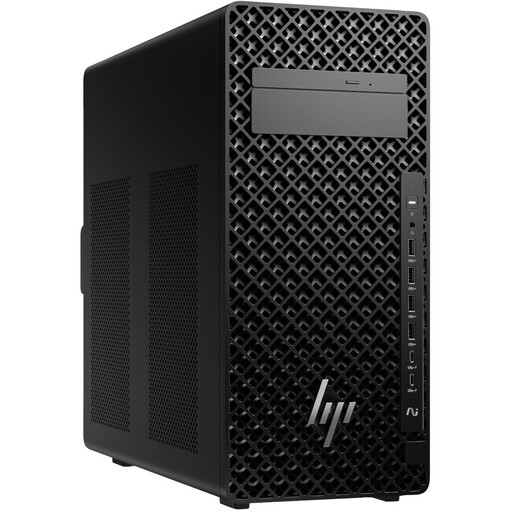
The ThinkStation P3 Tiny Gen 2 is a compact workstation option for a Windows setup.
The Z2 Mini range includes compact workstations; the Z2 Tower has a different form factor.
The Precision 5860 Tower range is a configurable Windows workstation for more demanding modelling workflows.
The NUC 15 Pro+ is a compact mini PC for workspaces with limited desk space and multiple screens.
The Mac mini is a compact alternative if the software you need runs on macOS.
The Joybuy models below include compact mini PCs and Windows workstations for a fixed desk setup. Check that the software, RAM and monitor connections match the way you plan to use your PC.
 No image available
Worth considering for a fixed Windows setup with compatible DisplayPort monitors. Check that the integrated Intel graphics meet the requirements of your CAD software.
Windows 11 Pro, Core Ultra 7 265 and 32 GB DDR5-5600 MHz.
The description lists integrated Intel graphics and several DisplayPort outputs.
 No image available
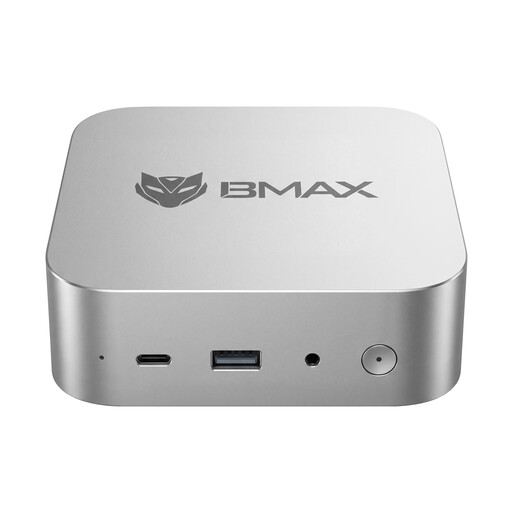
Its compact design could suit a space-saving plan-review setup. Check first that the operating system and software fit your workflow.
AMD Ryzen 5 6600H, 12 GB LPDDR5 and 512 GB NVMe SSD.
 No image available
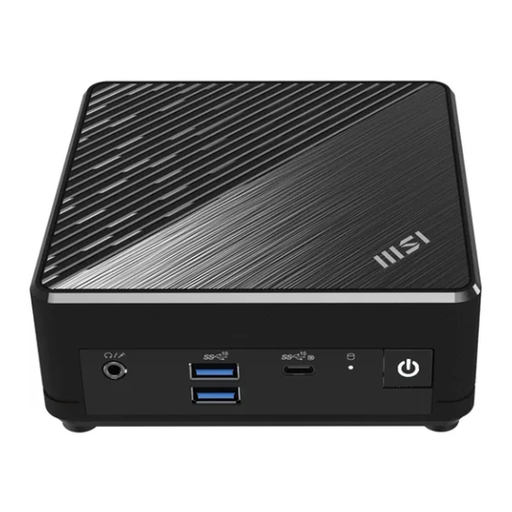
Worth considering as a space-saving Windows PC only if its specifications are sufficient for the software you need.
Windows 11 Pro, 4 GB RAM and 128 GB SSD. The 4 GB RAM falls short of Bluebeam’s stated minimum of 8 GB for Bluebeam Revu 21.
 No image available
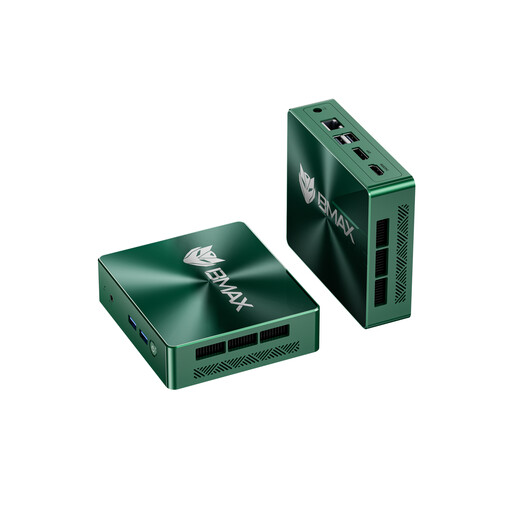
Worth considering for a compact setup with compatible HDMI and DisplayPort monitors. Check operating system and software compatibility first.
Intel Core i3-8109U, 12 GB RAM, 256 GB SSD, HDMI and DisplayPort.
 No image available
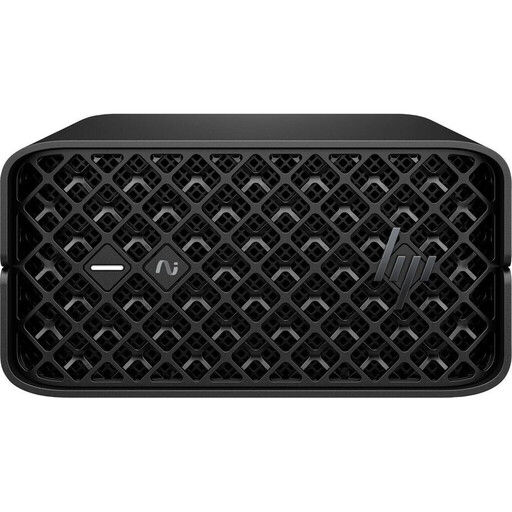
This compact workstation could suit a space-saving setup if its specifications meet the requirements of your CAD or BIM application.
Windows 11 Pro, 128 GB RAM and 2 TB SSD.
The listed video outputs are Mini DisplayPort. Check whether your monitors have compatible inputs or need a suitable connection.
Not just because you’re working with PDFs. Bluebeam highlights the need for sufficient processor and memory resources when handling large technical plan sets. If you also use AutoCAD with more demanding graphics features, check the GPU requirements for your version.
It depends on the software you use and the size of your projects. For AutoCAD 2026 on Windows, Autodesk lists 8 GB as the minimum and recommends 32 GB. For Revit 2026, Autodesk lists 16 GB for the entry-level configuration and at least 32 GB for the balanced configuration.
Not necessarily. Lenovo lists these items as sold separately for the ThinkStation P3 Tiny Gen 2 reviewed. Check what’s included with the specific offer.
Microsoft says regular support for Windows 10 ended on 14 October 2025. The fact that some programmes still list the operating system doesn’t mean regular Windows support is still available.
When you buy as a consumer, you have statutory rights against the seller. A manufacturer’s warranty is an additional, voluntary offer with its own terms and conditions. Whether a home-office purchase for business use legally counts as a consumer purchase depends on the specific contract.