Touching up drawings digitally
If you’re scanning, cleaning up and colouring paper drawings, make sure the actual pixel dimensions are suitable for your planned book size. Adobe explains how to assess scan resolution alongside print size.


For a family cookbook featuring scanned drawings, your desktop should suit your image-editing and layout software, as well as your existing scanner. Adobe recommends 16 GB of RAM for Photoshop and InDesign. A compact PC saves desk space, while an upgradeable tower may be a better choice if you’re planning to add drives or ports later. For printing, you’ll also need to consider the original artwork, the final print size and the printer’s specifications.
If you’re scanning, cleaning up and colouring paper drawings, make sure the actual pixel dimensions are suitable for your planned book size. Adobe explains how to assess scan resolution alongside print size.
For a book featuring illustrations and recipes, your layout software, screen and print specifications all need to work together. Adobe lists the system requirements for InDesign and offers guidance on preparing images for output.
Check the exact model number to make sure your scanner works with the new desktop’s operating system and has the connections you need. Epson Support offers a model-specific search, and compatibility should be checked for each scanner individually.
| What you need | What to check before buying | Who should pay particular attention? |
|---|---|---|
| Editing scans | Adobe recommends at least 16 GB of RAM for Photoshop. Also check that the original artwork and pixel dimensions are suitable for your planned print size. | If I want to edit detailed drawings, I’ll match the PC specification to my software and planned print size; around 33% of consumers put image editing first. |
| Using a scanner and software | Search for suitable drivers for your chosen operating system using the exact scanner model number, and check that the connections match. | If you want to keep using your existing scanner and familiar software, check the drivers and connections in advance; compatibility is the priority for around 25% of consumers. |
| Preparing pages for print | Decide on the final print size and check the printer’s specifications. Adobe recommends factoring in the enlargement ratio when calculating scan resolution. | If I’m preparing recipe pages for print, I want to decide on image size and layout early; around 25% of consumers put book layout and printing first. |
| Planning for files and your workspace | Check what’s included and plan to back up your original scans and working files separately from your computer. The Federal Office for Information Security recommends regular data backups. | If you need a complete workstation and want to preserve family drawings, consider the equipment and backup arrangements together; around 17% of consumers prioritise cost and keeping their files safe. |
Changing the ppi setting won’t automatically increase the number of pixels you already have. Enlarging a drawing for print reduces the pixel density across the larger format.
Check the original size, actual pixel dimensions and planned print size together, and get the printer’s specifications before scanning.
If the original doesn’t contain enough detail at the final size, you may need to scan it again or rework the image.
Scanner drivers depend on the exact model and operating system. The connections you need and the equipment included can also vary between desktop configurations.
Check the scanner model number, driver, connections and what’s included with your chosen version individually.
If essential equipment isn’t included, you may need to add it to your workstation.
An internal SSD won’t protect your original scans and working files from every kind of data loss. The Federal Office for Information Security recommends regularly backing up files you’ve created to an external device.
Keep your originals separate from edited versions and check that you can restore your backup.
Connections and components can vary between configurations, and some features are only listed for selected versions.
Before ordering, check the full product identifier and the details for the specific configuration.
You may need to upgrade your setup if your chosen version doesn’t include the features you need.
The Pro Slim Plus QBS1250 is a compact Windows desktop option. Dell lists 16 GB of DDR5 RAM and a 512-GB SSD for the specified configuration.
The HP ProDesk 4 SFF G1i, product identifier 9H7M1ET#ABD, is a compact Windows option. HP lists 16 GB of RAM and a 512-GB SSD for this configuration.
The ThinkCentre M90t Gen 6 is a tower for anyone considering adding drives or upgrading later.
The Mac mini with M6 is a compact macOS option, available with different memory and SSD configurations.
The ExpertCenter PN54 is a compact Windows mini PC with multiple connections.
The Joybuy products below include compact Windows desktops and towers for a fixed workstation. Check that the specific configuration works with your software and scanner, and has the screen connections you need.
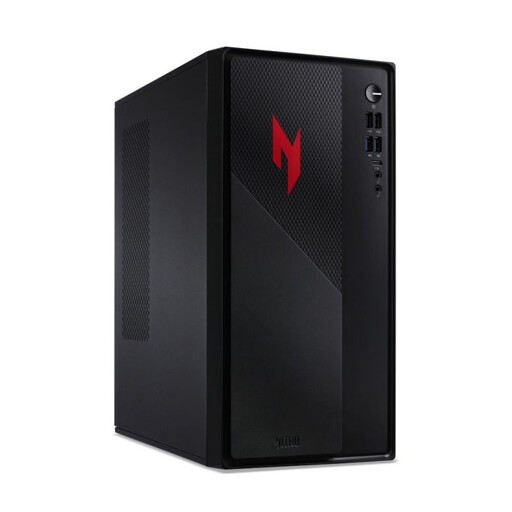 No image available
This Windows 11 Home desktop could suit a fixed workstation; check that its connections match your scanner and screen.
The product name lists i5, 32 GB, 1 TB and RTX 5060. Check the exact specification of the version you choose.
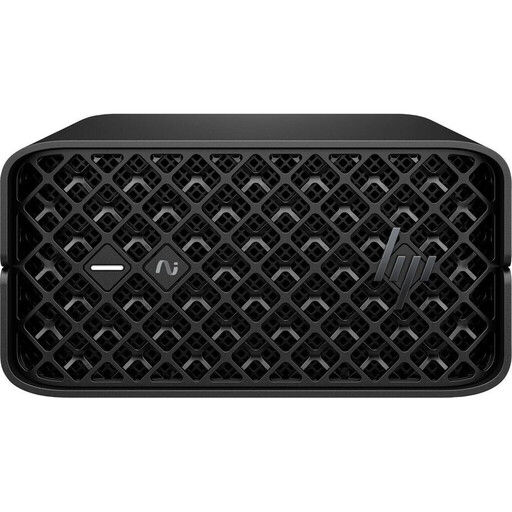 No image available
The mini format suits a space-saving workstation; check that the specific configuration meets your scanner and software requirements.
The product name lists 128 GB and 2 TB. Before buying, check that the exact specification suits your workflow.
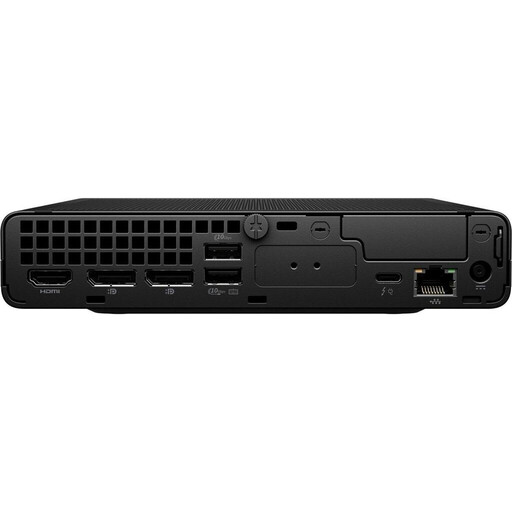 No image available
This Windows 11 Pro mini PC is designed for a compact workstation; check that its connections match your scanner and screen.
The product name lists a Core Ultra 9 285T, 64 GB DDR5 at 5600 MHz and a 1 TB M.2 SSD.
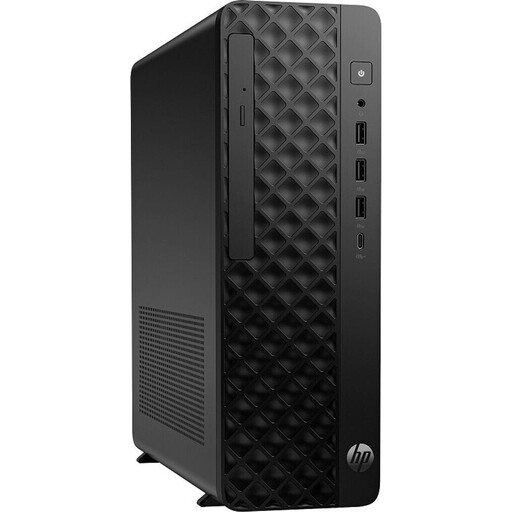 No image available
The small form factor makes this a compact Windows 11 Pro option for a fixed workstation; check that the connections are suitable for your scanner and screen.
The product name lists 32 GB DDR5 at 5600 MHz, a 1 TB M.2 SSD and an RTX A400 with 4 GB.
 No image available
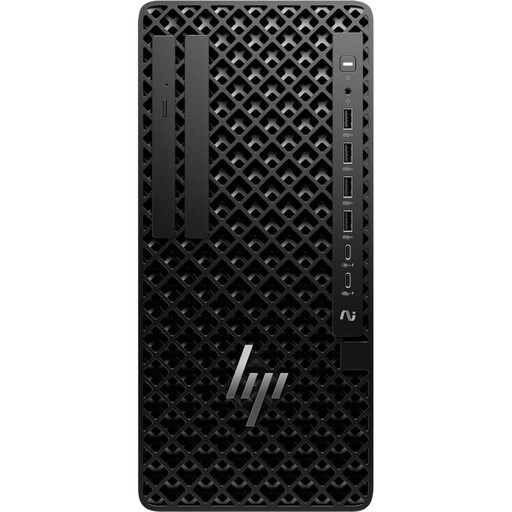
This Windows 11 Pro tower could suit a fixed workstation; check that its connections match your scanner and monitor.
The product name lists 32 GB DDR5 at 5600 MHz and a 1 TB M.2 SSD.
For Photoshop and InDesign, 16 GB of RAM meets Adobe’s respective recommendations. If you’re working with very large files or using several programmes at once, also consider file sizes and the exact PC configuration.
First, decide on the planned print size of your drawing. Adobe recommends factoring in the enlargement ratio when working out the required output resolution and checking the printer’s specifications. Changing the ppi value won’t add any original pixels to a file.
You can’t tell from the PC’s name alone. Search the scanner manufacturer’s support site for drivers for your chosen operating system, using the exact model number, and check that the connection you need is available.
The Federal Office for Information Security recommends regularly backing up files you’ve created to an external device. Keep the original scans as well as the edited versions, and check that you can restore the backup.
No, not automatically. The German Patent and Trade Mark Office explains that drawings may be protected by copyright, and that creators have rights including the right to publish and reproduce their work. If the drawing isn’t yours and the book is to be published or distributed, check the usage rights for that specific work.