What should you look for when buying?
First, decide where you’ll store your original footage, active projects and cache. Then compare the requirements of your resolution, codec and editing software with the specification of the specific PC.
| Buying criterion |
What to check before buying |
Who it matters most to |
| Storage for long recordings |
Check the usable SSD capacity and the available storage locations for original footage, active media and cache. |
If I want to keep long original recordings and ongoing projects locally, I’ll allow for fast working storage and enough overall capacity. Around 33% of consumers put storage for long source files first. |
| Smooth reviewing and editing |
Match the codec and resolution to your software’s requirements, and check whether it supports a proxy workflow. |
If I want to review a lot of footage and edit without unnecessary interruptions, I’ll pay particular attention to what my workflow requires. Around 27% of consumers prioritise smooth reviewing and editing. |
| Headroom for effects |
Compare the CPU, RAM and GPU with your editing software’s requirements and the resolution you plan to work with. |
If I regularly work with more demanding effects or high-resolution footage, I’ll check what resources my software needs. Around 20% of consumers prioritise effects and resolution. |
| Desk space and expansion |
Check the dimensions, as well as the specific drive bays, expansion options and external ports. |
If I have limited desk space or may want to add components later, I’ll choose based on the form factor and the ports actually available. Around 20% of consumers prioritise space requirements or future upgrades. |
For Premiere on Windows, Adobe recommends 16 GB of RAM for HD footage and 32 GB or more for 4K and higher. Adobe recommends fast SSD or NVMe drives for storage. Separate drives for the system, cache and media are a workflow recommendation, not a general buying requirement.
Desktop PCs at Joybuy
This selection includes desktop PCs with different configurations for long video projects, from towers for working files to models with a dedicated graphics card for planned effects. Compare the details of each option with your editing software and storage needs.
 No image available
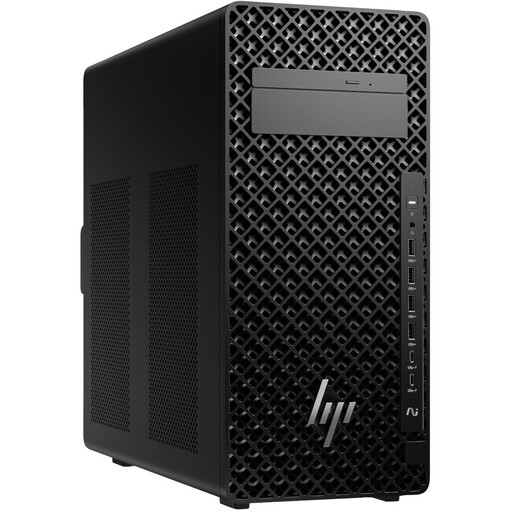
HP Z2 Tower G1i A40MMET, Core Ultra 7 265, 32 GB RAM
A tower to consider if you’re planning future upgrades. HP describes expansion options for the Z2 Tower G1i range, but you should check the specification of the specific model.
The product name lists an Intel Core Ultra 7 265 and 32 GB of RAM. Check the exact drive specification before buying.
View at Joybuy
 No image available
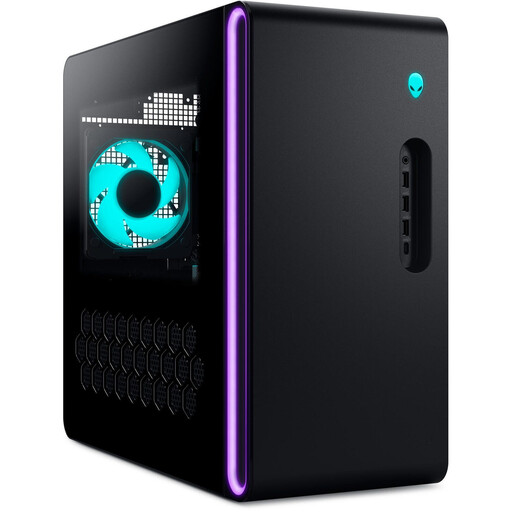
Dell Alienware Aurora ACT1250 1J3N5, Core Ultra 9-285K, 32 GB/2 TB SSD, RTX 5080
If you’re planning to work with effects as well as long clips, compare the components with your software’s requirements. The model name alone doesn’t guarantee a particular editing speed.
The product name lists a Core Ultra 9-285K, 32 GB of RAM, a 2 TB SSD and an RTX 5080.
View at Joybuy
 No image available
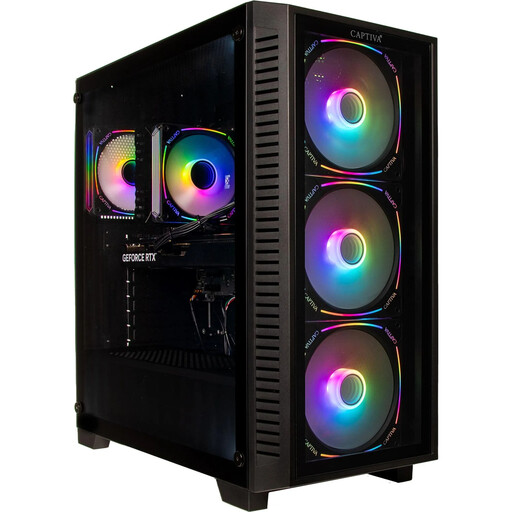
Captiva Highend Gaming PC R89-503, Ryzen 7 7800X3D, RTX 5070 Ti, 32 GB/2 TB SSD
This configuration is worth considering if you’re planning to use effects as well as edit. Check your programme’s requirements and those of your footage.
The product name lists an AMD Ryzen 7 7800X3D, RTX 5070 Ti with 16 GB, 32 GB of RAM, a 2 TB SSD and Windows 11 Home.
View at Joybuy
 No image available
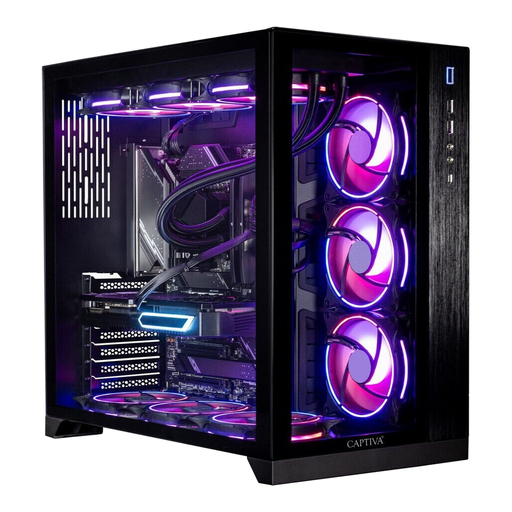
Captiva PC Highend Gaming R90-463, Ryzen 7 7800X3D, RTX 5070 Ti, 64 GB/2 TB SSD
If you’re planning larger projects or effects, compare the specification with the specific requirements of your editing software.
The product name lists a Ryzen 7 7800X3D, 64 GB of RAM, a 2 TB SSD and an RTX 5070 Ti.
View at Joybuy
 No image available
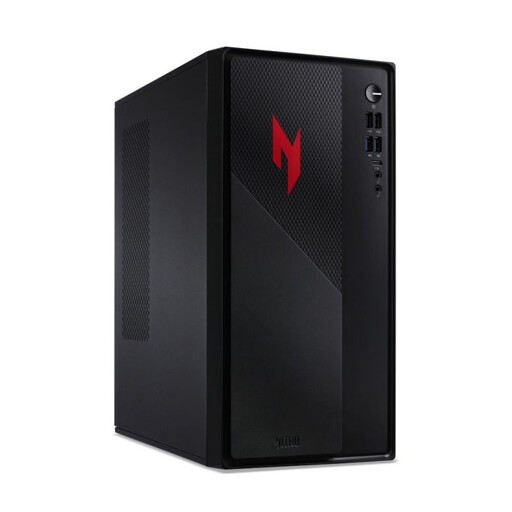
Acer Nitro 20 N20-100 Desktop i5, 32 GB, 1 TB, RTX 5060
An option to consider if you want to compare storage and a dedicated graphics card. Before buying, check the drive layout and ports on the specific model.
The product name lists 32 GB, 1 TB, an RTX 5060 and Windows 11 Home.
View at Joybuy
Frequently asked questions
Do hours of footage alone mean I need a particularly powerful graphics card?
No. Recording length alone doesn’t mean you need a particularly powerful graphics card. Check the format, resolution, effects and requirements of your editing software. For Premiere, Adobe recommends 8 GB of GPU memory. This recommendation doesn’t automatically apply to every programme or recording.
How should I set up drives for a long editing project?
For Premiere, Adobe recommends fast SSD or NVMe drives and, where possible, separate storage locations for the system, cache and media. If you only have two drives, Adobe also describes storing the cache and media together on one drive.
What can I try if my source footage is difficult to play back?
If you use Premiere and your clips are suitable, you can create proxies: lower-resolution working copies for editing. Adobe notes that proxies can only be created for video clips without subtitles.
Who should I contact in Germany if a newly purchased PC is faulty?
The seller, not the manufacturer, is generally responsible for statutory warranty claims. The Verbraucherzentrale generally describes a two-year period. For purchases made from 31 July 2026, it states that this period is extended to three years if a fault is remedied by repair within the two-year warranty period. The circumstances of each individual case matter; a voluntary manufacturer’s warranty is separate.


