What should you look for when buying?
First check your editing software, resolution and codec. Then consider working and backup storage, followed by the form factor and expansion options.
Compact desktop PC
A good fit if: desk space is limited, your editing software runs on macOS and you can connect external media using the available ports.
Consider: Check the storage and port configuration you’re ordering; external drives and peripherals need to fit your workflow.
Configurable tower
A good fit if: you use Windows or want to add internal drives and components. Depending on the configuration, Lenovo and MSI list slots or drive bays for their respective tower ranges.
Consider: The product range doesn’t tell you which specification will actually be supplied. Check the exact variant and its available ports or bays.
| Buying consideration |
What to check before buying |
Most relevant to |
| Editing and preview playback |
Check your editing software and the computer’s exact specification against a representative project. Adobe describes proxies as lower-resolution editing copies for working with large or resource-intensive files. |
When I edit several video tracks with camera footage, screen recordings and overlays, preview playback with my own footage matters most to me. Around 36% of consumers would make editing and preview playback their top buying consideration. |
| Resolution and codec |
For Premiere on Windows, Adobe recommends 16 GB of RAM for HD and at least 32 GB for 4K and higher. Also check that the hardware supports acceleration for the codec you actually use and your preferred export settings. |
If I regularly work on 4K lessons, I want to match the memory and codec support to my recording and output formats. Around 29% of consumers would make resolution and codec their top buying consideration. |
| Working drive and backup |
For Premiere, Adobe recommends a fast internal SSD for the application and cache, as well as an additional fast drive for media. The BSI recommends regular backups on a separate medium. |
If I keep raw footage and several project versions, I need space for current work as well as a separate backup. Around 21% of consumers would make storage and backups their top buying consideration. |
| Space and expansion |
Compare the ports on the specific Mac mini model with those on your monitors and external drives. Lenovo lists PCIe slots for its ThinkStation P3 Tower range; MSI lists drive bays for the PRO DP180 14th, depending on the configuration. |
If desk space is limited or I want to expand internally later, the form factor is important to me. Around 14% of consumers would make space and expandability their top buying consideration. |
Joybuy products for video editing
These desktop PCs and workstations could suit multi-track teaching videos if their individual specifications match your editing software, footage and storage needs.
 No image available
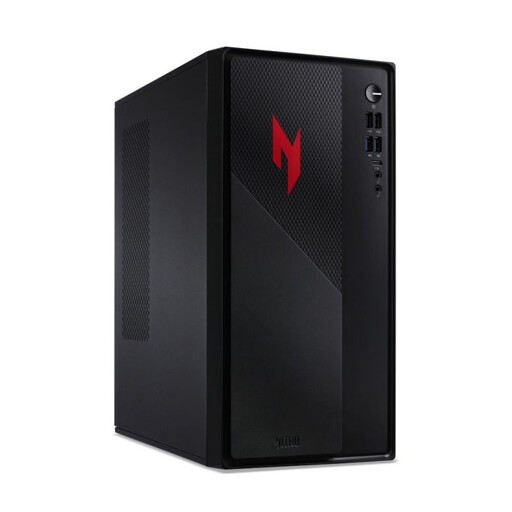
Acer Nitro 20 N20-100, Core i5, 32 GB, 1 TB, RTX 5060, Windows 11 Home
Could suit a Windows editing setup if its specific codec support matches your projects.
Listed in the product name: 32 GB RAM, 1 TB storage, RTX 5060 and Windows 11 Home.
View at Joybuy
 No image available
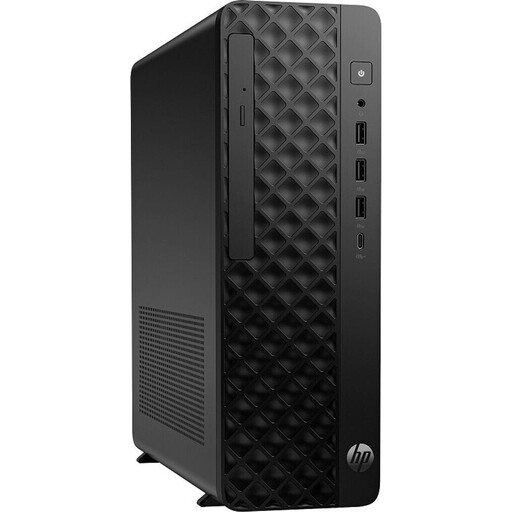
HP Z2 SFF G1i A40M2ET#ABD, Core Ultra 7 265K, 32 GB, 1 TB SSD, RTX A400 4 GB, Windows 11 Pro
Could suit a compact Windows workstation if its listed ports and specification meet your editing needs.
Listed in the product name: Core Ultra 7 265K, 32 GB DDR5, 1 TB M.2 SSD, RTX A400 with 4 GB and Windows 11 Pro.
View at Joybuy
 No image available
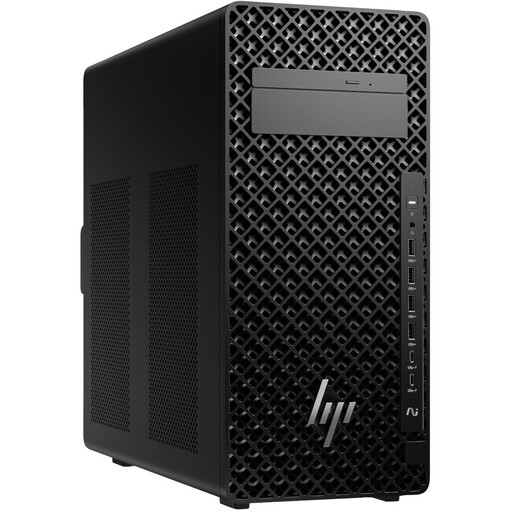
HP Z2 Tower G1i A40MMET, Core Ultra 7 265, 32 GB, Intel Graphics, Windows 11 Pro
Could suit a Windows editing setup if you prefer a tower and its full specification meets your storage and editing needs.
Listed in the product name: Core Ultra 7 265, 32 GB DDR5, Intel Graphics and Windows 11 Pro.
View at Joybuy
 No image available
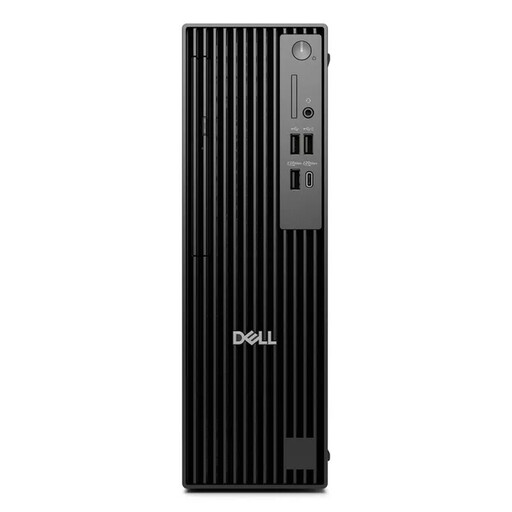
Dell Pro Plus SFF QBS1250, Core Ultra 7 265, 32 GB, 512 GB NVMe SSD, Intel Graphics, Windows 11 Pro
Could be a compact Windows option if 512 GB of SSD storage is enough for your planned workflow and the configuration suits your editing software.
Listed in the product name: Core Ultra 7 265, 32 GB DDR5, 512 GB NVMe SSD, Intel Graphics and Windows 11 Pro.
View at Joybuy
 No image available
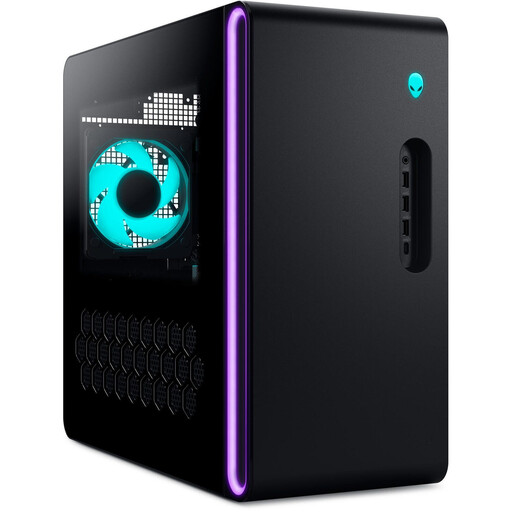
Dell Alienware Aurora ACT1250, Core Ultra 9 285K, 32 GB, 2 TB SSD, RTX 5080 16 GB, Windows 11
Could suit demanding editing projects if your specific software can make use of the specification and it meets your needs.
Listed in the product name: Core Ultra 9 285K, 32 GB RAM, 2 TB SSD, RTX 5080 with 16 GB and Windows 11.
View at Joybuy
Frequently asked questions
Do I definitely need 32 GB of RAM for multiple video tracks?
No. The number of tracks alone doesn’t establish a general RAM requirement. For Premiere on Windows, Adobe recommends 16 GB for HD and at least 32 GB for 4K and higher resolutions. Also check your codec, effects and editing software requirements.
What can I do if high-resolution footage stutters while I’m editing?
If your editing software supports it, you can create lower-resolution proxies for editing and keep the original media for export. Adobe describes this workflow for Premiere, particularly when working with large or resource-intensive files.
Is a large internal SSD enough to back up my lessons?
No. Also plan to make regular copies on a separate medium; Germany’s Federal Office for Information Security, for example, recommends using external hard drives for backups.
What service and additional costs should I check before buying?
Check whether you have the monitors and input devices you need, how much working and backup storage you’ll require, and what warranty terms apply to the specific offer. A manufacturer’s warranty is separate from your statutory rights against the seller if goods are faulty.
How do I dispose of a replaced desktop PC in Germany?
Electrical and electronic waste must not go in household rubbish. Germany’s Federal Environment Agency lists local collection points and return options at participating retailers; the available return option depends on the retailer and device.


