What should you look for when buying?
Compact Windows desktop
A good fit if: you want to keep using Windows software and an existing monitor, and have limited desk space.
Consider: RAM, SSD and ports vary by configuration. A small case doesn’t guarantee any particular graphics performance or colour accuracy.
Mac mini
A good fit if: your editing software supports macOS and you want to choose your screen separately.
Consider: Check the exact memory and port configuration, as well as compatibility with your existing monitor.
Larger, upgradeable desktop
A good fit if: you expect to add internal drives, graphics hardware or other components, and have room for them.
Consider: Wanting to upgrade components doesn’t determine how much performance you need; that depends on your software, files and monitor.
When choosing a desktop PC for portrait retouching at a shared desk, start by clarifying your workflow and what you’ll actually be sharing: just the space, or the computer too.
| Priority |
What to check when buying |
Who will value this? |
| Reliable colour assessment |
Consider the monitor connections and profile alongside the lighting at your workstation. Adobe warns that an inaccurate monitor profile can lead to unnecessary adjustments. |
If I need to assess skin tones on screen, I want my monitor to be part of my colour workflow. Around 29% of consumers put reliable colour assessment first. |
| Performance for your retouching workflow |
Check the exact configuration against your software version, files and applications running at the same time. For Photoshop 27.x, Adobe lists 8 GB RAM as the minimum and recommends at least 16 GB. |
If I edit large collections or work on complex images, I check the resources my software needs rather than judging by case size alone. Around 29% of consumers prioritise performance for their retouching workflow. |
| Separate use at a small desk |
Check whether you’ll share just the desk or the computer too. For shared computers, the Federal Office for Information Security recommends separate, password-protected accounts. |
If several people work at the same desk, I need a case that fits the space. If we share the computer too, our accounts should be separate. Around 24% of consumers prioritise saving space and keeping usage separate. |
| Storage and backups |
Check the SSD capacity of the specific model and plan a separate backup for image files. Adobe explains that a Lightroom Classic catalogue backup doesn’t automatically include edited photos and exports. |
If I want to find and back up portrait files and exports, I need to know how much storage I have and where my backups are kept. Around 18% of consumers prioritise storing and protecting their image files. |
Compact desktop PCs at Joybuy
This selection includes compact Mac mini and Windows mini desktop configurations for a space-saving retouching workstation. Before choosing, check that the operating system and ports work with your software and monitor.
 No image available
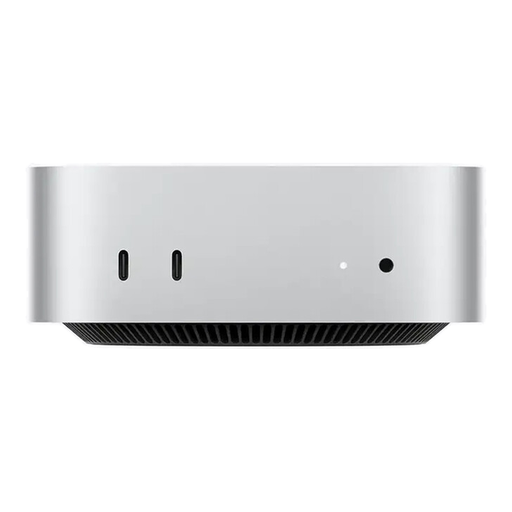
Apple Mac mini M6, 12-core CPU, 12-core GPU, 16 GB unified memory, 256 GB SSD
A compact macOS option if your retouching software is compatible with macOS.
Specifications include 16 GB unified memory, a 256 GB SSD, HDMI and Thunderbolt 4. The monitor is sold separately.
View at Joybuy
 No image available
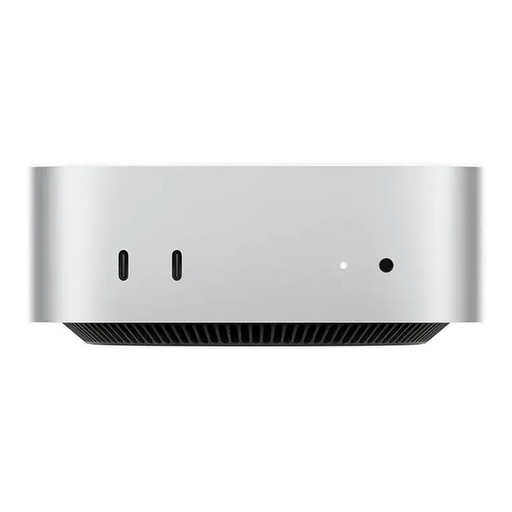
Apple Mac mini M6, 12-core CPU, 12-core GPU, 24 GB unified memory, 512 GB SSD
A compact macOS configuration if it suits your retouching software and monitor workflow.
Specifications include 24 GB unified memory, a 512 GB SSD, HDMI and Thunderbolt 4. The monitor is sold separately.
View at Joybuy
 No image available
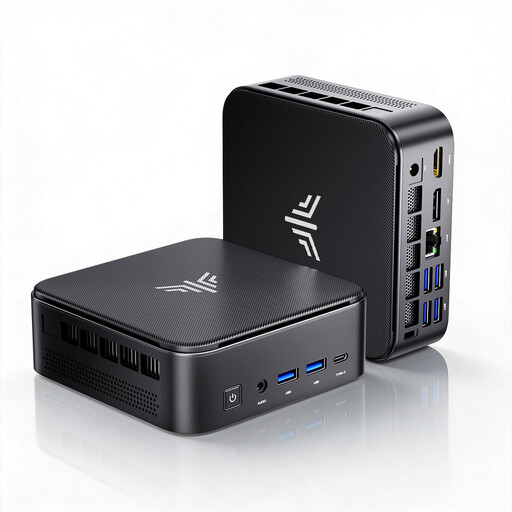
ACEMAGIC E3B, AMD Ryzen 7 7735HS, 24 GB LPDDR5, 512 GB NVMe SSD
A compact Windows option if your retouching software supports Windows and the listed ports work with your monitor.
Specifications include two M.2 2280 slots, HDMI, DisplayPort and USB-C, as well as Windows 11 Pro.
View at Joybuy
 No image available
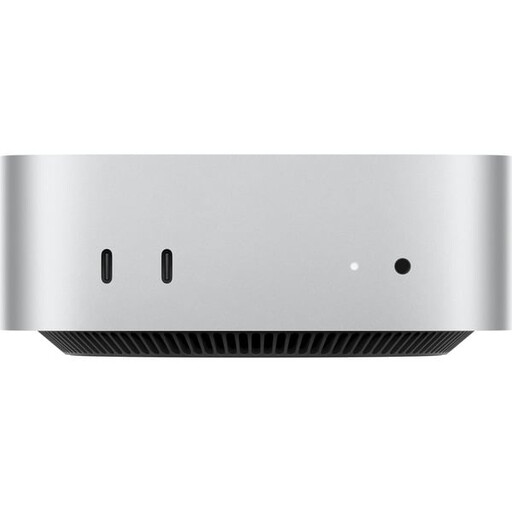
Apple Mac mini MHQL4_CTO_8 A3534, M6, 24 GB unified memory, 1 TB SSD
A compact macOS configuration if your editing software is compatible and you’re choosing the screen separately.
Specifications include a 12-core CPU, a 12-core GPU, 24 GB unified memory, a 1 TB SSD, HDMI and Thunderbolt 4.
View at Joybuy
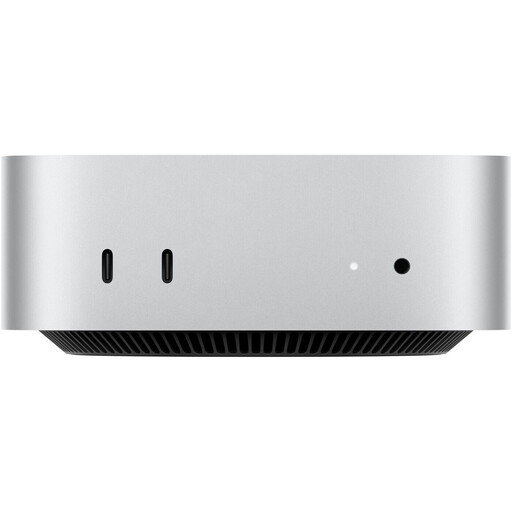 No image available
Apple Mac mini MHQL4ZD/A_CTO, M6, 32 GB unified memory, 512 GB SSD
A compact macOS configuration if your retouching software supports macOS and you can connect your monitor appropriately.
Specifications include a 12-core CPU, a 12-core GPU, 32 GB unified memory, a 512 GB SSD, HDMI and Thunderbolt 4.
View at Joybuy
Frequently asked questions
Is 8 GB RAM enough for Photoshop?
For Photoshop 27.x, Adobe lists 8 GB as the minimum and recommends at least 16 GB. Check the configuration you choose against your software version and the applications you use at the same time.
What should I set up first on a shared computer?
If several people use the same computer, the Federal Office for Information Security recommends separate, password-protected accounts with appropriate access rights. For colour-critical work, Adobe also recommends calibrating and profiling your monitor.
Are my portrait files backed up by the Lightroom Classic catalogue backup?
No. Adobe explains that the built-in catalogue backup only includes the catalogue file; edited photos and exports need to be backed up separately.
What are my rights in Germany if my new computer is faulty?
For consumer purchases, the Verbraucherzentrale explains that you have statutory warranty rights against the seller for two years from the date you receive or take delivery of the computer. A voluntary guarantee is separate; for other types of contract, check the applicable terms individually.
Is a CE mark an independent quality seal for retouching PCs?
No. According to information from the European Union, the manufacturer uses it to declare that the product complies with the relevant EU product rules; there is no central EU body that awards a general CE certificate. It says nothing about the colour accuracy or retouching performance of a particular model.


