What should different users look for?

Designers working with large image files

If you work with large images as well as poster layouts, compare the software and file sizes you use with the memory and available SSD space of the specific computer configuration. Adobe lists 8 GB RAM as the minimum for Photoshop 27.x and recommends 16 GB or more; other software may have its own requirements.

Teams with limited desk space

If several people share office space or a computer, plan the screen, input devices and connections together. The German Federal Institute for Occupational Safety and Health (BAuA) sets out requirements for designing workstations with display screen equipment.

Designers preparing work for print

If your posters are going to a printer or print shop, your monitor choice and colour management are part of the workflow. Adobe describes colour management for print output as a separate step from choosing a computer.

What matters when buying?

Mini PC with a separate monitor

A good fit if: you have limited desk space and want to choose your screen size and monitor independently of the computer.

Keep in mind: you’ll need to factor in a monitor and, where necessary, input devices; a compact design doesn’t tell you how noisy a computer is or how easy it is to upgrade.

All-in-one

A good fit if: you want to keep a shared desk tidy with a built-in screen, and the screen is suitable for your design work.

Keep in mind: you’re choosing the screen at the same time as the computer; the form factor alone is no guarantee of colour accuracy in print.

Larger desktop or workstation

A good fit if: your software, large files or planned upgrades call for a suitably configured machine, and you have enough space.

Keep in mind: a workstation marketed for 3D or rendering isn’t automatically necessary for 2D posters; what matters is your actual workflow.

Buying priority What to look for Who it matters most to
Layouts and large images Check the software and versions you use against the exact configuration’s RAM, operating system, graphics requirements and available SSD space. Adobe lists 8 GB RAM as the minimum for Photoshop 27.x and recommends 16 GB or more. If I work with large image files and several layouts, I want the specification to suit the way I actually work. Around 33% of consumers say working with layouts and large images is their top priority.
Screen and print colours Check the print shop’s requirements, the monitor and the right connection; factor in colour management for your planned print output. If my posters are going to be printed, I want to plan how they look on screen and in print together, rather than relying on computer performance alone. Around 25% of consumers put their print workflow and monitor choice first.
Desk space and screen area Check there’s room for the computer, screen, input devices and work materials. If employees will be using the workstation, consider the design of the entire display screen equipment setup. If I share a desk with others, I need an arrangement where the screen and work materials suit the task. Available desk space is the top buying priority for around 25% of consumers.
Shared use and what’s included Establish whether you’ll share just the workspace or the computer too; check user accounts and software licensing, as well as what’s included and the service terms for the specific configuration. If several people use the same computer, I want to organise accounts and software in advance and compare complete workstation setups. Around 17% of consumers prioritise shared use and the overall workstation setup.

Common misconceptions

  • Buying just the computer and assuming the print workflow is taken care of

    Colour management is a separate step in print production. Computing power alone doesn’t determine how a poster will look when printed.

    Before you buy, find out which monitor and print specifications matter for your planned output.

  • Comparing the price of a mini PC with that of a complete workstation

    With a mini PC, you choose the screen separately. A comparison of the computer alone therefore leaves out parts of the workstation you’ll need.

    Compare what’s included and factor in a monitor and, where necessary, input devices.

  • Assuming a workstation or graphics card means better 2D poster design

    Some manufacturers also market workstation configurations for 3D and rendering. That doesn’t mean this specification is needed for 2D layouts alone.

    First check the requirements of your software and projects, then choose the specific configuration to suit.

Relevant brands at a glance

Apple

The Mac mini is a compact macOS computer with a separately chosen screen. It’s worth considering if your software and team workflow are suited to macOS.

  • Apple lists different combinations of memory and SSD, as well as ports for external displays, depending on the Mac mini variant.
  • You’ll need to choose a suitable monitor separately; check the specification of the exact variant.

HP

The Z2 Mini G1i is a compact Windows workstation, available in a range of configurations.

  • HP lists different RAM and SSD specifications for different product numbers, so the exact variant matters.
  • Being marketed for 3D or rendering doesn’t mean extra capability is needed for 2D posters alone.

Lenovo

The ThinkStation P3 Tiny Gen 2 is a compact Windows workstation. Model 30K5005GGE provides a specific example to use when checking the specification.

  • For variant 30K5005GGE, Lenovo lists 32 GB RAM, a 512-GB SSD, HDMI, DisplayPort and a three-year basic on-site warranty.
  • These details apply to this exact variant. Extra graphics capability isn’t automatically needed for 2D posters.

Dell

The Dell Pro Max Micro FCM2250 is a configurable, compact Windows desktop worth considering if particular connections or components matter to you.

  • Dell highlights differences between configurations, so compare the specification of the exact model.
  • The older OptiPlex Micro Form Factor Plus is marked as discontinued or no longer available on the German product page, so it isn’t a current buying option in this range.

Desktop PCs at Joybuy

The computers below include compact mini and micro PCs, as well as larger desktop and workstation configurations to help you plan a workstation for poster design.
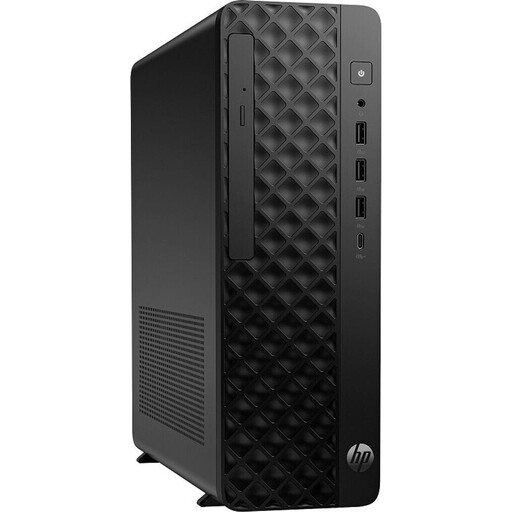
HP Z2 SFF G1i with Core Ultra 7 265K, 32 GB RAM and 1 TB SSD

HP Z2 SFF G1i A40M2ET#ABD

An SFF workstation for design workflows where you need to check the exact specification against the software and files you use.

Core Ultra 7 265K, 32 GB DDR5-5600, 1 TB SSD and NVIDIA RTX A400 with 4 GB GDDR6; Windows 11 Pro.

View at Joybuy
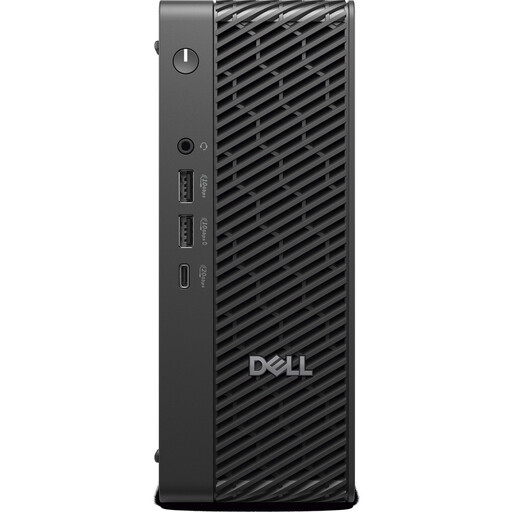
Dell Pro Max Micro FCM2250 with Core Ultra 7, 16 GB RAM and 512 GB SSD

Dell Pro Max Micro FCM2250 TPM

The micro form factor is an option if you’re planning a compact computer with a separately chosen screen.

Core Ultra 7, 16 GB DDR5-6400, 512 GB SSD and integrated Intel graphics; Windows 11 Pro. The product details list HDMI and DisplayPort for external screens.

View at Joybuy
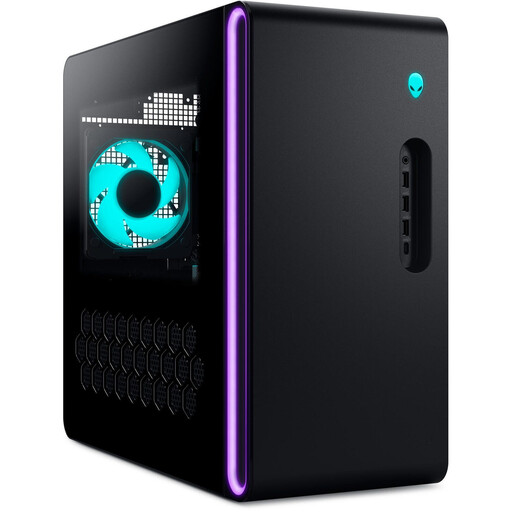
Dell Alienware Aurora ACT1250 with Core Ultra 9, 32 GB RAM and 2 TB SSD

Dell Alienware Aurora ACT1250 1J3N5

A tower desktop for a workstation where you’ll need to check the exact specification against the software and image files you use.

Core Ultra 9-285K, 32 GB RAM, 2 TB SSD and RTX 5080 with 16 GB GDDR7; Windows 11 Home. The specifications list HDMI and three DisplayPort outputs.

As a tower, it needs a stable space that’s large enough; the description gives an approximate weight of 15–20 kg.

View at Joybuy
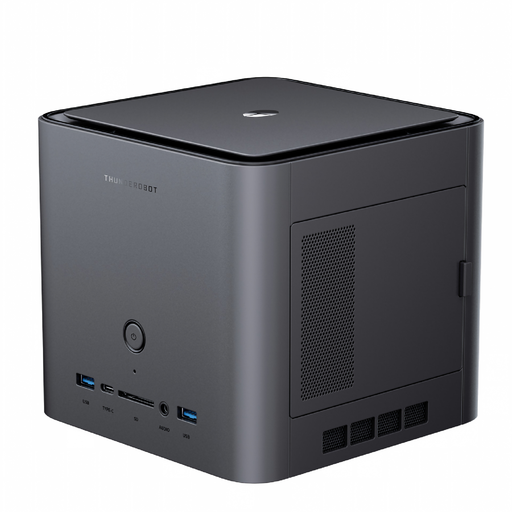
THUNDEROBOT Mini-PC Workstation AI Max+ 395 with 128 GB RAM and 1 TB SSD

THUNDEROBOT Mini-PC Workstation AI Max+ 395

The mini PC form factor is worth considering when planning a workstation with limited desk space.

128 GB LPDDR5X-8000 RAM and 1 TB SSD.

View at Joybuy
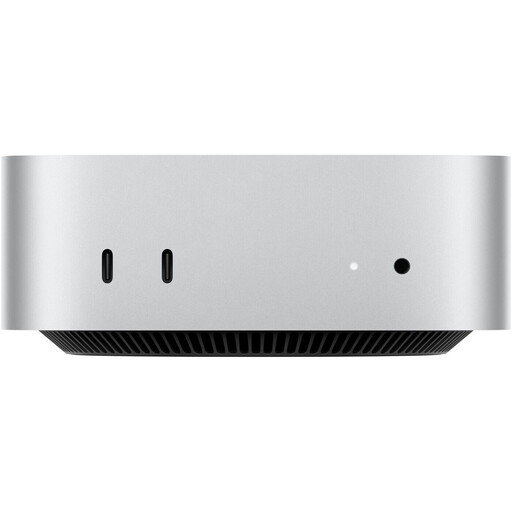
Apple Mac mini M6 with 16 GB Unified Memory and 256 GB SSD

Apple Mac mini M6

A compact macOS computer with a separately chosen screen, if your software and team workflow are suited to macOS.

12-core CPU, 12-core GPU, 16 GB Unified Memory and 256 GB SSD. The specifications list HDMI and Thunderbolt 4 for external displays.

Factor in a separate monitor and check what’s included: the listing mentions the Mac mini and power cable, but no display.

View at Joybuy

Frequently asked questions

Are Photoshop’s minimum requirements enough to guide my purchase?

No. Adobe lists 8 GB RAM as the minimum for Photoshop 27.x, among other requirements, and recommends 16 GB or more. Also check the requirements of all the software you actually use and the space your files need; the minimum specification alone doesn’t tell you how well a particular machine will perform.

What should I check before setting up at a shared desk?

Plan the screen, keyboard, work materials and cables alongside the computer. If employees will be working at a display screen equipment workstation, ASR A6 is relevant to its design. It sets out specific requirements under the Workplace Ordinance while allowing other solutions that provide at least equivalent protection.

Can our team automatically share a software installation using a single account?

Buying a shared PC doesn’t automatically make this possible. If several people need to use Adobe applications on the same device, you’ll need to check which licensing option and user accounts are suitable for your organisation. Adobe describes Shared Device Licensing for certain shared environments; that doesn’t mean it’s the right option for every office.

What warranty and returns rules apply when buying for the office?

The minimum two-year legal guarantee and the 14-day right of withdrawal explained by the European Union apply to consumers under the relevant conditions. Buying something for office use alone doesn’t establish whether the contract is a consumer or business purchase. Check who the buyer is and the contract terms, and distinguish these rights from any additional manufacturer’s warranty.

Does German law require every poster design office to have a particular processor or monitor resolution?

ASR A6 doesn’t set a general purchasing requirement for a particular desktop processor model. For employees working at display screen equipment workstations, the focus is on a safe setup that’s suitable for the task, and on the employer’s duties.