Which workstation is right for you?

Record notes systematically

If you want to save observations using your own fields and find them quickly later, first check that your database or specialist software supports those fields and queries. Microsoft Support explains these features for Access.

Review scans side by side

If you need to view digital documents alongside the data entry form, plan for a suitable space for your screen and check that your existing devices can be connected. Your scanner, software and PC all need to work together.

Manage a project archive

If your index needs to remain available over time or be shared with others, plan regular backups. You should also consider appropriate safeguards if it contains personal data. The Federal Office for Information Security recommends backing up data externally, while the BfDI explains safeguards for personal data.

What should you look for when buying?

Windows mini PC

A good fit if: you want to use Windows desktop software such as Access, already have a suitable monitor and need to save space.

Consider: you’ll need to add a monitor and, if required, input devices; upgrade options depend on the specific model.

Windows small form factor PC

A good fit if: you’re setting up a permanent workstation and want to allow for possible future additions, such as internal cards or drives.

Consider: the case takes up more room than a mini PC. Available slots alone don’t guarantee compatibility with particular software or peripherals.

Mac mini

A good fit if: your chosen indexing software runs on macOS and you don’t need to use Access as a native application.

Consider: Microsoft lists Access as “PC only” in its Microsoft 365 system requirements, so check the specific software before you buy.

What matters What to check before buying Who should pay particular attention?
Custom fields and software Check the supported operating system, the software you need and the licence for the specific configuration. I want to make sure I can use my fields and queries with the intended application before committing to a PC. That’s why around 31% of consumers prioritise software compatibility.
Archive and data backup Allow for the storage needed for notes and scans, as well as a connection or another suitable way to keep separate backups. If the index needs to remain available over the long term, storage space isn’t my only concern: I also need a backup I can restore. Around 25% of consumers put archive protection first.
Scans and data entry form Check the screen connections and make sure the scanner you actually use can be connected and works with its software. I want to be able to view scans and the data entry form easily at my workstation, and connect compatible devices. Around 25% of consumers prioritise being able to review documents alongside their work.
Space, upgrades and what’s included Check the case size, the slots actually available, what devices are included, and the operating system and storage. If space is tight or I’m planning upgrades, I need a form factor that suits my desk and the additions I have in mind. Around 19% of consumers prioritise space and upgrade flexibility.

Avoiding buying and planning mistakes

  • Buying a PC before choosing your indexing software

    Custom fields, forms and search queries depend on the application you use. Microsoft lists Access as a PC application, so another operating system isn’t a straightforward substitute.

    Try out fields, forms and search using a sample of your notes, then check the operating system requirements for your chosen software.

    You may need extra devices or an operating system to get set up if they aren’t included in the offer.

  • Confusing a larger SSD with a data backup

    An index and its source files can be lost through software errors or accidental overwriting. The BSI recommends saving data regularly and backing it up externally.

    Plan a separate backup and check how you’ll restore your files if needed.

    You’ll need a practical external backup solution, such as a suitable storage device.

Brands to consider

HP

The documented Pro 400 G9 configurations include a mini PC and a small form factor PC for different Windows workstations.

  • For the Pro 400 G9 SFF CP9J4EA#ABD, HP lists Windows 11 Pro, 16 GB RAM, a 512 GB SSD and PCIe slots. These are manufacturer specifications for this configuration, not independent performance test results.
  • The Pro 400 Mini G9 CP9G3EA#ABD is a different configuration. Check the operating system, storage and what’s included with the specific offer.

Lenovo

The ThinkCentre M70q Gen 5 Tiny is designed for a compact workstation with a separate screen.

  • Lenovo describes accessible storage components and support for up to three displays.
  • The screen, wireless keyboard and mouse are listed as sold separately. Check the connections and specification of the variant on offer.

ASUS

You can’t determine the exact mini PC configuration from the ExpertCenter PN64 model name alone.

  • The ASUS specifications page lists USB, HDMI and LAN connections, among others.
  • The range includes different processor, RAM and SSD options, as well as configurations without a pre-installed operating system. Check the exact version being sold.

Apple

A Mac mini may suit an indexing workflow if you’ve confirmed that the software works with macOS.

  • Apple documents Mac mini configurations with M6 and connections for external screens.
  • Microsoft lists Access as “PC only” in its Microsoft 365 system requirements. A Mac mini should therefore not be treated as a replacement for an Access workstation without checking the software first.

Joybuy products for your workstation

The Joybuy products below range from compact mini PCs to tower systems. For each device, check the exact specification and make sure its operating system and connections suit your indexing software, screens and scanner.

SOYO Y5Pro mini PC with Intel Core i5 8250U/8350U, 8 GB RAM and 256 GB SSD

SOYO Y5Pro mini PC, Intel Core i5 8250U/8350U

Listed as a compact mini PC for office tasks; the title specifies Windows 11.

8 GB DDR4, 256 GB SATA SSD, Bluetooth 5.2 and Wi-Fi 5. The description lists HDMI, Type-C and USB connections.

View at Joybuy
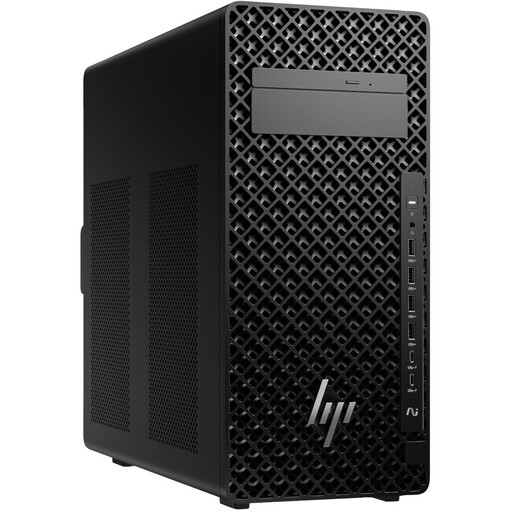
HP Z2 Tower G1i A40MMET with Intel Core Ultra 7 265, 32 GB RAM and Windows 11 Pro

HP Z2 Tower G1i A40MMET, Core Ultra 7 265

Listed as a tower workstation for a permanent setup. Check that your specific software is compatible with the operating system and configuration.

32 GB DDR5 and Windows 11 Pro. The description lists several USB and DisplayPort connections.

View at Joybuy
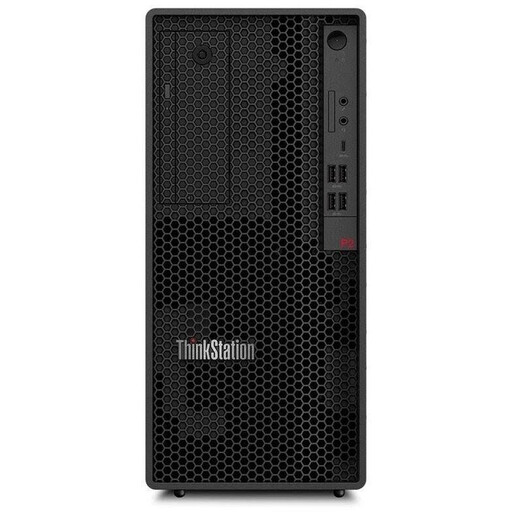
Lenovo ThinkStation P2 Tower Gen2 with Intel Core Ultra 7 265, 32 GB RAM and 512 GB SSD

Lenovo ThinkStation P2 Tower Gen2, Core Ultra 7 265

A tower PC with connections for screens and peripherals. Check that it’s compatible with your chosen indexing software.

32 GB DDR5, 512 GB NVMe SSD, NVIDIA RTX A400 with 4 GB and Windows 11 Pro. The description lists HDMI, DisplayPort and several USB connections.

View at Joybuy
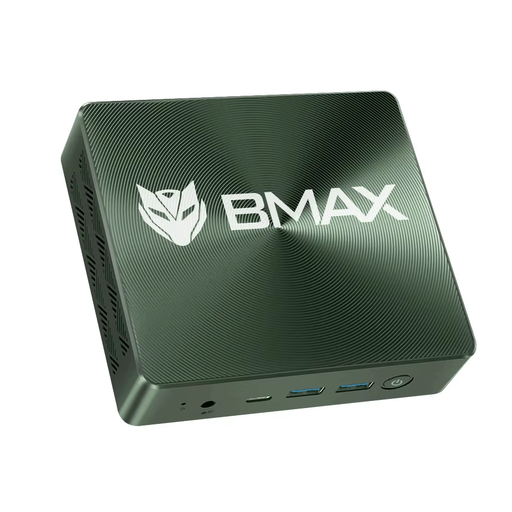
BMAX B6 Pro mini PC with Intel Core i5-1030NG7, 16 GB RAM and 512 GB SSD

BMAX B6 Pro mini PC, Intel Core i5-1030NG7

Listed as a compact office mini PC with Windows 11. Check that its connections work with your existing screens.

16 GB LPDDR4, 512 GB NVMe SSD, Wi-Fi 5 and Bluetooth 4.2. The title specifies video output for up to three displays.

View at Joybuy
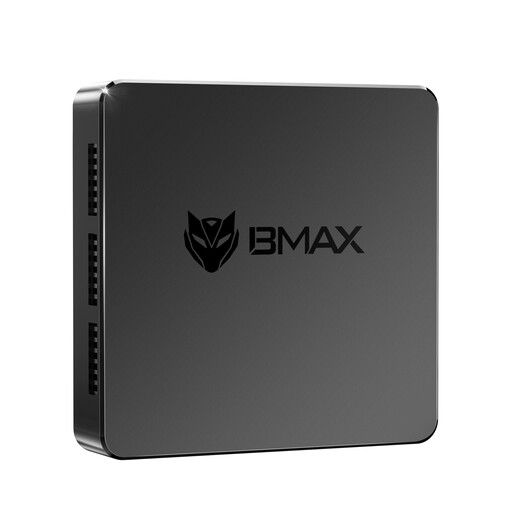
MaxMini B3 mini PC with Intel N4100, 8 GB RAM and 256 GB SSD

MaxMini B3 mini PC, Intel N4100

Its compact design and two HDMI outputs may suit a space-saving workstation with two screens.

8 GB LPDDR4, 256 GB SSD, 1000M LAN, Wi-Fi 2.4G/5G and Bluetooth 5.0. The model name specifies an Intel N4100 processor with speeds of up to 2.4 GHz.

View at Joybuy

Frequently asked questions

Do I need a particularly powerful PC for custom index fields?

Not necessarily. Choose your indexing software first and check its requirements for the amount of data you’ll be working with. Microsoft documents custom table fields, forms and queries in Access; this doesn’t establish a universal minimum processor or RAM specification for your files.

How should I set up my workstation if my notes are also available as scans?

Check that your scanner and screen can connect to the specific PC. Set up the fields and data entry forms you need, then test a few notes to make sure the search and filing process works for you.

Is it enough to store my archive on the internal SSD?

An internal SSD alone isn’t a separate backup. The Federal Office for Information Security recommends saving data regularly and backing it up externally. You should also plan how you’ll restore the backup.

What should I know about warranties and consumer rights when buying?

For consumer purchases, statutory rights against the seller are separate from a voluntary guarantee. EU information states that faulty goods are covered by a statutory guarantee of at least two years; if you’re buying for a business, check the contract terms separately.

What legal points matter for building survey notes?

For electrical or electronic equipment sold in the German market, the Federal Network Agency explains the requirements for labelling and clear device identification; check the details given for the specific offer. If your notes contain personal data and the GDPR applies to how they’re processed, those responsible must put appropriate technical and organisational safeguards in place. The right measures will depend on the data and how it’s used.