Who is this type of PC suitable for?

Teachers who use two monitors

If you want to use reference materials, a learning platform and a worksheet side by side, first check that the specific PC configuration supports both screens at the same time. Bitkom e. V. identifies digital lesson preparation as one use of technology for teachers.

Teachers with a growing library of resources

If you have lots of your own documents, plan for storage, easy file retrieval and separate backups together. Germany’s Federal Office for Information Security explains the steps involved in backing up data.

Teachers short on desk space

If your permanent workspace has limited room, compare the dimensions of a mini PC with those of a larger desktop case, and check the specification of the exact model you’re considering.

What should you look for when buying?

Windows mini PC

A good fit if: You have limited desk space and the specific model supports both monitors and your Windows software.

Consider: A compact case does not remove the need to check the ports or plan for SSD storage and backup copies.

Windows desktop in a small-form-factor case

A good fit if: You have a permanent workspace and want to consider internal storage options for future upgrades.

Consider: Lenovo lists the ThinkCentre M70s Gen 5 as supporting two independent displays via DisplayPort and HDMI; however, an available drive bay does not mean an SSD is included.

Mac mini

A good fit if: The school programmes and file formats you need work on macOS, and the monitor connections are compatible.

Consider: Apple lists the Mac mini with M6 as supporting several external displays via Thunderbolt and HDMI; the entry-level model is listed with a 256 GB SSD.

Priority What to check before buying Who is this particularly important to?
Connecting two screens Check that the PC supports two independent displays at the same time, and that its video outputs match the monitor inputs and cables. If I want to work with teaching materials on two separate screens, I need to know whether both monitors will work at the same time. Around 36% of consumers put reliable connection of both screens first.
Organising and backing up files Check your storage needs and the SSD included in the configuration you order; plan a suitable storage location and a separate backup. If you want to keep worksheets and other personal files safe in case of a fault, you need a suitable system for storing and backing them up. Around 29% of consumers prioritise organising their teaching files.
Desk space and upgrades Check the case dimensions and the drive options actually available for the specific model. If my workspace is short on room and I want to allow for future changes, suitable dimensions and clearly stated options matter. Around 21% of consumers put desk space and upgrade options first.
School software and pupil data Check the programmes you need, the operating system version and your school’s requirements for devices, accounts and personal data. If I need specific school programmes or will be handling personal data relating to pupils, the software and school requirements must be right for how I plan to use the PC. Around 14% of consumers prioritise software and the handling of pupil data.

Which assumptions should you avoid?

  • Two video ports do not automatically mean you can use two monitors for work

    What matters is whether the specific configuration supports two independent displays at the same time, and whether its outputs match the monitor inputs.

    Check the manufacturer’s information on simultaneous display support against both monitors and the connections you need.

    Depending on the connections, you may need suitable cables or adapters.

  • Optional storage bays do not prove that an SSD is included

    The German Lenovo configurator listing reviewed for the ThinkCentre M70s Gen 5 says “No storage selected”. Options available across a product family do not confirm that the specific model you order already includes a drive.

    Before buying, check whether an SSD is included and how much capacity it has.

  • A personal PC is not automatically approved for pupil data

    According to the Data Protection Conference’s short paper, employees may process personal data only on the instructions of the controller or processor. The PC’s specification alone does not settle this question.

    Before using the PC in this way, check your school’s requirements for devices, accounts and storage locations.

Key brands to consider

HP

The Pro Mini 400 G9 range is worth considering if you’re looking for a space-saving Windows desktop.

  • For the German product number 938A5EA#ABD, HP lists Windows 11 Pro, 8 GB RAM and a 256 GB SSD.
  • HP’s port overview covers the product family; this does not confirm that optional ports are available on every product number. Check the specific configuration.

Lenovo

The ThinkCentre M70s Gen 5 is a small-form-factor desktop for a permanent Windows workspace.

  • Lenovo’s PSREF lists support for two independent displays via the integrated DisplayPort and HDMI connections.
  • Check whether an SSD is included in the specific listing; the product family alone does not confirm a complete storage specification.

Apple

The Mac mini with M6 could suit a compact macOS workspace, provided the school programmes you need run on it.

  • Apple lists the Mac mini with M6 as supporting several external displays via Thunderbolt and HDMI.
  • The listed entry-level model has 16 GB of unified memory and a 256 GB SSD; other configurations differ.

Dell

The Dell Pro Slim Plus QBS1250 range is a line of Windows desktops for office workspaces.

  • It may be worth considering if a Windows desktop configuration suits your workspace and software.
  • The F.A.Z. Kaufkompass notes that the model it reviewed does not have HDMI. Dell points out that changes to the configuration may affect other specifications.

Joybuy products for a compact Mac workspace

This selection of Joybuy products includes compact Mac mini configurations for a permanent macOS workspace. Before buying, check that your school software runs on macOS and that the connections are compatible with both monitors.
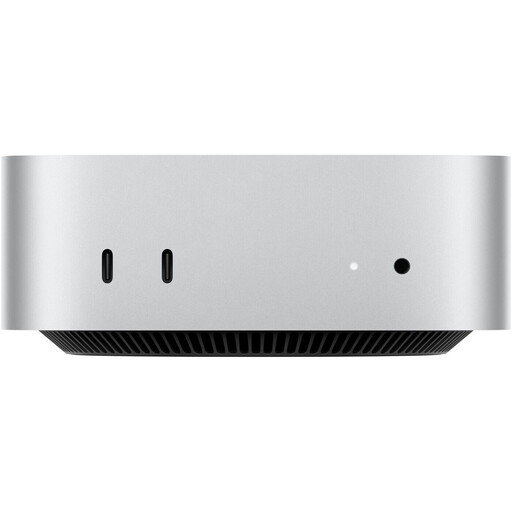
Apple Mac mini M6 with 16 GB of unified memory and a 256 GB SSD

Apple Mac mini M6, 16 GB unified memory, 256 GB SSD

For a compact workspace, provided the school programmes you need run on macOS.

12-core CPU, 12-core GPU, 16 GB unified memory, 256 GB SSD, Thunderbolt 4 and HDMI.

Apple lists the Mac mini with M6 as supporting several external displays via Thunderbolt and HDMI.

View at Joybuy
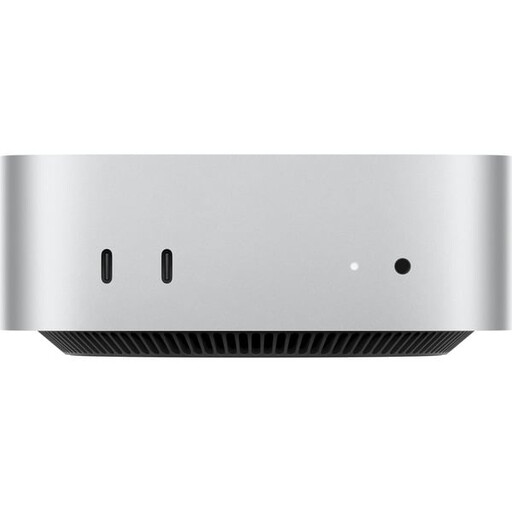
Apple Mac mini M6 with 16 GB of unified memory and a 512 GB SSD

Apple Mac mini M6, 16 GB unified memory, 512 GB SSD

For a compact workspace, provided the school programmes you need run on macOS.

12-core CPU, 12-core GPU, 16 GB unified memory, 512 GB SSD, Thunderbolt 4 and HDMI.

Apple lists the Mac mini with M6 as supporting several external displays via Thunderbolt and HDMI.

View at Joybuy
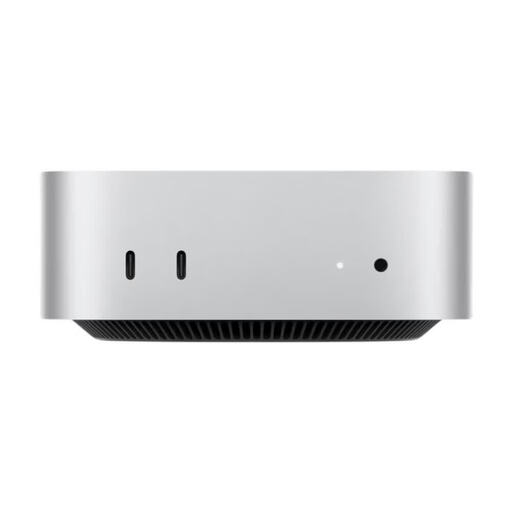
Apple Mac mini M6 with 24 GB of unified memory and a 512 GB SSD

Apple Mac mini M6, 24 GB unified memory, 512 GB SSD

For a compact workspace, provided the school programmes you need run on macOS.

12-core CPU, 12-core GPU, 24 GB unified memory, 512 GB SSD, Thunderbolt 4 and HDMI.

Apple lists the Mac mini with M6 as supporting several external displays via Thunderbolt and HDMI.

View at Joybuy
Apple Mac mini M6 A3534 with 24 GB of unified memory and a 1 TB SSD

Apple Mac mini M6 A3534, 24 GB unified memory, 1 TB SSD

For a compact workspace, provided the school programmes you need run on macOS.

12-core CPU, 12-core GPU, 24 GB unified memory, 1 TB SSD. Dimensions: 127 × 50 × 127 mm.

Apple lists the Mac mini with M6 as supporting several external displays via Thunderbolt and HDMI.

View at Joybuy
Apple Mac mini M6 A3534 with 32 GB of unified memory and a 1 TB SSD

Apple Mac mini M6 A3534, 32 GB unified memory, 1 TB SSD

For a compact workspace, provided the school programmes you need run on macOS.

12-core CPU, 12-core GPU, 32 GB unified memory and 1 TB SSD.

Apple lists the Mac mini with M6 as supporting several external displays via Thunderbolt and HDMI.

View at Joybuy

Frequently asked questions

How do I set up two recognised screens in Windows?

Open “Settings”, then “System” and “Display” to identify the screens and arrange them to match their positions on your desk. Under “Multiple displays”, Microsoft also lists the “Detect” feature; however, it cannot fix an unsuitable hardware connection.

Is a large SSD enough to back up my teaching materials?

No. An SSD containing your work files is not the same as a separate backup. Germany’s Federal Office for Information Security recommends disconnecting backup media from the computer when it is not being used for a backup. For pupil data, the storage location must also meet your school’s requirements.

Who should I contact if something goes wrong: the retailer or the manufacturer?

For a purchase by a consumer, the seller is generally responsible for statutory rights relating to faulty goods; a manufacturer’s guarantee is separate and voluntary. Germany’s Verbraucherzentrale explains the difference between statutory rights and a guarantee. Also check the specific terms of sale and the service offered.

Can I still use an older Windows 10 PC without any problems?

Not without checking its update options: Microsoft says regular support for Windows 10 ended on 14 October 2025. The fact that a PC still starts up with Windows 10 does not, by itself, mean it continues to receive regular security updates.