Choose a desktop PC for theatre programme covers based on the requirements of your image and layout software, the size of your layered files and the connections you need for your display – not just the graphics card. A compact PC may suit a smaller workspace, while a tower can offer more scope for configuration or upgrades. Plan for your display, software and backups as part of your overall setup.
Which computer is right for you?
Designers working with large layered files
If you regularly edit large, multi-layered images and keep other creative software open, check the RAM and available SSD space. Adobe recommends at least 16 GB RAM for Photoshop 27.x and later, but this does not guarantee smooth performance with every file size or workflow.
Print layout professionals
If you combine images and text to create a finished cover, factor the display and suitable connections into your choice. The desktop PC’s specifications alone tell you nothing about the colour reproduction of an external monitor.
Designers short on desk space
If you have a small workspace, a mini PC could be a good option. Compare the memory, connections and documented upgrade options of the specific model with those of a larger desktop.
What should you look for when buying?
Start with your software requirements and the size of your files. Then compare the specific computer configuration with your display, available space and preferred upgrade options.
Upgradeable Windows desktop
A good fit if: you want a tower and would like to configure the RAM or SSD to suit your needs.
Consider: Allow for more desk space and check the specifications of the version you order; optional features aren’t automatically included in the base configuration.
Compact Windows PC
A good fit if: space is limited and the chosen specification meets your image and layout needs.
Consider: Check the connections and upgrade options for the specific model rather than judging by its size alone.
Mac mini
A good fit if: your software and working files are compatible with macOS and you want to use an external display.
Consider: Apple offers different memory and SSD configurations. Check the full specification and budget separately for a display and peripherals.
| Buying criterion |
What to look for |
Who should prioritise this? |
| Working with large layered files |
Check the RAM in the specific version and the available SSD space. Adobe recommends 100 GB of available storage for Photoshop; total SSD capacity isn’t the same as free space. |
When I edit large image files and use creative software at the same time, I look for enough RAM and free SSD space. Around 36% of consumers prioritise smooth performance with large layered files. |
| Display for print layout |
Check that your existing monitor is suitable for print proofing and that it’s compatible with the video connections on the computer you choose. |
I want to be able to connect a suitable display to assess my cover. Around 29% of consumers prioritise a display and connection compatibility for print previews. |
| Workspace |
Compare the dimensions, connections, RAM, SSD and documented upgrade options of the complete model. |
If my permanent workspace is short on room, a compact case could work, provided its specifications suit my workflow. Around 21% of consumers prioritise a small footprint. |
| Customisation and support |
Check whether the RAM and SSD in your chosen version can be upgraded, and what terms apply to the support service on offer. |
For long-term use, I want to know what can be upgraded and what support terms apply to the specific version. Around 14% of consumers prioritise customisation and support. |
Common buying mistakes
-
Comparing only the graphics card
The specification you need also depends on file size and software. Adobe sets specific GPU requirements for Photoshop, so check those for the version you use.
Before choosing a dedicated graphics card, first compare the requirements of your image and layout software with your actual workflow.
-
Assuming optional features come as standard
The Dell Pro Tower QCT1255 and Apple Mac mini M6 are available in different configurations. You can’t assume that a feature included in one version will be available in another.
Before comparing offers, note down the full model specification, including RAM and SSD.
-
Budgeting for the computer alone
A desktop by itself isn’t a complete workspace for cover design.
Consider your display, software and data backup as separate parts of your workflow.
Without a suitable display, you won’t be able to assess your cover on the screen you plan to use.
Key brands at a glance
HP
The HP Pro 400 G9 SFF is a more compact Windows desktop option.
- HP lists 16 GB RAM, a 512 GB SSD and integrated Intel graphics for CP9J4EA#ABD.
- These specifications don’t demonstrate independently measured performance with large cover files; storage needs and display choice are separate considerations.
Dell
The Pro Tower QCT1255 is a Windows tower option with configurable specifications.
- Dell lists different RAM and SSD configurations.
- The documented options include 16 GB RAM and a 512 GB SSD; optional specifications aren’t automatically included in this version.
Lenovo
The ThinkCentre M75q Gen 5 Tiny is a space-saving Windows option.
- Lenovo lists 16 GB RAM, a 512 GB SSD and three years of on-site service for version 12RQ004MEZ.
- Other configurations may have different specifications and terms, so compare the specific part number.
Apple
The Mac mini with M6 is a compact macOS option for compatible software and files.
- Apple documents versions with 16, 24 or 32 GB of unified memory and different SSD capacities.
- The manufacturer’s specifications aren’t an independent speed comparison with the Windows models.
Joybuy products for cover design
This selection includes tower and mini PCs for designing layered cover files, with a range of memory and connection configurations.
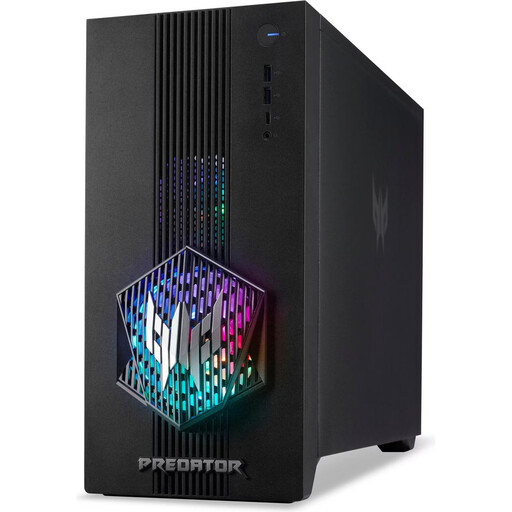 Image unavailable
Acer Predator Orion 3000 Desktop, i5, 16 GB, 512 GB, RTX 5060, Windows 11 Home
A tower option for layered cover files and an external display.
16 GB DDR5 RAM, 512 GB SSD, RTX 5060 and Windows 11 Home.
View at Joybuy
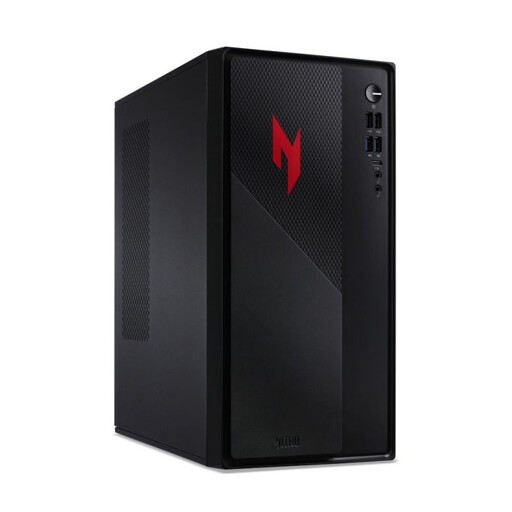 Image unavailable
Acer Nitro 20 N20-100 Desktop, i5, 32 GB, 1 TB, RTX 5060, Windows 11 Home
A tower option if you check the stated RAM and SSD specification before choosing your configuration.
32 GB RAM, 1 TB SSD, additional HDD storage according to the description, RTX 5060 and Windows 11 Home.
View at Joybuy
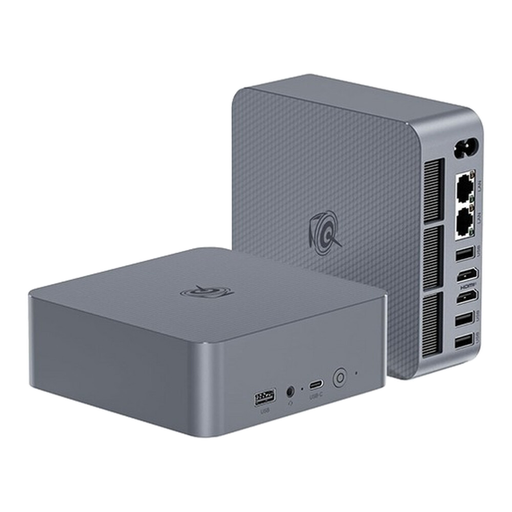 Image unavailable
Beelink Mini PC EQ7, 16 GB RAM, 512 GB, Grey
A compact option for a workspace with limited room.
16 GB RAM and 512 GB SSD.
View at Joybuy
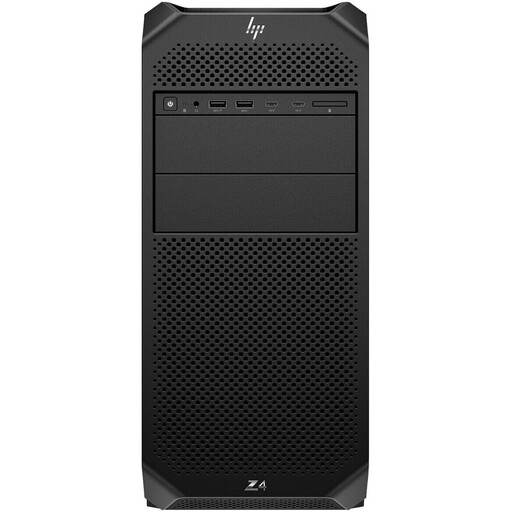 Image unavailable
HP Workstation Z4 G5 Tower, Xeon W3-2535, 64 GB RAM, 1 TB SSD, RTX 4000 Ada, Windows 11 Pro
A tower workstation for a setup where the stated memory and component specification needs to suit your workflow.
Xeon W3-2535, 64 GB RAM, 1 TB SSD and RTX 4000 Ada.
View at Joybuy
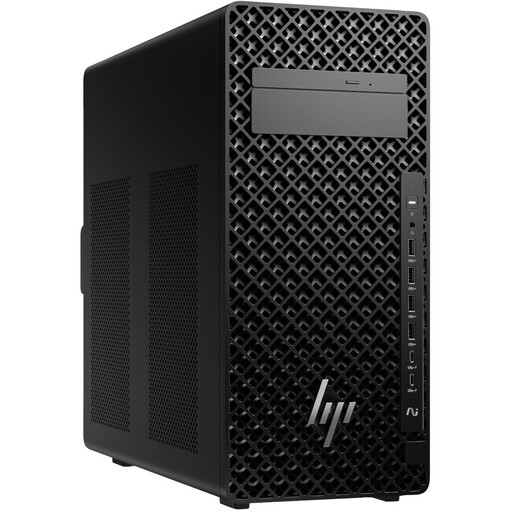 Image unavailable
HP Z2 Tower G1i A40MMET, Core Ultra 7 265, 32 GB DDR5, Windows 11 Pro
A tower option for cover design; check the full specification of the exact version before buying.
Core Ultra 7 265, 32 GB DDR5 and Windows 11 Pro.
View at Joybuy
Frequently asked questions
Is 16 GB RAM enough for covers with multiple image layers?
Adobe recommends at least 16 GB RAM for Photoshop 27.x and later, but this doesn’t guarantee that you can work with files of any size or run several programmes at once. If that sounds like your typical working day, compare versions with more memory too.
Do I need a dedicated graphics card for a 2D cover?
Base your decision on the requirements of your specific software and features, rather than the cover design task alone. Adobe lists GPU requirements for Photoshop, so check the specifications for the version you plan to use.
Can I connect my existing display?
Compare your monitor’s video connections and display support with the specifications of the exact computer version. For the Mac mini with M6, Apple documents display connections via Thunderbolt and HDMI; other models have their own specifications.
What should I know about SSD storage?
Look at the available free space, not just the total capacity of the built-in SSD. Adobe recommends 100 GB of available storage for Photoshop; your actual needs also depend on how you work and the files you use.


