Choose your desktop based first on your editing software, operating system and recording format. If you work with long original recordings, also allow enough space for media and cache, plus a separate backup. For 4K and higher resolutions, Adobe recommends 32 GB or more of RAM in its listed Premiere requirements. Proxies can make suitable large video files easier to edit, but they don’t replace the originals or the need to plan your storage.
Which options are right for you?
Editing long original recordings
If you manage a lot of source footage, allow space for your media and cache, as well as a separate backup. Adobe provides recommendations on how to organise your drives, while Germany’s Federal Office for Information Security advises making regular backups to external storage.
Regular 4K editing
If you edit high-resolution demonstrations, check your RAM and graphics against your software’s requirements. For 4K and higher resolutions, Adobe recommends 32 GB or more of RAM in its listed Premiere requirements.
Producing training videos regularly
If you’re planning several projects, check compatibility with your editing software, potential upgrade options and ongoing software costs. With tower models, the scope for upgrades depends on the specific configuration.
What should you look for when buying?
Upgradeable Windows tower
A good fit if: you use editing software on Windows and may want to add drives or components later.
Things to consider: Check the specifications of the exact product. Features available across a product range aren’t necessarily included in every variant.
Compact Mac desktop
A good fit if: your editing software and wider workflow are compatible with macOS, and you’re looking for a compact computer.
Things to consider: Apple’s listed M5 Max base configuration has 36 GB of unified memory and a 512-GB SSD. If you work with long recordings, make sure you also allow for extra media storage.
| Buying consideration |
What to check |
Who it matters most to |
| Storage for long recordings |
Estimate how much space your recordings will need and check SSD capacity, ports or drive bays, as well as a separate backup option. Adobe recommends fast drives for media and cache in Premiere; the BSI advises making regular backups to external storage. |
If I manage long original recordings, I need space for media, cache and a separate backup. Around 36% of consumers put storage and backups at the top of their list when buying. |
| Smooth playback |
Check the requirements of your editing software against the specifications of the exact variant. For its listed Premiere requirements, Adobe recommends 32 GB or more of RAM and 8 GB of GPU memory for 4K and higher resolutions. Suitable proxies can make large video files easier to edit. |
When I review long clips repeatedly, I want playback that suits the way I edit. Around 29% of consumers prioritise smooth playback while editing. |
| Formats and software |
Make a note of your editing software, operating system, camera format and preferred export format, then check them together. Apple lists hardware support for H.264, HEVC and ProRes on the Mac Studio with M5 Max; this doesn’t establish a general speed comparison. |
If my editor or recording format has specific requirements, my computer needs to suit that exact workflow. Around 21% of consumers prioritise compatibility with their formats and software. |
| Upgrade options and ongoing costs |
Check the available slots and drive options on the exact variant, as well as the licensing model for your editing software. Options offered for a product range aren’t necessarily included in the specific product you’re buying. |
For future training videos, I want to plan for later projects and potential software costs. Around 14% of consumers prioritise upgrade options and ongoing costs. |
Common buying mistakes
-
Focusing only on the size of the built-in SSD
Originals, project files and cache all take up space. Without a separate copy, your original recordings could be lost if a drive fails.
Estimate your storage needs based on your own files, and plan separately for working storage and backups.
Extra storage for media and backups can take up space and use up budget.
-
Assuming the top specifications in a product range apply to the one you’re buying
Specifications can vary considerably between configurations in a customisable workstation range. An advertised option doesn’t tell you what’s included in the variant you’ve selected.
Check the full configuration, particularly the RAM, graphics and drives.
-
Treating proxies as replacements for originals
Proxies are lower-resolution editing copies, not backups of the original files. They also need storage space.
Keep the originals until the project is complete as planned, and back them up separately from the proxy folder.
Key brands at a glance
HP
The Z2 Tower range offers configurable Windows workstations for buyers considering a tower with the potential to upgrade it later.
- HP lists a Core Ultra 7 265, 32 GB DDR5 and a 1-TB SSD for the A40MMET configuration.
- Specifications may differ between variants. In particular, check that the graphics card suits your editing workflow.
Apple
The Mac Studio with M5 Max is a compact macOS desktop for workflows that are compatible with macOS and the specific editing software you use.
- Apple lists hardware support for H.264, HEVC and ProRes, along with 36 GB of unified memory in the M5 Max base configuration.
- The listed 512-GB SSD makes careful storage planning important if you work with long original recordings. Manufacturer specifications aren’t an independent speed comparison.
Lenovo
The ThinkStation P3 Tower Gen 2 is another Windows tower option for buyers comparing configurations and upgrade possibilities.
- Lenovo describes configuration options with Core Ultra processors and NVIDIA RTX PRO graphics.
- Check the CPU, GPU, RAM and upgrade options on the exact variant. Options in the product range don’t confirm what a specific model actually includes.
Dell
The Precision 5860 Tower is a workstation range for buyers comparing larger systems and available service options.
- Dell lists a range of graphics, storage and service options for the series.
- Dell says the actual specifications depend on the configuration you choose. Advertised maximum specifications aren’t automatically included with every product, or necessarily needed for training videos.
Joybuy products
These product options include compact systems and towers for different video-editing and storage needs. Before choosing, check that the operating system, editing software and specific configuration suit your footage.
 No image available
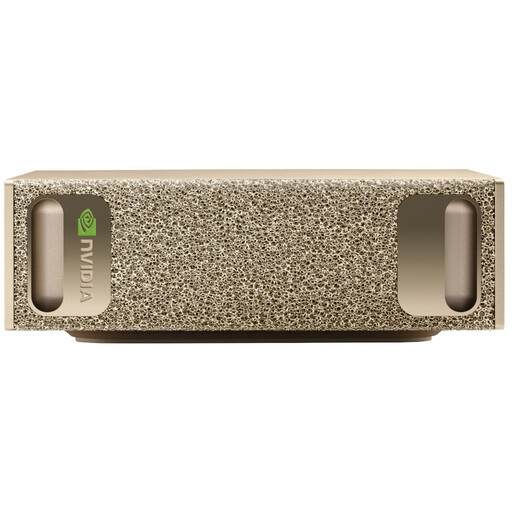
NVIDIA DGX Spark Founders Edition, GB10, 128 GB RAM, 4 TB SSD
If you’re considering this compact system for editing projects, first check whether your editing software and preferred workflow are compatible with NVIDIA DGX OS.
Listed specifications include an NVIDIA GB10 processor with integrated Blackwell GPU, 128 GB LPDDR5X RAM, a 4-TB M.2 SSD, and HDMI and USB-C video outputs.
View at Joybuy
 No image available
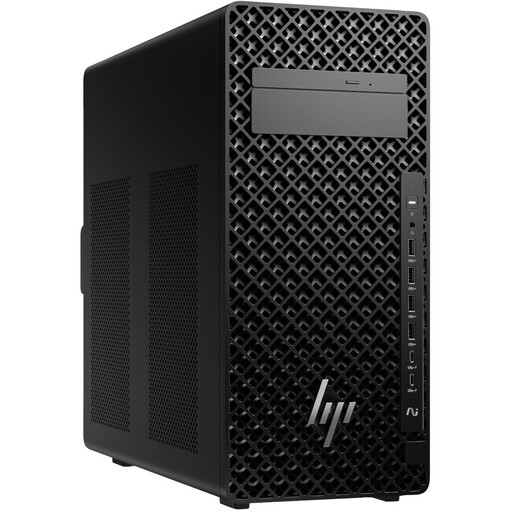
HP Z2 Tower G1i A40MMET, Core Ultra 7 265, 32 GB
If you’re considering a Windows tower for Premiere, compare the full specifications with the requirements of your editing workflow.
Listed specifications include a 20-core Core Ultra 7 265, 32 GB DDR5 at 5600 MHz, Intel Graphics and Windows 11 Pro. Check the actual SSD capacity before buying.
View at Joybuy
 No image available
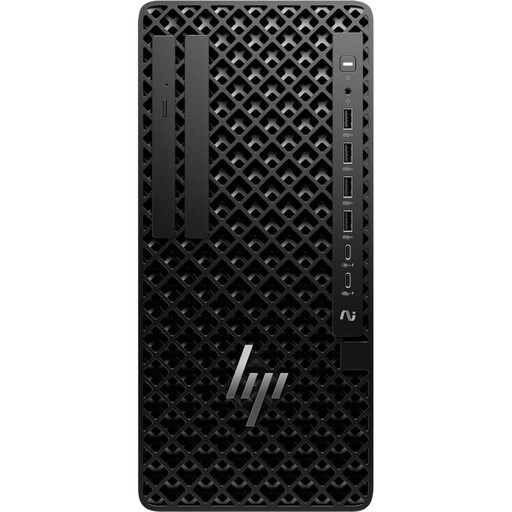
HP Z1 Tower G1i A40T1ET#ABD, Core Ultra 9 285, 64 GB, 1 TB
If you’re considering a tower for regular projects, compare its specifications with your editing software’s requirements and any planned upgrades.
This configuration lists a 24-core Core Ultra 9 285, 64 GB DDR5 at 5600 MHz, a 1-TB M.2 SSD, Intel Graphics and Windows 11 Pro.
View at Joybuy
No image available
HP Z1 Tower G1i A40SYET, Core Ultra 7 265, 32 GB, 1 TB
If you’re considering a Windows tower for 4K editing in Premiere, compare the listed specifications with the requirements of your specific software version.
Listed specifications include a 20-core Core Ultra 7 265, 32 GB DDR5 at 5600 MHz, a 1-TB M.2 SSD, Intel Graphics and Windows 11 Pro.
View at Joybuy
 No image available
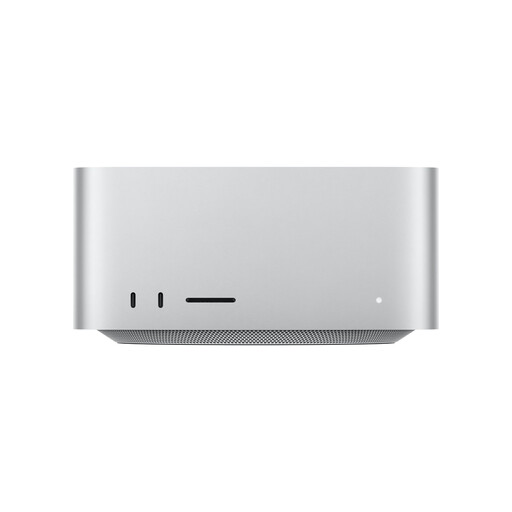
Apple Mac Studio M5 Max, 18-core CPU, 40-core GPU, 48 GB, 1 TB
If your editing software and workflow are compatible with macOS, check this Mac Studio configuration against your recording formats and storage needs.
Listed specifications include 48 GB Unified Memory, a 1-TB SSD, Thunderbolt 5, 10GbE, Wi-Fi 7, Bluetooth 6 and macOS.
View at Joybuy
Frequently asked questions
Do I need a particularly expensive computer for long original recordings?
No. The length of a recording alone doesn’t determine which specifications are right for you. Start by working out how much storage you need and checking the footage format. Proxies can make suitable large video clips easier to edit, but you’ll still need space for the originals and backup copies.
How should I plan for media, cache and backups?
Adobe recommends fast drives for media in Premiere and describes a separate SSD cache as one possible way to keep your workflow responsive. You should also maintain a separate, regularly updated backup: a working drive on its own isn’t a backup.
What ongoing costs and legal protections should I check?
If needed, allow for extra media and backup drives, as well as the cost of your editing software. Adobe notes that Premiere may involve additional fees or membership costs. If you’re buying as a consumer in Germany, distinguish statutory consumer rights from a voluntary guarantee. If a business is making the purchase, don’t assume consumer rights apply without checking.
Can I simply edit and publish footage showing identifiable trainees or employees?
Owning an editing PC doesn’t mean you have permission to publish footage. If people can be identified, processing their personal data requires an appropriate legal basis. Germany’s Federal Commissioner for Data Protection and Freedom of Information also points out that consent in an employment relationship may not be freely given. Whether a specific internal use or publication is permitted depends on its purpose and circumstances.


