What should you look for when buying?
First, check that your files and editing software are compatible with the configuration you want. Then plan storage and backups separately from the specifications you need for previews, effects and exports.
| What to consider |
What to check before buying |
Who should pay particular attention? |
| Storage and archiving |
Work out how much space your original clips take up, then allow extra room for working files. For Premiere, Adobe recommends fast SSD or NVMe storage for the media cache, ideally on a dedicated drive. Keep your original files backed up separately. |
If I’m archiving lots of long original clips, I need space for projects and independent backups. Around 36% of consumers put storage and archiving first. |
| Smooth previews |
Make a note of your editing software and the resolution and codec of your clips, then compare them with the software’s requirements. For Premiere on Windows, Adobe recommends 32 GB RAM or more for 4K and above. Proxies can be an alternative for footage that’s difficult to edit. |
If I want to review my footage on the timeline without constant interruptions, I’ll check the software and file formats particularly carefully. Around 29% of consumers prioritise smooth playback and editing. |
| Effects and exports |
Check your software’s recommendations for graphics and memory, as well as the graphics card actually fitted. For Premiere on Windows, Adobe recommends 8 GB of GPU memory. This is not a general minimum requirement for all editing software. |
If I use specific effects or export features, I want to know whether the configuration I choose is suitable. Around 21% of consumers prioritise specifications for effects and exports. |
| Customisation and configuration |
Compare the full model and product numbers, as well as the RAM, SSD and graphics of the exact variant. Check in advance which components and drives can actually be added or replaced. |
If I want to adapt the computer for other projects later, the exact specifications matter more than the top-end specification available across a product family. Around 14% of consumers prioritise customisation and the work involved in choosing a suitable configuration. |
Joybuy PCs for video editing
This selection includes HP workstations in tower and small form factor designs for a desktop Windows editing setup. For each variant, compare the listed components with your editing software and the storage needs of your projects.
 No image available
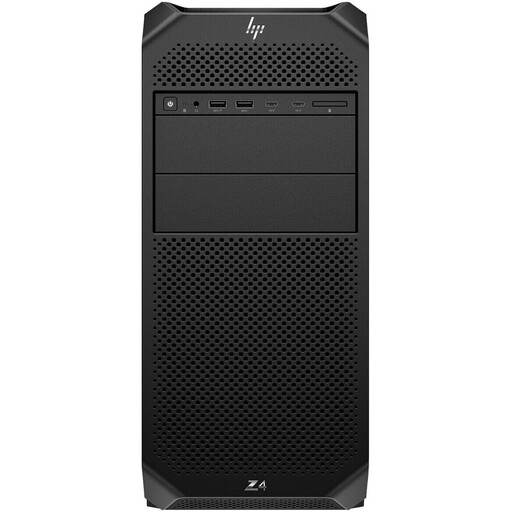
HP Workstation Z4 G5 Tower, Xeon W W3-2535
A tower configuration for a desktop workstation with local project storage.
Xeon W W3-2535 at 3,5 GHz, 64 GB RAM, 1 TB NVMe SSD and NVIDIA RTX 4000 Ada.
The product details list several PCIe slots. Check the exact configuration before upgrading later.
View at Joybuy
 No image available
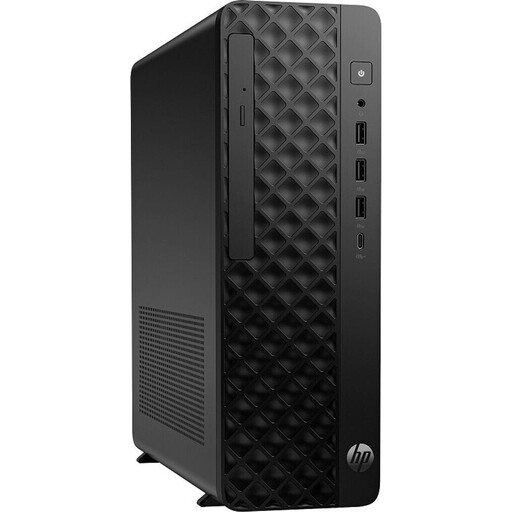
HP Z2 SFF G1i A40M2ET#ABD, Core Ultra 7 265K
The SFF design is an option if you need a compact desktop editing setup.
Core Ultra 7 265K, 32 GB DDR5 RAM, 1 TB SSD and NVIDIA RTX A400 with 4 GB GDDR6.
The product details list several USB-C and DisplayPort connections.
View at Joybuy
 No image available
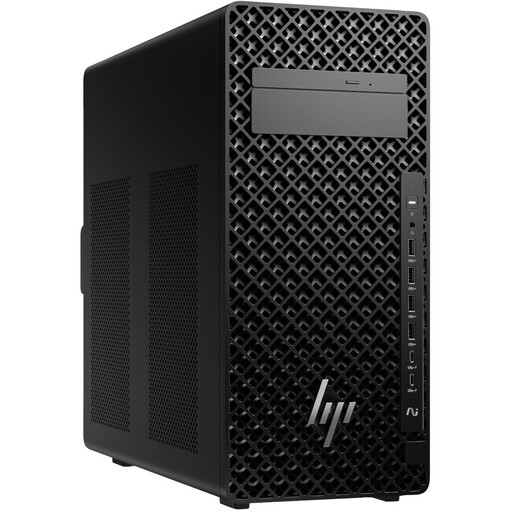
HP Z2 Tower G1i A40MMET, Core Ultra 7 265
A tower variant for a desktop workstation with listed DDR5 memory.
Core Ultra 7 265 and 32 GB DDR5 RAM.
The product name lists both 1 TB and 2 TB SSD options. Check the SSD capacity of your chosen variant before buying.
View at Joybuy
 No image available
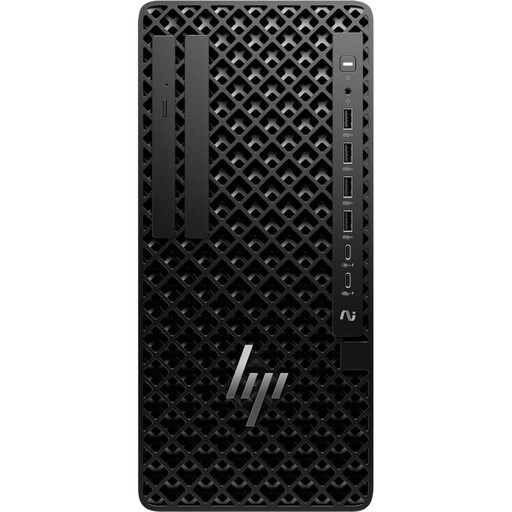
HP Z1 Tower G1i A40T1ET#ABD, Core Ultra 9 285
A tower configuration for a desktop workstation with listed memory and local SSD storage.
Core Ultra 9 285, 64 GB DDR5 RAM, 1 TB M.2 SSD and integrated Intel graphics.
View at Joybuy
No image available
HP Z1 Tower G1i A40SYET, Core Ultra 7 265 vPro
A tower variant for a desktop Windows workstation with listed memory and SSD storage.
Core Ultra 7 265 vPro, 32 GB DDR5 RAM, 1 TB M.2 SSD and integrated Intel graphics.
The product details list several USB-C connections.
View at Joybuy
Frequently asked questions
Do I automatically need the most powerful graphics card for long recordings?
No. The right graphics card depends on your editing software, codec, resolution and the effects you use. For Premiere on Windows, Adobe recommends 32 GB RAM or more for 4K and above, and recommends 8 GB of GPU memory. These recommendations don’t mean that every club project needs a particular graphics card.
How can I keep my editing setup running smoothly with lots of source footage?
In Premiere, proxies can provide smaller working copies for editing. Adobe recommends fast SSD or NVMe storage for the media cache, ideally on a dedicated drive. Regularly back up your originals to a separate device, independently of this.
What else should I plan for besides the computer configuration?
Allow for project and backup drives, and check the full specifications of the PC variant you choose. If there’s a fault, statutory consumer rights against the seller are separate from a voluntary guarantee. Check the specific terms.
Can identifiable club members be shown in an anniversary film without further ado?
There’s no blanket answer. Processing identifiable footage needs an appropriate legal basis. Section 22 of the German KunstUrhG generally requires consent to distribute or publicly display images, while section 23 provides for exceptions in certain circumstances. Whether an exception or another legal basis applies to your film will depend, among other things, on the footage and how it is published.
Can I simply use copyrighted music in the background of the club film?
Not just because it’s for a club. According to GEMA, if you use someone else’s copyrighted music in a film production, you need to clarify the production rights with the rights holders. Further uses, such as a public screening or online publication, should be checked separately according to their specific scope.


