Writers working with lots of sources
If you write long pieces and keep research materials open at the same time, check that the RAM configuration is suitable and that the PC has the screen connections you need.


For longer writing sessions, research and keeping reference images visible alongside your work, a suitably configured office desktop is usually a sensible place to start. A mini PC saves desk space, while a larger desktop may offer more scope for upgrades, depending on the model. The key factors are the connections for your screens, a suitable RAM and SSD configuration, and a supported operating system. If you’re handling sensitive files, include encryption and separate backups in your plans: a larger internal SSD is no substitute for a backup.
If you write long pieces and keep research materials open at the same time, check that the RAM configuration is suitable and that the PC has the screen connections you need.
If you switch between a manuscript and reference images, the connections on the specific PC and your planned screen set-up are key.
If you store confidential drafts or reference images, make encryption and regular, separate backups part of your workflow. Germany’s Federal Office for Information Security describes these as two distinct aspects of file protection.
First, work out which screens and programmes you’ll use. Then compare the configuration, file protection and what’s included for a complete workstation.
| What to look for | What to check before buying | Who should pay particular attention? |
|---|---|---|
| Writing and research workflow | Compare the RAM, SSD and supported operating system of the exact model variant. | If I often switch between my manuscript, browser and sources, I want a PC that’s suitably configured for everyday work. Around 31% of consumers would make writing and research workflow their top buying priority. |
| Reference images and screens | Check the video outputs and screen connections; confirm the SSD capacity actually fitted. | If you want to see text and image references at the same time, consider your own monitors and their connections. Around 25% of consumers would prioritise working with reference images side by side. |
| Protecting work files | Check how the chosen operating system supports encryption, and plan for a separate backup. | If my drafts or reference files are sensitive, I don’t want to mistake encryption and backups for the internal SSD. Around 25% of consumers would give file protection the highest priority. |
| Workspace and ongoing costs | Take into account what’s included, the screens and cables you need, and a possible backup device. | If you want to plan your complete workstation before ordering, remember to account for any missing equipment and accessories. Around 19% of consumers would make purchase and ongoing costs their top buying priority. |
What’s included varies by model. In the mini PC ranking reviewed by COMPUTER BILD, some devices didn’t include input devices; one barebone model was also missing additional components.
Check the specific product listing to see whether it includes the PC, monitor, keyboard, mouse, cables, RAM, storage and operating system.
You may need to spend more or make extra arrangements if a monitor or separate backup device isn’t included. Depending on the model, barebones systems may also require you to provide RAM, storage or an operating system.
An internal SSD isn’t a separate backup device. If the only saved copy is lost, your drafts and reference images could be lost too.
Plan regular backups to a separate device, and consider suitable encryption for sensitive files. Germany’s Federal Office for Information Security describes backups and encryption as separate measures.
A separate backup device and regular upkeep are part of the practical effort involved in protecting your files.
A configuration that’s been tested isn’t necessarily comparable with a variant carrying a different full product code. Connections and specifications can also depend on the configuration you choose.
Check the product code, RAM, SSD, connections and operating system of the version available to order against the details that matter to you.
Compact Windows mini PCs may suit a writing and research set-up where desk space is limited. The exact specifications depend on the model.
The Pro Mini and Pro Desktop ranges include different sizes and configurations. The full product code helps you tell the variants apart.
The Pro Micro is a compact desktop range for workspaces where desk space is limited.
The Mac mini is a compact macOS alternative if the writing, image and file-sharing programmes you need work with macOS.
The Joybuy products below include Windows desktops and towers with a range of RAM, SSD and connection configurations. Compare the specifications of each variant with the space you have, your screens and the workflow you’re planning.
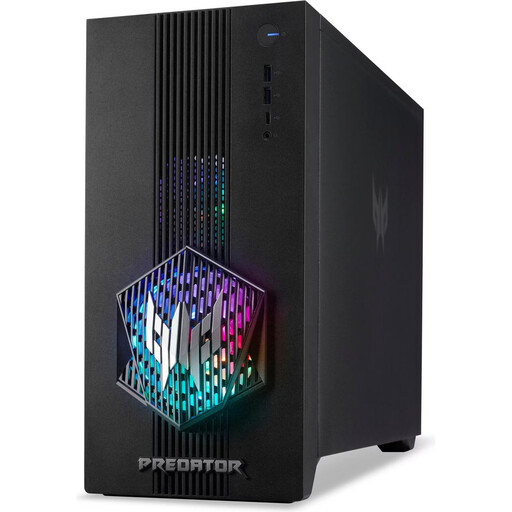 No image available
This configuration offers a Windows workstation for writing and research.
16 GB RAM, 512 GB SSD, RTX 5060 and Windows 11 Home.
The product description recommends leaving at least 10 cm of clearance on all sides.
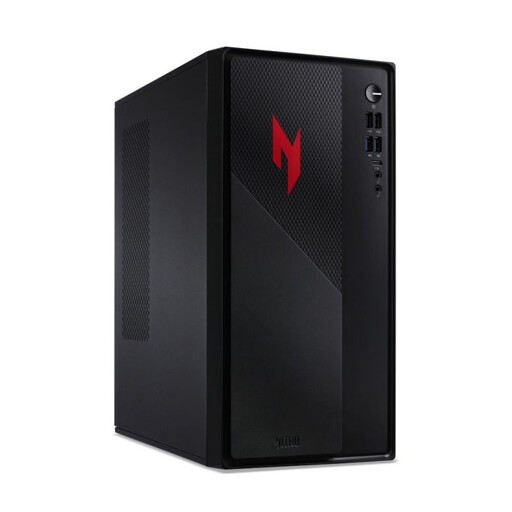 No image available
The listed configuration has several video outputs, so you can check them against your screens.
32 GB RAM, 1 TB SSD, three DisplayPort outputs, one HDMI output and Windows 11 Home.
The product description recommends leaving at least 10 cm of clearance on all sides.
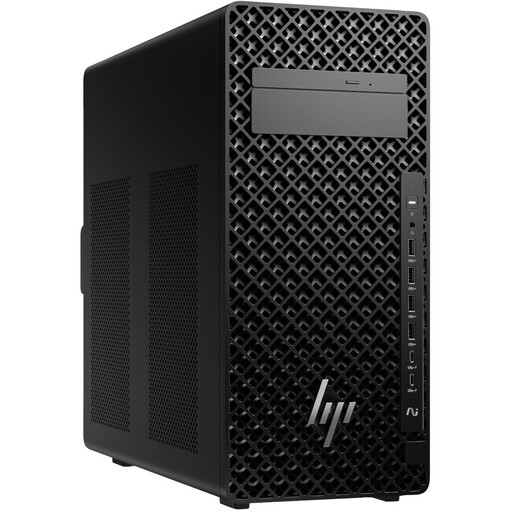 No image available
This tower may be worth considering if you’re planning a larger desktop case for your workflow.
32 GB DDR5 RAM, Windows 11 Pro and several DisplayPort and USB-C connections.
The product description recommends leaving at least 10 cm of clearance on all sides.
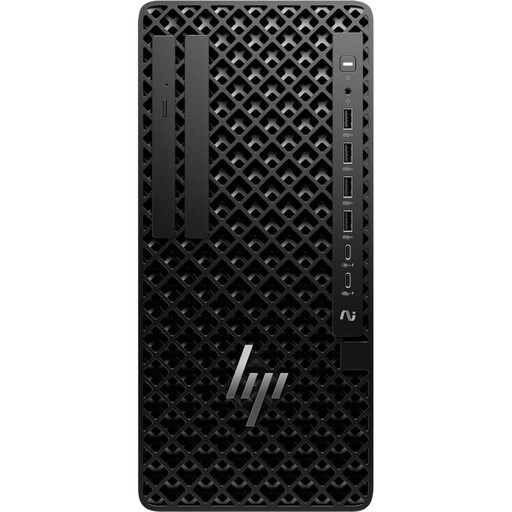 No image available
This listed configuration is a tower option if you need the specified connections and features.
64 GB DDR5 RAM, 1 TB SSD and Windows 11 Pro; listed connections include DisplayPort, HDMI and USB, including USB-C.
The product description recommends leaving at least 10 cm of clearance on all sides.
No image available
This tower configuration lists the RAM, storage and operating system, so you can check they’re suitable for your writing and research programmes.
32 GB DDR5 RAM, 1 TB SSD and Windows 11 Pro; the description lists DisplayPort, HDMI and several USB-C connections.
The product description recommends leaving at least 10 cm of clearance on all sides.
Not just for this workflow. First check that the specific PC configuration supports your screens and the software you use. A gaming graphics card isn’t automatically necessary for the writing and research tasks described here.
Before buying, check that the video outputs on the specific PC match the inputs on your monitors. Also check which screens, cables and input devices are included: a stated maximum number of displays doesn’t guarantee compatibility with your own set-up.
No. Encryption and backups serve different purposes. Germany’s Federal Office for Information Security describes encryption options for files or storage devices and recommends regular backups, for example to an external storage device.
Regular support for Windows 10 ended on 14 October 2025. Microsoft recommends Windows 11 for compatible hardware and offers a limited-time Consumer ESU programme for eligible existing devices until 12 October 2027. Check that your specific device is compatible and eligible before relying on it to receive ongoing security updates.
No. The CE marking indicates conformity with relevant EU product legislation; it isn’t an independent quality mark for the protection of your files. For products covered by regulations requiring the marking, check the required marking and conformity of the specific model. File protection needs additional measures, such as encryption and separate backups.