Choose a desktop based on your editing software, recording format and the space you need for originals, working files and cache – not just the processor or graphics card. A compact computer may be suitable if external media and backup drives are built into your workflow; if internal upgrades matter, a configurable tower is likely to be a better fit. For Premiere on Windows, Adobe recommends 32 GB of RAM or more for 4K and above. This is not a general minimum for every editing setup.
Who is the editing setup for?
Teams with extensive raw footage
If you record long events or interviews, you need a clear way to store originals, working copies and cache. The capacity you need depends on the files themselves; Adobe also describes proxy and cache workflows for Premiere.
Volunteers working with 4K footage
If you want to edit long or demanding footage, consider your editing software, codec and proxy workflow alongside the computer’s configuration. For Premiere on Windows, Adobe recommends 32 GB of RAM or more for 4K and above.
Museums sharing an editing setup
If several volunteers need to pick up projects where others left off, media and project files must stay organised and accessible. Adobe notes that working from network or removable media can affect performance and reliability.
What should you look for when buying?
Start by confirming your editing software, operating system and recording format. Then plan storage, project handovers and backups around the files you actually use.
| Consideration |
What to check before buying |
Who is it important to? |
| Storage for raw footage |
Size of your existing files and number of projects in progress at once; SSD capacity and connections for additional drives. |
If I need long original files and working files to be available at the same time, I want to plan the space I’ll need in advance. Around 33% of consumers put storage for raw footage and working files first. |
| Smooth editing |
Editing software, operating system, resolution and codec, along with the relevant RAM recommendations and supported hardware decoding. |
If I want the preview to handle my recording format, I need to consider the requirements of my specific software and whether proxy files might help. Around 27% of consumers prioritise smooth previews and format acceleration. |
| Project handovers |
Whether all volunteers use the same computer or hand projects over; ensure storage locations and drives work with your editing software. |
If several volunteers work on the same films, I want to avoid missing source files when projects change hands. Around 20% of consumers prioritise reliable project handovers. |
| Backing up originals |
Keep originals, editing copies and backups separate in your workflow; plan for additional drives and assign responsibilities at the museum. |
If the original recordings need to be preserved, I want to keep working copies and backups clearly separate. Around 20% of consumers focus on preserving originals. |
Avoid common buying pitfalls
-
Relying on the internal SSD alone for long recordings
Importing and editing with proxies can create extra files in addition to the originals, and the media cache also takes up storage space.
Work out how much space you need based on your files, and plan your working and backup capacity separately.
Depending on your workflow, you may need additional drives for media, proxies or backups.
-
Confusing possible tower specifications with the actual model on offer
A product range may list configuration options or potential upgrades that are not automatically included with the computer being sold.
Check the CPU, GPU, RAM, SSD and upgrade options for the exact model you intend to buy.
You may need to upgrade later; what can be changed depends on the original configuration.
-
Assuming a software subscription or warranty is included with the desktop
Editing software and hardware are sold separately. A voluntary warranty is also not the same as your statutory rights.
Check the software licence, seller and warranty terms separately from the hardware specifications. The Verbraucherzentrale explains the difference between statutory rights and a warranty.
Editing software may involve ongoing costs if you need to buy it separately; warranty cover depends on the relevant terms.
Key brands at a glance
Apple
The Mac mini is a compact macOS option with a choice of storage capacities. Apple lists Media Engine features for certain video formats.
- Apple lists hardware features for H.264, HEVC and ProRes.
- The RAM and SSD configuration, along with external media drives, needs to suit your specific project. Manufacturer specifications are no substitute for comparative editing tests.
HP
The Z2 Mini G1i is a compact Windows workstation, while the Z2 Tower G1i is a tower alternative with upgrade options.
- HP lists 32 GB of RAM and a 1 TB SSD for the Z2 Mini G1i configuration A40LTET.
- These specifications apply to the configuration listed, not automatically to every version, and do not guarantee a particular editing speed.
Lenovo
The ThinkStation P3 Tower Gen 2 is a configurable tower range. Check the specifications of the exact model for your editing setup.
- Lenovo lists Core Ultra processors, RTX PRO graphics options and storage options for the range.
- The components included depend on the configuration you choose; the manufacturer’s specifications are not a test of your museum’s workflow.
Dell
The Pro Max Tower T2 is a tower range with several CPU and operating system options.
- You can choose a configuration to suit your requirements.
- Changing a configuration may affect other specifications, so check the exact model individually.
Desktop PCs at Joybuy
The selection includes compact Windows and macOS desktops, including mini PCs and workstations. For long museum recordings, check that the software, recording format, storage capacity and drive connections suit your workflow.
 No image available
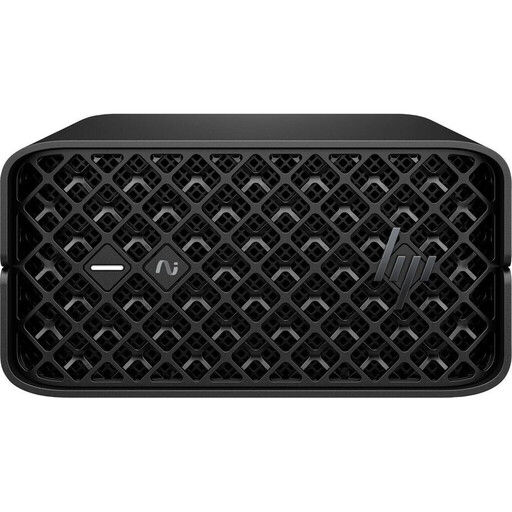
HP Z2 Mini G1a, Ryzen AI Max+ PRO 395, 128 GB RAM, 2 TB SSD
Could suit a compact Windows editing setup if the specific software and the connections you need are compatible with this configuration.
Specifications include 128 GB RAM, a 2 TB M.2 SSD, Radeon 8060S and Thunderbolt 4.
Joybuy
 No image available
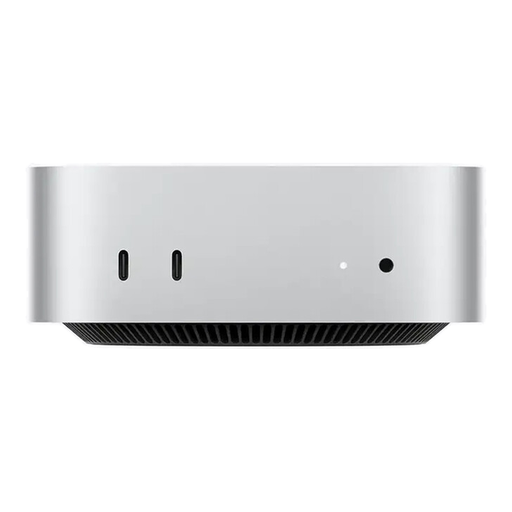
Apple Mac mini M6, 16 GB Unified Memory, 256 GB SSD
A compact macOS option, provided your editing software runs on macOS and external media drives suit your project workflow.
This configuration has 16 GB Unified Memory and a 256 GB SSD; Thunderbolt 4 and HDMI are also listed.
Joybuy
 No image available
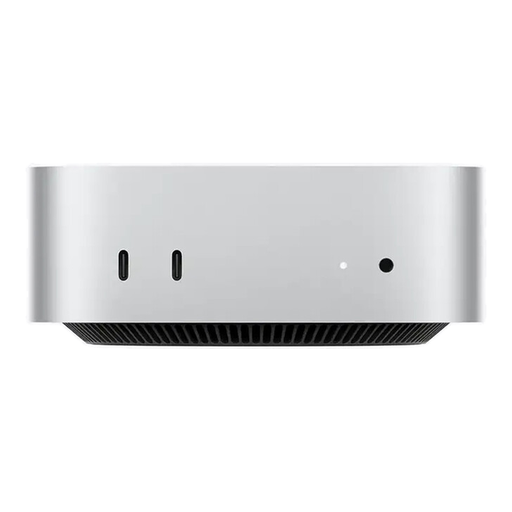
Apple Mac mini M6, 512 GB SSD
Could be suitable for a compact macOS workstation if your chosen editing software is compatible and you plan to use external media drives.
This version is listed with a 512 GB SSD, an M6 chip, a 12-core CPU, a 12-core GPU and Thunderbolt 4.
Joybuy
 No image available
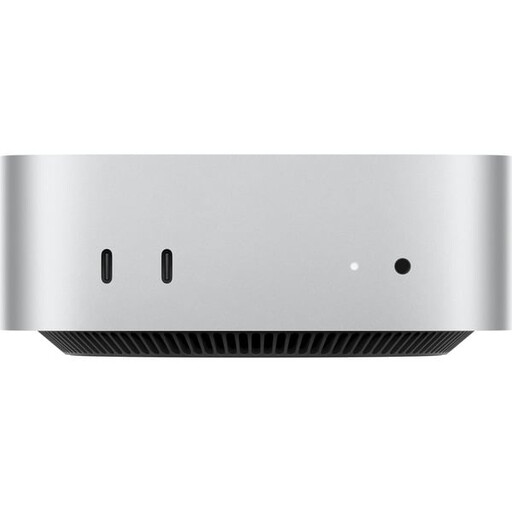
Apple Mac mini MHQL4_CTO_8 A3534, 24 GB Unified Memory, 1 TB SSD
A compact macOS option if your editing software is compatible and your project workflow works with external media drives.
This specific configuration includes 24 GB Unified Memory and a 1 TB SSD, as well as Thunderbolt 4 and HDMI.
Joybuy
 No image available
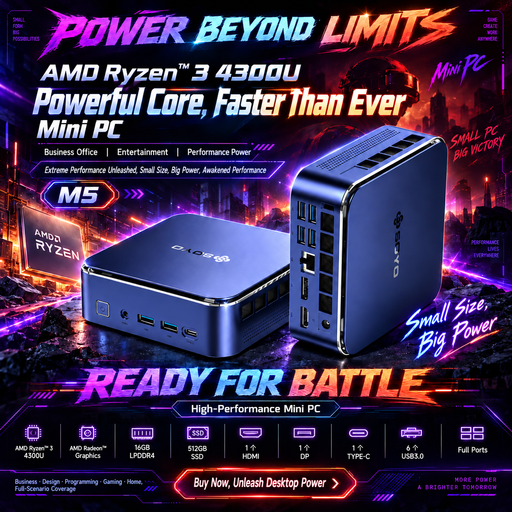
SOYO M5 mini PC, AMD Ryzen 4300U, 16 GB RAM, 512 GB SSD
Could suit a compact Windows workstation; check that the specific configuration is right for your editing software and recording format.
Specifications include Windows 11, 16 GB RAM, a 512 GB SSD, HDMI 2.0, DisplayPort 1.4 and USB-C.
Joybuy
Frequently asked questions
Is 16 GB of RAM enough for museum films?
You can’t tell from the length of the recordings alone. Adobe recommends 16 GB for HD and 32 GB or more for 4K and above in Premiere on Windows. Other programmes and a proxy workflow may have different requirements. Compare your editing software and resolution with the specifications of the computer you’re considering.
How can you edit long recordings on a smaller computer?
If high-resolution or demanding footage slows down the preview, you can use smaller proxy files for editing in Premiere, while keeping the originals available for full-resolution output. Make sure you allow storage space for these additional files.
Where should media cache and raw footage be stored?
Adobe recommends using a fast SSD or NVMe drive for the Premiere media cache, ideally a dedicated one. You can work from network or removable media, but Adobe says this may affect performance and reliability.
What additional costs and rights should we check?
Factor in possible media and backup drives, as well as editing software if you need to buy it separately; Adobe also offers Creative Cloud as a subscription. The Verbraucherzentrale distinguishes statutory rights from a voluntary warranty. Check whether a right to cancel applies to a purchase made by the museum as an organisation under the specific contract.
Can footage showing identifiable museum visitors simply be published?
Not just because the museum owns the recording or edits the film. Processing personal data requires an appropriate legal basis under the General Data Protection Regulation. Valid consent is one possible basis, but it is not always the only one. Clarify the specific purpose of recording and publication before using the footage.


