Retouching larger batches of images
If you regularly work on large RAW projects or use processor-intensive features, choose RAM, a GPU and storage to suit your workflow. Adobe recommends 16 GB RAM or more for Photoshop Desktop 27.x and later.


For portrait retouching in a shared office, choose a desktop that suits your image files, software and monitor. A compact mini PC saves desk space, while a larger desktop may be more suitable if you want the option to upgrade later. Adobe recommends at least 16 GB RAM for Photoshop Desktop 27.x and later. For large projects or additional features, also check the GPU and available SSD space against your specific workflow. Your monitor is just as important as your computer when assessing skin tones, and you can’t judge how noisy a PC will be from its case size alone.
If you regularly work on large RAW projects or use processor-intensive features, choose RAM, a GPU and storage to suit your workflow. Adobe recommends 16 GB RAM or more for Photoshop Desktop 27.x and later.
If you assess skin tones for consistent output, factor in your existing monitor or the one you may need to buy. EIZO points out that calibration cannot make up for a limited colour gamut or an uneven panel.
If several people use the same workstation, it’s important to plan how it will be set up and organise user accounts and image files clearly. Microsoft describes separate Windows accounts with their own settings and documents. Noise levels, however, depend on the specific configuration.
First, match your software version, typical image files and monitor to the full computer configuration. Then decide how much desk space and scope for future upgrades matter for your shared workstation.
| What you need | What to check before buying | Who should pay particular attention? |
|---|---|---|
| Performance for image files and features | Check the RAM, GPU and available SSD space against your specific software version and files. Adobe recommends 16 GB RAM or more for Photoshop Desktop 27.x and later; for Windows and 4K displays, Adobe recommends 4 GB of GPU memory. | If I edit large RAW batches or use processor-intensive features, I need enough headroom for my workflow, not just an impressive processor name. Around 40% of consumers say performance for larger projects is their top buying priority. |
| Accurate colour assessment | Compare the monitor, colour reproduction you need, calibration options and suitable connections. EIZO emphasises that calibration cannot fix limited colour gamut coverage or panel uniformity issues. | If I assess skin tones for consistent output, the monitor must meet the same standards. Around 30% of consumers put reliable colour assessment first. |
| Space and shared use | Check the dimensions, placement, ventilation, monitor connections and separate user accounts. Microsoft describes separate Windows accounts; you’ll also need to decide how to manage access to shared image files. | At a shared desk, I need a space-saving setup and a practical way to keep personal work areas separate. Around 20% of consumers prioritise space and shared-office use. |
| Total cost and ongoing support | Factor in the monitor and input devices, RAM and SSD configuration, and access for maintenance. The Consumer Advice Centre distinguishes statutory rights from a voluntary guarantee. | If I need to plan the complete workstation and maintain it later, the required equipment and service terms matter as well as the computer. Around 10% of consumers say total cost and ongoing support are their top priority. |
Processing power can’t compensate for inaccurate colour reproduction. EIZO points out that calibration cannot fix a limited colour gamut or an uneven panel.
Check the monitor and computer connections together, and first decide what level of colour reproduction your output requires.
For Photoshop Desktop 27.x and later, Adobe lists 8 GB RAM as the minimum and recommends 16 GB or more. The minimum doesn’t guarantee that every project size or several open applications will run smoothly.
Compare the full computer configuration with your software version, monitor and typical project files.
Noise assessments apply to the specific configurations tested. COMPUTER BILD described some tested mini PCs as quiet, but that doesn’t mean every model will be just as quiet under the demands of portrait retouching. Lenovo describes the ThinkCentre M75q Gen 5 Tiny as offering tool-free access to the SSD and memory modules.
Check noise levels under relevant workloads and the upgrade options for the exact configuration separately.
The Mac mini range is a compact macOS desktop option, with the monitor selected separately.
The ThinkCentre M75q Gen 5 Tiny is a compact Windows business PC for workspaces where desk space is limited.
The A5 Pro 2026 Edition is a Windows mini PC that requires a separate monitor.
The Pro Mini 400 G9 is a compact Windows business range, where the specific configuration is key to choosing the right model.
This selection includes compact Windows mini PCs and a larger Windows desktop to suit different space and project requirements for portrait retouching.
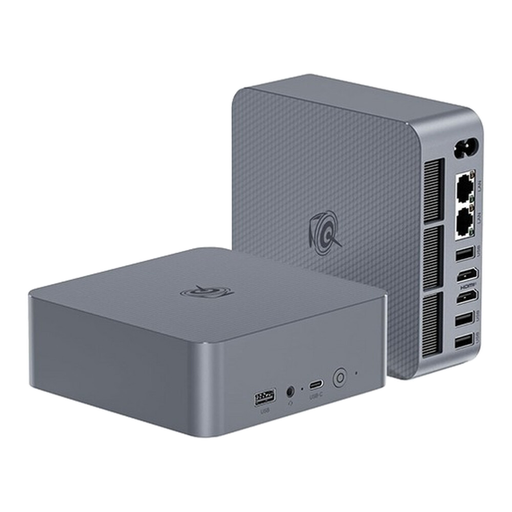 No image available
A compact Windows mini PC if you want to keep the space needed for retouching to a minimum.
16 GB RAM and 512 GB SSD.
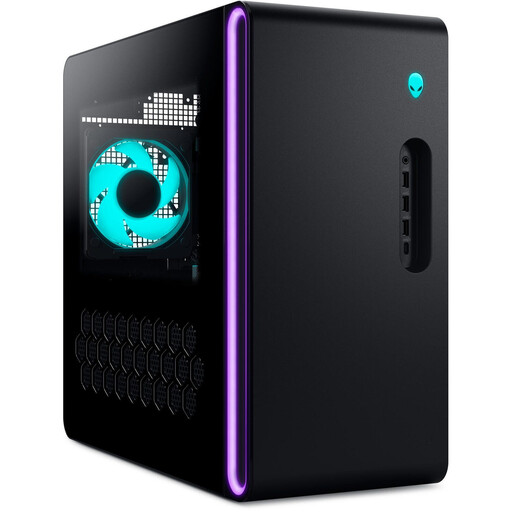 No image available
A larger Windows desktop for workflows involving bigger projects where a full-size desktop is an option.
32 GB DDR5 RAM, 2 TB SSD, RTX 5080 with 16 GB graphics memory and Windows 11 Home.
The tower weighs approximately 15–20 kg, so make sure you have a sturdy place for it and leave the ventilation openings clear.
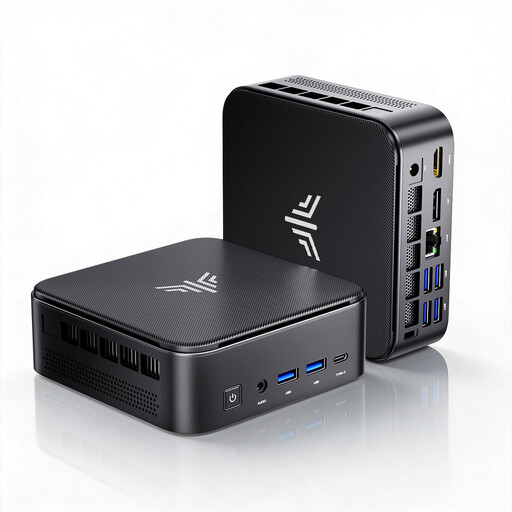 No image available
A compact Windows mini PC if you use a separate monitor and its listed memory configuration suits your projects.
24 GB LPDDR5 and 512 GB NVMe SSD.
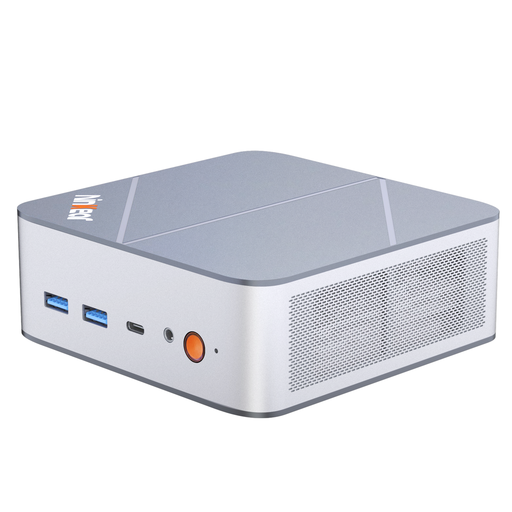 No image available
A compact Windows mini PC if you’re planning to use a separate display and the stated SSD capacity suits your image files.
16 GB DDR5, 1 TB SSD and Windows 10/11.
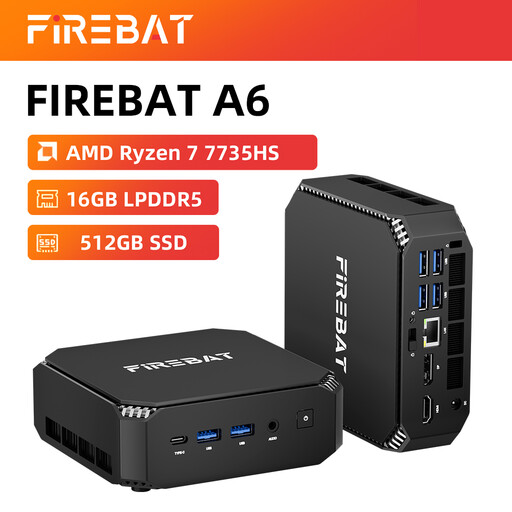 No image available
A compact Windows mini PC for a workspace with a separate monitor.
16 GB RAM, 512 GB SSD and Radeon 680M.
Adobe recommends 16 GB RAM or more for Photoshop Desktop 27.x and later, and lists 8 GB as the minimum. Whether 16 GB is enough for your open applications and project sizes depends on your workflow. Also check the GPU, available storage and the version of the software you’re actually using.
Yes, if its connections and colour reproduction suit your work. Check that it can be calibrated and has the colour gamut you need: EIZO points out that calibration cannot fix a limited colour gamut or an uneven panel.
Windows lets you create separate user accounts with their own settings and documents. For shared image files, also decide who can access them and where work in progress should be saved. Separate accounts alone don’t provide a complete data protection plan.
Check whether you already have a monitor and input devices or need to buy them, and compare the service terms offered by the specific seller. The Consumer Advice Centre distinguishes statutory rights from a voluntary guarantee. If you’re buying for a business, don’t assume consumer rights apply without checking.
If employees will use the workstation, you’ll need to consider the relevant requirements of the German Workplace Ordinance for screen-based workstations, as well as your workplace risk assessment. The annex to the Workplace Ordinance requires employers to avoid disruptive glare, reflections or mirror images. If identifiable people appear in the portraits being processed, the processing needs an appropriate legal basis under Article 6(1) of the GDPR. The Federal Commissioner for Data Protection and Freedom of Information explains that consent is not automatically the only possible legal basis. These obligations don’t prescribe a particular PC brand or RAM configuration.