For editing lots of scans
If you clean up and combine scanned drawings, compare the RAM and available SSD space with your software and files. Adobe recommends 16 GB of RAM for Photoshop.


Choose a desktop based on whether it’s compatible with your design software, the volume of your scans, and the space available for your computer and monitor. Adobe recommends 16 GB of RAM for both Photoshop and InDesign. A tower PC, compact Windows desktop or Mac mini could all be suitable, depending on your software, existing equipment and chosen configuration. Be sure to check the available SSD space, ports, print preparation and data backup options too.
If you clean up and combine scanned drawings, compare the RAM and available SSD space with your software and files. Adobe recommends 16 GB of RAM for Photoshop.
For layout and print-ready PDFs, your software requirements matter just as much as linked images, fonts and your printer’s specifications. Adobe recommends checking these details before exporting.
If several people share a computer, equipment and project files, plan the form factor, suitable ports and a backup copy together. The German Federal Office for Information Security explains how backups can help if a drive fails.
First, decide which task matters most for your display board project: editing scans, using compatible layout software, checking print output or setting up a complete workspace.
A good fit if: you want to keep using Windows software or existing peripherals, and check the ports on a specific tower configuration.
Consider: You’ll need more space, and should check the upgrade options on your chosen model rather than assuming they’ll be available based on its form factor.
A good fit if: desk space is limited and your software and devices are compatible with the specific Windows configuration.
Consider: Specifications and ports vary by version, so check the exact model and make sure you have a suitable monitor.
A good fit if: your software, scanners and existing project files work with macOS, and you want a small computer with a separate monitor.
Consider: Check that the ports and chosen storage capacity suit your devices and scan archive.
| Priority | What to check when buying | Who is this important to? |
|---|---|---|
| Editing scans | Check the RAM and available SSD space for your files and software. Adobe recommends 16 GB of RAM for Photoshop; for Windows, Adobe recommends 100 GB of available storage. | If I’m editing lots of scans and image layers, I want to compare my software’s requirements with the actual size of my files. Around 36% of consumers prioritise scan editing. |
| Using existing software | Check the operating system, software version and monitor connection against the requirements of your software and devices. | If I want my board layout to work with familiar software and existing files, I check the system requirements before choosing an operating system. Around 29% of consumers put compatible layout software first. |
| Checking print output | Ask the printer about the format, bleed and colour profile. Before exporting, check links, fonts and the PDF file. | If the finished board is going to be printed, I want to make sure the on-screen view matches the printer’s specifications. Around 21% of consumers prioritise checking print output. |
| Planning your workspace and files | Check what’s included, whether there are ports for your existing devices, and how you can make regular external backups. | If I’m planning the computer, monitor, devices and project files as a complete workspace, I also want to consider data backup. Around 14% of consumers prioritise having a complete workspace. |
A computer on its own doesn’t tell you whether you can connect a monitor, scanner and other devices, or whether you can properly check your print files.
Before you buy, make a joint list of your existing devices, the ports you need, your monitor and your backup drive.
Operating system, RAM, SSD and ports can vary between versions in the same model range.
Just before buying, check the exact product version and its specifications against your software and device requirements.
Missing links or fonts, or unsuitable image data, can cause problems during print preparation.
Get the printer’s specifications and check the finished board file before sending it, including its links, fonts and PDF output.
The Pro 400 G9 range includes tower and mini PC versions. When comparing them, focus on the exact configuration.
The Dell Pro Slim QCS1250 is a compact Windows desktop for workspaces with limited room.
The Mac mini M6 is an option if your software, files and devices work with macOS.
The NUC 14 Pro is a mini PC that could be worth considering for a space-saving Windows workspace.
The Joybuy options below include Windows tower PCs and compact Windows desktops for scanning and layout work. Check the exact specifications for compatibility with your software and existing devices.
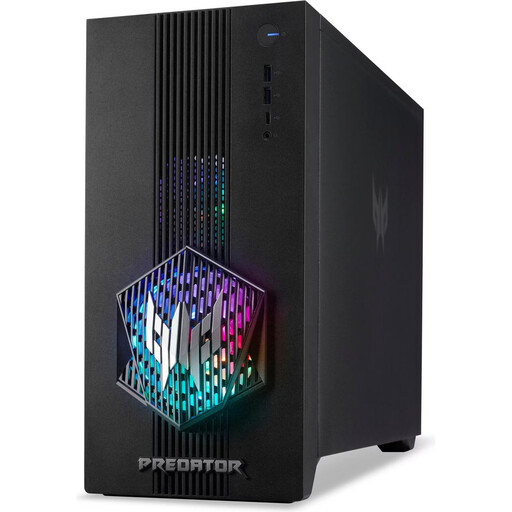 No image available
For a Windows workspace with scan and layout files; check the software requirements against the specific configuration.
Joybuy’s product details list 16 GB of RAM, a 512 GB SSD, RTX 5060 and Windows 11 Home. Adobe recommends 16 GB of RAM for Photoshop.
The product description recommends leaving at least 10 cm of space on all sides for ventilation.
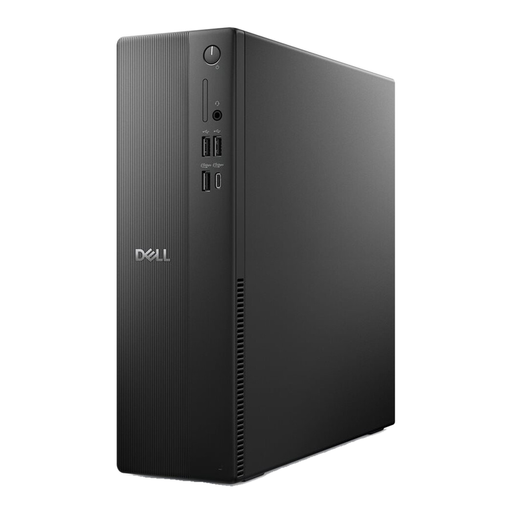 No image available
The slim form factor is worth considering if you’re looking for a compact Windows desktop for scanning and layout work.
Joybuy’s product details list 16 GB of DDR5 RAM, a 512 GB SSD, and HDMI and DisplayPort outputs.
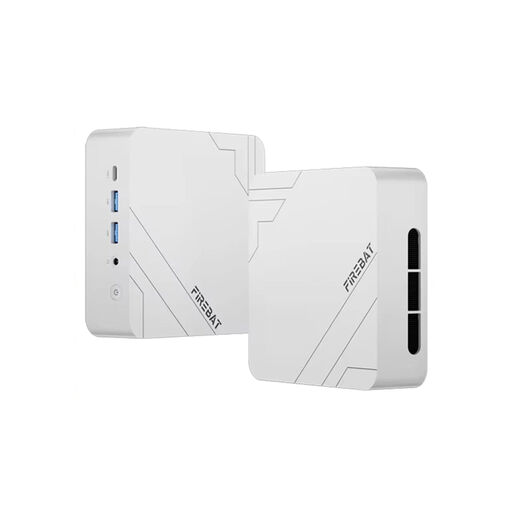 No image available
The mini PC form factor is an option if desk space is limited; check that it has the ports you need for your monitor and scanner.
Joybuy’s product details list 16 GB of DDR5 RAM, a 512 GB SSD, Windows 11 Pro and USB4.0.
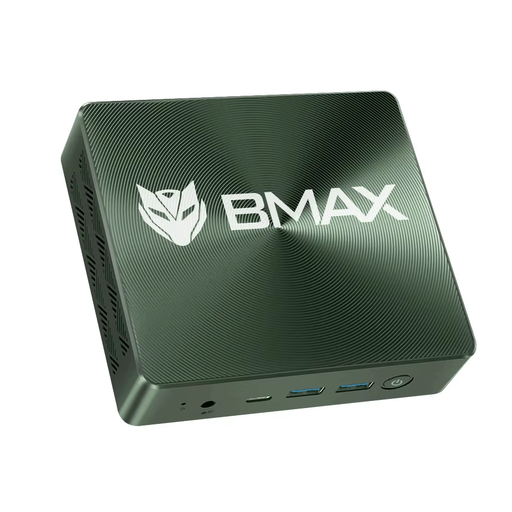 No image available
The compact form factor could suit a space-saving workspace; check that the operating system and ports work with your existing software and devices.
Joybuy’s product details list 16 GB of LPDDR4 RAM, a 512 GB NVMe SSD and Windows 11.
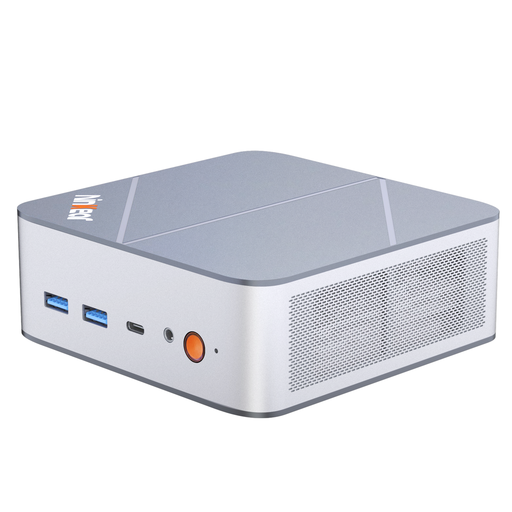 No image available
The mini PC form factor and stated SSD capacity could suit a compact workspace with a scan archive; check the available space and software compatibility.
Joybuy’s product details list 16 GB of DDR5 RAM and a 1 TB SSD. The case dimensions are listed as 130 × 127,5 × 52 mm.
Not simply because you’re doing graphic design. Check the GPU requirements for your software version and your monitor’s resolution. For Photoshop 27.x on Windows, Adobe specifies a DirectX 12-compatible GPU, with additional requirements for 4K displays. This doesn’t amount to a blanket recommendation for a particular dedicated graphics card.
Ask the printer about the format, bleed and colour profile. For InDesign print exports, Adobe recommends checking image links and fonts, addressing preflight warnings, and choosing the profile specified by the print provider, among other things.
Make regular backups to somewhere other than the computer’s internal drive alone. The German Federal Office for Information Security gives an external hard drive as one example and explains how copies can help if a drive fails or malware strikes.
For consumer purchases, the Verbraucherzentrale generally explains that you have a two-year statutory right to claim against the seller for defects. This is different from a voluntary manufacturer’s warranty. For a typical online consumer purchase, the Verbraucherzentrale says you’ll usually have a 14-day right to cancel. Whether a purchase for an association or another organisation legally counts as a consumer purchase needs to be checked separately for that buyer.
Not just because you have a scan: Section 16 of the German Copyright Act (UrhG) governs the right to reproduce a work. Before reproducing protected drawings, check who created the specific works, what usage rights apply and how you plan to use them. This doesn’t mean that every historical work is still protected.