First, choose a desktop that works with your existing scanner and the software you use for scanning and image editing. Then check the RAM, available SSD space and monitor connection. For Photoshop, Adobe recommends at least 16 GB of RAM from version 27.x onwards, along with a fast internal SSD. The amount of storage and scope for upgrades depend on the specific configuration. Your computer won’t remove dust by itself: you’ll need a suitable scanning method and image-editing software such as Photoshop’s ‘Dust & Scratches’ filter.
Who is a desktop for scan retouching suitable for?
Keep using your scanner
You already have a scanner and want to make sure that scanning and image importing work with your new desktop. For older devices in particular, drivers and the scanning method matter more than having the smallest possible case.
Retouch lots of scans
You regularly edit large image files and need space for your software, working files and archive. The key consideration is the system requirements of the image-editing software you actually use.
Short on space in your home office
You want to place a compact computer beside a monitor you already own, so you’re checking the connections and the storage options documented for the specific configuration.
What should you look for when buying?
First, check that your scanner has a working scanning method on the operating system you’ve chosen. Then compare the requirements of your image-editing software with the exact specifications, and allow space for working files and your archive.
| Consideration |
What to check |
Who needs this? |
| Scanner and operating system |
Check the driver and scanning method for your scanner model. Adobe lists scanner software, Windows WIA and Image Capture on macOS as possible options. |
If I want to keep using my existing scanner, importing images needs to work on the new computer. Around 33% of consumers put scanner compatibility first. |
| Smooth retouching |
For Photoshop version 27.x onwards, Adobe lists 8 GB of RAM as the minimum and recommends 16 GB or more. Also check the available SSD space for installation and working files. |
When working with large scans, I want the specifications to suit the image-editing software I actually use. Around 27% of consumers prioritise smooth editing. |
| Scan archive and working files |
Compare the SSD specifications of the exact configuration and allow extra space for saved scans and edited versions. |
If I want to keep scans and edited images on my computer, I need enough storage for my archive as well as my applications. Around 20% of consumers put this need first. |
| Placement and monitor |
Compare the computer’s video output with your monitor connection. Adobe recommends a screen with a resolution of at least 1920 × 1080 pixels for Photoshop. |
I want to fit the computer and my existing monitor on a small desk, while still being able to check my scans properly. Around 20% of consumers prioritise a space-saving workspace. |
Common buying mistakes
-
Not checking your scanner before buying a PC
Having suitable image-editing software doesn’t in itself mean that your existing scanner’s driver will work with the new operating system. Adobe doesn’t support the TWAIN plug-in in currently supported versions of Photoshop.
Check the manufacturer’s software and recommended import method for your scanner model. Adobe lists Windows WIA and Image Capture on macOS, among other alternatives.
-
Assuming the advertised SSD capacity is all available for working files and archives
Your installed software, working files and saved scans all need drive space. For Photoshop, Adobe lists 10 GB of free space as the minimum for installation. It recommends 100 GB of free space on Windows, as well as a fast internal SSD.
Allow for installation, ongoing editing and your scan archive separately. Check the exact SSD specifications for the model you’re considering.
-
Assuming every model in a range has the same specifications
Configurable desktop ranges may have different processor, RAM and storage options depending on the model. Specifications for one model don’t necessarily apply to every variant.
Before deciding, compare the full model or configuration code with its corresponding technical specifications.
Brands to consider
HP
HP offers compact Windows desktops that can be used with a separately connected monitor.
- For the ProDesk 4 Mini G1i B6YZ6ET#ABD, HP lists Windows 11 Pro, 16 GB of RAM and a 512-GB SSD.
- Check the connections and specifications against the full variant code. HP also describes the option of mounting this variant behind a monitor.
Apple
The Mac mini is a compact macOS option, as long as your scanner app and image-editing software work with macOS.
- For an M6 base configuration, Apple lists 16 GB of unified memory and a 256-GB SSD.
- Check that the SSD will suit your scan and working files, and that your scanner has a usable scanning method on macOS.
Lenovo
The ThinkCentre M75q Gen 5 Tiny is a compact Windows range where access to memory modules may be relevant.
- Lenovo describes tool-free access to the SSD and memory modules. For configuration 12RQCTO1WWDE1, Lenovo lists 24 GB of RAM.
- For this specific configuration, check the storage specifications before buying.
Dell
Dell offers the Pro Micro QCM1250 as a configurable compact Windows desktop.
- Dell offers a choice of processor, operating system and RAM options for this model.
- Assess whether it’s suitable based on a listing with full specifications; the range name alone doesn’t determine what’s included.
Joybuy products for scan retouching
This selection includes Mac mini models and mini PCs for compact workspaces. Before buying, check that your scanner works with the operating system on each model and that its stated storage capacity suits your files.
 No image available
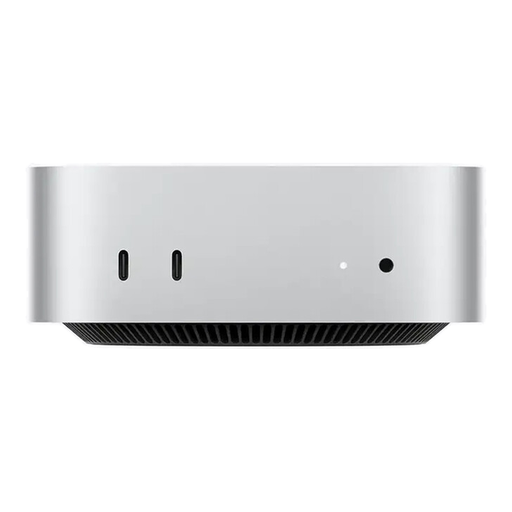
Apple Mac mini M6, 12-Core CPU, 12-Core GPU, 16 GB Unified Memory, 256 GB SSD
The listed 16 GB of memory meets Adobe’s recommendation for Photoshop version 27.x onwards. Your scanner will also need a scanning method that works on macOS.
Specifications include a 256 GB SSD, Thunderbolt 4, HDMI, 2.5GbE, Wi-Fi 7 and Bluetooth 6. Allow space for your working files and scan archive.
View at Joybuy
 No image available
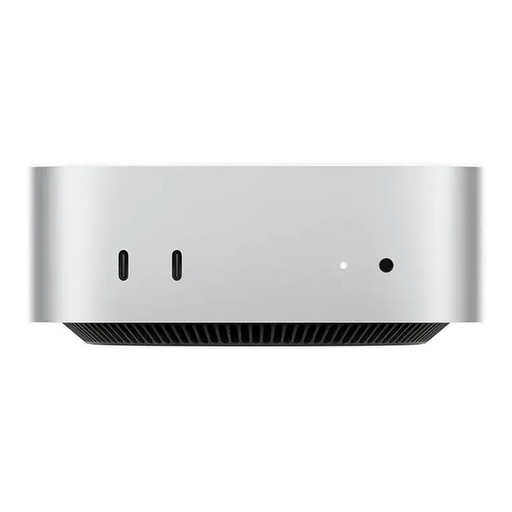
Apple Mac mini M6, 12-Core CPU, 12-Core GPU, 24 GB Unified Memory, 512 GB SSD
The listed 24 GB of memory exceeds Adobe’s recommendation of 16 GB or more for Photoshop version 27.x onwards. Also check that your scanner works on macOS.
The model features a 512 GB SSD, Thunderbolt 4, HDMI, 2.5GbE, Wi-Fi 7 and Bluetooth 6. Bear in mind how much space your scan archive will need.
View at Joybuy
 No image available
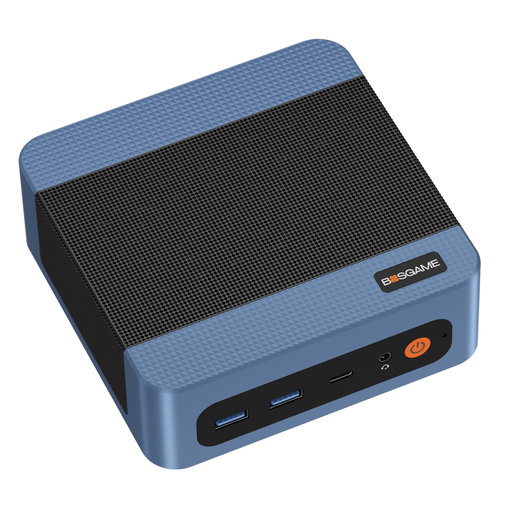
BOSGAME E5 Mini-PC, Ryzen 5300U, 16 GB DDR4, 512 GB PCIe 3.0 SSD
These specifications could suit a compact scanning and retouching workstation, provided the operating system and scanning method work with your scanner.
The product title lists 16 GB DDR4, a 512 GB PCIe 3.0 SSD and two RJ45 LAN ports.
View at Joybuy
 No image available
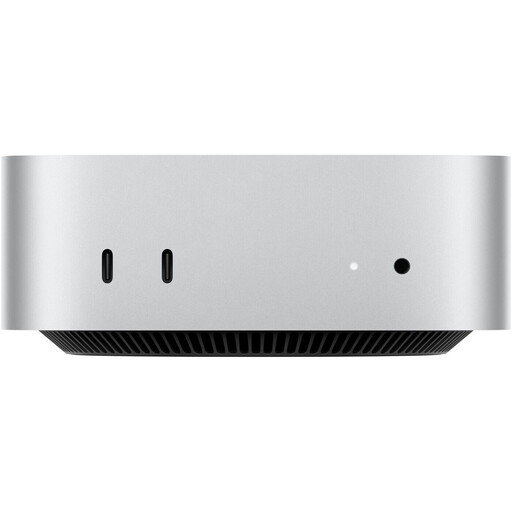
Apple Mac mini MHQK4ZD/A_CTO, M6, 12-Core CPU, 12-Core GPU, 32 GB Unified Memory, 512 GB SSD
The listed 32 GB of memory exceeds Adobe’s recommendation of 16 GB or more for Photoshop version 27.x onwards. Your existing scanner will need a scanning method that works on macOS.
The specific configuration lists a 512 GB SSD and 2.5-Gbps Ethernet.
View at Joybuy
 No image available
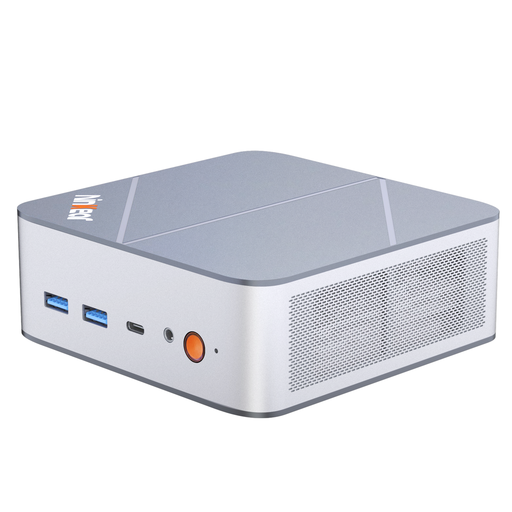
Ninkear M8 Mini-PC, Ryzen 7 8745HS, 16 GB DDR5, 1 TB SSD
This configuration lists Windows 10/11 and 16 GB of RAM, in line with Adobe’s recommendation of 16 GB or more for Photoshop version 27.x onwards. Check that your scanner’s driver works with your chosen operating system.
The product title lists a 1 TB SSD, Wi-Fi 6 and dimensions of 130 × 127,5 × 52 mm.
View at Joybuy
Frequently asked questions
What should I look for in a PC for Photoshop and scanned images?
For Photoshop version 27.x onwards, Adobe lists 8 GB of RAM as the minimum and recommends 16 GB or more. Also check the supported operating system, graphics requirements and available SSD space. This recommendation doesn’t tell you how quickly every large scan file will be edited.
Can I scan directly from my existing scanner into Photoshop?
Not simply because it has a suitable connection. Adobe doesn’t support the TWAIN plug-in in currently supported versions of Photoshop. It lists standalone scanner software, Windows WIA and Image Capture on macOS as some of the available scanning methods. Check the driver for your specific scanner.
Will a faster desktop PC remove dust automatically?
No. Retouching is done in image-editing software; Adobe describes Photoshop’s ‘Dust & Scratches’ filter as one option. Your computer is no substitute for a suitable scanning method or checking the edited image.


