Teachers working with school PowerPoint files
If you edit slides at home and then open them at school, check the software and fonts you use, along with any embedded or linked media, using a typical file.


Choose your desktop based first on the presentation software and school files you actually use, then on the screen you already have. A mini PC leaves you free to choose your monitor, while an all-in-one combines the computer and display. A compact desktop or Mac mini may also be suitable if the specific configuration or macOS compatibility meets your needs. Before buying, check the exact model, ports, accessories and how your slides display at the presentation venue.
If you edit slides at home and then open them at school, check the software and fonts you use, along with any embedded or linked media, using a typical file.
If you already have a screen, a separate mini PC could be a good fit. If you don’t have a display, an all-in-one lets you choose the computer and screen together. What matters is what the specific model includes.
If your slides include videos or you work with several applications open at once, test a representative presentation using your usual workflow and consider the storage in the configuration you choose. Microsoft notes that embedded videos can increase file size.
A good fit if: you want to keep a suitable monitor or choose one yourself, and the school software you need runs on Windows.
Consider: You’ll need to factor in a screen and possibly some accessories separately. Check exactly what the model includes.
A good fit if: you don’t have a screen yet and want to choose the computer and display together.
Consider: The screen is part of your choice of computer. Compare the display specifications of the specific model, rather than relying on the product range name alone.
A good fit if: you use a separate monitor and need a particular configuration or service option.
Consider: A larger case takes up more space than a mini PC. Specifications and processors can also vary across a product range.
A good fit if: the programmes and school files you actually use work with macOS, and you can choose a suitable screen and input devices.
Consider: Check the memory and SSD configuration, and how your own presentations display, before choosing a model.
| Priority | What to check before buying | Who is this important to? |
|---|---|---|
| School software and files | Check that the operating system and required software licence are compatible; test a typical school file with its fonts. | If I edit slides at home and use them again at school, I want to avoid unnecessary changes to how they display. Around 31% of consumers put software and file compatibility first. |
| Screen and space | Check that the screen’s ports match the computer; with an all-in-one, check the display and the exact model. | If my desk is small or I want to keep using a monitor I already own, a suitable combination of display and computer matters. Around 25% of consumers prioritise the screen and desk space. |
| Media and running several applications | Check the storage in the specific configuration; test a presentation with videos at the venue where you’ll show it. | If my slides include videos or I work with other applications at the same time, I want to check file size and playback as part of my own workflow. Around 19% of consumers put media-rich slides first. |
| Complete workstation | Check whether a monitor, mouse and keyboard are included; find out which presentation software and licence you need. | If I need to put together a usable workstation from scratch, I want to know which accessories and software I still need. Around 13% of consumers focus first on a complete setup. |
| Backups and support | Plan for a separate backup; check which support services are available and what they cover for your chosen model. | If I need to keep my teaching files available if my computer fails, I want to consider backups and support separately. Around 12% of consumers prioritise data backup and help if something goes wrong. |
A mini PC and an all-in-one don’t include the same screen and accessories. Some models may require extra devices or a separate software licence.
Make a note of the devices you already have and compare what’s included with the exact models you’re considering.
Manufacturers offer different configurations within a product range, with varying processors, memory or operating systems.
Check the full model number and the specifications for the exact device on offer.
Missing fonts may be substituted, and links to video files may stop working. Microsoft describes these as potential playback issues.
Open a representative slide, including its fonts and media, at the venue where you’ll present.
A repair or replacement device won’t automatically restore your teaching files.
Set up a separate backup, regardless of any support services you choose.
After data loss, you may need to spend extra time restoring your teaching files.
The ProDesk 4 Mini G1i is a mini PC range designed for use with a separate screen.
The ThinkCentre M70q Gen 5 Tiny and IdeaCentre AIO 24IRH9 offer different form factors: a mini PC with a separate display and an all-in-one.
The Pro Slim Essential QVS1260 is a compact desktop with configurable specifications and service options.
The Mac mini M6 is a compact macOS alternative with a screen chosen separately.
This selection includes Windows mini PCs and compact desktops for use with a separate screen, as well as a Mac mini. For each device, check that the specific configuration suits your software, accessories and presentation files.
 No image available
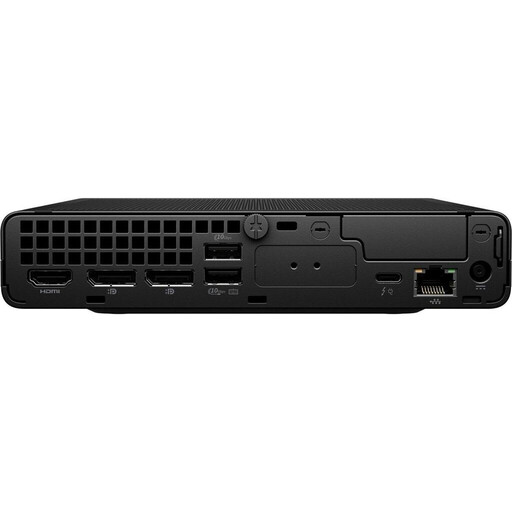
A mini PC option if you use a separate screen and the school software you need runs on Windows 11.
Windows 11; Intel Core i5 8250U/8350U; 8 GB DDR4; 256 GB SATA SSD.
 No image available
A mini PC for a workstation with a separate screen, if you need the Windows 11 Pro configuration listed.
Windows 11 Pro; 64 GB DDR5; 1 TB SSD. An optional mount is required to attach it behind a monitor.
 No image available
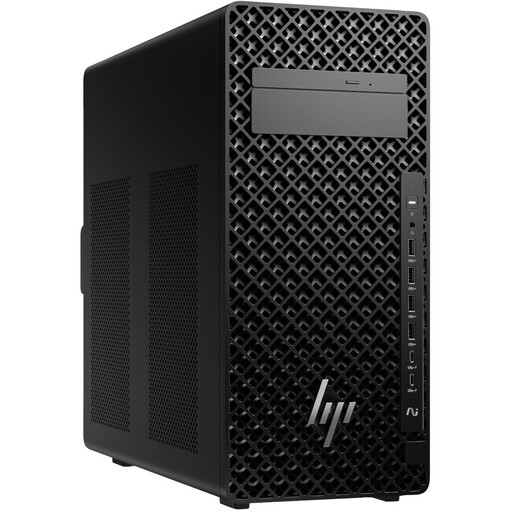
A tower PC for use with a separate screen, if you’re looking for a desktop with the Windows 11 Pro configuration listed.
Core Ultra 7 265; 32 GB DDR5; Windows 11 Pro.
 No image available
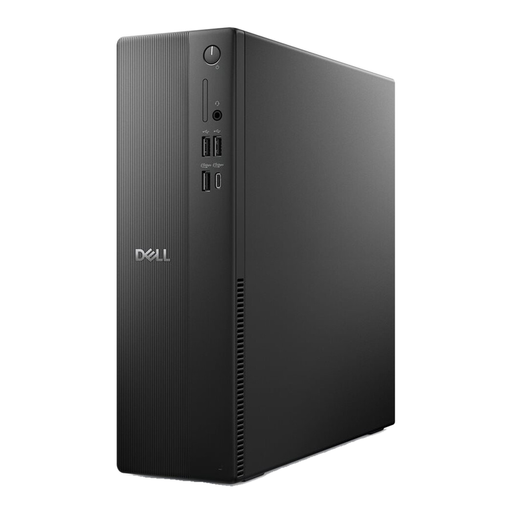
A compact desktop for a separate screen, if the specific Windows 11 Pro configuration suits the way you work.
Core i5-14400; 16 GB RAM; 512 GB SSD; Windows 11 Pro.
 No image available
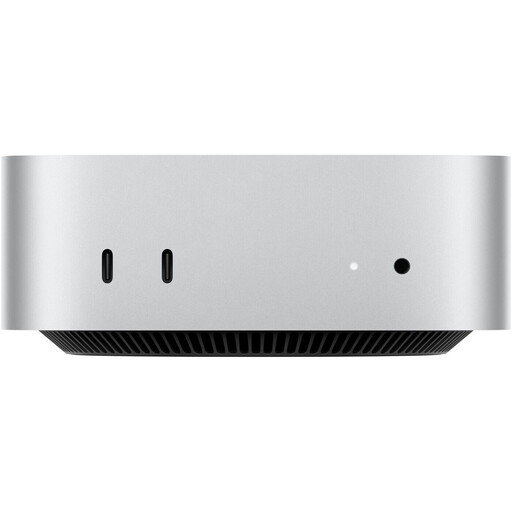
A macOS option with a screen chosen separately, provided it’s compatible with the school programmes and files you need.
32 GB Unified Memory; 512 GB SSD. Check the details for the specific model on sale to see whether a display, keyboard and mouse are included.
Microsoft lists 4 GB RAM as a system requirement for the relevant Microsoft 365 apps on Windows 11. This doesn’t guarantee smooth performance with presentations containing lots of media or several programmes open at once. Test your own workflow and check the exact computer configuration.
Open a typical file at the venue where you’ll present and check the fonts and videos. Microsoft notes that missing fonts may be substituted and links to video files may stop working.
Make a separate backup and update it regularly. Germany’s Federal Office for Information Security gives an external hard drive as an example and explains how to restore files after a device failure.
Consumers in Germany generally have a 14-day right to cancel online purchases, although exceptions and the circumstances of the contract must be considered. The consumer advice centre distinguishes this right from the statutory warranty against the seller and from voluntary guarantees. For new goods, the seller is generally liable for initial defects for two years.
Before processing pupils’ personal data, check the requirements set by your school and the relevant state data protection authority. The FAQ from the State Commissioner for Data Protection and Freedom of Information of Rhineland-Palatinate applies to that state and cannot automatically be applied to schools in other German states.