What to look for when buying
First, note down your editing software, footage and workflow. Then compare the computer’s exact configuration with your software’s requirements and your storage needs.
| What matters to you |
What to check before buying |
Who should pay particular attention |
| Smooth playback across multiple tracks |
Note the codec, resolution and number of camera angles visible at the same time. Check the CPU and codec support against the software you use. |
If you often switch between angles while editing and prioritise smooth playback, this is a key consideration. Around 36% of consumers put playback and switching between angles first. |
| 4K footage and effects |
For Premiere on Windows, Adobe recommends at least 32 GB RAM and 8 GB of GPU memory for 4K and higher resolutions. Other software has its own requirements. |
If you edit high-resolution footage or use effects, extra specification matters more than it does for simple HD edits. Around 29% of consumers put 4K and effects at the top of their list. |
| Storage for footage and projects |
Check the capacity of the drive actually included, the ports for external storage and whether you can upgrade later. Allow space for originals, working copies and media cache. |
If you want to organise lots of clips and working files locally, having enough storage is key. File management is the most important buying consideration for around 21% of consumers. |
| A compact, complete editing setup |
Measure the space available and check the ports, included accessories and upgrade options for the specific model. |
If you have limited desk space and need to plan for the computer, monitor and input devices together, a compact all-in-one setup is a priority. Around 14% of consumers prioritise this. |
If high-resolution or processor-intensive original footage makes playback difficult, a proxy workflow may help. This involves editing low-resolution working copies instead of the originals. Adobe describes this workflow for Premiere. Check whether your software supports it, and keep the original files for the rest of your workflow.
Suitable desktop PCs at Joybuy
The selection includes Windows towers, compact mini PCs and Mac mini configurations. Compare the exact specifications with your editing software. For compact systems, also check the operating system, ports and upgrade options.
 No image available
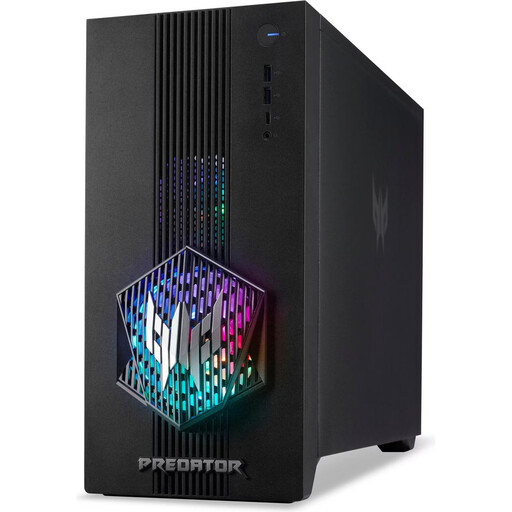
Acer Predator Orion 3000, Core Ultra 5 225F, 16 GB, 512 GB, RTX 5060
Listed as a Windows tower with dedicated graphics. Check the specifications against the codec and editing software you use.
The specific configuration lists Windows 11 Home, 16 GB RAM, a 512-GB SSD and a GeForce RTX 5060 with 8 GB. According to the description, the memory can be upgraded to up to 32 GB.
View at Joybuy
 No image available
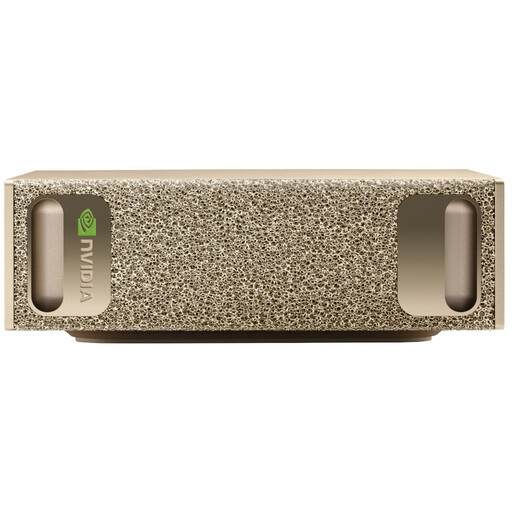
NVIDIA DGX Spark Founders Edition, GB10, 128 GB, 4 TB
Before choosing this model, check that your editing software is compatible with the listed operating system and installation optimised for AI frameworks.
The configuration described includes 128 GB RAM, a 4-TB M.2 SSD, NVIDIA DGX OS, and HDMI and USB-C video outputs.
View at Joybuy
 No image available
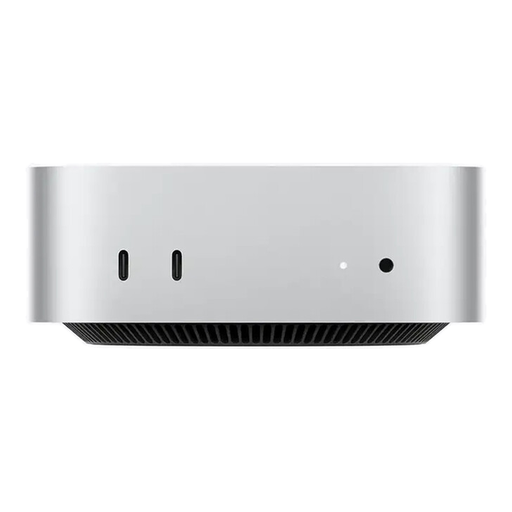
Apple Mac mini M5 Pro, 15-Core CPU, 16-Core GPU, 24 GB, 512 GB
A compact macOS option if your editing software is compatible with macOS and you choose the specifications that suit you before buying.
The specific configuration lists 24 GB of unified memory and a 512-GB SSD. According to the description, the keyboard and mouse are sold separately.
View at Joybuy
 No image available
ACEMAGIC AK1PLUS mini PC, Celeron N5095, 16 GB, 256 GB
If you’re setting up in a small space, check first that the processor and integrated graphics meet your editing software’s requirements.
The description lists an Intel Celeron N5095, 16 GB LPDDR4X, a 256-GB M.2 SATA SSD, Windows 11 Pro and integrated Intel UHD Graphics. It also lists an M.2 slot and a 2.5-inch SATA drive bay.
View at Joybuy
 No image available
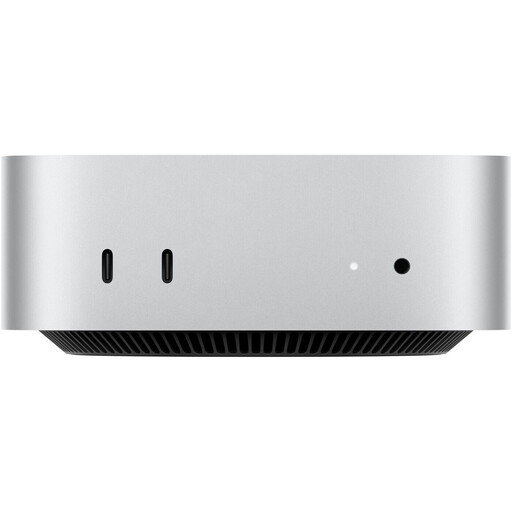
Apple Mac mini M5 Pro, 18-Core CPU, 20-Core GPU, 48 GB, 1 TB
A compact macOS configuration if the software is right for you and you’re planning for more unified memory and SSD capacity.
The version described lists 48 GB of unified memory, a 1-TB SSD, Thunderbolt 5 and HDMI. Its dimensions are given as 12.7 × 12.7 × 5.0 cm.
View at Joybuy
Frequently asked questions
Do I automatically need a multicamera workstation for multiple video tracks?
No. Having several clips layered on top of each other is different from using a multicamera view with synchronised angles. If you’ve filmed the same scene from several angles, your editing software’s multicamera feature may be useful. Check playback with your own footage.
What can I try before upgrading my hardware if playback is choppy?
If your editing software supports it, you can create low-resolution proxies and edit those instead of the high-resolution originals. Adobe describes this workflow for Premiere, particularly with demanding 4K footage. Keep the original files for the rest of your workflow.
Is 32 GB RAM a legal requirement for using Premiere with 4K footage?
No. Adobe’s figure is a software recommendation, not a German legal requirement. For Premiere on Windows, Adobe recommends 32 GB RAM or more for 4K and higher resolutions. The same recommendations don’t automatically apply to other software or HD projects.
Who should I contact if my desktop is faulty?
For a consumer purchase, the seller is responsible for the statutory warranty, which lasts for at least two years from the date you receive the goods. An additional manufacturer’s guarantee doesn’t replace it. Check the details and terms of any separate service before you buy.
How do I dispose of an old PC in Germany?
Take electrical waste to an authorised collection point, such as a local authority facility, or use an applicable take-back scheme offered by the manufacturer or retailer. Whether a particular retailer is required to accept it, and how you should hand it in, depends on the relevant terms.


