Editors reviewing long original footage
If you review a lot of footage before turning it into a short film, plan for working capacity, available storage and a separate backup together.


Choose a desktop based first on your editing software, the resolution and codec of your footage, and how much storage you need for all your original files, with a separate backup as well. A compact Mac mini is a good fit if your editing software runs on macOS and you plan to use external storage; a suitably configured Windows tower offers more scope for internal expansion. For frequent 4K projects, the components actually fitted matter more than the product range name.
If you review a lot of footage before turning it into a short film, plan for working capacity, available storage and a separate backup together.
With high-resolution footage, multiple tracks or effects, the requirements of your specific editing software and the configuration of the computer you choose are key.
If your editing software or existing workflow depends on macOS or Windows, check the ports, storage options and potential for upgrades next.
Start by deciding on your editing software, recording format and project size. You can then assess the right combination of computer and storage.
| What you need | What to look for | Who is this important to? |
|---|---|---|
| Original footage and backups | Estimate the storage needed for your largest project and plan for working storage and a separate backup location. | If I want to keep long recordings and project files, I need plenty of space and a separate backup. Around 33% of consumers prioritise storage and data backups. |
| Smooth editing | Check the resolution, codec and editing software, as well as the RAM and graphics card actually fitted. | For 4K footage or multiple tracks, I want to check my software requirements against the computer’s full configuration. Around 27% of consumers put smooth playback and editing first. |
| Operating system and software | Check that your editing software, version and required plug-ins run on the operating system in question. | If my existing workflow depends on macOS or Windows, I want to keep working on my projects without changing systems. Around 20% of consumers have an established software or system workflow. |
| Ports and expansion | Compare the ports you need and, for towers, the expansion options available with the exact configuration. | As my projects grow, I want to be able to add drives or connect suitable peripherals. Around 20% of consumers prioritise ports and future upgrades. |
For Adobe Premiere, Adobe recommends 32 GB of RAM or more for 4K and higher resolutions on Windows; for HD, Adobe recommends 16 GB. This recommendation applies to Premiere versions 26.0 to 26.5.2 and is not a general minimum requirement for other software or Macs.
Long original recordings still take up space alongside project files and any proxy files. An SSD with enough room for the finished short film may not have enough capacity for the project you’re working on.
Before you buy, estimate the data needed for your largest project and plan for working storage and backup storage separately.
You may need additional working drives and separate backup storage.
Configurations can vary considerably within a range. For example, Lenovo offers a ThinkStation P3 Tower Gen 2 with 8 GB of RAM and integrated graphics; that won’t necessarily meet your editing software’s requirements.
Before ordering, check the full product number and the components actually included in your chosen configuration.
If you need to upgrade the specification later, additional installation work may be required.
Processor or RAM figures alone don’t tell you whether a computer is right for your software, recording format and storage setup. Spec sheets alone don’t prove how the devices compare in speed.
Decide on your software, recording format and storage needs first, then compare the complete configurations.
The product ranges below differ mainly in their form factor and configuration options. The specifications apply only to the specific model selected.
The Mac mini range makes a compact macOS workstation, provided your editing software supports the operating system.
The ThinkStation P3 Tower Gen 2 is a configurable Windows tower range for buyers who want to choose their components and storage to suit their needs.
The Z2 Tower G1i is an upgradeable Windows workstation tower; its exact specification depends on the configuration you choose.
The Pro Max Tower T2 is a configurable Windows tower range, with specifications that can be chosen to suit your workflow.
The models below include Windows towers with different specifications and a compact Mac mini. The key considerations are the exact configuration, your editing software and any additional storage you need.
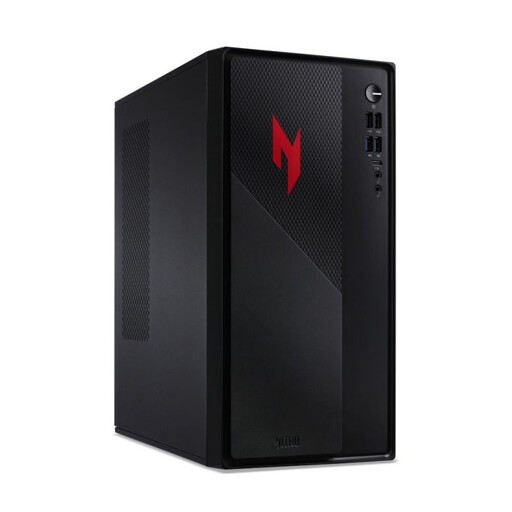 No image available
A Windows tower configuration for long projects, if 32 GB of RAM and a dedicated graphics card suit your editing software.
Listed specifications include 32 GB of RAM, 1 TB of storage, an RTX 5060 and Windows 11 Home. Check the exact storage configuration and graphics memory requirements for your software.
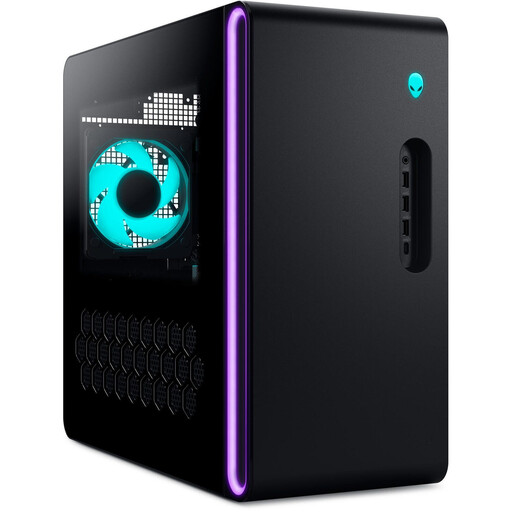 No image available
This tower configuration is worth considering if you use Windows and the listed components meet your editing software’s requirements.
The product name lists 32 GB of RAM, a 2 TB SSD and an RTX 5080. Check your software’s specific requirements before making the graphics card a deciding factor.
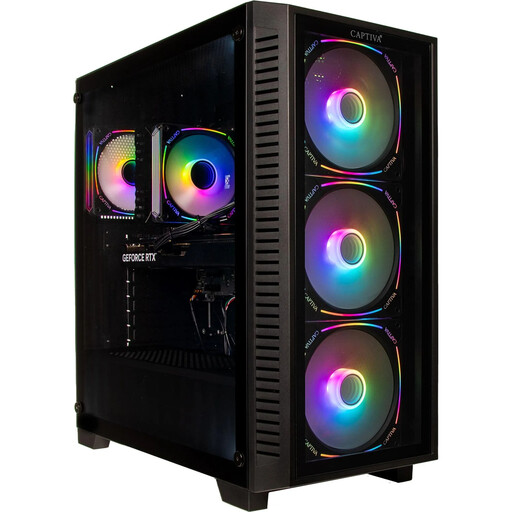 No image available
A Windows tower with dedicated graphics and a 2 TB SSD, if this specification meets your editing and storage needs.
Listed specifications include 32 GB of DDR5 RAM, an RTX 5070 Ti with 16 GB and a 2 TB SSD. Check that the components suit your software and the recording formats you use.
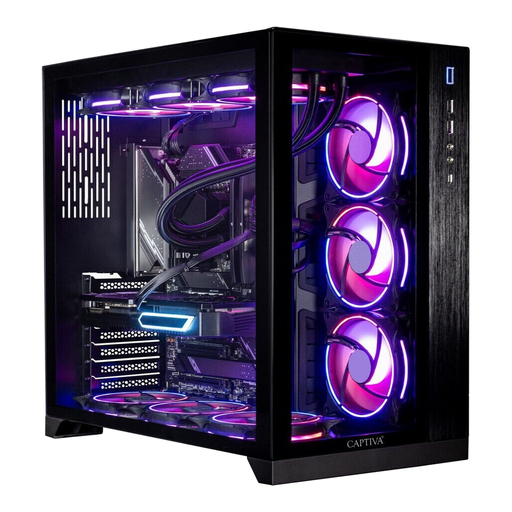 No image available
This tower configuration is an option if you’re specifically looking for 64 GB of RAM and a dedicated graphics card.
The product name lists 64 GB of RAM, a 2 TB SSD and an RTX 5070 Ti. Check whether this specific configuration is right for your editing software and projects.
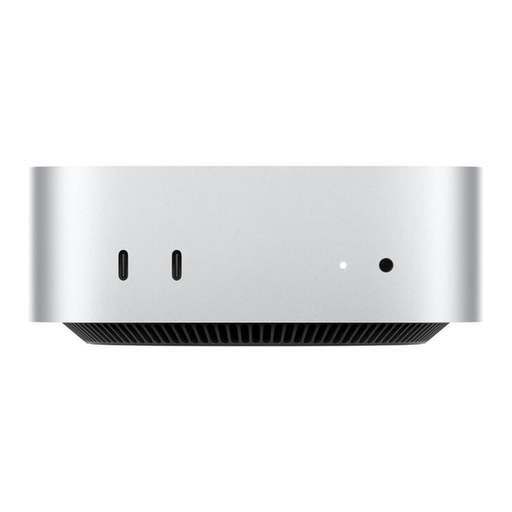 No image available
The compact Mac mini is a good fit if your editing software runs on macOS and you plan to use additional storage for long original recordings.
This configuration lists 24 GB of unified memory and a 512 GB SSD. Apple lists hardware-accelerated media engines for H.264, HEVC and ProRes on the M6; this doesn’t guarantee a particular editing speed for every project.
For 4K and higher resolutions, Adobe recommends 32 GB of RAM or more for Premiere; Adobe recommends 16 GB for HD. This recommendation applies to Premiere versions 26.0 to 26.5.2 and is not a general minimum requirement for other software or Macs.
For large or processor-intensive video files, you can create proxy files in Premiere – lower-resolution copies of your footage. Allow for the extra steps in your workflow and the additional storage they need, and keep the original files available for your project.
No. An internal SSD can provide space for your current project, but it doesn’t replace a separate backup. Lenovo Germany describes internal SSDs as suitable for current projects and external storage solutions for archiving and backups.
For consumer purchases in Germany, statutory rights against the seller should be distinguished from a voluntary guarantee. According to Verbraucherzentrale, goods bought online can generally be returned within 14 days of receipt under the right to cancel; check your specific contract and any exceptions.
You can’t tell from the form factor or product range alone. Compare the complete configurations against your editing software’s requirements, recording format and storage needs; manufacturer specifications are no substitute for a like-for-like performance test.