A single monitor may be enough to view your dialogue tree in two ways, as long as the tree, text and preview remain easy to read side by side at your preferred scaling. For two physical displays, check how many displays your computer supports and how you plan to connect them. Apple Support notes that this depends on the Mac model, resolution and refresh rate; Dell Support highlights daisy-chain limitations on certain Intel-based MacBook Pro models.
Who is this guide for?
Dialogue tree designers who need two views
You want to see branches alongside their related text or a preview, and choose your windows based on readability rather than squeezing in as many pixels as possible. Screen-work considerations are covered, among other places, in ASR A6 from the Federal Institute for Occupational Safety and Health; ASUS and Lenovo list the resolutions of their respective models.
Laptop users adding a second monitor
You want to spread project views across two physical displays, so you’ll need to check display support, ports and, where relevant, laptop charging. Apple Support and Dell Support explain model-specific display and daisy-chain requirements; Lenovo lists the ports on its ThinkVision P27h-30.
Designers with limited desk space
You need text that’s easy to position and project views that stay visible, but you don’t have much room on your desk. That makes the stand and window layout important. ASR A6 offers guidance on screen work, while ASUS lists an adjustable stand for the ProArt PA279CRV.
What should you look for when buying?
First decide whether you need two software views on one screen or two separate displays. Then check readability, connections and the space available.
| Priority |
What to check |
Who is this important to? |
| See two views at once |
Open the tree alongside the text or preview in your actual software; check the scaling and window layout. |
I want to see the tree and text at the same time, without shrinking the text to make room for more windows. Around 33% of consumers mainly look for enough space to view two things at once. |
| Connect two displays |
Check your computer model and its supported number of displays against the video outputs and planned connection setup. |
If I want the tree and preview to stay on separate screens, my computer needs to support both displays. Around 27% of consumers prioritise computer and connection compatibility. |
| Read dialogue text |
Test the resolution with scaling, and assess the text size and screen position in your own workflow. |
I want to read nodes and longer dialogue at my usual text size, rather than relying on high resolution alone. Around 20% of consumers focus on text that’s easy to read. |
| Desk space and power consumption |
Measure the space needed, including the stand; compare the EU energy labels for specific models. |
If my desk is short on space, I want to consider the monitor’s dimensions and placement in advance. Around 20% of consumers prioritise the space it takes up and running costs. |
Avoid common buying mistakes
-
Assuming “two screens” automatically means two monitors
You may be able to arrange two software views on a single desktop; two physical displays are a different setup.
First open your actual project windows and check whether the tree and text or preview fit side by side while keeping the text easy to read.
A second monitor takes up extra desk space.
-
Treating USB-C or daisy-chaining as a guarantee of compatibility
A monitor port alone doesn’t tell you how many external displays your particular computer supports.
Check your computer model, display support and the full planned connection setup against the specifications of both monitors.
Depending on how you connect everything, you may need extra cables or a docking device.
-
Assuming 4K automatically makes dialogue text easier to read
Practical text size also depends on scaling and how you arrange your windows.
Test nodes and text fields at your usual text size and scaling before choosing a resolution.
Brands worth considering
Lenovo
The ThinkVision P27h-30 is an example of a 27-inch QHD monitor with USB-C docking.
- Lenovo lists QHD and USB-C docking for this model.
- Check separately whether its ports let your computer run two displays.
Dell
The UltraSharp U2724DE is an example of a 27-inch QHD monitor with a Thunderbolt hub.
- Dell lists a resolution of 2.560 × 1.440 pixels and Thunderbolt 4 for this model.
- A monitor with a hub doesn’t guarantee that every laptop supports two external displays.
ASUS
The ProArt PA279CRV is a 27-inch 4K option if detailed graphics or previews matter alongside dialogue text.
- ASUS lists a resolution of 3.840 × 2.160 pixels and an adjustable stand.
- If you mainly work with dialogue text, check whether the extra resolution is useful at your preferred scaling.
EIZO
The FlexScan EV2795 is a QHD office monitor with USB-C docking and an output for daisy-chaining.
- EIZO lists a USB-C video input, a USB-C output for daisy-chaining and up to 70 W power delivery through the upstream port.
- These ports don’t replace the need to check whether your computer supports the planned setup.
MSI
The Modern MD272UPHGDE is a 27-inch 4K option if you also want to switch between two computers.
- MSI lists KVM, Picture-by-Picture and USB-C with 98 W Power Delivery.
- Using KVM to switch between computers isn’t the same as displaying an image on two physical monitors.
Joybuy monitors for two views
The Joybuy monitors below are suited to viewing two things on a single screen. If you choose a model with docking, check that it’s compatible with your computer too.
 No image available
CRUA 49-inch DQHD ultrawide monitor
Could suit side-by-side project views, but the 49-inch format needs plenty of desk space.
32:9, 5.120 × 1.440 pixels, 165 Hz, 1500R, height-adjustable stand, HDMI 2.1 and DisplayPort 1.4.
View at Joybuy
 No image available
INNOCN 40C1U
The listed PIP and PBP features may be useful if you want to display two input sources at once; check whether they suit your workflow.
40 inches, 5.120 × 2.160 pixels, IPS, 100 Hz, 21:9, USB-C with 65 W Power Delivery and a height-adjustable stand. This format needs plenty of desk space.
View at Joybuy
 No image available
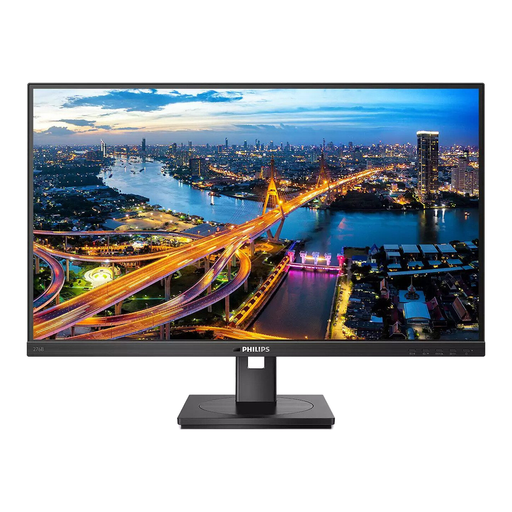
Philips 276B1
A 27-inch QHD model for using several windows on one screen. For the single-cable setup described, your laptop and ports need to be compatible.
27 inches, QHD, 75 Hz, IPS and 350 cd/m². According to the product specifications, the USB-C connection requires a compatible device with DP Alt Mode and Power Delivery.
View at Joybuy
 No image available
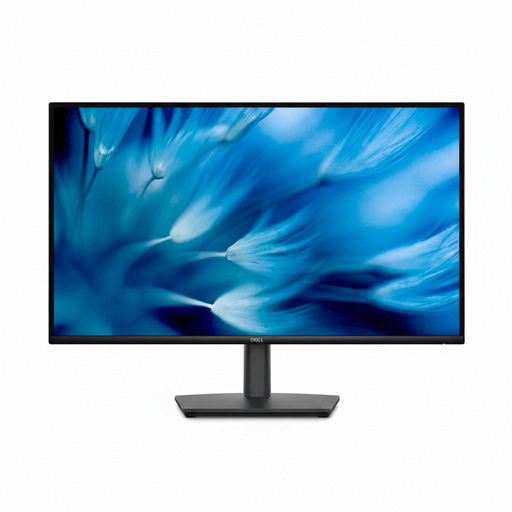
Dell Pro 27 E2726DS
Could work well for several windows on one desktop; the description also lists several ways to adjust the screen position.
27 inches, WQHD, IPS, 8 ms, HDMI and DisplayPort. The stand offers 130 mm of height adjustment, tilt, swivel and pivot.
View at Joybuy
 No image available
MSI PRO MP275QPDGDE
The docking and daisy-chain specifications may help you create a tidier setup, but they don’t confirm that your computer supports two external displays.
27 inches, WQHD, IPS, 100 Hz, 1 ms MPRT, USB-C with 98 W Power Delivery, daisy-chaining, KVM and integrated webcam.
View at Joybuy
Frequently asked questions
Do I need two physical monitors to view my dialogue tree in two ways?
Not necessarily. First check whether you can arrange your windows and text on one monitor while keeping everything easy to read at your chosen scaling. Two monitors are worth considering if you want to keep the views separate and your computer supports the number of displays you need.
How can I check compatibility before connecting a second monitor?
Check your computer model, the number of external displays it supports and the video connections you plan to use. For daisy-chaining, the first monitor’s output and the connection setup supported by your computer must also be suitable. For Macs, display support depends on the specific model.
What should I consider when setting up my monitor for extended periods of reading?
Test both views at the text size you actually want to use, and position the screen so the text is easy to read and reflections aren’t distracting. ASR A6 from the Federal Institute for Occupational Safety and Health sets out requirements for screen-based workstations within its scope; it isn’t a blanket product requirement for home desks.
Which label can help me compare power consumption?
In the EU, electronic displays such as computer monitors carry an energy label from A to G, as explained by the European Commission. Compare the information for the specific models; the energy efficiency class alone can’t tell you how much you’ll personally save without knowing your usage and electricity tariff.
What are my rights when buying a monitor online in Germany?
According to Verbraucherzentrale, consumers who buy online generally have a 14-day right to cancel after receiving the goods; you must notify the seller that you’re cancelling. The statutory warranty for faulty goods is separate from a voluntary manufacturer’s guarantee. Check the terms for your specific purchase.


