Which monitor is right for you?

Working with dialogue trees by a window

If daylight falls beside your screen, you’ll want a workspace you can position easily and suitable measures to reduce glare. The German Federal Institute for Occupational Safety and Health (BAuA) recommends positioning workstations favourably in relation to windows; glare protection is still important.

Working with lots of references alongside the dialogue tree

If you need to see the tree view, text and notes at the same time, you’ll need to weigh up screen width against the space available on your desk.

Using a laptop at your desk

If you’re connecting a laptop to a monitor, check that the video connection and, where applicable, the charging power are suitable for your laptop.

What should you look for when buying?

What matters What to check when buying Who is it important to?
Reflections and daylight Window position and sun protection; the surface finish and brightness rating of the specific model. If daylight falls on my screen, I want to reduce distracting reflections first by adjusting its position and using glare protection. Around 36% of consumers put reflection control first.
Viewing multiple windows side by side Compare the format, resolution and desk width with your planned layout for the tree, text and references. If I need to see the dialogue tree, text and references at the same time, the usable screen layout matters most to me. Around 29% of consumers prioritise space for multiple views.
Text and detail clarity Assess the resolution alongside the screen size and a comfortable display scaling setting. When reading long dialogue and small labels, I want to check details clearly without compromising readability with an unsuitable scaling setting. Around 21% of consumers put text and detail clarity first.
Laptop connectivity Compare your laptop’s video support and power requirements with the monitor’s ports and USB-C charging power. If I want to connect my laptop to a monitor at my desk, the video signal and power supply need to be compatible. Around 14% of consumers prioritise laptop connectivity and docking.

Common buying mistakes

  • Assuming an anti-glare finish will prevent reflections from a window

    Even with modern screen technology, glare protection in the workplace is still important.

    Check the position of the window and whether you can add shading before relying on the surface finish alone.

  • Comparing screen size alone

    The format, resolution and scaling all affect how you can arrange the dialogue tree and references.

    Sketch out your usual windows and compare the layout with the pixel count, format and available space.

  • Assuming a USB-C port means you can use a single cable

    For a laptop, the video connection and power supply need to be compatible with the device.

    Before buying, check the full connection specifications for both your laptop and monitor.

Relevant brands at a glance

ASUS

The ProArt PA279CRV is worth considering for detail-focused work on an anti-glare 27-inch 4K screen.

  • According to ASUS’s German specification sheet, the model offers typical brightness of 350 cd/m², height adjustment and USB-C with 96 W.
  • The brightness rating doesn’t guarantee readability by your particular window; the stated maximum typical refresh rate is 60 Hz.

BenQ

The RD320UA programming monitor is designed for workflows involving large tree views and a screen that can be positioned flexibly.

  • BenQ lists a 31.5-inch 4K screen, Nano Matte finish, adjustable arm and typical brightness of 400 Nits for this model.
  • The arm and screen need enough room; the coating description isn’t independent proof that the screen is glare-free.

LG

The UltraWide 34U650A-B is worth considering if your workflow involves viewing several windows side by side.

  • LG lists a 34-inch screen, a 21:9 aspect ratio and 3440 × 1440 pixels.
  • The wide screen needs plenty of desk space, and the specifications don’t indicate any particular resistance to reflections from a window.

EIZO

The FlexScan EV2490 is a more compact office option with USB-C docking.

  • EIZO lists a 23.8-inch Full HD screen and up to 70 W power delivery over USB-C.
  • The stated maximum typical brightness is 250 cd/m². If you want to view lots of tree branches and references at the same time, bear the lower resolution in mind.

Dell

The Pro P2725QE combines a 27-inch 4K display with a USB-C hub.

  • Dell lists a resolution of 3840 × 2160 pixels at 100 Hz and a USB-C hub for this model.
  • These specifications alone don’t indicate any particular resistance to reflections from a window.

Joybuy products for dialogue tree work

These Joybuy products cover wide ultrawide workspaces and a 27-inch monitor with USB-C docking, for working with dialogue trees and other views.
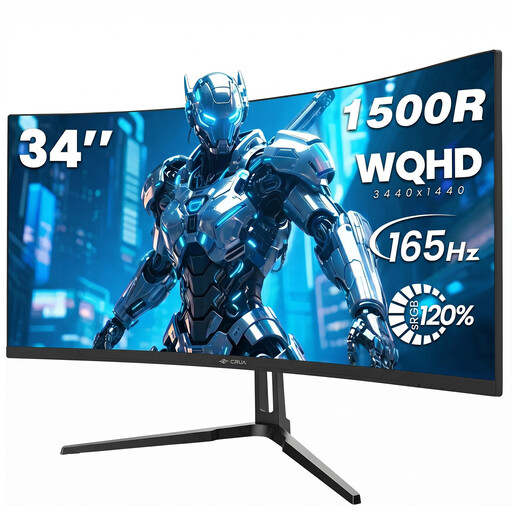
CRUA CR340QA-H 34-inch WQHD monitor

CRUA CR340QA-H, 34-inch WQHD monitor

The 21:9 format is worth considering for a workflow with a dialogue tree and other windows side by side; check that the curved screen suits your desk.

3440 × 1440 pixels; 165 Hz; 1500R curvature; 1 ms MPRT.

View at Joybuy
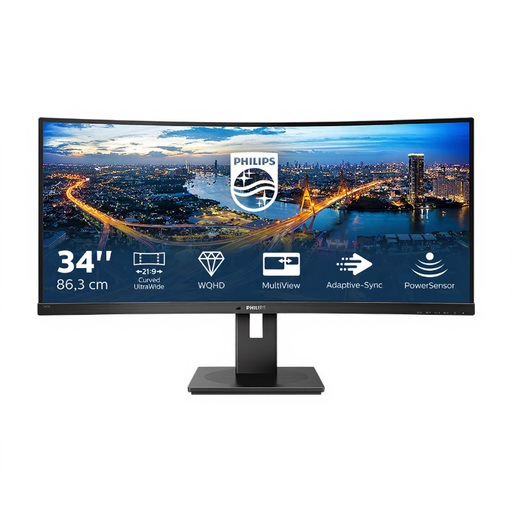
Philips 345B1C curved ultrawide monitor

Philips 345B1C, 34-inch curved ultrawide monitor

If having several windows side by side is important, a 34-inch curved ultrawide display could be a good option; compare your planned layout with the width of your desk.

WQHD at 3440 × 1440 pixels; 100 Hz; 1500R; USB hub; height-adjustable stand.

View at Joybuy

MSI PRO MP275QPDGDE 27-inch WQHD docking monitor

MSI PRO MP275QPDGDE, 27-inch WQHD docking monitor

If laptop connectivity matters alongside your dialogue tree work, check the USB-C specification and ports for compatibility with your device.

IPS panel; 100 Hz; 1 ms MPRT; USB-C with 98 W PD; KVM; built-in webcam.

View at Joybuy
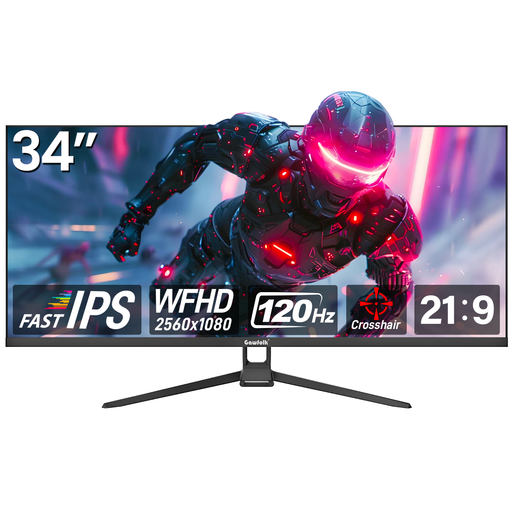
Gawfolk GF340H-H 34-inch WFHD monitor

Gawfolk GF340H-H, 34-inch WFHD monitor

The 21:9 format could work well if you want to arrange several views side by side; check how much vertical space you need for the tree and text.

WFHD at 2560 × 1080 pixels; 120 Hz. The resolution offers fewer vertical pixels than higher-resolution workspaces, which can limit how much of the tree, text and references you can view at once.

View at Joybuy

Frequently asked questions

Is an anti-glare monitor enough if it’s right next to a bright window?

Not necessarily. The BAuA notes that glare protection is still important and recommends positioning the workstation favourably in relation to the window, along with effective sun protection where needed. Assess the light at your actual workstation.

How should I position my screen for long sessions working with dialogue trees?

Position it to minimise reflections when you’re looking at the tree and text as usual, and make use of any height or swivel adjustments. An adjustable arm, such as the one supplied with the BenQ RD320UA, makes it easier to change the screen’s position, provided your desk and mount are suitable.

Can any USB-C monitor provide video and power to any laptop over a single cable?

No. You can’t tell from the shape of the port alone. Check your laptop’s video support and power requirements against the ports and Power Delivery specification of the specific monitor. BenQ lists DisplayPort Alt Mode and 90 W Power Delivery for the RD320UA.

What are your rights in Germany if a monitor bought online is faulty?

Your statutory rights are against the seller; a manufacturer’s guarantee is voluntary and separate. According to the Verbraucherzentrale, the first remedy for a fault may be repair or replacement. Most online purchases generally come with a 14-day right to cancel from the date you receive the goods; check the terms of your specific purchase.

Is a particular monitor brightness required for working on dialogue trees at home by a window?

ASR A6 doesn’t set a general minimum brightness in cd/m² for every monitor used privately. The BAuA guidance sets out requirements for screen-based workstations within its scope, and shouldn’t be applied to every home desk without checking first.