People planning dialogue trees
If you want to see branches alongside text or notes, your choice depends on how much usable screen space your window layout needs.


If you want to work on a dialogue tree and text side by side, start by considering the window space you need and how much room you have on your desk. A single 27-inch QHD monitor can be a compact starting point, while an ultrawide gives you more horizontal space. If you switch between computers, check the video connections, USB switching and, where relevant, charging power separately: USB-C alone doesn’t confirm that all these features are available.
If you want to see branches alongside text or notes, your choice depends on how much usable screen space your window layout needs.
If you switch between computers at the same desk or share input devices, suitable connections and switching that works in practice are important.
If your monitor, keyboard and mouse need to fit into a small area, consider the stand and adjustment options as well as the screen size.
The percentages are broad guidelines for the situations described. What matters most is which requirement takes priority at your workstation.
| What you need | What to check when buying | Who is this especially important for? |
|---|---|---|
| Space for a dialogue tree and reference material | Compare screen format and resolution based on your window layout; check text size and scaling. | If you want to keep a dialogue tree, text, preview or notes in view at the same time, usable screen space matters. Around 36% of consumers prioritise the visible work area. |
| Switching between computers and input devices | Check the video output, USB upstream, KVM switching and, where needed, charging power for each computer. | If you regularly switch between computers or input devices at a shared desk, you’ll want to avoid repeatedly unplugging and reconnecting them. Around 29% of consumers prioritise switching between computers. |
| An adjustable position that’s easy to read | Check the height and tilt adjustments, as well as readability from your working position. | If several people use the same screen, its position should be adjustable for each person. Around 21% of consumers first look for an adjustable display that’s easy to read. |
| Room for the monitor and work equipment | Measure the available desk width and depth, along with the stand’s footprint, before choosing a wide display or two monitors. | If there’s little room for a monitor, keyboard and mouse, your setup needs to fit the space available. Around 14% of consumers prioritise a compact footprint. |
Video transmission, a USB hub, power delivery and KVM are separate features. Which ones are available and usable depends on the monitor, computer and connections involved.
Check the video input, USB upstream, peripheral switching and the charging power you need individually. Depending on your setup, you may also need suitable cables or a separate switching solution.
How well a display works for you also depends on scaling, text size and your viewing position. A high resolution alone doesn’t tell you whether text and a dialogue tree will be easy to read in your usual window layout.
Try out your preferred window layout using a text size that’s comfortable to read at your desk.
A wide screen or two monitors need room, and you’ll need to be able to position them sensibly in a shared workspace.
Measure your desk space and the stand’s footprint, and decide which windows you want to see at the same time. Two monitors may require extra cables or another suitable place to set them up.
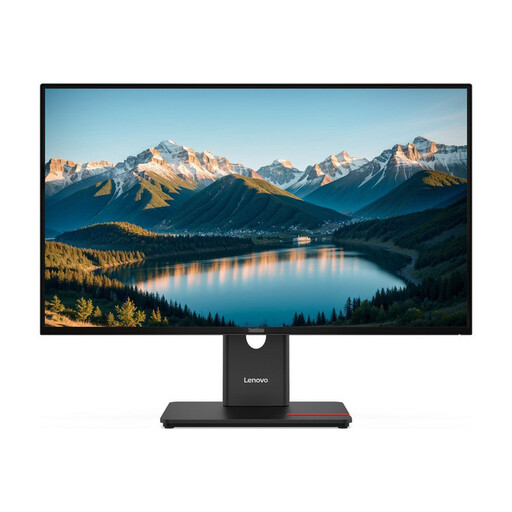
The ThinkVision T27h-30 is a 27-inch QHD option with USB-C docking and a DisplayPort output.
The FlexScan EV2795 is worth considering if you need USB-C docking and KVM.
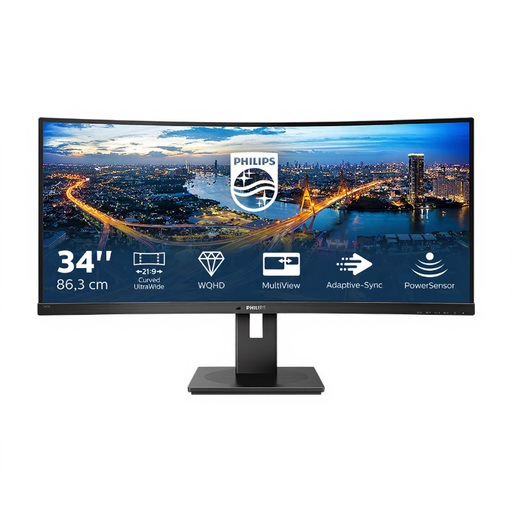
The 34BA75QE-B is a 21:9 display for a wide work area, provided you have enough desk space.
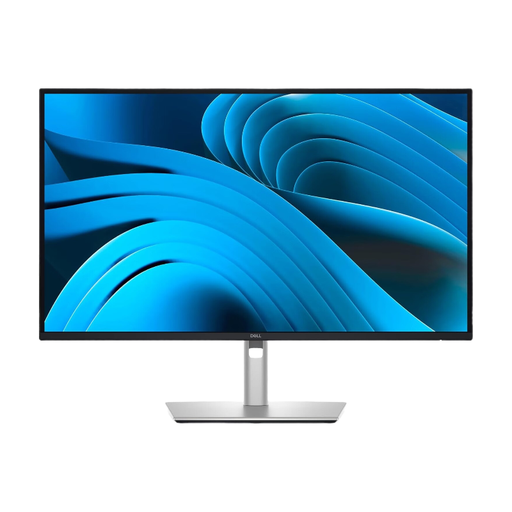
The P2725QE is a 27-inch 4K USB-C hub option if you’re looking for a higher native resolution and docking.
The 27B2U3601/00 is a 27-inch QHD office monitor with USB-C connectivity.
These models include individual 27-inch QHD displays and wide ultrawide formats for working with dialogue trees and reference windows at a shared desk.
 No image available
A single QHD workspace may suit you if you want to fit a dialogue tree and reference windows on one monitor.
2560 × 1440 pixels; height, tilt, swivel and pivot adjustable stand. A DisplayPort output is specified for daisy-chaining.
 No image available
The wide format may suit you if you want a dialogue tree and additional content visible side by side, and have enough desk width.
21:9; 5120 × 2160 pixels; USB-C with 65 W Power Delivery; PIP/PBP for two sources; height-adjustable stand. The stated width with the stand is around 944 mm.
 No image available
A wide workspace may work well for a dialogue tree and notes side by side, if your desk can accommodate the extra width.
21:9; 3440 × 1440 pixels; VA panel; USB hub; 180 mm height adjustment. MultiView supports PIP/PBP.
 No image available
May suit you if you’re looking for a single QHD monitor with KVM switching for two devices at a shared desk.
2560 × 1440 pixels; USB-C docking with 98 W Power Delivery; KVM. The stand is height, tilt, swivel and pivot adjustable.
 No image available
May suit you if you want to work on a dialogue tree and text on one QHD display and connect a compatible laptop via USB-C.
2560 × 1440 pixels; USB-C hub with DisplayPort signal and up to 90 W Power Delivery. Height and pivot are adjustable.
If you want one wide, continuous workspace, consider a 21:9 monitor. Two screens are another option if you want to keep windows separate. The German Social Accident Insurance (DGUV) study looked at office tasks using multiple screens, not your specific dialogue tree application. Try out your window layout and measure the space available.
Adjust the screen position and text size for each person using it. The Federal Institute for Occupational Safety and Health (BAuA) emphasises that screen position, individual eyesight and body measurements all need to be considered together. If someone wears glasses, take this into account too.
No. For a consumer purchase in Germany, your statutory rights against the seller are separate from a voluntary manufacturer’s guarantee. The Verbraucherzentrale (consumer advice centre) explains that, in general, the retailer is responsible for goods being free from defects at the time of delivery for two years. Check any additional guarantee terms separately.
Free, like-for-like take-back may be available under the conditions described by stiftung ear, if a retailer required to offer take-back accepts an old device of the same type. Before buying, check whether the retailer is covered and how returns are organised when your new monitor is delivered.
No. The Federal Institute for Occupational Safety and Health (BAuA) explains that ASR A6 applies to screen workstations in workplaces and teleworking environments; use in private settings outside these cases is exempt. For a desk-sharing workstation provided by your employer, the relevant employer obligations should be considered separately.