What should you look for when buying?
USB document camera connected to a computer
A good fit if: you regularly present pages, small entries and pointing gestures in a video call or through a computer.
Consider: for USB video, you’ll need a compatible computer or a suitable USB video source on your display device.
Camera that switches between your face and the desk
A good fit if: you often switch between showing yourself and the dictionary as you explain. According to IPEVO, the DO-CAM’s camera head folds back; Logitech’s Brio 500 instructions explain how to tilt it for a desk view.
Consider: an adjustable camera doesn’t guarantee that small text will be readable in your shot. Test it with your dictionary.
Document camera with a direct output
A good fit if: you need to connect to a compatible projector or screen without a presentation computer. ELMO lists HDMI and RGB outputs for the MX-P3.
Consider: check your display device’s input and the cables you’ll need. USB alone won’t replace a direct HDMI connection.
The percentages reflect the main consideration when choosing a camera for presenting dictionary entries.
| Consideration |
What to check when buying |
Who is this important to? |
| Making small entries easy to read |
Test a real entry at the planned camera height, lighting and screen size; check the focus and framing. |
If I’m showing a single headword, it needs to be clearly visible on the group’s screen. Around 36% of consumers put the readability of small entries first. |
| Showing the page and pointing hand |
Check that the open dictionary and the hand movements you need to make will fit within the camera’s capture area and adjustment range. |
If I want to show how I find an entry, both the page and my pointing hand need to stay in shot. Around 29% of consumers prioritise seeing the book and hand together. |
| Switching between your face and the book |
Check how the camera can be repositioned and whether the book is then framed and in focus. |
If I switch between talking to the group and showing the dictionary as I explain, I need to change the view without a lot of readjustment. For around 21% of consumers, this is their main consideration. |
| Connecting to the room’s equipment |
Check the inputs on the screen or projector, your computer, USB ports and the cables you’ll need. |
If I’m presenting without an additional computer, the camera output needs to match the equipment available. Around 14% of consumers prioritise a direct connection that’s compatible with their setup. |
Webcams at Joybuy
The Joybuy picks below are webcams for use with a computer. For presenting a dictionary, what matters is whether you can position the camera over the page and whether the entry is readable in the actual image.
 No image available
Full HD 1080P webcam with microphone
The flexible tripod and rotating lens may help you position the camera for a desk view.
The product description lists 1080p, 30 fps, a built-in microphone and USB plug-and-play.
View at Joybuy
 No image available
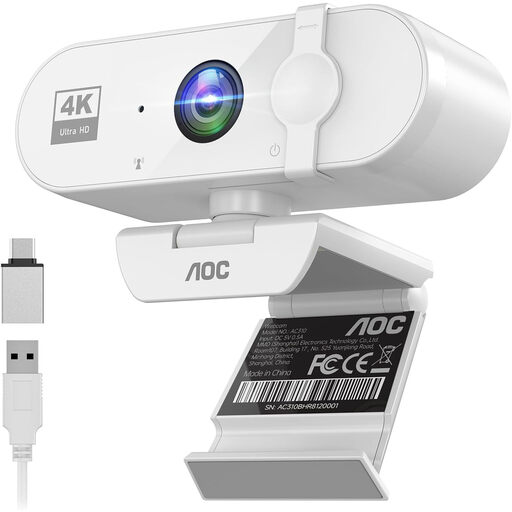
AOC webcam, white
The adjustable angles may come in handy if you want to reposition the camera for a desk view.
The product details list 4K, 180° tilt, 360° rotation and a USB-A to USB-C adapter.
View at Joybuy
 No image available
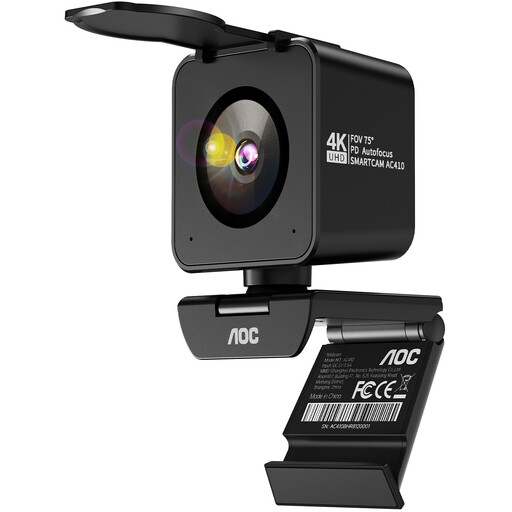
AOC 4K PRO webcam with Sony IMX363 sensor
The desk tripod is one way to position the camera for a view of the dictionary.
The product details list 2160p, 1080p at 60 fps, PDAF autofocus and USB-A/USB-C.
View at Joybuy
 No image available
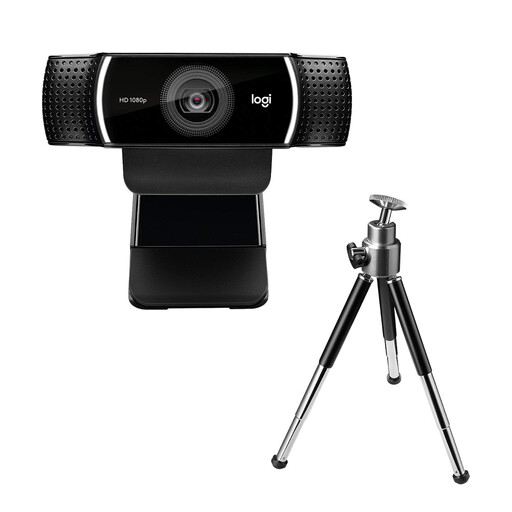
Logitech C922 Pro Stream webcam
The adjustable desk tripod can make it easier to position the camera to show the book.
The product description lists 1080p at 30 fps, autofocus, a USB cable and UVC compatibility; the tripod extends up to 18,5 cm.
View at Joybuy
 No image available
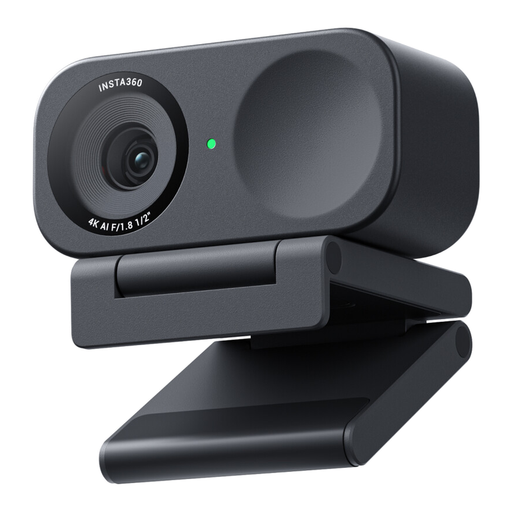
Insta360 Link 2C Standard Bundle, graphite black
According to the product details, DeskView mode is designed for a desk view. Check that the framing works for your dictionary.
The product details list 4K, a 1/2-inch sensor, HDR and PDAF autofocus.
View at Joybuy
Frequently asked questions
Is a standard webcam good enough for small dictionary entries?
A tilting webcam may be suitable if you’ll mainly be showing yourself and only occasionally pointing it at the desk. For regular close-ups, first check whether a printed entry is readable on the actual screen your group will use. A document camera is a natural alternative to compare.
How do I set up the image for a video call?
Select the connected USB camera as the video source in your video-conferencing software, then check the image orientation, focus and framing before you start. HUE explains how to select a camera in UVC-compatible applications; connections and software support vary by model.
Can I show dictionary pages to a group or record the presentation?
There’s no one-size-fits-all answer without knowing which dictionary you’re using, the rights involved, who will be attending and how the presentation will be shared or recorded. The DPMA notes that databases may also be protected in principle. Germany’s Federal and State Data Protection Conference points out that personal data can be processed during video calls, including data in documents shown on screen. Check copyright and data protection requirements separately for your planned use.
What should I bear in mind when connecting to a projector?
First compare the camera’s outputs with the projector’s inputs and check whether you’ll need a computer to output the image. ELMO lists HDMI, RGB and USB outputs for the MX-P3; these connections will only work if they match the equipment in the room and the cables you have available.
What’s the difference between a manufacturer’s warranty and your statutory rights for faulty goods?
According to Your Europe, consumer purchases in the EU generally come with a statutory minimum period of two years for claims against the seller for faulty goods. An additional manufacturer’s warranty doesn’t replace these rights. If you’re buying for a club or association, check the contract terms separately rather than assuming that consumer rights automatically apply to an organisational purchase.


