Explaining dictionary pages live
If you’ll be showing entries and how to look them up for a while, a stable overhead view, the right framing and a clear focus on the page matter more than a view of your face alone.


For longer dictionary demonstrations, an overhead document camera is a natural place to start. If you often switch between your face and the book, consider a camera with a flip-over head or a webcam with a desk mode. IPEVO describes the flip-over head on the DO-CAM, while Logitech’s MX Brio has Show Mode, which tilts the webcam downwards. Check the framing, focus, lighting and picture in your video-conferencing software: a 4K specification alone won’t guarantee that small entries are readable.
If you’ll be showing entries and how to look them up for a while, a stable overhead view, the right framing and a clear focus on the page matter more than a view of your face alone.
If you’ll mainly be speaking to the camera and bringing the dictionary into view repeatedly, being able to switch perspectives easily is important.
If you only want to show a page occasionally, a simple USB connection and a reliable view on your video call may be the priority. Even so, check that the small print is readable in the actual picture.
For a dictionary demonstration from home, the most important features depend on whether you mainly want to show text, switch perspectives or keep set-up straightforward.
A good choice if: you want to show dictionary pages and look-up steps for longer periods.
Bear in mind: a document-only view won’t show your face at the same time.
A good choice if: you only want to bring the dictionary into view from time to time. Logitech describes the MX Brio’s Show Mode as tilting the camera downwards; IPEVO describes the DO-CAM’s flip-over head.
Bear in mind: positioning still matters. A switching feature doesn’t guarantee that small dictionary text will be readable on your video call.
A good choice if: you mainly want to show your face and only occasionally need a wider view or want to show an object.
Bear in mind: autofocus alone doesn’t turn a video-call webcam into an overhead camera for densely printed pages.
| What you need | What to check when buying | Who is this especially important to? |
|---|---|---|
| Making small entries readable | Check the capture area, camera height and focus with your own book; assess a test view in the video-conferencing software you use. | If I want to show a small dictionary entry, I need the right framing and focus, not just a high pixel count. Around 36% of consumers are likely to put the readability of small entries first. |
| Switching between the book and your face | Check how the camera tilts or flips over, and whether the book stays in view. | If I switch between my face and the book during the same call, I want to do so without a fiddly set-up. For around 29% of consumers, this change of perspective is likely to be the most important buying consideration. |
| Easy set-up | Check the USB connection on your computer, the camera selection in your video-conferencing software and the power requirements of the specific model. | If I want to use the camera quickly with my computer and video-conferencing software, I check the connection and power supply. Around 21% of consumers are likely to prioritise a straightforward set-up. |
| Lighting and framing | Test for glare and microphone sound with your own book; before going live, check the entire frame for private documents. | If I’m showing paper and my desk, I want to keep an eye on glare and any private items in shot. Around 14% of consumers are likely to consider the set-up for their call their top priority. |
How large an entry appears in the transmitted image also depends on the framing and focus. A high stated resolution alone doesn’t tell you whether small print will be readable.
Try a sample page with your intended framing in your video-conferencing software instead of choosing based on pixel count alone.
Depending on your set-up, you may need to reposition the camera or use a document camera instead.
Logitech describes the MX Brio’s desk view as tilting the camera downwards. This isn’t the same as having it permanently positioned above the page.
Before deciding, work out whether you’ll only be showing the page briefly or sharing dictionary pages for most of the call.
You may need extra space or a different mount to get the right position.
The ELMO MX-P3 quick-start guide warns that insufficient USB power can affect operation.
Check that the connections, power supply and simultaneous video outputs you need are supported by the specific model.
For the MX-P3, an additional power adapter may be needed in the operating situations described in the guide.
IPEVO says the DO-CAM combines a document camera and webcam, with a flip-over head. The V4K is more specifically designed to capture physical documents.
The MX Brio is a webcam for video calls. Logitech describes a Show Mode that tilts the camera downwards to show objects and notes on your desk.
ELMO Europe describes the MX-P3 as a document camera for paper documents and objects.
The Tiny 2 product family is designed for video calls with moving images. OBSBOT also describes a Desk Mode for the Tiny 2.
Hama describes the C-600 Pro as a Full HD USB webcam with autofocus for video calls.
The Joybuy products listed here are standard webcams designed primarily for video calls. If you want to use one to show dictionary pages, check the framing and readability in your own set-up.
 No image available
A standard webcam for video calls if you want flexibility when positioning it on your desk; test small dictionary print in your own set-up.
Full HD 1080p; USB connection; built-in microphone; rotating lens and flexible tripod; plug and play.
 No image available
For video calls where you want to adjust the camera angle; the 4K specification doesn’t guarantee that small dictionary entries will be readable.
4K; 99° field of view; built-in microphone; mount with 180° tilt and 360° swivel; USB-A to USB-C adapter and plug and play.
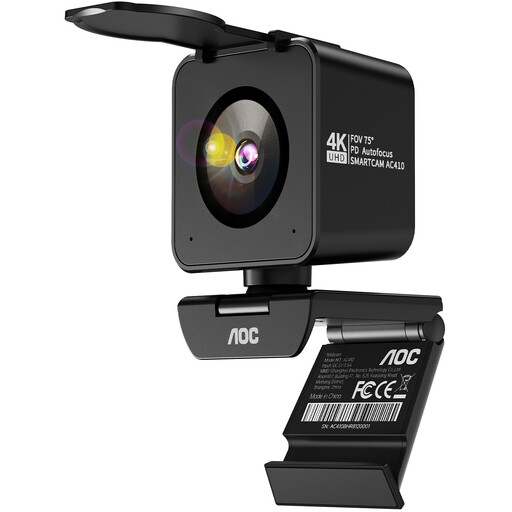 No image available
Could suit you if you want to position a webcam for meetings or presentations; check whether the page is readable at the actual distance and framing.
4K; 75° field of view; PDAF autofocus; desk tripod; USB-A/USB-C.
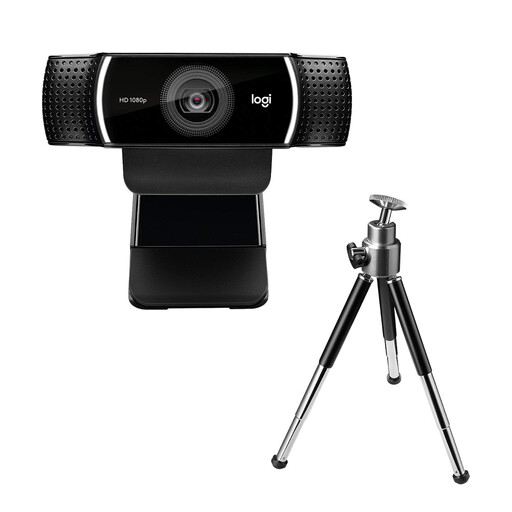 No image available
A USB webcam for video calls and streaming if you want an adjustable stand; check how small print looks in your video-conference view before buying.
Full HD at 1080p at 30 fps or 720p at 60 fps; autofocus; adjustable stand with tripod; UVC compatibility; 1.5 m USB cable.
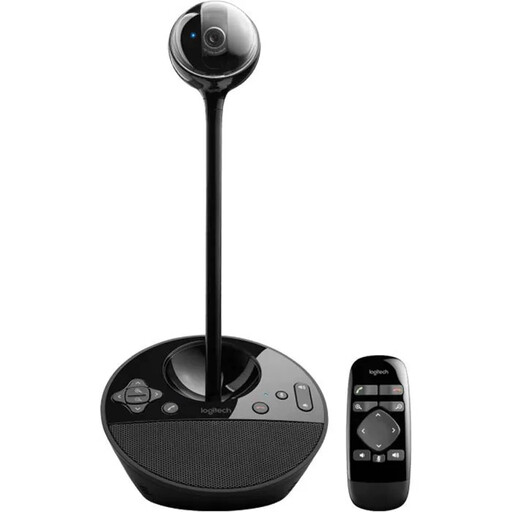 No image available
For video calls where you want to adjust the framing during the conversation; when showing dictionary print, what matters is testing it with the actual book.
1080p; 78° field of view; autofocus; controllable pan, tilt and zoom; USB-A connection and remote control.
No, the resolution specification alone isn’t enough. The area of the page captured and the focus matter too. Check the entry you need in the actual view in your video-conferencing software; manufacturer specifications don’t guarantee that small print will be readable.
Place the open page in the capture area, then adjust the angle and focus on the entry you want to show. For the ELMO MX-P3, the quick-start guide describes connecting via USB and opening a UVC application. An additional power adapter may be needed if USB power is insufficient or if you’re outputting through other connections at the same time.
Your statutory rights are against the seller, while a warranty is an optional additional promise with its own terms. If there’s a fault, the Verbraucherzentrale describes repair or replacement as the first step in putting things right. Check who the seller is for your offer and what warranty terms apply.
There’s no blanket answer for every situation: a private call and a public broadcast need to be considered differently. For quotations from published works, section 51 of the German Copyright Act (UrhG) limits permitted use to what is justified by the purpose of the quotation; section 63 of the UrhG covers source attribution. Before a public or recorded demonstration, check the specific purpose of use and the rights to the content you’re showing.
Before going live, check the whole desk and background. The Federal Commissioner for Data Protection and Freedom of Information notes that users of a video-conferencing system decide which content and personal data are included in video communications. This isn’t blanket data protection approval for documents shown on screen.