If you mainly read digital work and give feedback by typing, a traditional notebook with a suitable display and the ports you need is the obvious choice. If you regularly make handwritten annotations, consider a convertible with a touchscreen and pen. For longer sessions, the DGUV also recommends using an external keyboard and mouse, and an external monitor where possible. Before handling pupils’ personal work, check with your school which devices, applications and storage locations are approved.
Who is this selection for?
Teachers marking long pieces of reading
When you review longer digital texts, clear, easy-to-read content and a comfortable way to enter your feedback matter. For longer work sessions, the DGUV recommends using an external keyboard and mouse, as well as an external monitor where possible.
Teachers using a shared desk
If you regularly set up and pack away your workspace, check that the ports on the specific notebook are compatible with the equipment at the desk. Features can vary by model and configuration.
Teachers annotating PDFs by hand
If you want to write directly on digital work, a convertible with a touchscreen and pen is one possible way to do it. Also check that the school-approved application supports this workflow and that a compatible pen is included.
What should you look for when buying?
Traditional notebook
A good fit if: you mainly read and type your comments using the keyboard.
The trade-off: The traditional configurations considered here do not support pen input, so you’ll need another input solution for handwritten annotations.
Convertible with touchscreen and pen
A good fit if: handwritten margin notes are part of your marking routine and your approved software supports them.
The trade-off: Touchscreen functionality and whether a pen is included depend on the exact configuration.
| Buying consideration |
What to check |
Who should pay particular attention? |
| Readability and ergonomics |
Check the display on the specific configuration, and allow for an external monitor, keyboard and mouse. |
If I read and work on long texts on my notebook, the display matters to me. Around 33% of consumers prioritise readability and ergonomics. |
| Setting up at a shared workspace |
Check that the monitor ports and, where relevant, dock compatibility work with the equipment already available. |
If I connect my laptop to existing equipment at different desks, the ports need to be compatible. Around 27% of consumers prioritise being able to switch workspaces easily. |
| Handwritten annotations |
For the exact model, check for a touchscreen, a compatible pen, what’s included in the box and whether the approved application is suitable. |
If I mainly write feedback by hand on digital work, pen input is essential. Around 20% of consumers prioritise pen input. |
| Pupil data and software |
Agree with your school on the device, accounts, applications and storage locations. Check the software requirements against the specific operating system edition. |
If I handle work containing personal data, the device needs to fit the school’s processes. Around 20% of consumers prioritise suitability for school use. |
Common buying mistakes
-
Comparing notebook sizes without considering the workspace
For longer work sessions, the DGUV recommends using an external keyboard and mouse, as well as an external monitor where possible. You’ll need enough room for them and suitable ports at the shared desk.
Check the space available and the equipment already there before choosing your notebook and checking its ports.
-
Assuming a touchscreen means a pen is included
Touchscreen functionality and what’s included in the box apply to the specific configuration. Don’t assume they’re the same across every model in a range.
Check the full model number and the stated items included in the box.
With other configurations, you may need to buy a compatible pen separately.
-
Taking one security feature as blanket permission to handle pupil data
Data protection requires appropriate technical and organisational measures. A single device feature does not determine whether a personal device is approved for school marking.
Before marking any work containing personal data, check with your school what rules apply to the device, application and storage.
Brands to consider
Lenovo
The ThinkPad E14 and IdeaPad 5 2-in-1 offer different ways to work. The specifications refer to the respective configurations.
- Lenovo lists a matt 14-inch WUXGA display and a German keyboard for the ThinkPad E14 21M3002BGE.
- This ThinkPad configuration is listed as non-touch. Lenovo lists a glossy touchscreen for the IdeaPad 5 2-in-1 83KTCTO1WWDE1. The features of these two variants are not interchangeable.
Acer
The TravelMate P4 Spin 14 is a convertible option for buyers who need touch and pen input.
- Acer lists a matt 14-inch touchscreen, an included pen, HDMI, USB-C and RJ-45 for model TMP414RN-55-TCO.
- These specifications apply to the exact configuration and should not be assumed to apply to other TravelMate variants without checking.
HP
The ProBook range includes a variety of sizes and configurations.
- For example, the HP Store Germany lists the ProBook 4 G1a 14 with Windows 11 Pro, 16 GB RAM, a 512 GB SSD and a 14-inch WUXGA display.
- HP states that features and components can vary across the range depending on the individual configuration.
Dell
The Latitude 3450 is a configurable 14-inch business notebook option.
- Dell lists a range of RAM, SSD and display options.
- A list of configuration options does not mean that every listed option is included in the device you receive. In particular, check the display specification for the configuration you’re buying.
Joybuy products for digital marking
These models include traditional notebooks for reading and typing, as well as a convertible for handwritten annotations. For each device, check the ports and compatible software. If you want to use a pen, make sure pen input is listed in the specifications.
 No image available
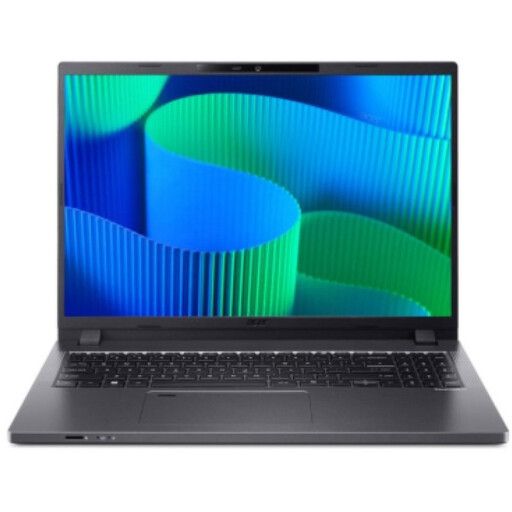
Acer TravelMate TMP216-41-TCO
An option for typed marking and a workspace with an external monitor.
16-inch WUXGA IPS display, AMD Ryzen 3 PRO 7335U, 16 GB DDR5, 512 GB SSD, HDMI 2.1, USB4 and RJ-45.
View at Joybuy
 No image available
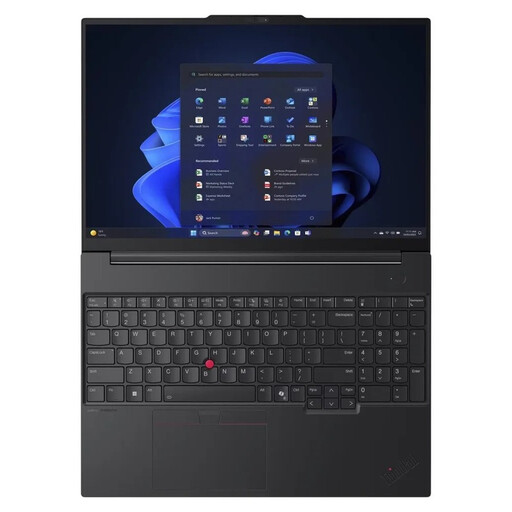
Lenovo ThinkPad E16 Gen 3 21ST
A traditional notebook option for reading and typing at a workspace with external devices.
16-inch WUXGA IPS display, anti-glare screen, German keyboard, HDMI 2.1, USB4-C and RJ-45.
AMD Ryzen 7 250, 32 GB RAM and 1 TB SSD.
View at Joybuy
 No image available
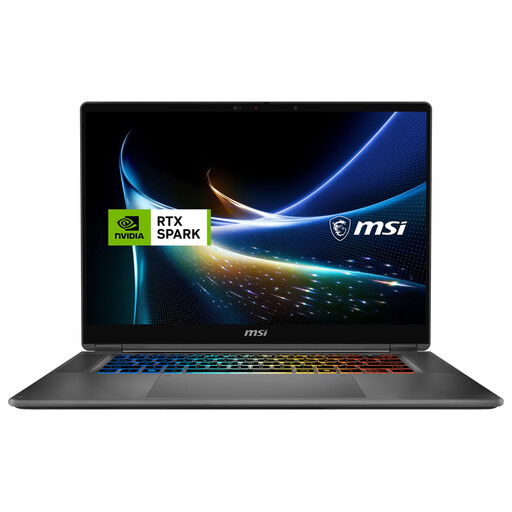
MSI Prestige N16 Flip AI+ C1XMT-029Y
A convertible option if you want to make handwritten PDF annotations. Check that it’s compatible with your approved marking software.
16-inch 2-in-1 laptop with touchscreen and MSI Nano Pen, according to the product description.
32 GB DDR5, 1 TB SSD and Windows 11 Pro.
View at Joybuy
 No image available
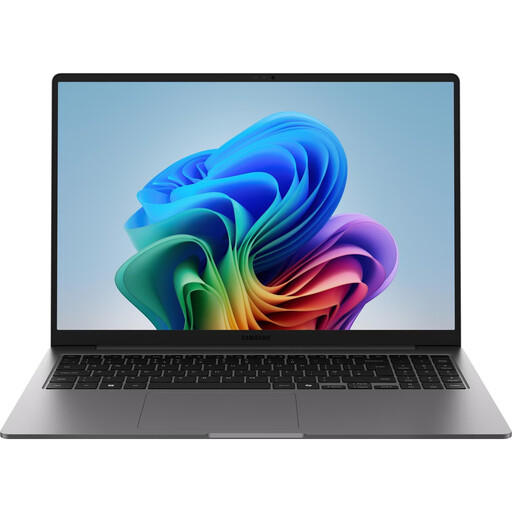
Samsung Galaxy Book6 Enterprise Edition 16
A notebook option for reading and typing. A touchscreen alone does not confirm pen functionality.
16-inch WUXGA touchscreen, QWERTZ keyboard and RJ-45.
Intel Core Ultra 7 355, 16 GB LPDDR5X, 512 GB NVMe SSD and Windows 11 Pro.
View at Joybuy
 No image available
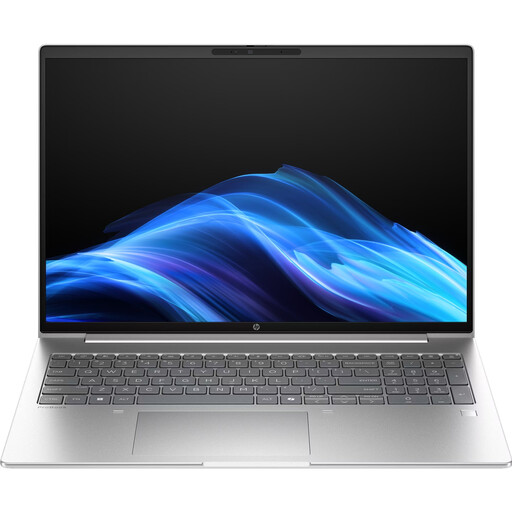
HP ProBook 4 G1a 16-inch
A traditional notebook option for reading and typing at a workspace with a monitor or wired network connection.
16-inch WUXGA IPS display, anti-glare screen, German keyboard, HDMI 2.1 and RJ-45.
AMD Ryzen 5 230, 16 GB DDR5, 512 GB SSD and Windows 11 Pro.
View at Joybuy
Frequently asked questions
Is a notebook on its own enough for longer marking sessions?
For longer work sessions, the DGUV recommends using an external keyboard and mouse, as well as an external monitor where possible. At a shared desk, check that there’s enough space and that the right ports are available.
Can I mark pupils’ digital work on my personal laptop?
There isn’t a single answer that applies to every school. The data protection principles of the Federal Commissioner for Data Protection and Freedom of Information and the European Commission call for appropriate technical and organisational measures. So before handling work containing personal data, check with your school what rules apply to the device, accounts, software and storage.
Do I need to buy a pen separately for handwritten marking?
It depends on the exact configuration. Acer lists an included stylus for the TravelMate P4 Spin 14 TMP414RN-55-TCO; you can’t assume that other convertibles come with one.
What should I consider about the operating system and school software?
Check that the applications specified by your school are compatible with the operating system edition on the specific device. Configurations can also vary within a notebook range.
What are my rights if a laptop I bought as a consumer in the EU is faulty?
According to information from the European Union’s Your Europe portal, purchases from a trader are generally covered by a legal guarantee of at least two years from the date you receive the goods. This is separate from any additional manufacturer’s warranty. The consumer information cited does not apply to purchases from private individuals.


