
Lieferung heute & morgen

Qualitätsgarantie

Willkommens-Angebote freischalten: KOSTENLOSE Lieferung | Bis zu 80 % RABATT | Kostenlose 30-Tage-JoyPlus-Testphase
App herunterladen
Modern laptops are slim and powerful, but this elegance often comes at a cost: a severely limited number of ports. A docking station or a USB-C hub promises a solution, but the market is overwhelming. Many buyers invest in a device only to find it doesn't perform as expected. This guide will help you avoid common pitfalls and make an informed decision.
Before you spend any money, it's crucial to understand the typical issues that arise from impulsive purchases. These problems often lead to frustration and render the product unusable for daily tasks.
To avoid these mistakes, focus on the following technical specifications. They will determine whether a laptop docking station truly meets your needs.
Don't just look at the number of ports; pay close attention to their specifications.
Charging power is measured in watts (W). To reliably charge a high-performance laptop like a 15 or 16-inch MacBook Pro, the docking station should support at least 100W PD. Keep in mind that the dock itself consumes some power. A 100W input often results in an actual charging output of around 87W to the laptop, which is sufficient for most models.
Here are a few recommendations tailored to specific use cases that meet the criteria mentioned above.
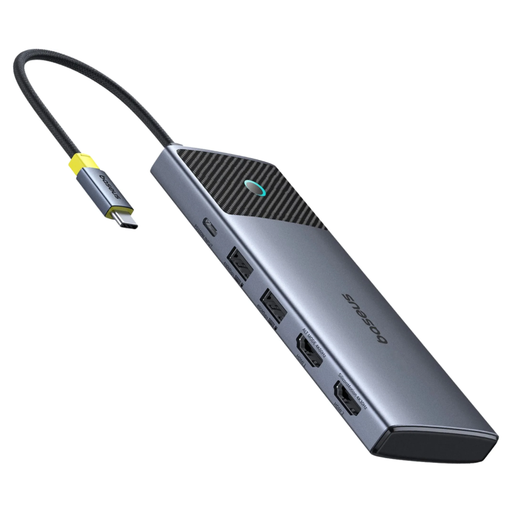
Why This Fits Their Persona: Ideal for users who are frequently on the go and need a reliable expansion for presentations or working from a café. Its compact design and durable aluminium casing make it a long-lasting companion.
The metal enclosure provides better heat dissipation compared to plastic models, preventing overheating and unstable connections when multiple ports are in use.
Offers an HDMI port with 4K@60Hz and 100W Power Delivery passthrough, which is a solid feature set for this compact class.
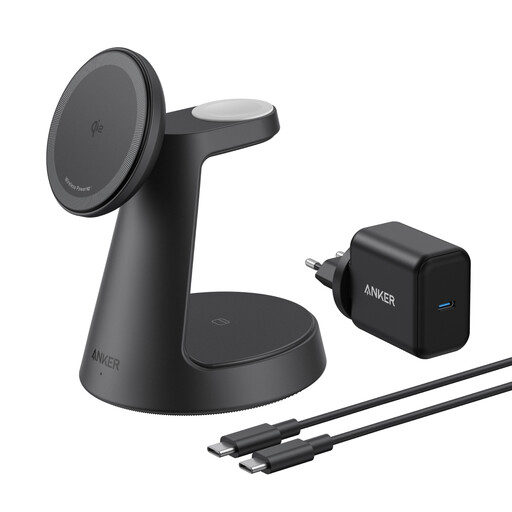
Why This Fits Their Persona: Perfect for users looking to declutter their desk and charge their iPhone, Apple Watch, and AirPods simultaneously. This 3-in-1 charger replaces three separate power adapters and cables.
As an officially certified charger for Apple Watch, it delivers a safe and fast charge. This avoids the problems of uncertified, low-power chargers that can damage the battery.
Provides 15W wireless charging for compatible iPhones and features an adjustable viewing angle. The included 40W power adapter ensures all devices charge simultaneously at optimal speed.
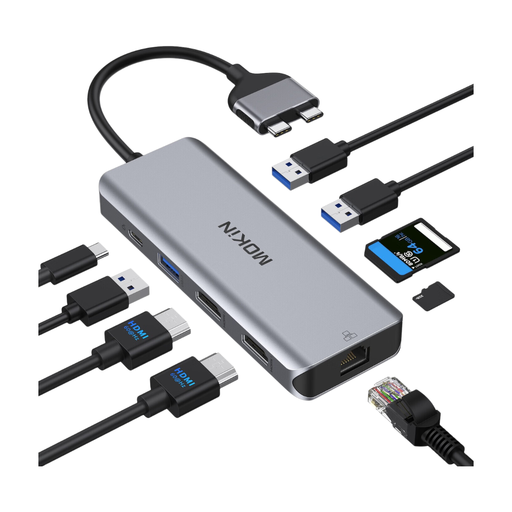
Why This Fits Their Persona: Specifically designed for creatives and developers who need a MacBook docking station for a dual external monitor setup. It offers a comprehensive array of ports for a full-fledged workstation.
Directly addresses the compatibility trap by clearly stating it is designed for MacBook Pro/Air models with M Pro and M Max chips, not for the base M-series chips that do not support dual external displays.
Enables the connection of two 4K monitors in extended mode (A-B+C), and features 100W PD, Gigabit Ethernet, and an SD/TF card reader—a complete solution for demanding users.
We have curated a complete, up-to-date list of products that fully meet these strict selection criteria and relevant safety standards.
It depends on the type. Smaller, portable USB-C hubs are often "bus-powered," meaning they draw power directly from the laptop. Larger docking stations, especially those with Power Delivery (PD) for charging the laptop, require their own external power adapter. These provide the necessary energy to stably power the laptop and all connected peripherals.
With products from reputable manufacturers that meet relevant safety standards (like CE, FCC, etc.), the risk is minimal. Issues like overheating or power surges primarily occur with very cheap, uncertified devices. A docking station built with high-quality components and an adequate Power Delivery system ensures a safe connection and protects your hardware.
The main difference is data transfer speed. A standard USB-C port typically offers 5 to 10 Gbps. A Thunderbolt port (identifiable by the lightning bolt symbol) provides up to 40 Gbps. This higher bandwidth allows a Thunderbolt docking station to handle more demanding tasks simultaneously, such as running two 4K monitors at 60Hz while transferring data from a high-speed external SSD. While a good USB-C hub is sufficient for most users, a Thunderbolt dock is often the better choice for power users.