Who is a document camera for?

People showing details in video meetings

If you want to show small symbols and labels in a printed map legend, you need an adjustable frame, the right focus and a camera that works with your meeting app. JOURIST and INSWAN describe focus features for their respective models, while Zoom Support explains how to share a second camera.

People using large paper maps

If you switch between an overview of the map and its legend, make sure the capture area and camera position suit the document. INSWAN specifies A3 capture for the INS-2; JOURIST describes the DC530 as having a movable arm.

People archiving maps

If you also want to capture documents digitally and find them again later, consider scan and OCR features. CZUR lists these features for the Shine Ultra series; according to CZUR, the 24 MP specification applies only to the Shine Ultra Pro.

What should you look for when buying?

USB camera for live meetings

A good fit if: you want to show the legend on your computer and adjust the frame or focus during the meeting.

Bear in mind: USB connectivity does not automatically mean the camera has standalone HDMI output. Sharing the camera also depends on your meeting settings.

Camera with a larger capture area or direct output

A good fit if: you want to capture large sections of a map or send the image to compatible presentation equipment. INSWAN specifies A3 capture for the INS-2; ELMO lists USB, HDMI and RGB outputs for the MX-P3.

Bear in mind: a wider view can make small text look tiny on screen, so you’ll need to frame the details more closely.

Document scanner with live camera function

A good fit if: you also want to save maps as files and make them searchable. CZUR lists A3 capture and OCR for the Shine Ultra series.

Bear in mind: scan and OCR features don’t guarantee that the live image of your legend will be easy to read in your meeting app.

Priority What to check before buying Who is it important to?
Showing small legend text Focus controls and adjustable camera position; test your own map in the meeting app. If I need to show small symbols or labels clearly, I want to be able to set the frame precisely. Around 36% of consumers prioritise being able to read the details.
Switching between overview and detail Check the capture format against the size of the map; see whether you can position the camera suitably on your desk. If I want to show a large paper map and then its legend, I need room for both views. Around 29% of consumers prioritise being able to switch between them.
Sharing the camera image in a meeting Check the USB or HDMI connection, your computer and the sharing options in the app you use. If I want to use the camera with my computer without setting up additional presentation equipment, easy live integration matters to me. Around 21% of consumers prioritise this.
Digitising maps as well Check scan file formats, software and operating system compatibility, and whether you need OCR separately from the live function. If I want to save the map as a file as well as show it, scan and, where needed, OCR features matter. Around 14% of consumers have this as their main priority.

Common misconceptions

  • Assuming more megapixels mean a clearer view in meetings

    The sensor or still image resolution alone doesn’t tell you how large or legible the legend will look to other participants.

    Set up your map in the app you plan to use and check whether the smallest relevant text is readable.

  • Assuming A3 capture guarantees legible text

    A large capture area is useful for an overview, but it can make the legend look small when the whole map is in view.

    Plan to frame the legend more closely, and test how easy it is to switch between the overview and the detail.

  • Choosing a scanner as a live camera just for its OCR or scan resolution

    Scan and OCR features serve a different purpose from showing small text live during a conversation.

    Consider this type of device if digitising is one of your reasons for buying, and check live integration separately.

    Extra scanning features may require software set-up that you won’t need if you only want to show documents live.

Brands to consider

JOURIST

The DC530 is a USB document camera for live demonstrations on a computer, with a movable arm and close-up focus.

  • According to JOURIST, it has autofocus, a flexible arm, a minimum focusing distance of around 5 cm and image resolution of up to 4160 × 3120 pixels. The manufacturer specifies 30 frames per second for Full HD video.
  • These manufacturer specifications don’t guarantee that every map legend will be easy to read in your particular meeting. A separately specified HDMI output is not among the listed features.

INSWAN

The INS-2 USB document camera is designed for larger documents and switching between still and moving views.

  • INSWAN specifies A3 capture, two autofocus modes and LED lighting.
  • The camera’s resolution is not necessarily the resolution at which a video conferencing app sends the image to other participants.

IPEVO

The DO-CAM is designed for switching between views of printed material and the presenter when working from home.

  • IPEVO describes the DO-CAM as having a foldable camera head and adjustable arm sections.
  • These features are specified for the DO-CAM and don’t necessarily apply to other IPEVO models.

ELMO

The MX-P3 is worth considering if you want to connect to compatible presentation equipment directly as well as use the camera with a computer.

  • ELMO lists USB, HDMI and RGB outputs, one-push autofocus and a five-year warranty for the MX-P3.
  • Check that the connections suit your set-up and read the warranty terms for the specific offer. These specifications don’t automatically apply to other ELMO devices.

CZUR

The Shine Ultra series combines document capture with scan and OCR features, making it a potential option if you also want to archive maps.

  • CZUR specifies A3 capture and OCR; the advertised 24 MP applies specifically to the Shine Ultra Pro.
  • Still image or OCR specifications don’t tell you whether a live image will be easy to read in a meeting.

Joybuy products for showing maps in meetings

These webcams with a top-down capture mode are an option if you want to show a map in a meeting.
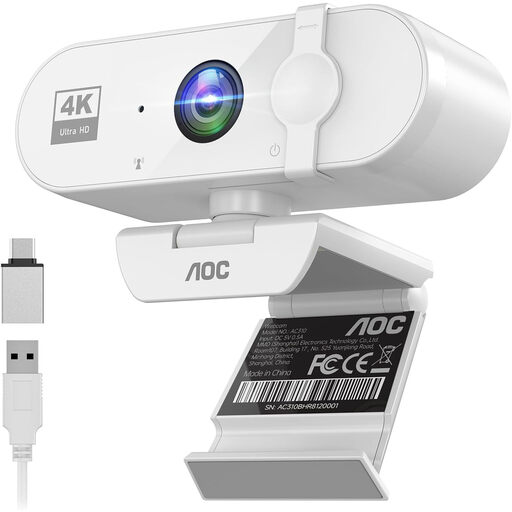
AOC Webcam, 4K, 99° FOV, white

AOC Webcam, 4K, 99° FOV, white

This could work for showing a map from above in a meeting; check the framing and focus with your own document.

Features listed in the product details: PDAF autofocus, DeskView and Whiteboard modes, microphone and privacy cover.

Joybuy

Insta360 Link 2C Standard Bundle, Graphite Black, 4K, 1/2-inch sensor

Insta360 Link 2C Standard Bundle, Graphite Black, 4K, 1/2" Sensor

DeskView mode is designed for top-down shots. Before buying, check that it lets you show your map legend clearly in a meeting.

Features listed in the product details: PDAF autofocus, gesture-controlled zoom and Whiteboard mode.

Joybuy

Frequently asked questions

How can I show a map legend in a Zoom meeting without making the whole map look tiny?

Start by framing the camera tightly around the legend and checking the focus. Zoom Support explains how to share a second camera; whether it’s available in your meeting depends, among other things, on your sharing settings. Check the view on a second screen or with someone else on the call.

How should I position the camera on my desk?

Position the arm and document so the legend fills the frame as you want it to, then check the focus again if you change the camera height. If you notice reflections, adjust the lighting and camera angle. INSWAN says the INS-2 has LED lighting and separate focus modes.

Do I need a power adapter or extra software for a document camera?

It depends on the model and how you plan to use it. JOURIST says the DC530 connects to a computer via USB and doesn’t need a power adapter. If you need scan, OCR or annotation features, check the software requirements for the specific model separately.

Is a manufacturer’s warranty the same as your statutory rights?

No. Your statutory rights are a legal entitlement against the seller; a warranty is a voluntary offer subject to its own terms. The consumer advice centre Verbraucherzentrale recommends checking the seller and warranty terms for the specific offer, rather than basing your decision solely on the advertised warranty period.