Teachers working with paper constructions
If you regularly draw live, you need a well-aligned view of the paper, your tools and the lines as they take shape.


For regular constructions on paper, an adjustable document camera is a natural choice. Its capture area, focus and lighting should suit your paper, tools and software. If you’re usually on camera yourself and only occasionally show sketches, a webcam with a presentation mode may fit your workflow better. Logitech says the MX Brio can be tilted towards your desk, but does not specify a particular capture area for paper.
If you regularly draw live, you need a well-aligned view of the paper, your tools and the lines as they take shape.
If you’re usually on camera and want to show a construction from time to time, it’s important to be able to switch the view to your desk.
If you want to demonstrate constructions both on your computer and directly on an external screen, make sure the connections suit your setup.
A good fit if: the paper, your hands and your tools are the focus while you explain. IPEVO gives the V4K PRO’s maximum capture area as 34,2 × 25,5 cm.
Bear in mind: the stand and camera position take up space. Also check that the focus and USB connection suit your computer.
A good fit if: you want to switch between your face and occasional notes on your desk. Logitech describes a Show Mode for the MX Brio, in which the camera tilts downwards.
Bear in mind: your monitor position and the tilt angle affect the view of the paper. Check the frame with your actual setup.
A good fit if: you want to present directly on a compatible screen or projector as well as through your computer. ELMO lists HDMI, USB and RGB outputs for the MX-P3.
Bear in mind: extra outputs are only useful if they work with your devices and planned setup.
First decide whether your priority is working on paper or switching between your face and a sketch. Then check that the frame, focus and connections suit your workspace.
| What you need | What to check before buying | Who is it most relevant to? |
|---|---|---|
| Make fine lines easy to see | Check the capture area, focus and supported video resolution against your paper size and video-conferencing software. | If I want to show lines and labels, they need to remain legible in the chosen frame; around 33% of consumers put clearly visible construction details first. |
| Keep the paper and hands in frame | Consider the arm or base, camera orientation and available desk space together. | If I’m working with a ruler and compass, the view of my work surface needs to stay steady; around 27% of consumers prioritise a reliably aligned overhead view. |
| Switch between your face and a sketch | Check that the mounted webcam shows the part of the paper you need and that the feature works with your software. | If I only show sketches occasionally in meetings, I don’t want to keep positioning a separate camera for paper; around 20% of consumers prioritise switching between their face and a sketch. |
| Make sure connections and software work together | Compare the USB connector type, operating system, required outputs and any software requirements for the specific model. | If the camera needs to work with my existing setup, its connections and software must be compatible; around 20% of consumers first consider how it will fit in and any extra setup required. |
JOURIST gives the DC530’s maximum sensor resolution as 4160 × 3120 pixels, but specifies 30 frames per second at Full HD (1920 × 1080) for video recording. These figures relate to different uses.
For your video conference, check the specific combination of resolution, frame rate and software that is supported.
Logitech’s Show Mode for the MX Brio lets you show notes and sketches, but does not specify a particular visible paper area.
Check your monitor height, tilt angle and paper position with your setup. If paper is the main focus, also compare document cameras with a stated capture area.
Using a camera with a computer and sending its image directly to a screen may require different types of connection.
Before you buy, decide whether you need a USB camera source for your computer, direct HDMI output or both, and check the inputs on your devices.
IPEVO offers USB document cameras for a well-aligned overhead view. The V4K PRO is a specific model for working with paper.
JOURIST’s DC530 combines a flexible arm with USB connectivity and is designed for presentations.
The HUE HD Pro is a compact USB document camera with a stand, suitable for a small workspace.
Logitech describes the MX Brio as a meeting webcam that also has a mode for showing sketches on your desk.
The MX-P3 is a document camera with several outputs for different ways of presenting.
The Joybuy products below are webcams for computers. They may suit you if you want to show your construction using a webcam; check the frame and positioning for your sheet of paper.
 No image available
Could suit you if you’re looking for an adjustable webcam that works with a computer; whether your whole sheet is visible depends on your setup.
The description lists 1920 × 1080 at 30 fps, a 120° wide-angle lens, a rotating lens and a flexible integrated tripod.
 No image available
An option if you’re looking for a webcam with adjustable positioning; check which part of your work surface appears in frame with your setup.
The title lists a 99° field of view. The description lists 4K UHD at 30 fps, 180° tilt and 360° rotation.
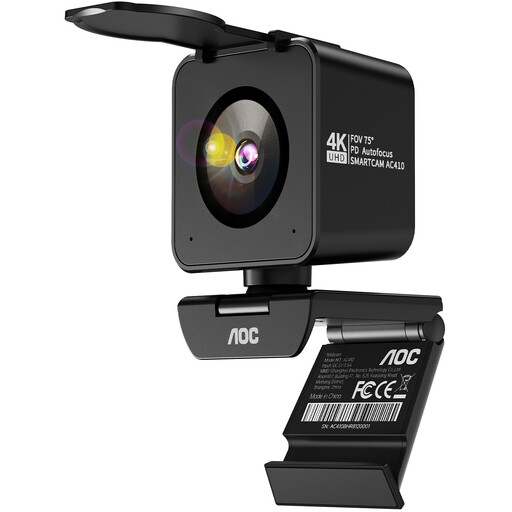 No image available
Could suit an adjustable webcam setup; check that the viewing angle works with your paper size and camera position.
The title lists PDAF autofocus, a 75° field of view and USB-A/USB-C. The description lists 1080p at 60 fps.
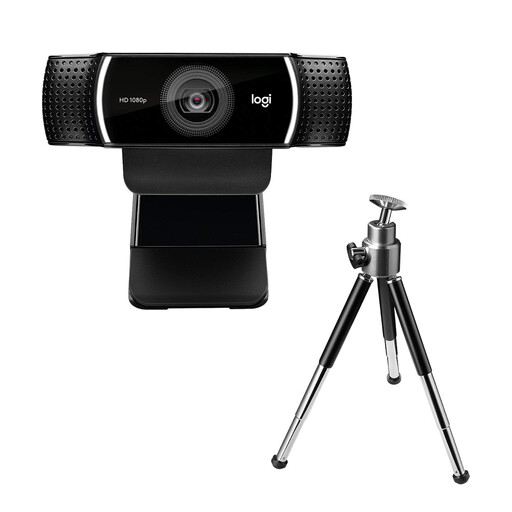 No image available
Could suit you if you’re looking for an autofocus webcam with an adjustable desk setup; check the frame for your construction.
The description lists Full HD 1080p at 30 fps, 720p at 60 fps, a 78° field of view, an extendable stand reaching 18,5 cm and a tripod.
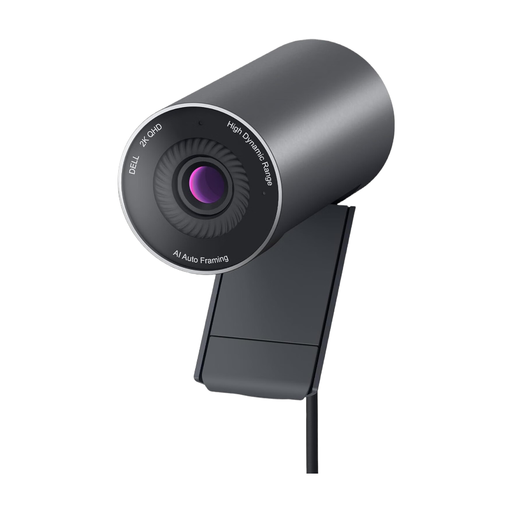 No image available
Could be an option if you’re looking for an autofocus webcam with a clip for attaching it to a monitor or laptop; check that the angle captures your work surface.
The description lists 2560 × 1440, up to 60 fps and a 78° horizontal viewing angle. According to the description, Dell Peripheral Manager is required for HDR, AI Auto Framing, field-of-view settings and presets.
Place the sheet where you plan to work, select the camera in your video-conferencing software and check the preview for both the whole sheet and the smallest details you need to show. Adjust focus and lighting with your hands and tools in view, and compare any stated capture area with your paper size.
Not necessarily: IPEVO describes the V4K PRO as a USB video camera that works with several video-conferencing applications, while JOURIST says the DC530 is recognised as a webcam by the operating system. Check the manufacturer’s requirements for your operating system and any extra features on the specific model.
Statutory warranty rights apply to claims against the seller in the event of defects; a manufacturer’s warranty is an additional voluntary service with its own terms. As of 28 September 2026, the Verbraucherzentrale explains this distinction. Different contract terms may apply to purchases for business use; this does not mean that every purchase for a home office is covered in the same way.
Not automatically if personal data about participants or third parties is being processed. For video conferences in organisations, the Datenschutzkonferenz addresses requirements relating to legal basis, transparency and recordings. Check the rules for your specific work or school setting before starting a recording; using a camera does not, by itself, mean that recording is generally prohibited.