Artists giving longer paper demonstrations
You want to show book pages, your pen and your hands for much of the conversation, so you need a desk camera that’s easy to position.


If your sketchbook will be centre stage for extended periods, an adjustable document camera is usually the better choice. If you’ll be switching frequently between your face and the page, a foldable camera or a webcam with a desk mode may be more practical. Either way, test the framing and focus with your book. The camera’s stated resolution alone doesn’t tell you how the image will appear in your video-conferencing app.
You want to show book pages, your pen and your hands for much of the conversation, so you need a desk camera that’s easy to position.
You explain your work face to face and show your book from time to time, so being able to change the view easily is essential.
You need to fit your book, hands and camera base on the same work surface, and want a setup that can be positioned or put away as needed.
A good fit if: Your sketchbook will stay on screen for a long time and an adjustable desk view matters more than seeing your own face.
The trade-off: You may need to reposition the camera or use a second one to show your face. The recording resolution doesn’t prove what video quality the other person will see.
A good fit if: You want to switch regularly between yourself and the page during the same call. The IPEVO DO-CAM is one example, with a foldable camera head.
The trade-off: You’ll need to move the camera to change the view, and its height, angle and footprint need to suit your book.
A good fit if: Most of your calls involve conversation, with only occasional sketch views, and your monitor’s position gives you a useful view of the book. Logitech offers Show Mode, while DeskView is available for certain Insta360 Link models.
The trade-off: A view from your monitor isn’t automatically an overhead view. Insta360 distinguishes DeskView from an overhead setup.
| Buying priority | What to check before buying | Who is this important to? |
|---|---|---|
| Book and hands clearly visible | Check the size of your book, the framing and the focus at the planned distance; take a test image while drawing. | If I want to show my book and drawing hands for a long time, a well-positioned view of the page matters to me. Around 36 % of consumers put clear visibility of the book first. |
| Switching between your face and sketchbook | Check how the camera head moves, or try Show Mode or DeskView; look at the visible area of the desk from your monitor. | If I regularly switch between explaining my work and showing the page during a call, an easy change of view matters to me. Around 29 % of consumers prioritise this. |
| Space and camera position | Check the available desk space, camera base and position of the book; if you’re using a monitor webcam, test its angle to the page too. | If my book, hand and camera have to fit on a limited desk, I pay particular attention to the footprint and how easy the camera is to position. Around 21 % of consumers give priority to space. |
| Getting the image into your video app | Check the USB connection, camera selection and usable video settings in the app; if you’re using additional outputs, check the power supply and signal path too. | If I want the camera image to appear reliably in the app I use, through my existing connections, the whole signal path matters. Around 14 % of consumers put this first. |
The camera’s resolution and the image transmitted by your video-conferencing app depend on different factors. Zoom Support notes that Full HD 1080p video is limited to Business and Enterprise plans.
Check the framing and focus with your book, then make a test call using the app you plan to use.
A monitor webcam’s desk view depends on its position and angle. Insta360 describes DeskView as a temporary desk view, distinct from an overhead setup; according to the instructions, Overhead Mode is only available for Link.
If your book will be centre stage for a long time, compare a webcam setup with an adjustable document camera.
Depending on your desk, getting the camera into the right position may take extra effort or require a separate overhead setup.
Connecting directly to a screen and selecting a camera in your conferencing app are two different ways of using the device. The ELMO MX-P3 quick-start guide says a power adapter may be needed when USB and HDMI/RGB are output at the same time, or when USB power is insufficient.
Before buying, work out how the image will get from the camera model to the people on your call, via your computer or screen.
A separate power supply may be needed for certain connection combinations with the ELMO MX-P3.
Worth considering for USB document cameras and models that can switch between a view of the page and a view of your face.
Worth considering for webcams designed for calls, with Show Mode for occasional sketch sharing during a call.
Worth considering for Link webcams with DeskView, which lets you show your desk temporarily during a call.
Worth considering for the foldable AVerVision M5 USB document camera, which can be turned between your materials and yourself.
Worth considering if you’re looking at the MX-P3 and need direct display outputs as well as a computer connection for your setup.
This selection includes webcams for video calls, including one model with DeskView for occasional desk views. With any setup, check that your sketchbook can be framed as needed from the camera’s intended position.
 No image available
Described as a PC webcam for video conferencing, its tilting and swivelling design may help you position the view of your sketchbook.
The description lists 180° tilt, 360° rotation, a 99° field of view, a built-in microphone and noise cancellation; the product name also mentions a cover.
 No image available
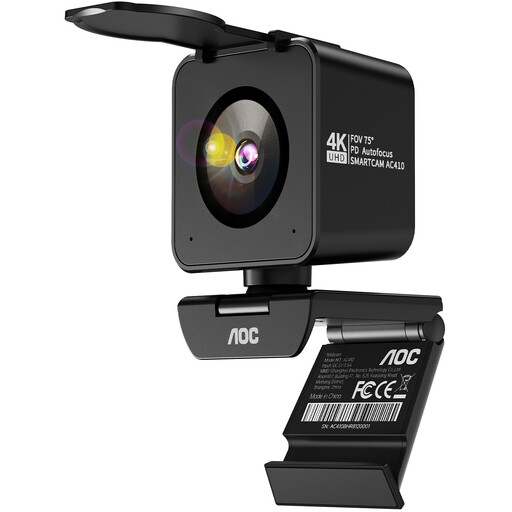
Described as a webcam for PC, meetings and streaming, it’s worth checking the framing on your own desk before relying on it to show your sketchbook.
The product name lists PDAF autofocus, two microphones, a lens cover, a 75° field of view, and USB-A and USB-C. The description also mentions a tabletop stand.
 No image available
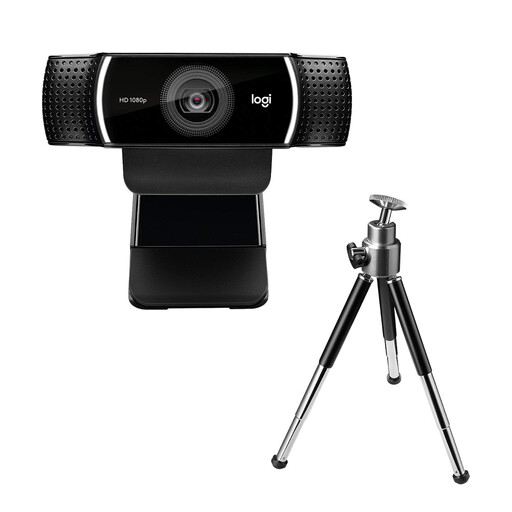
This USB webcam is described as suitable for streaming and video calls; its adjustable tabletop stand lets you change the camera’s position.
The description lists autofocus and a rotating tabletop stand that extends to 18,5 cm.
 No image available
DeskView is designed for occasional views of your desk during a call; it’s not the same as an overhead setup.
The product name lists a 4K webcam, a 1/2-inch sensor, autofocus and a microphone. DeskView and a physical cover are also listed in the product description.
Not necessarily. Zoom has requirements and settings for HD video, so the camera’s resolution isn’t the same as the image that’s actually transmitted. Check the framing and readability in a test call using the app you plan to use.
For Show Mode on the Brio 500, the Logitech instructions say to tilt the camera downwards. If the mount isn’t attached, you should hold it in place while doing this. Then check the preview to make sure your book and hands are fully in view.
It depends on the model and how it’s connected. For the ELMO MX-P3, the quick-start guide says a power adapter may be needed, among other cases, when USB and HDMI/RGB output are used at the same time or when USB power is insufficient. This doesn’t apply to all cameras.
For a consumer purchase, your statutory rights are with the seller. Verbraucherzentrale distinguishes these rights from a voluntary manufacturer’s warranty, whose terms depend on the specific warranty conditions. This reflects Verbraucherzentrale’s guidance as of 28 September 2026.
The Federal Commissioner for Data Protection and Freedom of Information distinguishes between the responsibility of the conferencing service and that of users for personal information shared during video communications. If such data is processed, an appropriate legal basis is required. Consent is only one possible basis, and must meet data protection requirements if used. This does not mean that consent is always required for every video call.