Demonstrating small parts
If you want to show joins, painting or other small details, look for a suitable working distance, easy-to-use focus controls and an arm that can be positioned over the model.


Start by choosing a camera with a working distance and field of view that suit your model, your hands and the space on your table. Then check how it focuses and the frame rate available in your chosen video mode. USB is suitable for connecting to a computer and recording software; to display the image directly on a screen, the camera needs a suitable video output.
If you want to show joins, painting or other small details, look for a suitable working distance, easy-to-use focus controls and an arm that can be positioned over the model.
When hands and tools are moving, the focus mode and frame rate in your chosen video format matter. To use the camera with OBS, you’ll also need to set it up as a suitable video source.
If you want the model and your work to appear together, or to display them directly on a separate screen, the field of view, arm position and the right connection for your set-up are key.
First, check the working distance and field of view, then the video mode and connection. Assess the lighting at the work area where you plan to use the camera.
| What you need | What to look for when buying | Who it matters most to |
|---|---|---|
| Small components | Check the minimum focusing distance, focus controls and how far the arm can reach against your planned working distance. JOURIST gives the DC530 a minimum focusing distance of around 5 cm; according to its specification sheet, the INSWAN INS-2’s stated autofocus range starts at 10 cm. | When I’m painting tiny components, the camera needs to get close enough and keep them in focus. Around 31% of consumers prioritise showing small details. |
| Moving hands and tools | Check the focus mode and frame rate at the exact resolution you want to use. INSWAN states that the INS-2 supports up to 60 fps at Full HD and up to 15 fps at 3840 × 3104; IPEVO states that the V4K supports up to 30 fps at Full HD and up to 15 fps at 3264 × 2448. | When I’m working with my hands, I want viewers to be able to follow painting and turning the model. Around 25% of consumers prioritise how well movement is shown. |
| Model and hands in frame | Measure the area you need on the table, including room for hand movements, and compare it with the capture area and arm position. The actual field of view depends on your set-up. | If I want the model, my hands and the work area to be visible at the same time, I need a suitable field of view. Around 19% of consumers prioritise seeing the whole scene. |
| Connection and output | Decide in advance whether you need USB to a computer, direct HDMI output or both, and check your screen’s inputs. IPEVO notes that the VZ-R needs a power source when used in HDMI mode. | If I want to display the image on a computer or separate screen, I need to know which connection suits my set-up. Around 13% of consumers put the connection first. |
| Lighting | Check where the lights are positioned and whether you can adjust them, then test how they illuminate the model. Built-in LEDs alone don’t guarantee even lighting on shiny or three-dimensional parts. | If shadows or reflections could obscure details, I want to be able to direct the light towards the work area. Around 12% of consumers prioritise lighting. |
The maximum stated frame rate can vary depending on the resolution. A high pixel count alone doesn’t tell you how well the camera will show moving hands in your chosen mode.
Compare resolution and frame rate together for the specific video mode you plan to use.
The focus range and how far the arm can reach both affect whether the camera can capture a small component from your planned working distance. A tight shot may also leave less room for your hands and tools.
Check the focus range and how the camera can be positioned over the table first; assess the digital zoom afterwards.
Connecting to a computer and sending the image directly to a screen are two different signal paths. According to the manufacturer, the IPEVO VZ-R also needs a power source in HDMI mode. OBS adds video capture devices as a separate source.
Before buying, plan the signal path from the camera to every screen and recording programme you want to use.
Depending on your HDMI set-up, you may need a power supply and additional connections for recording on a PC at the same time.
CZUR lists single and continuous autofocus for the Fancy S Pro, but fixed focus for the Shine800 Pro. The model names alone won’t tell you whether a particular version is suited to live demonstrations with moving subjects.
Check the full model name and the live video specifications listed for the specific model.
The V4K is a USB option for demonstrations on a computer; according to IPEVO, the VZ-R offers USB and direct HDMI output.
According to the manufacturer, the DC530 is designed for USB demonstrations on a computer, where a short focusing distance and a movable arm are useful.
The INS-2 is a USB option for set-ups where you switch between still details and moving hands.
ELMO describes the MX-P3 as a model for presentations with or without a computer and lists several video outputs.
The Fancy S Pro is a USB document camera with adjustable joints and focus modes. It’s distinct from the Shine range, which is more geared towards scanning.
The products below are webcams for sending video to a computer, not dedicated document cameras. Check whether you can position each model over your workbench so that the model and your hands stay within the field of view you need.
 No image available
Described as a USB plug-and-play webcam, it’s suitable for computer-based demonstrations. Check whether the flexible stand can be positioned over your workbench as needed.
The product description lists 1080p at 30 fps, a 120° wide-angle lens and a rotatable lens.
 No image available
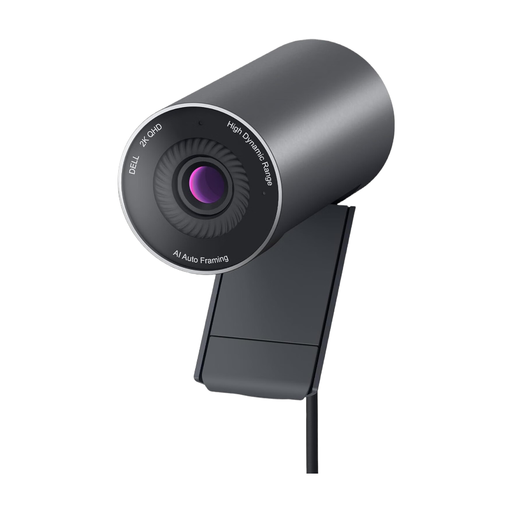
This webcam is described as sending video to a computer over USB. Before buying, check whether mounting it on your monitor or laptop will give you the right position above your model.
The product description lists USB 2.0, 2K QHD resolution, autofocus and up to 60 fps; the horizontal field of view is stated as 78°.
Add a Video Capture Device source in OBS and select the detected camera. Set the resolution and frame rate to a combination the device supports; OBS notes that an unsupported mode may result in no image appearing.
Connecting directly to a monitor via HDMI doesn’t automatically provide a video source on your computer. OBS can add capture devices as a source, so check the specific camera output and power requirements, and whether you need a compatible capture device to use both at once.
Position the camera and lights so that the model and your hands remain clear, and check for reflections on the surfaces you’re using. Some models have switchable LEDs; according to the manufacturer, you can switch them on and off on the camera head of the HUE HD Pro.
No. According to the consumer advice centre, your statutory rights if a product is faulty are separate from a guarantee. A guarantee is an additional, voluntary offer with its own terms. So check who the seller is and what guarantee terms apply to the specific model.
If identifiable people are captured, or the recordings are connected to work or business, you should check the specific circumstances of how you plan to use them. The Federal Commissioner for Data Protection and Freedom of Information distinguishes such recordings from purely private use; this doesn’t mean that every livestream is automatically permitted.