Choose your drawing setup based on the tablet and computer you already own: a stylus alone won’t turn a tablet into a second screen. If you have a compatible Mac and iPad, Sidecar may be an option; with a supported Galaxy Tab and Windows PC, you can use Samsung Second Screen. For other computer setups, a connected pen display may be a good fit. Then check the exact stylus model, the line control you need and what’s included, as cables and accessories can vary by device and offer.
Which solution is right for you?
Sketchers with a tablet they already own
If you want to keep using your iPad or Galaxy Tab, check that the specific stylus is compatible with your tablet model. Apple and Samsung each provide model-by-model compatibility information for their styluses.
Creators with a two-screen setup
If you want to view references on your computer while sketching on a second surface, Sidecar, Second Screen or a connected pen display may be suitable, depending on your devices. Apple and Samsung each list the requirements for supported devices.
Detail artists who want variable line control
If you want to vary your lines or shading, check which stylus features are supported by your device and the app you use. Apple and Samsung’s specifications vary by stylus model and compatible device.
What should you look for when buying?
iPad and Mac with Sidecar
A good fit if: your Mac and iPad support Sidecar and you want to draw on your iPad within your Mac workspace.
Keep in mind: You’ll need compatible Apple devices and the same Apple Account; the right Pencil depends on your iPad model.
Galaxy Tab and Windows with Second Screen
A good fit if: you already use a supported Galaxy Tab and a Windows PC.
Keep in mind: Samsung lists requirements for the operating system, Wi-Fi and account. Some features may be limited on other computer models.
Connected pen display
A good fit if: you want to draw directly on an additional display connected to your computer.
Keep in mind: Connections, power, stylus and cables vary by model and offer. A pen display isn’t automatically a standalone tablet.
| What you need |
What to check before buying |
Who should pay particular attention? |
| Stylus compatibility |
Check the exact tablet model and stylus generation against the manufacturer’s compatibility list. |
If I want to keep using my existing tablet, the stylus needs to be a precise match. Around 33% of consumers put compatibility first. |
| Second screen |
Check which devices and operating systems are supported, and whether you can extend rather than just mirror the display. For a pen display, also check the video and power connections. |
If I want to see references on my computer separately from my drawing surface, the screen feature needs to work with my devices. Around 27% of consumers prioritise a second screen for drawing. |
| Line and tool control |
Check whether the specific stylus model supports tilt, pressure or tool functions. |
If I want to vary my strokes or shading with precision, the inputs actually supported are what matter. Around 20% of consumers put line control first. |
| Accessories and what’s included |
Check the stylus, cables, adapters and, where necessary, power supply against the specific version and the connections you have. |
If I’m planning a complete drawing setup, I want to know what I already have and what else I need. Around 20% of consumers focus first on accessories and the total cost. |
Common pitfalls
-
Assuming general tablet compatibility means it will work with your specific model
Apple and Samsung list specific compatible models, and supported features can vary by stylus and device.
Check the full tablet and stylus names against the manufacturer’s compatibility list.
-
Confusing a standalone tablet with a connected pen display
Sidecar and Second Screen require compatible device combinations, while a pen display connects to a computer.
Before buying, decide whether you want to sketch without a computer or extend your computer’s workspace.
-
Assuming magnetic attachment means magnetic charging
Apple describes the Pencil (USB-C) as attaching magnetically for storage, but pairing and charging are done with a USB-C cable. Apple says the Pencil Pro pairs and charges magnetically.
Check the charging method and what’s included with the exact Pencil model.
-
Assuming the price of a pen display covers a complete drawing setup
What’s included and the connection requirements can vary. According to Wacom, its Wacom One configurator doesn’t include a pen for the main device; the XPPen manual lists a USB-C cable as sold separately.
Before buying, check what’s included and which connections your computer needs.
Key brands to consider
Apple
Apple Pencil models are designed for specific supported iPads. Sidecar can provide a second screen with compatible Mac and iPad devices.
- Apple lists tilt sensitivity for the Pencil (USB-C), and describes additional features such as pressure and rotation for the Pencil Pro.
- Compatibility lists and charging features vary by model. Sidecar requires compatible devices and the same Apple Account.
Samsung
S Pen versions are designed for supported Galaxy devices. Second Screen lets you use supported Galaxy Tabs as an additional display with a Windows computer.
- Samsung describes pressure and tilt input for the S Pen, as well as stylus input in Second Screen mode.
- Stylus features vary by model. Samsung lists network and account requirements for Second Screen, and some features may be limited depending on your computer.
Wacom
The Wacom One 13 touch is a pen display for a connected workspace, not simply a replacement stylus for a tablet.
- Wacom lists a 13.3-inch display and touch controls for the One 13 touch.
- According to Wacom, the configurator described for the Wacom One doesn’t include a pen for the main device. What’s included may vary by offer.
XPPen
The Artist 13 (2nd Generation) is a pen display that connects to a computer and lets you draw directly on the screen.
- XPPen lists a 13.3-inch display for this model.
- Depending on the connection or version you choose, you may also need a USB-C cable and, in some cases, an adapter. Check the connections and what’s included with the specific version.
Huion
The Kamvas 13 (Gen 3) is a pen display for sketching on a laptop.
- Huion lists a 13.3-inch Full HD display, two dial controllers and a battery-free PW600L stylus for this model.
- Check the connections and what’s included with the version on offer. The manufacturer’s claims about colour and stylus performance are its own specifications.
Joybuy products
The Joybuy products below are styluses for touchscreens or selected iPad models. A stylus alone won’t set up a second screen.
 No image available
Stylus for Android touchscreens (Samsung/Huawei/Xiaomi)
Described as a drawing stylus for Android devices with capacitive touchscreens; it doesn’t provide a second screen.
The description lists a 1.5 mm copper tip and USB-C charging. It says the stylus isn’t suitable for iPad, Microsoft devices or some Lenovo tablets.
Joybuy
 No image available
ZSPEED stylus for iPad Pro, Air and mini
Described for sketching on the iPad model ranges listed in the product name. Check that your exact iPad is included before buying.
The description lists tilt sensitivity, palm rejection and magnetic charging with compatible iPads. Listed models are iPad Pro 11″ (1st, 2nd, 3rd and 4th generations), Pro 12.9″ (3rd, 4th, 5th and 6th generations), Air 4/5 and mini.
Joybuy
 No image available
Stylus for iPad, 2018–2025, with USB-C charging
Designed as a drawing stylus for the iPad models listed in the product description. Its stylus function doesn’t replace a separate screen feature such as Sidecar.
The description lists tilt sensitivity, palm rejection and a USB-C charging cable in the box. Check that your iPad model matches those listed.
Joybuy
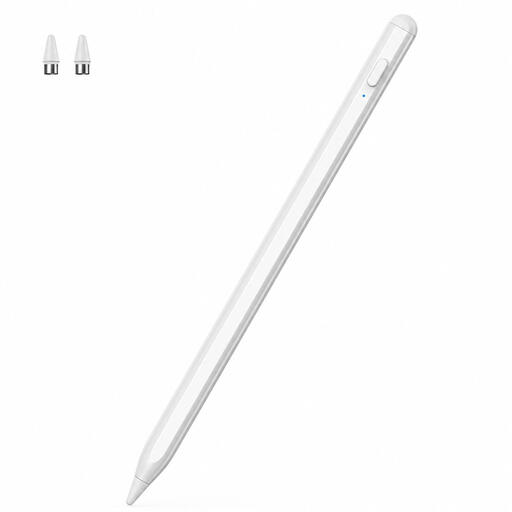 No image available
Stylus for iOS and Android touchscreens
Described for drawing, note-taking and navigation on touchscreens. The title lists iOS and Android devices; check compatibility with your specific device.
Joybuy
 No image available
iPad stylus with USB-C charging
Described for sketching on selected iPad models. Check model compatibility before choosing this stylus.
The product details list tilt detection, palm rejection and magnetic attachment. A USB-C charging cable is included, according to the description.
Joybuy
Frequently asked questions
Is a new stylus all I need to use my tablet as a second screen?
No. You’ll also need a compatible screen feature such as Sidecar or Second Screen. Alternatively, you could use a pen display connected to your computer.
How do I set up a Galaxy Tab as a second Windows screen for drawing?
Samsung describes Second Screen for supported Galaxy Tab models running Windows 10 or later. According to Samsung, both devices must be connected to the same Wi-Fi network and signed in to the same Samsung Account. Also check whether your computer model limits any features.
Should I budget for extra accessories with a pen display?
It depends on the specific offer and connection. According to Wacom, the Wacom One configurator described doesn’t include a pen for the main device; the XPPen manual lists a USB-C cable as sold separately. So check what’s included and compare the connections with those on your computer.
What are my rights in Germany if a stylus I bought online is faulty?
For newly purchased faulty goods, the Verbraucherzentrale generally states that the statutory two-year legal guarantee runs from delivery or receipt. A voluntary manufacturer’s guarantee is separate. Many online purchases also generally come with a 14-day right to cancel; the conditions and exceptions depend on the purchase.
What should I look for on the labelling of a stylus or pen display in Germany?
For electrical and electronic products, the Bundesnetzagentur recommends checking for correct CE marking and manufacturer information, among other things. This general guidance doesn’t confirm that any specific offer has been individually checked.


