Illustrating at a shared desk
You already use a computer and monitor, need a drawing area for delicate plant details, and regularly put your equipment away. Compare the device’s overall dimensions, not just its active area.


If you already use a computer and monitor and want to clear the shared desk after work, a pen tablet without a display is a natural choice. If you’d rather draw directly on the image you can see, check that a connected pen display will fit, and that you have the right connections and power supply. If you don’t have a dedicated office computer, a standalone tablet may be an option. No single type of device solves every question around space, software and set-up.
You already use a computer and monitor, need a drawing area for delicate plant details, and regularly put your equipment away. Compare the device’s overall dimensions, not just its active area.
You want to work on leaf edges, veins and shading beneath the pen tip, and can make room for a connected display with the right connections.
You want to illustrate without relying on a dedicated office computer. Before choosing a standalone tablet, consider its pen features, drawing app and file-sharing options.
First decide whether you want to draw on your existing monitor, directly on a connected display or without an office computer. Then check the space available and the connections you’ll need.
A good fit if: you have a suitable computer and monitor, and want to clear away your equipment easily after drawing.
Bear in mind: Your drawing appears on a separate monitor, not directly beneath the pen tip.
A good fit if: you want to draw directly on the image displayed and have room for the display, stand and cables.
Bear in mind: It isn’t a standalone device. The video, data and power connections need to be compatible with your specific model and computer.
A good fit if: you want to draw without connecting an office computer or often work in different locations.
Bear in mind: Check that your drawing app is compatible, how you’ll transfer files and what features the compatible pen offers.
| What matters | What to check before buying | Who it matters most to |
|---|---|---|
| Desk space and storage | Compare the active area and overall dimensions separately. If you’re choosing a display, allow room for the stand and cable routing too. Wacom lists an active area of 263 × 148 mm and a body measuring 291 × 206 mm for the Intuos Pro Medium. | When I work at a shared desk, I want enough room to draw and to put the device away afterwards. Around 31% of consumers put available desk space first. |
| Line work and direct visibility | Decide whether you want to draw on a separate monitor or directly on a pen display. Check that the pen and drawing app work with the specific model. | I want to add outlines and shading directly to the image I can see, so I’m considering a connected display. Around 31% of consumers prioritise drawing directly with the pen. |
| Colour display | Check the colour modes of the specific display, or factor in your existing monitor if you’re choosing a pen tablet. Huion lists selectable colour modes, including sRGB and Adobe RGB, for the Kamvas 16 (Gen 3). | If I want to assess leaf and flower colours on screen, the display I actually work on matters to me. Around 19% of consumers prioritise colour display. |
| Working without a dedicated computer | Check whether the device works on its own, whether your drawing app is available and whether a compatible pen offers the features you need. | If I move between workspaces, I need a drawing solution that doesn’t rely on an office computer. Around 19% of consumers prioritise this independence from a computer. |
The active area is the space you draw on, not the overall dimensions of the device. The Wacom Intuos Pro Medium has different active-area and body measurements; a display also needs extra room for its stand.
Measure the usable space on your desk and compare it with the overall dimensions of the specific device variant.
A pen display needs a computer and a suitable connection; a standalone tablet works differently.
First decide whether you want to use your office computer. Then check the connections, power supply and drawing app you’ll need.
On ugee’s M908 specifications page, the section on what’s included refers to an M808 Pen Tablet. This makes it worth checking the actual contents of the variant on offer.
Check the exact model variant and stated contents before relying on any accessories being included.
Pen tablets for working with a separate monitor, including the Intuos Pro Medium.
The Artist Pro 16 (Gen 2) is a connected pen display for drawing directly on the image.
The Kamvas 16 (Gen 3) is another connected-display option.
The M908 is a pen tablet without a display, designed to be used with an existing monitor.
The iPad Air with M4 is a standalone tablet option for drawing without a connected office computer.
This selection features standalone tablets with a pen for drawing without a connected office computer.
 No product image available
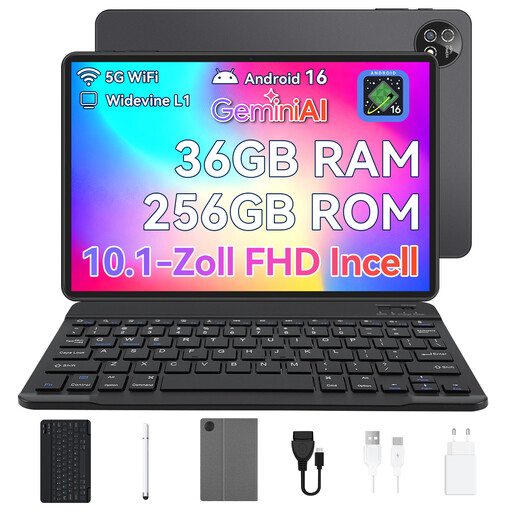
This standalone Android tablet with a stylus could suit you if you want to draw without a connected office computer. Before buying, check that your preferred drawing app is compatible with this specific device.
The listed variant includes a 10.1-inch touchscreen, Android 16, 36 GB RAM (6+30), 256 GB storage, an octa-core processor and a keyboard set with stylus.
Yes, if you’re happy to look at a separate monitor while you draw. Compare the active area with the overall body dimensions, and bear in mind that the drawing area and image appear in different places.
For the exact model, check which connections your computer provides for video and input, how the display is powered and whether you can install the required driver. The XPPen instructions describe different USB-C ports for the Artist Pro 16 (Gen 2); the shape of a port alone doesn’t guarantee that the full set-up will be compatible.
It depends on the device and the offer, so check both for the specific variant. ugee notes in its M908 driver information that additional drawing or office software is required; its specifications page lists an M808 Pen Tablet as part of the contents. With the iPad Air, the pen features you want depend on which compatible Pencil you use.
Distance sales contracts generally come with a right to cancel, although statutory exceptions apply. The Verbraucherzentrale states that the usual cancellation period is 14 days. If a product is faulty, contact the seller; this is separate from any voluntary manufacturer’s guarantee.