What should you look for when buying?
Pen tablet without a display
A good fit if: You have a suitable computer display and want to store your drawing device away neatly after use.
Things to consider: You draw on the tablet and see your sketch on the computer display. Compare the active drawing area and the overall dimensions separately.
Pen display connected to a computer
A good fit if: You want to work directly on your drawing and have room for the display beside your computer.
Things to consider: The display, connection and any required power supply or accessories all take up space and need to be compatible with your computer.
Standalone tablet with a pen
A good fit if: You want to sketch ideas without connecting to your desk computer.
Things to consider: Check pen compatibility, what’s included and which drawing apps you need for your workflow.
When you share a desk, four buying priorities come to the fore: space, drawing directly on the screen, set-up and sketching without a computer.
| Priority |
What to check before buying |
Who is it especially important to? |
| Space and storage |
Compare the overall dimensions and active drawing area separately; allow room for cables and, if needed, a stand. |
When I share a desk, I want to put my drawing device away after use while still having enough space to draw. Around 31% of consumers prioritise space and storage. |
| Drawing directly on the screen |
Check the type of device and the visible working area of the specific model. Don’t confuse the display dimensions with the space needed for the whole device. |
When I’m designing, I want to see the line directly beneath the pen, so I need to weigh up the display area against the space available beside my computer. Around 25% of consumers prioritise drawing directly on the screen. |
| Set-up and switching between computers |
Check video output, power supply, drivers, and the supplied cables and adapters against the computers you plan to use. |
If I want to switch the device between computers, I want to make sure the connections and power supply are set up to suit them in advance. Around 25% of consumers prioritise set-up and switching between computers. |
| Sketching without a computer |
Check pen compatibility and what’s included with the exact tablet version; consider the drawing app you need and how you’ll transfer files. |
For sketching away from our shared workspace, I need a standalone tablet with a compatible pen and suitable app. Around 19% of consumers prioritise sketching without a computer. |
Joybuy products for sketching at a shared desk
Here you’ll find Joybuy listings for sketching on LCD drawing tablets and on standalone tablets with a pen.
 No image available
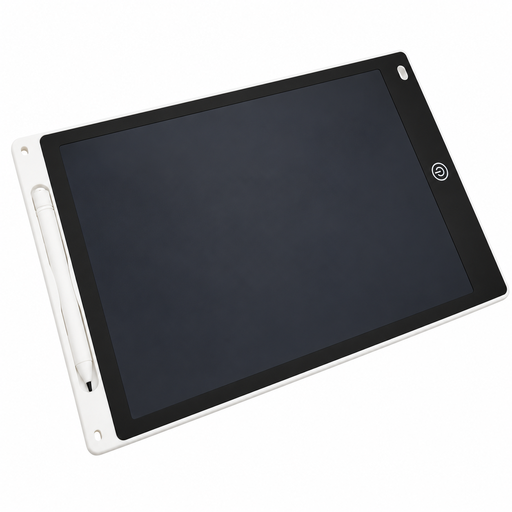
12-inch LCD drawing tablet with pen and erase function
The description lists an LCD drawing surface with a pen. Check whether this type of writing surface suits the way you sketch.
12 inches; dimensions listed in the description: 230 × 165 mm. It also mentions a pressure-sensitive drawing surface, an erase button and a lock to prevent accidental erasing.
The description mentions button-cell batteries. Keep them away from young children; according to the description, only adults should open the battery compartment.
View on Joybuy
 No image available
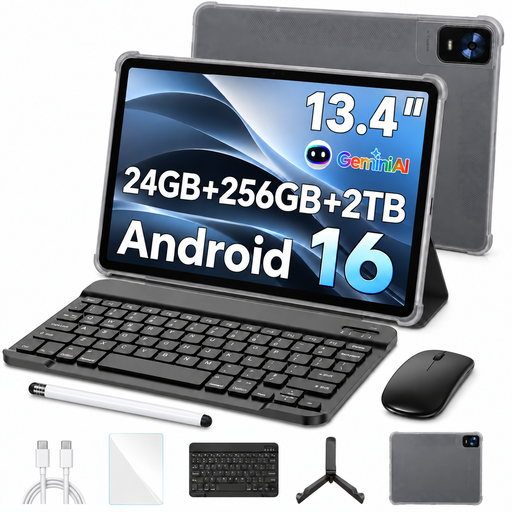
13.4-inch Android 16 tablet, 256 GB, with passive stylus
As a tablet with a passive stylus, this model may suit sketching without a computer connected to your desk. Check that your drawing app is compatible.
The title lists a 13.4-inch FHD+ display, Android 16 and 24 GB RAM (8 GB + 16 GB virtual). The listed version has 256 GB of storage.
The title also lists a keyboard, mouse, case and stand.
View on Joybuy
 No image available
Teclast ArtPad Pro 2025, 12.7-inch, 2K, 256 GB, with T-Pen
This standalone tablet may suit you if you want to sketch ideas without connecting to a computer.
The title lists a 12.7-inch 2K display and a T-Pen with 4096 pressure levels. It also specifies Android 15, 20 GB RAM (8 GB + 12 GB virtual) and 256 GB of storage.
View on Joybuy
 No image available
TECLAST ArtPad Pro, 12.7-inch, 2K, 256 GB, with Bluetooth keyboard
This standalone tablet may suit you if you want to sketch directly on the device and use a keyboard as well.
The title lists a 12.7-inch 2K display, Android 15, 20 GB RAM (8 GB + 12 GB virtual) and 256 GB of storage. A stylus, protective case and English Bluetooth keyboard are also listed.
View on Joybuy
Frequently asked questions
Will any USB-C port support a pen display with a single cable?
No. You can’t tell from the shape of the port alone. Wacom says the One 12’s single-cable connection depends on the computer’s USB-C port; depending on the connection, XPPen’s instructions specify additional accessories or a power supply. Check the instructions for the specific devices you’ll be using.
What should I bear in mind when setting up and packing away at a shared desk?
Before buying, check the ports on each computer and what’s included with the pen display. The XPPen Artist 12 (2nd Generation) instructions distinguish between connection types and specify that the USB-C cable for the relevant connection is sold separately.
Does a standalone tablet always come with a drawing pen?
No, it depends on the version you choose. Apple’s listed contents for the documented iPad Air include a USB-C charging cable, but no Pencil. Support for Pencil Pro or Pencil (USB-C) doesn’t in itself tell you whether a pen is included.
What consumer rights apply when buying from a business seller in Germany?
The EU’s Your Europe information page explains that purchases of goods are covered by a legal guarantee of at least two years from receipt. For distance sales, you generally have a 14-day right to cancel from the date of delivery; exceptions and rules on return costs should be checked separately. A voluntary manufacturer’s guarantee is not the same as the legal guarantee.
What product safety information should I check when buying electronics?
Within its remit, the German Federal Network Agency checks, among other things, whether CE marking is present and correct, and whether the product and manufacturer information can be verified. Check that the specific listing provides identifiable product and manufacturer details.


