If you already have a suitable computer and monitor, and want to clear the desk after sketching, a graphics tablet without a screen is a sensible place to start. If you want to see your lines directly beneath the pen tip, consider a pen display, provided you have enough space and the right connections and cables. For sketching without a desktop computer, you’ll need a standalone tablet that runs suitable drawing apps. The key is where you want to see your drawing and what extra hardware your workflow requires.
Who are these devices for?
Sketching at a shared computer workstation
You already have a computer and monitor, and want to put away your drawing surface when you’re finished. A tablet that’s easy to store matters more to you than having an extra screen. Golem.de Ratgeber and Wacom describe devices that connect to an existing computer.
Sketching directly on screen
You want to see lines and corrections on the same surface you’re drawing on, and can make room on your desk for a display and its connections. XPPen and Huion offer pen displays in the product ranges described here.
Capturing ideas without a fixed computer workstation
You want to start designs away from the shared desk too, so you need a device that can run drawing apps on its own. XPPen describes the Magic Drawing Pad as a standalone Android drawing tablet; Samsung says the Galaxy Tab S10 FE comes with an S Pen.
What should you consider when choosing?
Graphics tablet without a screen
A good fit if: You already have a computer and monitor, and want to put away a flat drawing surface after each session.
The trade-off: You draw on the tablet, but see the result on your computer screen.
Pen display
A good fit if: You want to see your lines directly beneath the pen tip and connect the display to a compatible computer.
The trade-off: The display, cables and connection requirements need to suit your workspace.
Standalone drawing tablet
A good fit if: You want to sketch without connecting to a desktop computer.
The trade-off: Check that the drawing apps you need and the available export options suit your workflow.
First, decide whether you want to draw on an existing monitor, directly on a display or without a computer. You can then compare space requirements, connections and software more easily.
| Priority |
What to look for |
Who is it most important to? |
| Space and storage |
Consider the overall dimensions, active drawing area, cable routing and space alongside your keyboard and monitor. |
If you want to clear the shared desk quickly after sketching, you’ll need the right balance between drawing area and storage space. This matters most to around 33% of consumers. |
| Drawing directly on screen |
Choose a pen display or input device, then check the display size, desk space and computer connection. |
If you want to adjust shapes directly on the sketch on screen, seeing the line beneath the pen is essential. Around 27% of consumers put this at the top of their list when buying. |
| Computer compatibility |
Check the operating system and version, USB or video connections, driver permissions and drawing app requirements. |
If you use a shared computer, you’ll want to know in advance whether the device and software can be set up on it. For around 20% of consumers, compatibility with their existing computer is the most important consideration. |
| Sketching without a fixed computer workstation |
Check the operating system, drawing app, export options, what’s included in the specific package and charging requirements. |
If you want to capture ideas away from your desk too, you need a device that supports your sketching workflow without a desktop computer. For around 20% of consumers, being able to use a device independently is the most important purchase consideration. |
Common misconceptions when buying
-
A graphics tablet is automatically a standalone tablet
A graphics tablet without a screen is an input device; your sketch appears on the connected computer screen. By contrast, according to its manufacturer, XPPen’s Magic Drawing Pad runs on a standalone Android system.
Before you buy, decide whether you’ll have access to a computer while sketching.
-
A USB-C port guarantees one-cable operation
With the Huion Kamvas 13, connection and power requirements depend on the ports available. Huion also specifies an extra power adapter for connecting to Android devices.
Check the ports, power requirements and what’s included in the exact model package against your computer.
Depending on the connection, you may need an extra cable, adapter or power supply.
-
The smallest possible drawing area is always the most practical choice
For the use case considered in Golem.de Ratgeber’s comparison, a very small active area can make precise pen movements harder on a large monitor.
Compare the active area, overall dimensions and monitor size together, rather than focusing only on how much desk space it takes up.
Brands to consider
Wacom
The product ranges described include graphics tablets without screens and compact pen displays.
- Wacom says the One by Wacom M connects to a Mac or PC via USB.
- According to Wacom, the One by Wacom M requires driver installation. One-cable operation with the Wacom One 12 depends on the computer’s USB-C port.
XPPen
The models described here range from the screen-free Deco 01 V3 to the Artist 12 2nd Generation and the standalone Magic Drawing Pad.
- According to XPPen, the Deco 01 V3 has an active area of 10 × 6.25 inches and eight buttons; the Artist 12 has an integrated display.
- With the Magic Drawing Pad, check that its Android apps and the contents of the specific package suit your drawing and export workflow.
Huion
The models considered include the Inspiroy 2 M graphics tablet and the Kamvas 13 pen display.
- Huion lists eight buttons, group buttons and a scroll wheel for the Inspiroy 2 M.
- One-cable and Android use with the Kamvas 13 depend on specific connection and power requirements.
Samsung
The Galaxy Tab S10 FE is a standalone Android tablet for sketching without a connected desktop computer.
- Samsung says its German offer includes an S Pen and that the FE model has a 10.9-inch display.
- Check separately that your preferred drawing app and export options will work for you.
Joybuy products
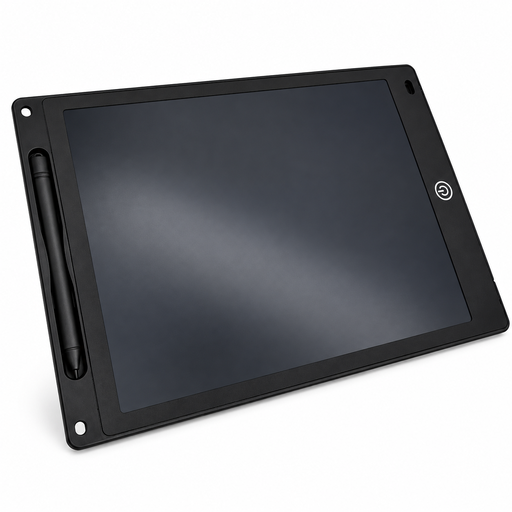
The following Joybuy products are for simple sketches using a reusable LCD drawing surface at your desk.
 No image available
12-inch LCD writing tablet with pen, erase button and lock function
For simple sketches at a shared desk, use the pen to draw on the reusable surface.
12 inches; 5 mm thin. The erase button clears the whole drawing. According to the product description, the lock function prevents accidental erasing, but it doesn’t let you undo changes step by step.
View at Joybuy
Frequently asked questions
Do I need an extra screen for a graphics tablet without a display?
Yes. With a graphics tablet without a screen, you’ll see your sketch on the connected computer screen. Check that your computer’s operating system and ports are compatible too.
Will any USB-C port work with a pen display?
No. A USB-C port alone doesn’t tell you whether a particular pen display will work with it. For the Kamvas 13, Huion specifies certain connection and power requirements; the manufacturer also requires an extra power supply for Android devices. Check the requirements for the display and your computer.
What should I check before setting up a device on a shared computer?
Check the computer’s operating system and ports, and whether you can install the necessary drivers. Wacom says the One by Wacom M requires driver installation on a Mac or PC. If you’re not allowed to install software there, find out before choosing a device.
Is a manufacturer’s warranty the same as your statutory rights?
No. Under the EU rules explained by Your Europe, goods bought by a consumer from a business seller are covered by a legal guarantee of at least two years from the date they’re received. A commercial guarantee is an additional promise with its own terms and conditions.


