If you mainly work on your existing computer, choose between a graphics tablet that you use while looking at your monitor and a pen display that lets you draw directly on the screen. A standalone tablet is better suited to sketching without a connected computer; check that it supports the drawing app you need, and that file sharing and the compatible stylus work with your setup. With pen displays, you’ll also need to consider the video signal, power supply and desk space.
Who would benefit from each type of device?
Draw directly on the screen
If you create and edit lots of panels at a fixed desk, a pen display could be a good fit: you see the line appear directly beneath the pen tip. Make room for the extra display and check your computer’s connections. The F.A.Z. Kaufkompass, among others, describes the different types of device and how they can be used.
Keep using your existing monitor
A graphics tablet without a display works with your existing screen, so you don’t need to set up another one. You draw on a separate surface while looking at the monitor; getting used to this hand–eye coordination can take time. Wacom lists an active area of 263 × 148 mm for the Intuos Pro Medium PTK670K0B.
Sketch without a computer
A standalone tablet is worth considering if you want to create storyboard panels away from your desk. Check that the drawing app you need and the way you’ll transfer files work with the rest of your workflow. Samsung says the Galaxy Tab S10 FE series comes with an S Pen; Apple documents that the iPad Pro with M5 is compatible with the Apple Pencil Pro.
What should you look for when buying?
| What you need |
What to check before buying |
Who is this important for? |
| Draw directly on the image |
Check the display size and resolution, stand, and the video, data and power connections on the exact model. |
If I often edit panels directly on the displayed image, I’ll need space for the extra display and compatible computer connections. This was the main priority for around 36% of consumers. |
| Use my existing monitor |
Check the active drawing area rather than the overall dimensions, as well as the connection and operating system support. |
I want to keep using my existing screen without setting up an extra display; the separate hand–eye coordination should also feel comfortable. Around 29% of consumers would prioritise continuing to use their existing workstation. |
| Make sure apps and files work together |
Check operating system and driver support, the video output you need, app features and export formats. |
If my drawing app and file handover need to fit into my desktop workflow, I’ll check compatibility before choosing a device. For around 21% of consumers, getting their workflow to work smoothly would be the top priority. |
| Sketch without a computer |
Check the drawing app, compatible stylus, screen size and file transfer options. |
I want to sketch panels without a connected computer and then move them into the rest of my workflow. Around 14% of consumers would put computer-free sketching first. |
Common misconceptions
-
Assuming a pen display is a standalone computer
A pen display connects to a computer and needs a suitable connection for video, data and, where necessary, power.
Compare your computer’s connections with the manual for the exact display model, and check what’s included in the box. For the Huion Kamvas 13 (Gen 3), the USB-C video connection described requires a compatible port that supports DP; according to Huion, the USB-C cable needed for this connection is not included.
-
Assuming stylus compatibility means the stylus is included
A tablet’s support for a stylus doesn’t tell you whether it comes with the model you choose.
Check the exact model variant and what’s included. The compatible Apple Pencil Pro is an additional purchase for the iPad Pro; Samsung says the Galaxy Tab S10 FE series comes with an S Pen.
-
Assuming similarly named generations are identical
Stylus generations and accessories can vary within the same product family. The Wacom Intuos Pro PTH-660 is described as coming with the Pro Pen 2, while the Intuos Pro Medium PTK670K0B belongs to the generation that uses the Pro Pen 3.
Check the full model number and stylus generation before choosing accessories or replacement parts.
Key brands for storyboard drawing tablets
Wacom
The Intuos Pro Medium PTK670K0B is a graphics tablet designed to be used with an existing screen.
- Wacom lists the Pro Pen 3, ExpressKeys, Bluetooth and an active area of 263 × 148 mm for this model.
- Your drawing won’t appear directly on the drawing surface. Details for the older PTH-660 model can’t automatically be applied to the PTK670K0B.
XPPen
The Artist Pro 16 (Gen 2) is a pen display for drawing directly on a connected computer.
- XPPen lists the X3 Pro stylus for this model; the manual describes a foldable stand.
- Before buying, check your computer’s connections and make sure you have enough desk space for the display.
Huion
The Kamvas 13 (Gen 3) is a more compact pen display for use at a computer workstation.
- Huion lists a 13.3-inch FHD display with a resolution of 1920 × 1080 pixels and a battery-free stylus.
- The host computer needs a suitable port that supports DP for the USB-C video connection described; according to Huion, the USB-C cable needed for this connection is not included.
Samsung
The Galaxy Tab S10 FE series is a standalone tablet option for sketching without a connected computer.
- Samsung says an S Pen is included. The Tab S10 FE has a 10.9-inch display, while the FE+ has a 13.1-inch display.
- Check that the drawing app you need and the way you transfer files work with your workflow.
Apple
The 11- or 13-inch iPad Pro with M5 is a standalone option running iPadOS.
- Apple documents that the iPad Pro with M5, in both sizes, is compatible with the Apple Pencil Pro.
- The Apple Pencil Pro isn’t included in the iPad Pro box contents listed by Apple. Also check that the app and export options suit your storyboard workflow.
Related products at Joybuy
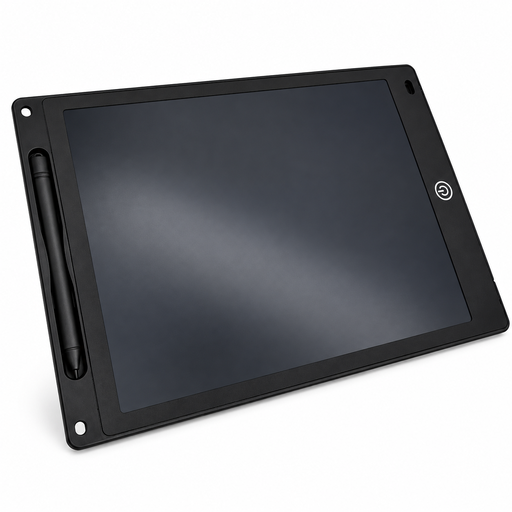
An LCD writing tablet for drawing at home.
 No image available
12-inch LCD writing tablet with stylus
For drawing with a stylus at home, if a separate writing surface with the stated erase and lock functions suits the way you work.
12 inches; 5 mm thin; with erase button and lock function.
View at Joybuy
Frequently asked questions
Will a pen display work with any USB-C port?
No. For the USB-C video connection described by Huion for the Kamvas 13 (Gen 3), your computer’s port must meet Huion’s data and DP video signal requirements. Huion also describes connecting it using a 3-in-1 cable with HDMI and USB; check your computer’s available ports and power supply.
Does a compatible drawing stylus always come in the box?
No, it depends on the model. Samsung says the Galaxy Tab S10 FE comes with an S Pen. The iPad Pro box contents listed by Apple don’t include a Pencil; the Apple Pencil Pro, which is compatible with the M5 model, is sold separately.
What should I do if a product is faulty or I don’t like something I bought online?
If a product is faulty, statutory consumer rights should be distinguished from a voluntary guarantee. Many online purchases generally come with a 14-day right to cancel; the Verbraucherzentrale says the period starts when the contract is concluded or the ordered goods are received. You must notify the retailer that you’re cancelling; the details and exceptions depend on the specific purchase.
What should I know about product safety and disposal?
CE marking is only required for products covered by harmonised EU rules that specifically require it. It is not an independent quality mark. In Germany, electrical waste is collected separately and must not be put in household rubbish.


