To record a continuous drawing video, you’ll need a remote or app that supports starting and stopping video on your specific camera model; a photo shutter release alone won’t do the job. For individual progress shots, a compatible photo shutter release may be enough, while regular interval shots require a suitable interval function. The key things to check are camera compatibility and a setup that keeps cables and hands away from your drawing surface.
Who should consider their options?
Artists filming with a video camera
You want to film your drawing process from your seat without having to reach for the camera. Check whether your camera model lets you control video recording with your chosen remote; Canon, Nikon, Sony and Panasonic, for example, describe these features for certain models.
Artists with limited workspace
You need to fit your camera and controls alongside paper and pens. Consider whether a cable would cross your drawing area, or whether an app you already have offers the remote control you need; Canon and Panasonic describe options that vary by model.
Artists creating a sequence of photos
You want to capture your progress in individual images rather than as a continuous video. Nikon describes an interval function for the MC-36a; check that it works with your camera.
What should you look for when buying?
First decide what kind of recording you want, then check that the function and connection are compatible with your camera’s full model number.
Wireless video remote
A good choice if: You want to start and stop recording from your drawing space and your camera supports the remote.
Consider: There’s no cable across your table, but the model and connection must be compatible.
Wired video control
A good choice if: Your camera model supports a compatible wired shutter release with a video button.
Consider: You won’t need a wireless connection, but you’ll need to route the cable around your limited workspace.
Camera app
A good choice if: An app you already have works with your camera and really does offer the remote recording you need.
Consider: Available features depend on the camera model and the app.
| Criteria |
What to check before buying |
Who is it important for? |
| Starting and stopping video |
Check that both the remote and your camera’s full model number support video control; a photo shutter button doesn’t guarantee this. |
If I want to record my drawing process as a continuous video from my seat, I need a suitable video function. Around 36% of consumers put video control first. |
| Camera compatibility |
Check the model number, supported connection and any required firmware against the manufacturer’s information. |
I want to avoid choosing a shutter release that won’t work with my camera body. Around 29% of consumers prioritise compatibility with their camera. |
| Clear drawing space |
Think about where you’ll operate the controls and how a cable will run; check whether an app you already have offers the function you need. |
If there’s little room around my paper and pens, I want to keep the drawing area clear and avoid buying another remote if an app will do. Around 21% of consumers put this first. |
| Interval shots |
Check your camera manual to see whether the camera itself or a compatible shutter release offers the interval function you want. |
For a series of individual progress shots, I need a suitable interval function rather than just a video button. Around 14% of consumers prioritise interval shots. |
Common buying mistakes
-
Assuming a photo shutter release can control video
A shutter release for individual photos won’t automatically start or stop video recording. Nikon describes the MC-DC3 as a photo shutter release, while Panasonic specifies a dedicated video start/stop button on the DMW-RS2E.
Before buying, check specifically that video control is supported by your camera model. If your current shutter release doesn’t offer it, you may need another one that does.
-
Choosing based on camera brand alone
Compatibility depends on the specific camera body and the connection it supports. Panasonic notes that the exact remote-control method varies by LUMIX model; manufacturers also list the camera models that are compatible.
Compare the full model number and required connection with your camera manual and the product details.
-
Automatically opting for a wired model at a small table
A cable may have to run through your workspace alongside paper and pens. A compatible app or wireless remote avoids this, provided it supports the features you need.
First, try out where you’ll operate the controls and check any app you already have. If you use a wired model, plan the cable route before you start recording.
Brands to consider
Canon
The BR-E1 is a wireless option for compatible Canon cameras; Camera Connect may also be suitable for supported models.
- Canon specifies Bluetooth and a range of up to 5 m for the BR-E1.
- These details apply to this specific model and don’t guarantee compatibility with every Canon camera body. Check the available app features too.
Nikon
The ML-L7 is designed for photo and video control with compatible cameras; the MC-36a offers an interval function, while the MC-DC3 provides wired photo shutter release.
- Nikon describes different features for each of these specific models.
- Buttons or a cable connection alone don’t guarantee compatibility with every Nikon camera. Video control isn’t specified here for the MC-DC3.
Sony
The RMT-VP2 is a Bluetooth remote with a MOVIE button for supported Sony cameras.
- Sony specifies photo and video control, with an approximate wireless range of 10 m.
- This range is the manufacturer’s stated figure, not a measurement taken at a drawing table. Check compatibility with your camera body.
Panasonic
The wired DMW-RS2E is a LUMIX option with a video start/stop button.
- Panasonic specifies a tripod clip mount and a video recording button.
- Panasonic requires the latest firmware to be installed. Available remote-control features depend on the LUMIX model, and you’ll need to route the cable suitably at a small table.
DJI
The Osmo Action GPS Bluetooth Remote Controller is a specialist option for the Osmo Action and Osmo 360 cameras listed by DJI.
- DJI specifies remote control of recording and lists a long and a short strap in the box.
- Compatibility is limited to the specified Osmo models; this product isn’t intended for other camera systems.
Related products at Joybuy
The products below are for compatible GoPro and Osmo cameras, as well as smartphone recording with a remote and tripod. They aren’t universal shutter releases for other camera systems.
 No image available
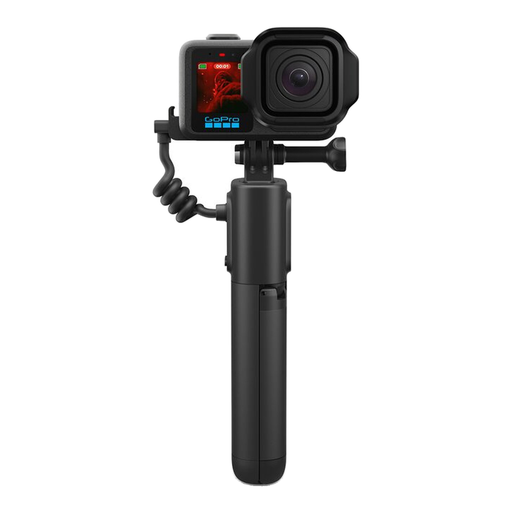
GoPro Volta 2.0 Battery Grip with Integrated Tripod & Wireless Remote, 5800mAh, USB-C, Bluetooth, Black, APHGM-002-EU
For compatible GoPro cameras, if you’re looking for wireless control and an integrated tripod for your table setup.
The product name specifies a 5,800-mAh battery, USB-C and Bluetooth. Compatibility applies to the GoPro models listed there.
View at Joybuy
 No image available
DJI Osmo Action GPS Bluetooth Remote Controller
For a compatible Osmo camera, if you want to control recording remotely from your drawing space.
The product title lists Osmo Action 4, Osmo Action 5 Pro, Osmo 360 and Osmo Action 6 as compatible models. The described contents include long and short wrist straps.
View at Joybuy
 No image available
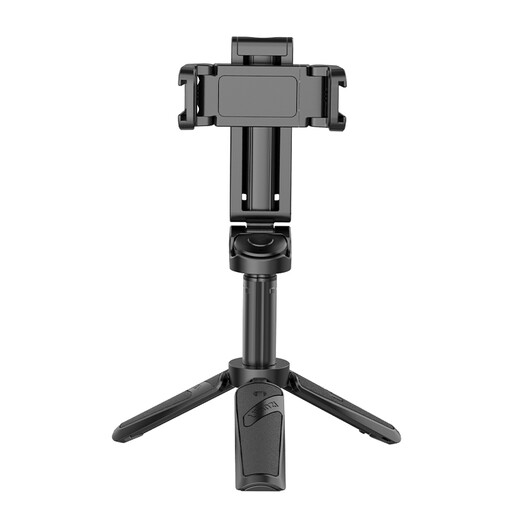
Ulanzi JJ02 Phone Tripod Stand, 3 in 1 Bluetooth Selfie Stick, Extendable Mini Tripod, Phone Holder, 2 Cold Shoes
For filming drawings on your smartphone, if you want a setup that combines a phone holder and a compact tripod.
The product title specifies a Bluetooth remote, an extendable mini tripod, a phone holder and two cold shoe mounts. It lists iPhone, Samsung and Android smartphones as compatible devices.
View at Joybuy
 No image available
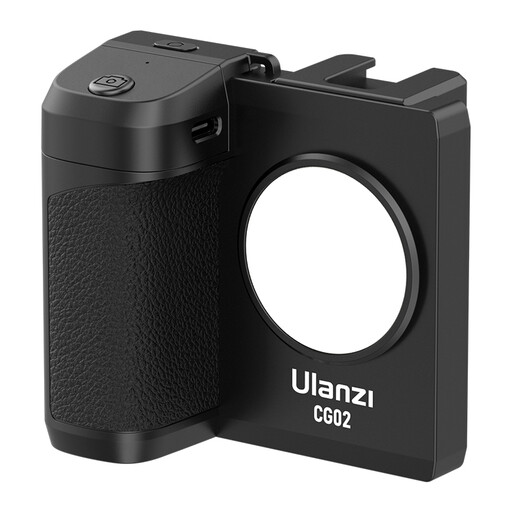
Ulanzi CG02 Smartphone Handle Grip with Remote Control, 3-Level Fill Light, Cold Shoe
For smartphone recording, if you want to control the camera wirelessly and use a handgrip with a fill light.
The product title specifies a fill light with three brightness settings and a cold shoe mount. It lists iPhone and Android smartphones as compatible devices.
View at Joybuy
Frequently asked questions
Will any photo remote shutter release start my drawing video?
No. Both the remote and your camera model must specifically support video control. Manufacturers distinguish photo shutter releases from remotes with a video recording button.
How do I set up a remote at a small table?
First, check your camera’s full model number against the manufacturer’s documentation. With a wired model, check the connection and route the cable away from your drawing surface; for Bluetooth, follow your camera’s pairing instructions. Take a short test recording before you start drawing.
Can a camera app replace a separate remote shutter release?
Yes, if the app works with your camera model and offers the remote recording you need. Test the feature in advance and also check whether the remote you’re considering needs batteries or charging for the way you plan to use it.
What if I want to publish a portrait of someone else?
Under § 22 KunstUrhG, consent is generally required when a person’s image is distributed or displayed publicly. Whether this applies in a particular case, and what other rules apply to your intended use, depends on the circumstances. The German Data Protection Conference considers that GDPR obligations also apply when personal data is captured outside activities that are exclusively personal or familial.


