If you assess the same colour edits on both 4K monitors, matching colour spaces, separate profiles and comparable settings matter more than identical model names. If you mainly use the second screen for tools or previews, the first can be your colour-critical display, while you choose the second for its size and connections. For print preparation, you’ll also need a suitable colour space and a consistent soft-proofing workflow.
Who is a dual-monitor setup for?
Making colour decisions on both screens
If you assess the same edit on both displays, you’ll need matching display profiles rather than simply two supposedly identical panels. Adobe notes that the same image can look different depending on the device and its calibration; EIZO explains the role of calibration.
Photography for print
If you also prepare edits for print, consider colour space, calibration and soft proofing together. EIZO describes the wide Adobe RGB colour space and hardware calibration on the ColorEdge CS2740.
A laptop workstation with a second screen
If you’re setting up a 4K editing workstation with a laptop, the video outputs, charging requirements and desk space all need to work together. The available features depend on the specific monitor and computer.
What should you look for when buying?
First decide which screen you’ll use for definitive colour decisions and what your output needs to be. Then check that you have enough space and the right signal path for both devices.
Both screens for colour decisions
A good fit if: you regularly move images between monitors and assess them on both.
Bear in mind: similar model specifications don’t guarantee a match; age, ambient light and panel differences still matter.
Colour-critical main monitor plus a screen for tools
A good fit if: you assess colours only on the main monitor and use the second for previews, palettes or communication.
Bear in mind: reliable colour checks shouldn’t inadvertently end up on the secondary monitor.
| Priority |
What to check before buying |
Who needs this? |
| Consistent colour reproduction |
Check for a suitable colour space, a calibration method and a separate profile for each screen used for colour-critical work. |
If I assess the same edit on both displays, I need matching profiles and comparable conditions. Around 33% of consumers prioritise consistent colour reproduction. |
| Colour space to suit your output |
Decide on your output and compare the specific model’s documented sRGB, Display-P3 or Adobe RGB modes with your workflow. |
If I edit for both screens and print, the colour space needs to suit each output. Around 27% of consumers prioritise a colour space suited to their output. |
| Desk space for two displays |
Check the monitor width, stand depth and height adjustment, as well as VESA compatibility if you plan to use monitor arms. |
If I want to set up two monitors alongside tools and comparison views, I need enough desk space. Around 20% of consumers focus above all on the space needed for both displays. |
| Connecting a dual-monitor workstation |
Check your computer’s video outputs and operating modes, along with the cables, USB-C video, charging requirements and, if needed, KVM support on the specific monitor. |
If I want to connect two displays to a laptop, the planned signal path needs to work with both the computer and monitors. Around 20% of consumers prioritise connections for a dual-monitor setup. |
Common buying pitfalls
-
Identical model names guarantee identical colours
Calibration, age and panel differences can all affect how colours appear. As EIZO explains, calibration can’t simply fix a colour space that’s too small or an uneven display.
Check that the colour space is suitable and create a profile for every screen you use to make colour decisions.
You may need additional cables or a suitable dock for your planned connections.
Key brands to consider
ASUS
The ProArt PA279CRV combines a 27-inch screen and 3840 × 2160 resolution with several colour-space modes, plus USB-C and DisplayPort output.
- ASUS lists 99% Adobe RGB and DCI-P3 coverage, as well as ΔE ≤ 2, in this model’s specifications.
- These manufacturer claims aren’t independent measurements of an individual unit. Also check that your computer and daisy-chain setup are compatible with your requirements.
BenQ
The PhotoVue SW272U and Creative Pro PD2732U are 27-inch 4K models with different connection and calibration features.
- BenQ lists hardware calibration, a uniformity function and 90 W USB-C for the SW272U; the PD2732U offers features including 99% Adobe RGB, 90 W Thunderbolt and KVM.
- Model specifications don’t prove that two individual units will look the same without being calibrated separately.
EIZO
The ColorEdge CS2740 is a 4K option for workflows that take Adobe RGB, uniformity and hardware calibration into account.
- EIZO lists over 99% Adobe RGB coverage and hardware calibration with ColorNavigator for this model.
- EIZO points out that calibration can’t simply correct a colour space that’s too small or panel uniformity issues.
Dell
The UltraSharp U2725QE is a 27-inch 4K model with a Thunderbolt hub, suited to a workstation where connecting devices is important.
- Dell lists IPS Black, 120 Hz and an integrated USB hub for this model.
- These specifications alone don’t prove that it’s suitable as a colour-accurate reference monitor or that two displays will match.
Joybuy products
The following Joybuy options are native 4K monitors for a dual-screen workstation. The same resolution alone doesn’t guarantee consistent colour reproduction; matching profiles and a suitable workflow still matter.
 No image available
TCL 32x3A 32-inch OLED monitor
A large 4K viewing area; the product description also mentions an anti-glare display.
QD-OLED; 3840 × 2160 resolution; 240 Hz.
View at Joybuy
 No image available
MSI MAG 274UPDFDE E16M 27-inch monitor
An option if print preparation is part of your workflow; the product description lists Adobe RGB coverage.
3840 × 2160 resolution; 100% Adobe RGB and 98% DCI-P3 according to the product description; height-adjustable stand.
View at Joybuy
 No image available
MSI PRO MP273UPDE E6 27-inch 4K monitor
An option for screen-based editing if you’re looking for an sRGB picture mode and a 4K workstation.
IPS; 3840 × 2160 resolution; 10-bit colour depth; sRGB picture mode; HDMI and DisplayPort inputs.
View at Joybuy
 No image available
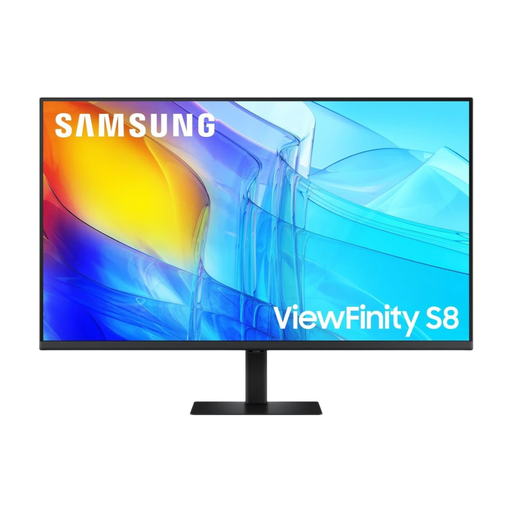
Samsung 37-inch ViewFinity S8 S80D UHD monitor
An option for an sRGB-focused workstation if you’d also like an integrated USB hub.
3840 × 2160 resolution; 100% sRGB according to the product description; anti-glare VA panel; USB hub.
View at Joybuy
 No image available
CRUA CR320QB 32-inch curved 4K monitor
An option for a larger 4K viewing area if your workflow is geared towards sRGB.
VA display; 3840 × 2160 resolution; 3000R curvature; 100% sRGB according to the product description.
View at Joybuy
Frequently asked questions
Do both screens need to be the same model for comparing colours?
No. The model name alone doesn’t prove that the colours will match. Set up a suitable colour management workflow for every screen you use to check colours; age, ambient light and calibration can all affect how they appear.
How do you set up colour checking after connecting your monitors?
First decide on your output, then calibrate or create profiles for the displays you use to assess colours. Adobe describes tools for Windows and macOS; for hardware calibration, check that your specific monitor and its software support it.
Is USB-C automatically enough for two 4K screens?
No. A USB-C port on the monitor doesn’t prove that your computer can drive two 4K displays through it in the mode you want. Check your computer’s video outputs, the planned signal path and, if you’re using a laptop, its charging requirements. Daisy-chaining features vary by model.
What should you know about energy use and faults?
Compare the model-specific information on the EU energy label or in EPREL, and don’t treat wattage figures for different operating modes as equivalent. If a product is faulty, distinguish your statutory rights against the seller from a voluntary manufacturer’s warranty; the Verbraucherzentrale explains the difference.
How do you dispose of an old monitor in Germany?
Don’t put an old monitor in your household rubbish. The Umweltbundesamt lists recycling centres and suitable retail take-back schemes as ways to dispose of electrical equipment.


