If you often need to reposition your script during a video call, a dual arm with independently adjustable monitors could be a good option – provided both screens and your desk are within the model’s limits. If your workspace is close to a wall, a rotation stop can help; a freestanding stand avoids the need for a desk clamp, but takes up space with its base. Before you buy, check the VESA patterns, monitor weight, screen dimensions and the mounting options available on your desk.
Who is a dual monitor mount suitable for?
Anyone reading a script during video calls
If you want to read a script alongside the screen you use for your call, you should be able to position the second monitor to suit your task and line of sight. The DGUV reports that results when working with multiple screens vary depending on the screen configuration and type of task.
Buyers with monitors of different sizes or weights
Check the mounting and weight limits for each arm separately. A general screen-size specification alone won’t tell you whether both of your existing monitors are suitable for the mount.
Home offices with limited desk space
When space is tight, the desk edge, room behind the desk and footprint of a freestanding base all play different roles. What matters is whether the mounting option suits your desk surface and the space available.
What should you look for when choosing one?
First, compare both monitors with the mount’s limits. Then check that the mounting method and range of movement will work at your desk.
| What matters |
What to check before buying |
Who is this important to? |
| Positioning your script |
Check that each monitor can be adjusted separately for height and depth, and rotated. Allow for the arms’ range of movement at your desk. |
If I want to position my script beside the call screen so it’s easy to read during a conversation, the arms’ flexibility is essential. Around 31% of consumers say script positioning is their top buying priority. |
| Mounting both monitors |
Compare each monitor’s VESA pattern and weight without its stand with the specifications for the relevant arm. For the ARCTIC Z2-3D (Gen 3), the manufacturer specifies a maximum of 8 kg per arm and a monitor width of up to 820 mm, provided both monitors are the same width and in landscape orientation. |
If you want to mount two existing screens securely and make sure they fit, check each display individually. Around 31% of consumers say monitor compatibility is their top buying priority. |
| Matching the mount to your desk |
Check the desk surface’s thickness and construction, access to the desk edge, and distance from the wall or partition. For the Z2-3D (Gen 3), ARCTIC specifies a desk thickness of 20–65 mm and recommends reinforcing hollow-core surfaces. |
If I want to avoid putting unsuitable strain on my desk or losing space to a base, the mounting method needs to suit the desk. Around 25% of consumers say desk compatibility is their top buying priority. |
| Accessories and after-sales support |
Check what’s included and whether you might need adapters or desk reinforcement. If a product is faulty, your statutory rights against the seller and a manufacturer’s warranty are separate forms of protection. |
If you want to know which parts you’ll need for installation and what support is available after you buy, pay particular attention to the package contents and warranty terms. Around 13% of consumers say accessories and after-sales support are their top buying priority. |
Common mistakes when choosing
-
Looking only at the advertised screen size
Even if a monitor is within the stated screen-size range, it may exceed an arm’s weight limit or have an incompatible VESA pattern. The width and arrangement of both displays can also matter.
Check the VESA pattern and weight without the stand for each monitor. Also read the conditions for curved, ultra-wide or differently positioned screens.
-
Attaching a clamp to a hollow-core desk without checking first
For the Z2-3D (Gen 3), ARCTIC warns that clamping can damage honeycomb or sandwich panels with hollow cores.
Check your desk’s construction and the mounting instructions for the mount you choose. ARCTIC recommends reinforcing the panels mentioned above; if a clamp isn’t suitable, consider a different mounting method.
-
Assuming a freestanding dual stand is just as space-saving as a clamp
The base of the Duronic DM35D2 sits on the desk. Unlike a desk clamp, it doesn’t leave the space underneath clear.
Measure the footprint you’ll need and compare it with the requirements for clamp or through-desk mounting.
Key brands at a glance
ARCTIC
The Z2-3D (Gen 3) is a dual gas-spring arm for frequent repositioning. ARCTIC also specifies a USB hub.
- According to ARCTIC, it supports VESA 75 × 75 and 100 × 100 mm and up to 8 kg per arm; designed for desk surfaces 20–65 mm thick.
- According to the manufacturer, the maximum monitor width applies when two screens of equal width are in landscape orientation. ARCTIC recommends reinforcing hollow-core panels.
Neomounts
The DS70-250BL2 from the NEXT Slim range is an adjustable dual arm with a 180° rotation stop, designed for workspaces close to a wall.
- Neomounts specifies a gas spring, clamp or through-desk mounting, and VESA 75 × 75 or 100 × 100 mm.
- The manufacturer’s limit is up to 9 kg per screen, or up to 8 kg for curved or ultra-wide displays. The stop limits the swivel range.
Duronic
The DM35D2 is a freestanding alternative if you don’t want to clamp or drill into your desk.
- Duronic specifies two swivel arms and a 40 cm central pole for monitors up to 27 inches.
- The base takes up desk space. Adjusting the height on the central pole isn’t the same as the free movement of a gas-spring arm.
StarTech.com
The ARMDUAL30 is an option to consider if you’re looking to position your monitors side by side or one above the other.
- StarTech.com specifies up to 30 inches for two monitors side by side and up to 24 inches when arranged vertically, with a maximum of 9 kg per arm in either configuration.
- The size specifications apply to different arrangements and can’t be combined into one general limit.
Invision
The MX400 is a dual arm with gas-spring assistance and a choice of clamp or through-desk mounting.
- Invision specifies 19–32 inches, VESA 75 × 75 and 100 × 100 mm, and 2–9 kg per arm.
Joybuy products for a script-and-video-call workspace
This selection includes dual monitor stands and arms for positioning two screens in a home office. When choosing, make sure the design suits your desk and existing monitors.
 No image available
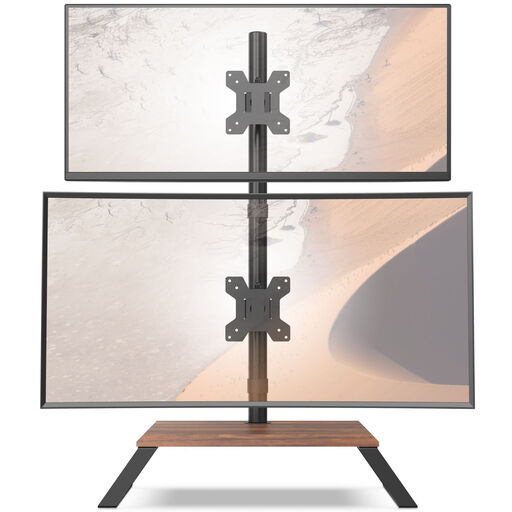
AOKCOS dual monitor stand, 12–27 inches, with shelf
An option if you want to position each monitor separately for your video call and script.
For 12–27 inches; according to the product description, VESA 75 × 75 or 100 × 100 mm and up to 10 kg per arm. The arms can be adjusted for height, tilted, swivelled and rotated.
View at Joybuy
 No image available
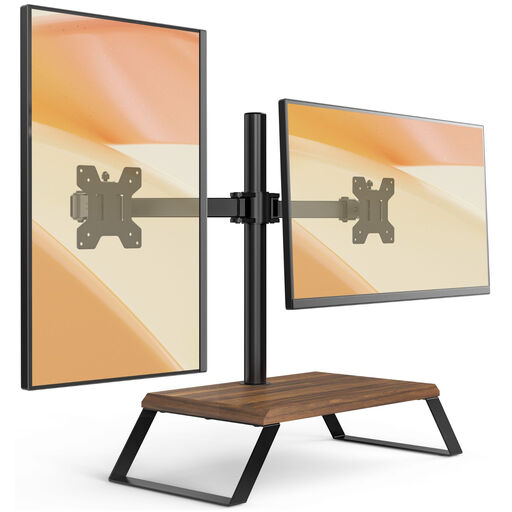
AOKCOS dual monitor stand, 12–27 inches
A good option if you want to position two screens separately and make use of an additional shelf.
For 12–27 inches; according to the product description, VESA 75 × 75 or 100 × 100 mm and up to 10 kg per arm. The arms can be adjusted for height, tilted, swivelled and rotated; the shelf is rated for up to 5 kg.
View at Joybuy
 No image available
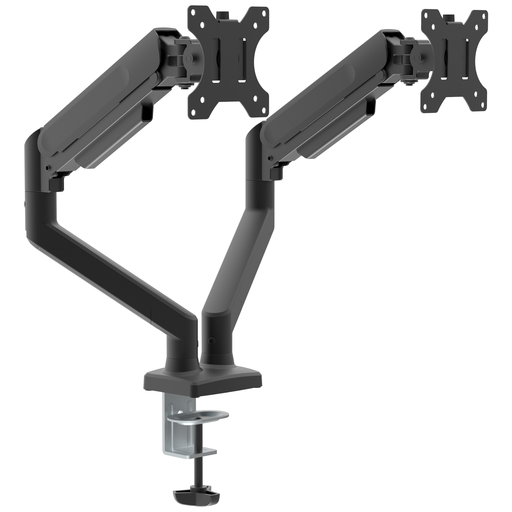
Floordirekt dual gas-spring monitor arm, 15–32 inches
An option if you want to reposition your script screen with a gas-spring arm and clamp or through-desk mounting could work for you.
For 15–32 inches; according to the product description, VESA 75 × 75 or 100 × 100 mm and 2–10 kg per monitor. Tilt, swivel and rotation adjustments are also specified.
View at Joybuy
 No image available
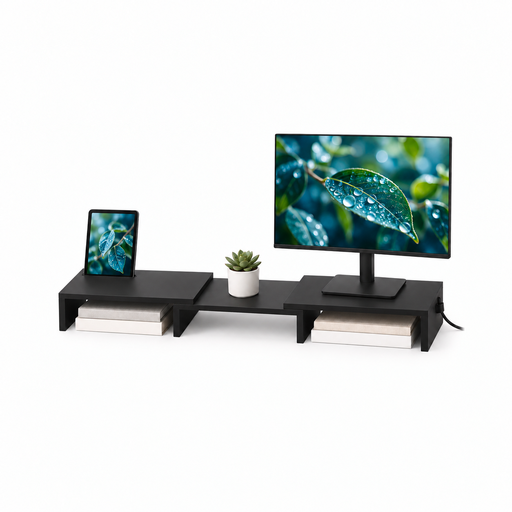
Floordirekt monitor stand for two monitors, 80–108 cm, black
A shared shelf with independently swivelling side platforms could work if you’d rather not mount adjustable arms at the edge of your desk.
According to the product description, the width adjusts from 80 to 108 cm. The height is fixed at 10.4 cm; no height adjustment is specified.
View at Joybuy
Frequently asked questions
How can I tell if both my screens will fit a dual arm?
For each screen, compare its VESA pattern and weight without the stand with the limit for the relevant arm. Check the width and arrangement too: for example, ARCTIC’s width specification for the Z2-3D (Gen 3) applies to two monitors of equal width in landscape orientation.
What should I adjust after mounting the screens for reading alongside a video call?
Position both screens to suit your particular task and line of sight, rather than assuming one arrangement works for everyone. The DGUV reports that results with multiple screens varied depending on the configuration and type of task.
What should I consider if my desk has a hollow-core surface?
For the Z2-3D (Gen 3), ARCTIC recommends a reinforcement plate for honeycomb or sandwich panels with hollow cores to prevent clamping damage. This is a mounting recommendation for this model. Also check the instructions for the mount you choose and make sure your desk is suitable.
Is a longer manufacturer’s warranty the same as statutory consumer rights?
No. In the EU, consumers are generally entitled to a minimum two-year legal guarantee from the seller for faulty goods. A manufacturer’s warranty may provide additional cover; check the terms for the specific model.
Does German workplace safety law require a specific dual monitor arm for every home office?
ASR A6 does not establish a general requirement to buy a particular dual monitor arm. It applies to screen-based workstations in workplaces and teleworking stations; use in private homes outside teleworking stations is excluded. Whether a particular home workspace legally counts as a teleworking station depends on how it is set up and what has been agreed.


