Anyone who regularly compares versions
If you want to keep two document versions side by side and adjust their position as needed, the layout and width of both monitors are important factors to consider.


For comparing document versions regularly, choose a stand that lets you position both existing screens side by side in the way that suits you. First check the VESA mounting pattern, the weight of each monitor, the width of the casings and how the stand attaches to your desk. Then choose between adjustable desk arms and a freestanding stand.
If you want to keep two document versions side by side and adjust their position as needed, the layout and width of both monitors are important factors to consider.
If you need room for your keyboard and papers, consider whether a desk clamp will fit your desk or whether a freestanding base would be a better choice.
Check the VESA mount and weight of each screen against the specifications for its arm. Screen size alone isn’t enough.
First, check that both monitors’ specifications fall within the stand’s limits. Then measure your desk and decide where you want the screens before choosing a clamp, grommet mount or base.
| What matters | What to check before buying | Who is this important to? |
|---|---|---|
| Compatibility | Check the VESA mounting pattern and weight of each screen against the load capacity per arm, and note any stated minimum load. | If I want to mount both of my existing monitors securely, I’ll check each one individually. For around 26% of consumers, compatibility is the top priority. |
| Side-by-side positioning | Check the overall width, including the bezels, and the arms’ adjustment range for your preferred position. | If I want to compare two document versions directly, I need room to view them side by side. Around 26% of consumers consider this layout their most important buying decision. |
| Desk mounting | Measure the desktop thickness, edge shape, clearance beneath the desk and distance from the wall. If you’re using a grommet mount, check that there’s a suitable hole. | If my desk doesn’t have a suitable edge for a clamp, or there’s little free space, the mounting method needs to suit my workspace. For around 21% of consumers, desk mounting is the main consideration. |
| Adjustability | Check that you can move both screens to the height, side and depth you need for your sitting position. | If I often change the position of my screens while reading or comparing documents, I want to be able to adjust each one independently. Around 16% of consumers put adjustability first. |
| What’s included and customer support | Check the mounting accessories included and the terms of any voluntary manufacturer’s warranty for the exact model. | If I want to check the accessories and support terms in advance, I’ll compare them with my statutory rights against the seller. This is the main concern for around 11% of consumers. |
The screen size in inches doesn’t tell you whether the mounting pattern and weight are suitable for each arm. The width of the casing can also limit how you position the screens side by side.
Check the VESA mounting pattern and weight of each monitor against the specifications for the stand’s full model number.
A freestanding stand takes up space on your desktop. A clamp uses less of that space, but it needs a suitable desk edge.
Before deciding, measure the free space on your desk and check whether the chosen mounting method will work with your desktop.
According to Ergotron, the Ergotron LX Dual Side-by-Side 45-491-216 comes with a desk clamp; the grommet mount is listed as an accessory.
Before buying, check what’s included with the exact model number and mounting option.
You may need additional mounting accessories if you want to use a grommet mount.
The Z2-3D (Gen 3) is worth considering if you want to reposition two monitors using adjustable gas spring arms.
The DS70-250BL2 is worth considering for an adjustable dual monitor setup close to a wall.
The DM35D2 is a freestanding alternative if you’d rather not use a desk clamp.
The LX Dual Side-by-Side 45-491-216 is specifically designed for monitors positioned next to each other.
The MX400 is a dual arm that lets you position two screens independently.
The models below include freestanding dual monitor stands and a desk mount with adjustable arms.
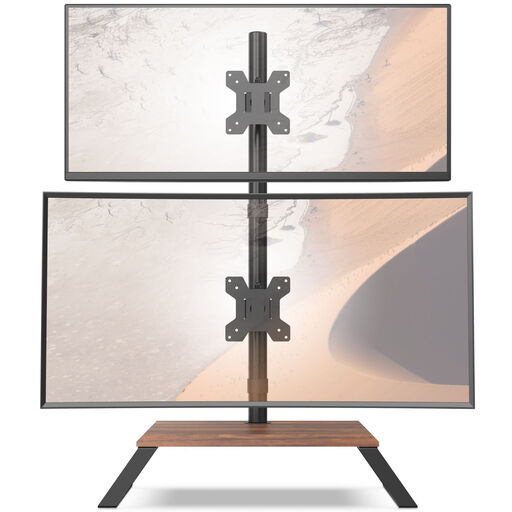 No image available
This model is a freestanding option if you don’t want to use a desk clamp.
The product title lists tilt, swivel, rotation and height adjustment, as well as a shelf. The stated screen size is 12–27 inches.
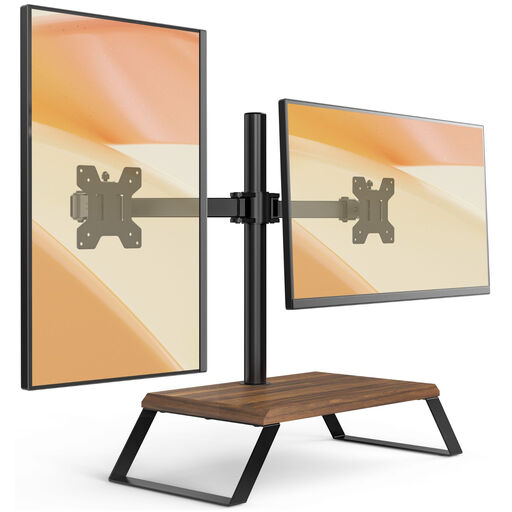 No image available
This freestanding stand is an option if you want to set up your monitors without a desk clamp.
The product title lists tilt, swivel, rotation and height adjustment. The stated screen size is 12–27 inches.
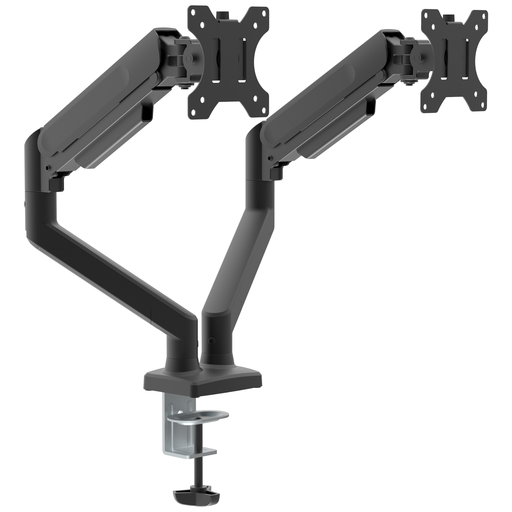 No image available
This desk arm is an option for two independently positioned screens, provided it can be mounted on your desk.
The product title describes a gas spring arm for two monitors and a screen size of 15–32 inches. The stated load range is 2–10 kg per monitor, so lighter screens are outside this range.
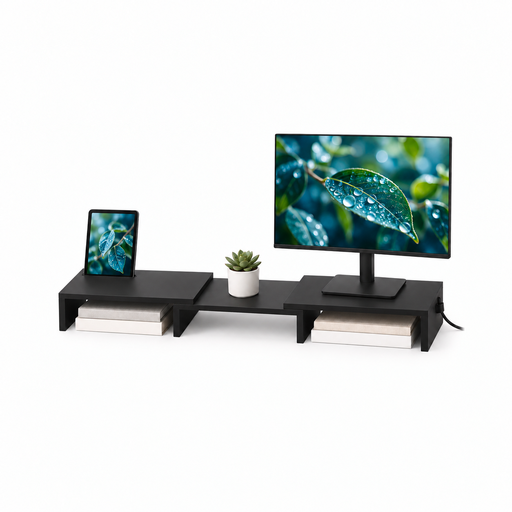 No image available
This freestanding stand is an option if you want to adjust the width and angle to suit your side-by-side screens.
The product title lists adjustable width and tilt, MDF and a black finish, with a width of 80–108 cm.
The height is fixed at 10.4 cm. You can adjust the width and angle, but not the height.
No. Also check each monitor’s VESA mounting pattern and weight, as well as whether there’s enough room for both casings in your preferred layout. Neomounts explicitly describes screen size as a guide only for the DS70-250BL2.
Measure the desktop thickness and usable edge, and check the clearance beneath the desk and the distance from the wall. For the ARCTIC Z2-3D (Gen 3), ARCTIC specifies a desktop thickness of 20 to 65 mm and recommends a reinforcement plate for desktops with hollow-core sections.
Position both screens to suit your actual sitting and reading position, then check that the arms offer the range of movement you need. The ASR A6 from the Federal Institute for Occupational Safety and Health applies to screen-based work within its scope, but it doesn’t set a universal standard for every home desk.
For a consumer purchase, your statutory rights are against the seller. A manufacturer’s warranty is an additional voluntary offer with its own terms. The Verbraucherzentrale distinguishes between these rights and offers, and explains that defects are generally covered by a two-year statutory warranty period.
No. The ASR A6 from the Federal Institute for Occupational Safety and Health includes teleworking workplaces within its scope, but excludes screen use in private homes outside teleworking workplaces. Under § 2 Absatz 7 ArbStättV, a teleworking workplace requires an agreement and must be set up by the employer; simply calling somewhere a “home office” doesn’t determine its status.