Who is a dual-screen monitor setup for tilesets suitable for?

Tileset artists with a reference screen

If you edit tiles and keep references or a game view open on the second screen, a clear editor and a practical window arrangement are key. Aseprite and Godot document features for working with tilesets and tilemaps.

Artists who need to check colour

If you assess graphics for a specific output, consider the appropriate colour mode on both displays. ASUS, BenQ and EIZO document colour modes for certain models, but that does not automatically mean the screens will match.

Creative professionals using a laptop and two displays

If you want to connect an additional monitor to a laptop, check your devices’ requirements against the video outputs, dock or hub and, where relevant, power supply. Microsoft Support explains how to arrange multiple displays in Windows.

What should you look for in a tileset monitor?

27-inch 4K monitor with documented colour modes

A good choice if: you want to assess fine graphic details on your main screen, while keeping the editor and preview clear at your preferred scaling.

Things to consider: Allow for desk space and scaling. ASUS Germany lists 4K and an sRGB mode for the PA279CRV, while BenQ lists 4K and sRGB coverage for the PD2706U. These manufacturer specifications do not prove that colours will match across two displays.

27-inch QHD monitor with a hub

A good choice if: connectivity for an editor and reference setup matters more to you than having 4K on a single monitor. Dell lists QHD, a hub and power delivery via the appropriate port for the U2724DE.

Things to consider: At the same screen size, QHD has fewer pixels than 4K. A hub and power delivery only help if your computer is compatible.

Graphics monitor focused on colour management

A good choice if: you also work with defined output colour spaces, as well as tilesets, and use profiles or calibration in your workflow. EIZO documents sRGB and Adobe RGB presets, among others, for the CS2740.

Things to consider: A wider colour gamut isn’t necessary for every tileset. It also doesn’t guarantee accuracy after setup or colour consistency with the second display.

What you’re looking for What to check before buying Who is this important to?
A clear editor and room for the preview Compare the screen size and native resolution with your planned window layout; check your preferred scaling on your computer. If I want to see the editor and preview at the same time, readable controls and enough screen space matter more than a high pixel count alone. Around 33% of consumers prioritise usable workspace.
Consistent colours across both screens Check the output colour space and colour modes of the specific model; set up both displays for their intended purpose. If I’m checking colours for a specific output, I want to set the appropriate mode on both displays. Around 27% of consumers prioritise accurate colour reproduction.
Connecting two displays Check the video outputs and supported display modes of your computer and dock against the inputs on both monitors; check laptop charging power separately. With a laptop and two displays, I want to know whether the computer or dock can actually drive both monitors. Around 20% of consumers prioritise port compatibility.
Positioning both screens comfortably Check the dimensions, including the stand, as well as height and swivel adjustment. If I’m arranging two displays on a desk, they need to fit the available space and offer the right adjustment options. Around 13% of consumers prioritise positioning.
Overall cost and power consumption Compare what’s included, any cables or dock you’ll need, and the energy label for the specific model. If I want to consider the purchase price, accessories and ongoing energy use together, I need details for the specific model and my setup. Around 7% of consumers prioritise overall cost.

Common misconceptions when choosing a monitor

  • 4K automatically means more usable space for your editor

    How much you can actually read and see at once also depends on scaling, the software interface and screen size.

    Plan how you’ll use the editor, preview and references across both displays before choosing a resolution.

  • A stated colour gamut guarantees matching colours across both displays

    Manufacturer information about colour modes and colour coverage applies to the individual model. It isn’t a measurement of your pair of screens.

    Choose your output colour space and check the settings on both displays for that purpose.

  • USB-C or a monitor hub is all you need for two screens

    A port on the monitor doesn’t confirm that your laptop supports both displays in the arrangement you want or can supply enough power.

    Compare the ports and supported display modes on your computer, dock and both monitors.

Key brands for tileset monitors at a glance

ASUS

The ProArt PA279CRV is a 27-inch 4K option for graphic work, with documented colour modes.

  • ASUS Germany lists an sRGB mode, USB-C with 96 W Power Delivery and height adjustment, among other features, for this model.
  • These manufacturer specifications don’t prove that the colours will match those on an existing second monitor.

BenQ

The DesignVue PD2706U is a 27-inch 4K option with stated sRGB coverage for digital design.

  • BenQ lists 100% sRGB coverage and a manufacturer-stated colour accuracy of Delta E ≤ 3 for the PD2706U.
  • These figures aren’t an independent measurement of the unit you’ll be buying, and don’t apply universally to other BenQ models.

Dell

The UltraSharp U2724DE is a 27-inch QHD option for a workstation with hub features and connectivity.

  • Dell lists QHD, a hub and power delivery via the appropriate port for this model.
  • Whether the hub and power delivery work with your computer depends on its ports and support.

LG

The UltraFine 27UP850K-W is a 27-inch 4K IPS option with USB-C and an adjustable stand.

  • LG lists a typical value of 95% DCI-P3 and describes a calibration feature for this model.
  • A DCI-P3 figure alone doesn’t prove accuracy in the output mode you need or consistency with the second display.

EIZO

The ColorEdge CS2740 is a 27-inch 4K option for a specifically colour-managed graphics workflow.

  • EIZO documents sRGB and Adobe RGB presets, among others, for the CS2740.
  • Whether you need the additional colour gamut for your tileset depends on your output requirements and workflow.

Monitors at Joybuy for dual-screen tileset work

This selection includes monitors that can work as a main or secondary screen in a tileset workstation, depending on their resolution, colour mode and connectivity.

TCL 32x3A 32-inch OLED monitor, 4K UHD

TCL 32x3A 32-inch OLED monitor, 4K UHD

Listed as a 32-inch 4K UHD monitor, it could work as your main screen alongside a second display.

The description lists 3840 × 2160 pixels, 10-bit colour depth, HDMI and DisplayPort connections, plus height adjustment, pivot and tilt.

The product description lists OLED Care as a measure to reduce the risk of burn-in.

View at Joybuy

MSI MAG 274UPDFDE E16M, 27-inch, UHD 160 Hz/FHD 320 Hz, Mini-LED

MSI MAG 274UPDFDE E16M, 27-inch, UHD 160 Hz/FHD 320 Hz, Mini-LED

This 27-inch 4K option could serve as your main monitor for tileset work alongside a second display.

The description lists 3840 × 2160 pixels, Mini-LED, Quantum Dot technology, and HDMI, DisplayPort and USB-C connections.

According to the description, the stand is height-adjustable, swivels, tilts and rotates.

View at Joybuy

MSI PRO MP273UPDE E6, 27-inch 4K UHD IPS monitor

MSI PRO MP273UPDE E6, 27-inch 4K UHD IPS monitor

The combination of a 27-inch screen and 4K UHD makes this an option for the main display in a tileset workstation.

The description lists a 60 Hz IPS display with 3840 × 2160 pixels, HDMI and DisplayPort inputs, and an sRGB picture mode.

According to the description, the stand offers height adjustment, pivot, swivel and tilt.

View at Joybuy
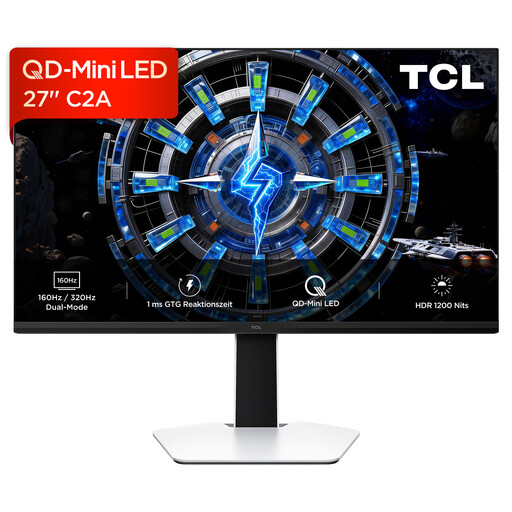
TCL 27C2A, 27-inch QD Mini-LED monitor

TCL 27C2A, 27-inch QD Mini-LED monitor

Described as a 27-inch QD Mini-LED monitor, it could work as your main screen alongside a second display.

The product name lists HDR10, 160 Hz and 320 Hz in FHD mode. The description lists HDMI and DisplayPort connections.

Check the exact model specifications and whether the connections are compatible with your computer before choosing.

View at Joybuy

CRUA CR320QB, 32-inch curved 4K monitor

CRUA CR320QB, 32-inch curved 4K monitor

The product name describes the CR320QB as a 32-inch curved monitor with 4K UHD resolution. Consider its size and curvature when positioning it alongside a second display.

The product name also lists HDR10 and 100% sRGB.

Check the model specifications and available connections for your setup before buying.

View at Joybuy

Frequently asked questions about dual-screen monitors for tilesets

Do I definitely need 4K for tilesets?

No. What matters is whether the tile editor and preview are comfortable to use at your chosen scaling. A second screen can show references or another view, so compare your planned window layout before deciding on a resolution.

How do I set up two displays in Windows?

Connect both displays to suitable outputs, then arrange them in Windows display settings to match their positions on your desk. Microsoft Support explains how to identify and move detected screens. Check your computer’s specifications to confirm whether it supports both display modes you want.

Will a wide colour gamut automatically make the colours match on both screens?

No. Manufacturer information about colour modes or gamut coverage applies to individual models. To compare two displays, you’ll need to consider your output requirements and how both screens are set up.

How can I compare ongoing electricity costs?

The European Commission includes electronic displays, such as computer monitors, in EU energy labelling. Compare the energy label and consumption figures for the specific model. To work out a cost in euros, you’ll also need your usage hours and electricity tariff.

Do rules for display screen workstations also apply to a home tileset desk?

The ASR A6, published by the Federal Institute for Occupational Safety and Health, sets out requirements for workplaces and teleworking locations within its scope, and explicitly excludes use in private homes outside teleworking arrangements. If your workstation falls within its scope, discuss the requirements with your employer or the relevant authority.